 Windows 7 修改 MAC 地址



 本文介绍如何在 Windows 7 操作系统中修改网卡的 MAC 地址,包括通过设备属性直接更改和通过注册表编辑的方式,并提供了一个实用工具作为替代方案。
Today, I installed a software which I activated on a different PC before but it gave an error of MAC address check failure. It was actually checking MAC address from license. Right after that, I started online search for a utility to change MAC address in windows 7. In XP, there were free utilities available on internet which changed MAC address but I couldn’t find such utility for windows 7.
Here is a method of changing MAC address in windows 7, Go to Control Panel>>Network and Sharing Center>>Change Adapter Settings. Then right click the adapter whose MAC address you want to change, go to its properties.

The properties window will pop up, click “configure”. Click “Advanced” tab and choose “Network Address”. Write the new MAC address in a box under Value.
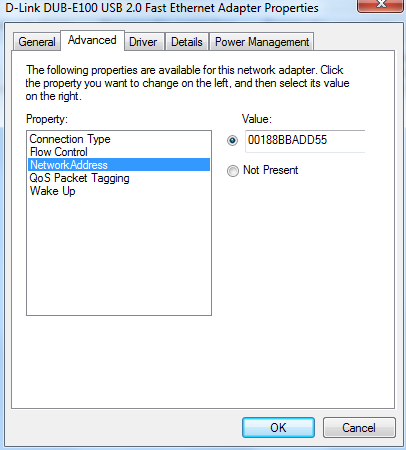
Please note that some of the device drivers provide an option to change the MAC address but some don’t. I have 2 network adapters, one is D-Link DUB-E100 while the other one is Broadcom NetXtreme 57xx Gigabit Controller. The former one allows to change the MAC address directly but the later one doesn’t. To change the MAC of such an adapter which doesn’t have such option, you will be required to modify in registry.
Procedure for changing MAC address through registry:

Step 1: Go to Start>>Run and execute “regedit” to open up a registry editor.
Step 2: Navigate as follows:
[HKEY_LOCAL_MACHINE>>SYSTEM>>CurrentControlSet>>Control>>Class>>{4D36E972-E325-11CE-BFC1-08002BE10318]

As the above image shows, you will see a lot of options like 000, 001 etc under 4D36E972-E325-11CE-BFC1-08002BE10318. Here you will have to choose the option which matches your current MAC address. For example, my current MAC is 00-18-8B-BA-DD-55, I will choose 0018 since the first four HEX numbers of the MAC are 00-18. When 0018 is clicked, it will show some files on the right side as shown below.

Right click the “Network Address” and choose “Modify …”. In a new window which pops up, write a new MAC under Value data.

Click OK. Disable and then enable your adapter and check your new adapter MAC via ipconfig -all command to be run on a Command prompt. That’s all !
How to change MAC-Address in Windows Registry
MAC-Address is the hardware Network Address for the NIC which is unique for the system. However, there may be time when you need to change the MAC-Address for administrative purpose on a network. Some of the device drivers come with an option to change it from the device properties but not all (like my Broadcom Gigabit Ethernet Driver). For those who do not have the luxury of changing the MAC-Address from the device properties there is a way to do this by editing the Windows Registry.
To change MAC-Address for a Network card in Windows Registry:
1. Click Start – Run, type “regedit”
2. Navigate to
[HKEY_LOCAL_MACHINE\SYSTEM\CurrentControlSet\Control\Class\{4D36E972-E325-11CE-BFC1-08002BE10318]
HKEY_LOCAL_MACHINE
\SYSTEM
\CurrentControlSet
\Control
\Class
\{4D36E972-E325-11CE-BFC1-08002BE10318}
3. Under this key, you shoud see numbers in sequence as “0000″, “0001″ and so on. Click on one at a time to check the description of the device to match it with that of your Network Card. In my case (0001)

4. Once found, in the right-pane, look for “NetworkAddress” key value. If you find it, right-click and select modify. Enter the desired MAC-Address as a 12 digit number (all in one, no “space” “.” or “-”)
5. If you don’t find the key, right-click in the rightpane, select “New” – “String Value”. Enter the name as “NetworkAddress”. Now modify and set the desired value.
6. Now, disable and enable the Network card from the ControlPanel – Network Connections.
This should reflect the new MAC-Address on your NIC. Should you choose to go back to the original manufacturer set MAC-Address simply delete the key you just created/modified in the Windows Registry.

You can also use a tool like Technitium MAC Address Changer to change the MAC-Address of your NIC





 扫一扫
扫一扫


 360
360

 被折叠的 条评论
为什么被折叠?
被折叠的 条评论
为什么被折叠?
 到【灌水乐园】发言





