 VSCode 配置优化与设置详解





 本文详细介绍了Visual Studio Code的个性化配置,包括颜色主题、编辑器行为、自动完成、窗口缩放、文件排除、代码格式化、Git集成等关键设置,旨在提升开发效率和代码质量。
一、插件安装
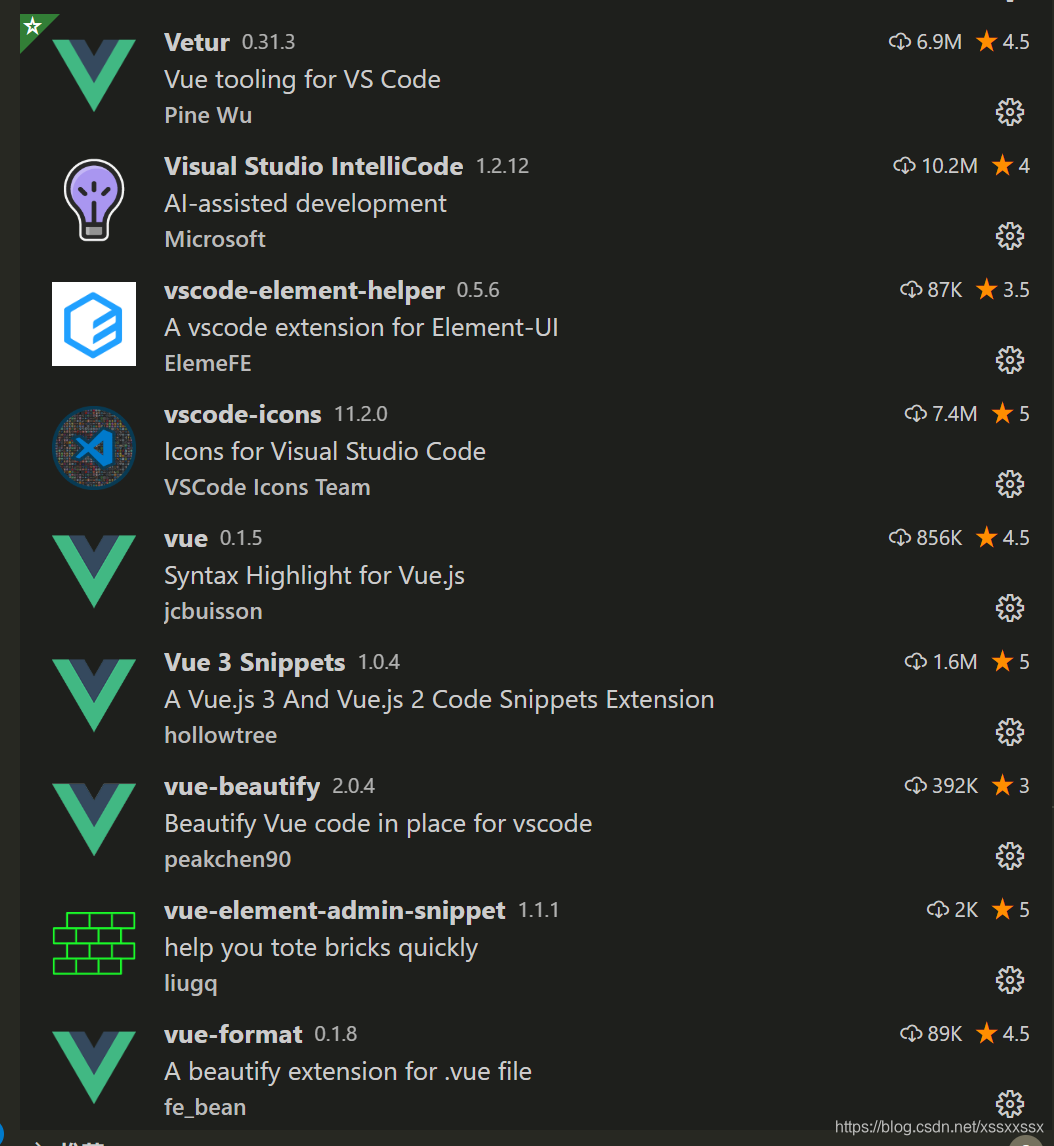
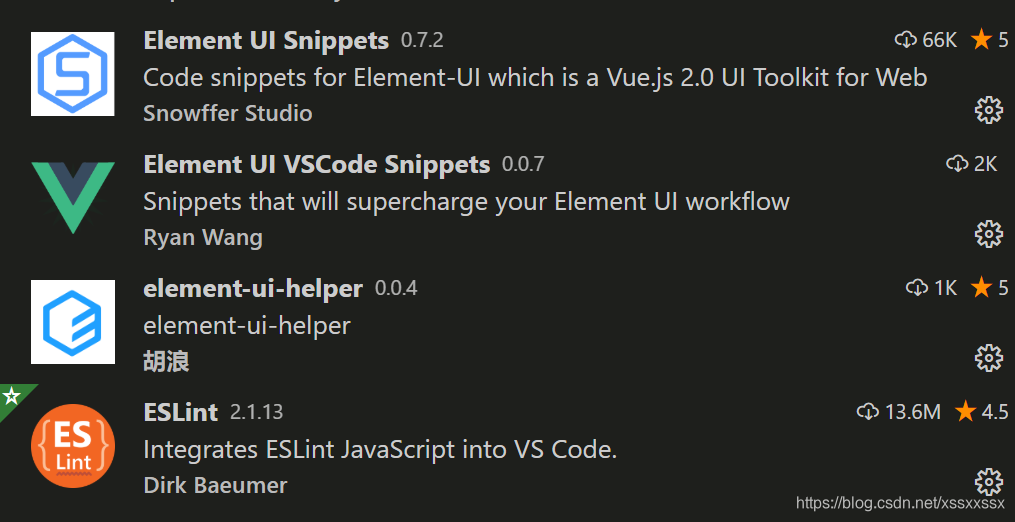
二、设置用户首选项setting.json
{
    "workbench.colorTheme": "Monokai",
    "workbench.editor.enablePreview": false, //打开文件不覆盖
    "search.followSymlinks": false, //关闭rg.exe进程
    "editor.minimap.enabled": false, //关闭快速预览
    "liveServer.settings.donotShowInfoMsg": true, //关闭liveserver提示
    "editor.fontSize": 13, //设置文字大小
    "editor.lineNumbers": "on", //开启行数提示
    "editor.quickSuggestions": { //开启自动显示建议
        "other": true,
        "comments": true,
        "strings": true
    },
    "window.zoomLevel": 0, // 调整窗口的缩放级别
    "editor.tabSize": 2, //制表符符号eslint
    "editor.formatOnSave": true, //每次保存自动格式化
    "prettier.semi": false, //去掉代码结尾的分号
    "prettier.singleQuote": true, //使用单引号替代双引号
    "javascript.format.insertSpaceBeforeFunctionParenthesis": true, //让函数(名)和后面的括号之间加个空格
    "editor.codeActionsOnSave": {
        "source.fixAll.eslint": true
    },
    "editor.suggestSelection": "first",
    "vsintellicode.modify.editor.suggestSelection": "automaticallyOverrodeDefaultValue",
    "java.configuration.checkProjectSettingsExclusions": false,
    "java.errors.incompleteClasspath.severity": "ignore",
    "breadcrumbs.enabled": true,
    "editor.renderControlCharacters": false,
    "eslint.validate": [

    ],
    "vetur.format.defaultFormatter.html": "js-beautify-html", //格式化.vue中html
    "vetur.format.defaultFormatter.js": "vscode-typescript", //让vue中的js按编辑器自带的ts格式进行格式化
    "vetur.format.defaultFormatterOptions": {
        "js-beautify-html": {
            "wrap_attributes": "force-aligned" //属性强制折行对齐
        }
    },
    "git.enabled": false,
    "workbench.iconTheme": "vscode-icons",
    "terminal.integrated.shell.windows": "C:\\Windows\\System32\\cmd.exe",
    "python.languageServer": "Microsoft",
    "files.exclude": {
        "**/node_modules": true
    }
}





 扫一扫
扫一扫


 2320
2320

 被折叠的 条评论
为什么被折叠?
被折叠的 条评论
为什么被折叠?
 到【灌水乐园】发言





