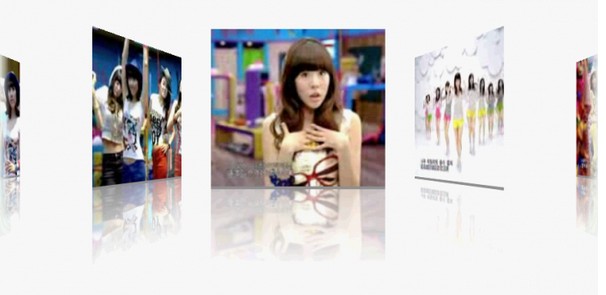

使用过Android自带的gallery组件的人都知道,gallery实现的效果就是拖动浏览一组图片,相比iphone里也是用于拖动浏览图片的coverflow,显然逊色不少。实际上,可以通过扩展gallery,通过伪3D变换可以基本实现coverflow的效果。本文通过源代码解析这一功能的实现。具体代码作用可参照注释。
要使用gallery,我们必须首先给其指定一个adapter。在这里,我们实现了一个自定义的ImageAdapter,为图片制作倒影效果。
传入参数为context和程序内drawable中的图片ID数组。之后调用其中的createReflectedImages()方法分别创造每一个图像的倒影效果,生成对应的ImageView数组,最后在getView()中返回。
return Math.max(0, 1.0f / (float) Math.pow(2, Math.abs(offset))); |
仅仅实现了图片的倒影效果还不够,因为在coverflow中图片切换是有旋转和缩放效果的,而自带的gallery中并没有实现。因此,我们扩展自带的gallery,实现自己的galleryflow。在原gallery类中,提供了一个方法getChildStaticTransformation()以实现对图片的变换。我们通过覆写这个方法并在其中调用自定义的transformImageBitmap(“每个图片与gallery中心的距离”)方法,,即可实现每个图片做相应的旋转和缩放。其中使用了camera和matrix用于视图变换。具体可参考代码注释
public class GalleryFlow extendsGallery { |
* Graphics Camera used for transforming the matrix of ImageViews |
privateCamera mCamera = newCamera(); |
* The maximum angle the Child ImageView will be rotated by |
privateint mMaxRotationAngle =60; |
* The maximum zoom on the centre Child |
privateint mMaxZoom = -120; |
* The Centre of the Coverflow |
privateint mCoveflowCenter; |
publicGalleryFlow(Context context) { |
this.setStaticTransformationsEnabled(true); |
publicGalleryFlow(Context context, AttributeSet attrs) { |
this.setStaticTransformationsEnabled(true); |
publicGalleryFlow(Context context, AttributeSet attrs, int defStyle) { |
super(context, attrs, defStyle); |
this.setStaticTransformationsEnabled(true); |
* Get the max rotational angle of the image |
* @return the mMaxRotationAngle |
publicint getMaxRotationAngle() { |
* Set the max rotational angle of each image |
* @param maxRotationAngle |
* the mMaxRotationAngle to set |
publicvoid setMaxRotationAngle(intmaxRotationAngle) { |
mMaxRotationAngle = maxRotationAngle; |
* Get the Max zoom of the centre image |
* Set the max zoom of the centre image |
publicvoid setMaxZoom(intmaxZoom) { |
* Get the Centre of the Coverflow |
* @return The centre of this Coverflow. |
privateint getCenterOfCoverflow() { |
return(getWidth() - getPaddingLeft() - getPaddingRight()) / 2 |
* Get the Centre of the View |
* @return The centre of the given view. |
privatestatic int getCenterOfView(View view) { |
returnview.getLeft() + view.getWidth() / 2; |
* @see #setStaticTransformationsEnabled(boolean) |
protectedboolean getChildStaticTransformation(View child, Transformation t) { |
finalint childCenter = getCenterOfView(child); |
finalint childWidth = child.getWidth(); |
t.setTransformationType(Transformation.TYPE_MATRIX); |
if(childCenter == mCoveflowCenter) { |
transformImageBitmap((ImageView) child, t,0); |
rotationAngle = (int) (((float) (mCoveflowCenter - childCenter) / childWidth) * mMaxRotationAngle); |
if(Math.abs(rotationAngle) > mMaxRotationAngle) { |
rotationAngle = (rotationAngle <0) ? -mMaxRotationAngle |
transformImageBitmap((ImageView) child, t, rotationAngle); |
* This is called during layout when the size of this view has changed. If |
* you were just added to the view hierarchy, you're called with the old |
* Current width of this view. |
* Current height of this view. |
* Old width of this view. |
* Old height of this view. |
protectedvoid onSizeChanged(intw, int h, int oldw, int oldh) { |
mCoveflowCenter = getCenterOfCoverflow(); |
super.onSizeChanged(w, h, oldw, oldh); |
* Transform the Image Bitmap by the Angle passed |
* ImageView the ImageView whose bitmap we want to rotate |
* the Angle by which to rotate the Bitmap |
privatevoid transformImageBitmap(ImageView child, Transformation t, |
finalMatrix imageMatrix = t.getMatrix(); |
finalint imageHeight = child.getLayoutParams().height; |
finalint imageWidth = child.getLayoutParams().width; |
finalint rotation = Math.abs(rotationAngle); |
mCamera.translate(0.0f,0.0f, 100.0f); |
if(rotation < mMaxRotationAngle) { |
floatzoomAmount = (float) (mMaxZoom + (rotation *1.5)); |
mCamera.translate(0.0f,0.0f, zoomAmount); |
mCamera.rotateY(rotationAngle); |
mCamera.getMatrix(imageMatrix); |
imageMatrix.preTranslate(-(imageWidth /2), -(imageHeight /2)); |
imageMatrix.postTranslate((imageWidth /2), (imageHeight /2)); |
代码到这里就结束了。有兴趣的话可以自行调整里面的参数来实现更多更炫的效果。
下面是调用的示例:
public void onCreate(Bundle savedInstanceState) { |
super.onCreate(savedInstanceState); |
setContentView(R.layout.layout_gallery); |
Integer[] images = { R.drawable.img0001, R.drawable.img0030, |
R.drawable.img0100, R.drawable.img0130, R.drawable.img0200, |
R.drawable.img0230, R.drawable.img0300, R.drawable.img0330, |
ImageAdapter adapter =new ImageAdapter(this, images); |
adapter.createReflectedImages(); |
GalleryFlow galleryFlow = (GalleryFlow) findViewById(R.id.gallery_flow); |
galleryFlow.setAdapter(adapter); |
PS1:
可以看出来这样实现的gallery锯齿问题比较严重。可以在createReflectedImages()使用以下代码:
BitmapDrawable bd = newBitmapDrawable(bitmapWithReflection); |
然后用iv.setImageDrawable(bd);
代替iv.setImageBitmap(bitmapWithReflection);
即可基本消除锯齿。
PS2:
ImageAdapter有待确定的MemoryLeak问题,貌似的Bitmap的decode方法会造成ML,使用ImageAdapter时多次旋转屏幕后会出现OOM。目前可以通过将使用完毕的bimap调用recycle()方法和设置null并及时调用system.gc()得到一些改善,但是问题并不明显。
庆祝精华和推荐,增加3个PS~
PS3 ON PS1:
256楼说到,为什么开启抗锯齿后不明显。答案是,锯齿不可能完全消除,但开启抗锯齿后会有很大改善。
另外还说到为什么android不默认开启锯齿,以下是我的一点想法:
插值是我现在所知道的抗锯齿的算法,也就是计算像素间的相关度对其间插入中间像素以达到平滑图像边缘的效果。但这无疑会耗费了大量的运算。
虽然我没有经过测试,但是我猜测,使用antialias后图形性能至少会下降30%。
当然,在这里没有涉及到复杂的图形运算,所以开启抗锯齿不会有很明显的性能影响,但如果你在模拟器或者低端机型上测试就会发现一点问题。
PS4:
有人问到transformImageBitmap()中这俩句话是什么意思:
imageMatrix.preTranslate(-(imageWidth / 2), -(imageHeight / 2));
imageMatrix.postTranslate((imageWidth / 2), (imageHeight / 2));
个人的理解如下:
preTranslate相当于在对图像进行任何矩阵变换前先进行preTranslate,postTranslate相反,进行所有变换后再执行postTranlate。
这俩句的意思是:在做任何变换前,先将整个图像从图像的中心点移动到原点((0,0)点),执行变换完毕后再将图像从原点移动到之前的中心点。
如果不加这俩句,任何变换将以图像的原点为变换中心点,加了之后,任何变换都将以图像的中心点为变换中心点。
举个例子,对图像进行旋转,需要俩个参数:一个是旋转的角度,另一个是旋转中心的坐标。旋转中心的坐标影响旋转的效果。这个能明白吗?你拿一根棍子,拿着棍子的一端进行旋转和拿在棍子中间旋转,是不一样的。preTranslate和postTranslate执行后对图像本身不会有影响,影响的是对图像进行变换时的旋转轴。
说了这么多有点绕,其实就是矩阵变换的知识。
PS5 ON PS2:
这个问题在google group下有过很充分的讨论,貌似一般只在debug模式下存在。现在我使用这段代码没有出现OOM问题了。



 本文介绍如何通过扩展 Android 的 Gallery 组件实现类似 CoverFlow 的图片展示效果,包括图片倒影、旋转和缩放等特性。





 扫一扫
扫一扫


 336
336

 被折叠的 条评论
为什么被折叠?
被折叠的 条评论
为什么被折叠?
 到【灌水乐园】发言





