
Android:谈谈最被误读的属性adjustViewBounds

本文主要探讨Android中ImageView的adjustViewBounds属性。先澄清ImageView和图片的概念,指出网上对该属性的错误解释。接着通过三种情况展示其用法:宽高固定时无效;一边固定一边wrap_content时生效;宽高都为wrap_content时无效。总结得出该属性在特定情况可使图片充满ImageView。

今天,和大家聊聊ImageView上的adjustViewBounds属性。这个属性其实用的也比较多,可有意思的是,网上对这个属性的解释,大部分都是错误或者不准确的。

今天这篇文章,就结合我个人的理解,和大家聊聊adjustViewBounds到底是什么意思。


首先,澄清两个概念:ImageView和图片

ImageView:Android里用来显示图片的控件。ImageView的长宽可以设定为固定值:比如,100dp或match_parent。也可以设定为不固定值:wrap_content。

ImageView的比例:ImageView的长/宽

图片:要显示在ImageView上的图片,起长宽由其物理size决定的。比如200px*300px等。

图片的比例:图片的长/宽

总之,ImageView有自己的长宽,也有自己的原始比例(长/宽)。图片也有自己的长宽,有自己的原始比例。ImageView和图片的长宽及其比例其实是独立的。图片如何被显示在ImageView上,由scaleType、adjustViewBounds等属性共同决定。

网上对adjustViewBounds的错误解释

了解完两个基本概念,接下来看看网上对adjustViewBounds都是怎么解释的。

首先,大多数介绍adjustViewBounds的文章,都会先搬出Google的官方介绍:

Adjust the ImageView's bounds to preserve the aspect ration of its drawable.

然后对上面英文的解释是:调整ImageView的界限来保持图片纵横比不变。

这个解释是错误的!

首先,adjustViewBounds不管是设置成true还是false,都是不会影响图片本身的比例的(长/宽)!注意,这里说的是长宽比例,而不是具体的长和宽。目前为止,只有scaleType=FIT_XY的时候才会有可能影响到图片的比例。

实际上,adjustViewBounds影响的是ImageView的比例(不是图片的比例),所以,对于adjustViewBounds的定义应该是这样:

调整ImageView的边界,使得ImageView和图片有一样的长宽比例。

接下来我会用具体的例子给大家展示下adjustViewBounds的用法。


情况1,当ImageView的宽高都是固定值的时候,adjustViewBounds属性无效

看下面这个例子:


    <ImageView
        android:layout_width="1000px"
        android:layout_height="1000px"
        android:background="@android:color/holo_red_light"
        android:adjustViewBounds="false"
        android:layout_gravity="center"
        android:src="@drawable/image_300_400">
    </ImageView>

首先,我有一个ImageView,宽高都设成固定的值:1000px,这个ImageView的宽高比例就是1。

在这个ImageView上我要显示一个图片(image_300_400),宽300px,高400px,宽高比是3:4。

另外我给这个ImageView设置了红色的背景,方便大家查看ImageView和图片的关系。

在ImageView大小固定的时候,adjustViewBounds的值无论设成什么,效果都是下面的样子:
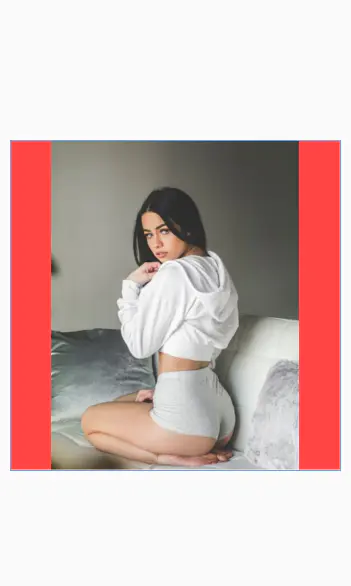
 

ImageView大小固定的情况

通过上图,大家可以清楚的看到:ImageView和图片都分别保持了自己原始比例(1:1和3:4),因为二者的比例不同,所以图片是不会撑满ImageView的,红色的部分就是ImageView没有被图片填满的部分(ImageView的background是红色)。

在这个例子里,图片的比例虽然没有变,但是被拉伸了,这是因为ImageView的默认scaleType是FIT_CENTER,这个就是FIT_CENTER的效果。关于ImageView的scaleType的说明,可以参考这篇文章:图文讲解Android ImageView的ScaleType,帮你彻底搞明白

情况2,ImaegView一边长度固定,另一边为wrap_content的情况

我把上面的例子稍微改下,把ImageView的高度改成wrap_content,adjustViewBounds设为false:


   <ImageView
        android:layout_width="1000px"
        android:layout_height="wrap_content"
        android:background="@android:color/holo_red_light"
        android:adjustViewBounds="false"
        android:layout_gravity="center"
        android:src="@drawable/image_300_400">
    </ImageView>

出来的效果是这样的:
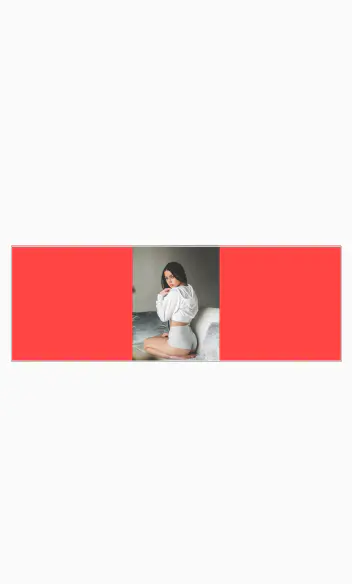
 

宽度固定,高度改成wrap_content,adjustViewBounds设为true

怎么样,是不是和你想的不一样?

要理解上面这个效果,要先理解ImageView的wrap_content是什么意思?

当ImageView的某一个边设置为wrap_content的时候,会根据内容的实际大小来决定实际长度。这里,就是根据图片的实际长度来决定。在这个例子中,图片的实际的高度是400px,所以ImageView的宽高就是1000px和400px。再加上FIT_CENTER,呈现的效果就是这样。

下面我们把adjustViewBounds设为true试试,


    <ImageView
        android:layout_width="1000px"
        android:layout_height="wrap_content"
        android:background="@android:color/holo_red_light"
        android:adjustViewBounds="true"
        android:layout_gravity="center"
        android:src="@drawable/image_300_400">
    </ImageView>

现在的效果变成这个样子:
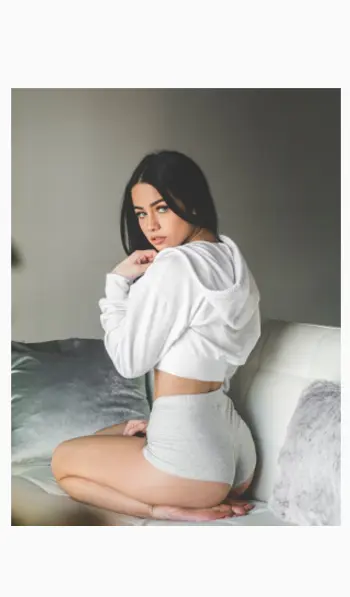
 

宽度固定,高度改成wrap_content,adjustViewBounds设为true

adjustViewBounds属性终于生效了!因为这个值,ImageView需要和图片有一样的宽高比,所以这时候ImageView的高度为1000*400/300。ImageView的宽高比也变成了3:4,再加上FIT_CENTER,图片可以完美的铺满整个ImageView!没有一点红色背景露出。这也是我们大多数情况下想要的效果。

情况3,当ImageView的宽高都设置为wrap_content的情况

在这种情况下,adjustViewBounds也是无效的。


   <ImageView
        android:layout_width="wrap_content"
        android:layout_height="wrap_content"
        android:background="@android:color/holo_red_light"
        android:adjustViewBounds="true"
        android:layout_gravity="center"
        android:src="@drawable/image_300_400">
    </ImageView>

这时候的效果是这样的:
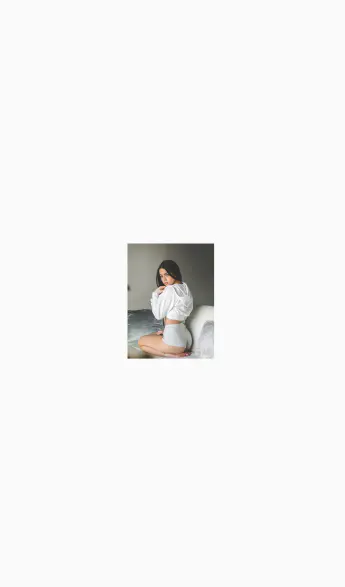
 

宽度高度都是wrap_content,adjustViewBounds设为true或false的效果


前面说了,wrap_content是用原始的图片尺寸显示,所以,这个时候ImageView的长宽和原始图片一样,都是400px和300px。比例自然和图片也一样(4:3),所以这个时候图片也可以铺满整个ImageView。

总结:

综上所述,adjustViewBounds只有在ImageView一边固定,一边为wrap_content的时候才有意义。设置为true的时候,可以让ImageView的比例和原始图片一样,以达到让图片充满的ImageView的效果。


shu3.xml:<?xml version="1.0" encoding="utf-8"?> <android.support.constraint.ConstraintLayout xmlns:android="http://schemas.android.com/apk/res/android" xmlns:app="http://schemas.android.com/apk/res-auto" xmlns:tools="http://schemas.android.com/tools" android:layout_width="match_parent" android:layout_height="match_parent" android:background="@drawable/gradient_background" tools:context=".ShuHai3Activity"> <!-- Toolbar --> <RelativeLayout android:id="@+id/toolbar" android:layout_width="0dp" android:layout_height="wrap_content" app:layout_constraintEnd_toEndOf="parent" app:layout_constraintStart_toStartOf="parent" app:layout_constraintTop_toTopOf="parent"> <Button android:id="@+id/back_button4" android:layout_width="wrap_content" android:layout_height="wrap_content" android:layout_alignParentStart="true" android:layout_marginStart="8dp" android:layout_marginTop="8dp" android:layout_marginEnd="8dp" android:layout_marginBottom="8dp" android:background="@android:color/transparent" android:contentDescription="返回上一页" android:foreground="?android:attr/selectableItemBackground" android:text="返回" android:textColor="@android:color/white" android:textSize="19dp" /> </RelativeLayout> <!-- 播放视频区域 --> <!-- 时间线和缩略图区域 --> <FrameLayout android:id="@+id/video_container" android:layout_width="0dp" android:layout_height="0dp" app:layout_constraintHeight_percent="0.55" android:background="@android:color/black" app:layout_constraintBottom_toTopOf="@id/thumbnail_scrollview" app:layout_constraintEnd_toEndOf="parent" app:layout_constraintHorizontal_bias="0.6" app:layout_constraintStart_toStartOf="parent" app:layout_constraintTop_toBottomOf="@id/toolbar" app:layout_constraintVertical_bias="0.0"> <!-- 模拟萤石播放加载动画 --> <ProgressBar android:id="@+id/video_loading" android:layout_width="wrap_content" android:layout_height="wrap_content" android:layout_gravity="center" /> <!-- 视频播放View,可以替换成具体的视频播放控件 --> <VideoView android:id="@+id/video_view" android:layout_width="match_parent" android:layout_height="match_parent" android:gravity="center" android:text="视频播放区域" android:textColor="@android:color/white" android:visibility="visible" /> </FrameLayout> <ScrollView android:id="@+id/thumbnail_scrollview" android:layout_width="0dp" android:layout_height="0dp" app:layout_constraintHeight_percent="0.45" android:fillViewport="true" app:layout_constraintBottom_toBottomOf="parent" app:layout_constraintEnd_toEndOf="parent" app:layout_constraintStart_toStartOf="parent" app:layout_constraintTop_toBottomOf="@id/video_container"> <LinearLayout android:layout_width="match_parent" android:layout_height="wrap_content" android:orientation="vertical"> <android.support.v7.widget.GridLayout android:id="@+id/gridLayout" android:layout_width="match_parent" android:layout_height="wrap_content" app:columnCount="2" app:rowCount="0" app:alignmentMode="alignBounds" app:useDefaultMargins="true" android:padding="8dp"> <!-- 多个缩略图子项 --> <!-- <ImageView--> <!-- android:layout_width="0dp"--> <!-- android:layout_height="wrap_content"--> <!-- app:layout_columnWeight="1"--> <!-- android:layout_margin="4dp"--> <!-- android:adjustViewBounds="true"--> <!-- android:contentDescription="萤石缩略图"--> <!-- android:src="@drawable/default_thumbnail" />--> <!-- <ImageView--> <!-- android:layout_width="0dp"--> <!-- android:layout_height="wrap_content"--> <!-- app:layout_columnWeight="1"--> <!-- android:layout_margin="4dp"--> <!-- android:adjustViewBounds="true"--> <!-- android:contentDescription="萤石缩略图"--> <!-- android:src="@drawable/default_thumbnail" />--> <!-- <ImageView--> <!-- android:layout_width="0dp"--> <!-- android:layout_height="wrap_content"--> <!-- app:layout_columnWeight="1"--> <!-- android:layout_margin="4dp"--> <!-- android:adjustViewBounds="true"--> <!-- android:contentDescription="萤石缩略图"--> <!-- android:src="@drawable/default_thumbnail" />--> <!-- <ImageView--> <!-- android:layout_width="0dp"--> <!-- android:layout_height="wrap_content"--> <!-- app:layout_columnWeight="1"--> <!-- android:layout_margin="4dp"--> <!-- android:adjustViewBounds="true"--> <!-- android:contentDescription="萤石缩略图"--> <!-- android:src="@drawable/default_thumbnail" />--> <!-- <ImageView--> <!-- android:layout_width="0dp"--> <!-- android:layout_height="wrap_content"--> <!-- app:layout_columnWeight="1"--> <!-- android:layout_margin="4dp"--> <!-- android:adjustViewBounds="true"--> <!-- android:contentDescription="萤石缩略图"--> <!-- android:src="@drawable/default_thumbnail" />--> <!-- <ImageView--> <!-- android:layout_width="0dp"--> <!-- android:layout_height="wrap_content"--> <!-- app:layout_columnWeight="1"--> <!-- android:layout_margin="4dp"--> <!-- android:adjustViewBounds="true"--> <!-- android:contentDescription="萤石缩略图"--> <!-- android:src="@drawable/default_thumbnail" />--> </android.support.v7.widget.GridLayout> </LinearLayout> </ScrollView> </android.support.constraint.ConstraintLayout> 修改下面shuhaisp.xml布局和上面shu3.xml布局一样,保持shuhaisp.xml依赖不变必须使用android支持库。shuhaisp.xml:<?xml version="1.0" encoding="utf-8"?> <RelativeLayout xmlns:android="http://schemas.android.com/apk/res/android" xmlns:tools="http://schemas.android.com/tools" android:layout_width="match_parent" android:layout_height="match_parent" android:background="@drawable/gradient_background"> <!-- tools:context=".ShuhaiSp"--> <!-- <!– 顶部工具栏 –>--> <RelativeLayout android:id="@+id/toolbar" android:layout_width="match_parent" android:layout_height="wrap_content" android:background="#44bd32"> <Button android:id="@+id/back_button4" android:layout_width="wrap_content" android:layout_height="wrap_content" android:layout_alignParentStart="true" android:layout_marginStart="8dp" android:layout_marginTop="8dp" android:layout_marginEnd="8dp" android:layout_marginBottom="8dp" android:background="@android:color/transparent" android:contentDescription="返回上一页" android:foreground="?android:attr/selectableItemBackground" android:text="返回" android:textColor="@android:color/white" android:textSize="19dp" /> </RelativeLayout> <!-- 视频播放区域 --> <FrameLayout android:id="@+id/video_container" android:layout_width="match_parent" android:layout_height="0dp" android:layout_below="@id/toolbar" android:layout_above="@+id/thumbnail_scrollview" android:layout_marginTop="0dp" android:background="@android:color/black"> <ProgressBar android:id="@+id/video_loading" android:layout_width="wrap_content" android:layout_height="wrap_content" android:layout_gravity="center" /> <VideoView android:id="@+id/video_view" android:layout_width="match_parent" android:layout_height="match_parent" android:gravity="center" android:text="视频播放区域" android:textColor="@android:color/white" android:visibility="visible" /> </FrameLayout> <!-- 缩略图区域 --> <ScrollView android:id="@+id/thumbnail_scrollview" android:layout_width="match_parent" android:layout_height="0dp" android:layout_alignParentBottom="true" android:fillViewport="true"> <LinearLayout android:layout_width="match_parent" android:layout_height="wrap_content" android:orientation="vertical"> <android.widget.GridLayout android:id="@+id/gridLayout" android:layout_width="match_parent" android:layout_height="wrap_content" android:columnCount="2" android:rowCount="0" android:alignmentMode="alignBounds" android:useDefaultMargins="true" android:padding="8dp"> <!-- 缩略图示例 --> <!-- <ImageView android:layout_width="0dp" android:layout_height="wrap_content" android:layout_columnWeight="1" android:layout_margin="4dp" android:adjustViewBounds="true" android:contentDescription="缩略图" android:src="@drawable/default_thumbnail" /> --> </android.widget.GridLayout> </LinearLayout> </ScrollView> </RelativeLayout>
06-25
<?xml version="1.0" encoding="utf-8"?> <RelativeLayout xmlns:android="http://schemas.android.com/apk/res/android" xmlns:app="http://schemas.android.com/apk/res-auto" android:layout_width="match_parent" android:layout_height="match_parent" android:background="@drawable/gradient_background"> <!-- 标题栏 --> <RelativeLayout android:id="@+id/toolbar" android:layout_width="match_parent" android:layout_height="?android:attr/actionBarSize" android:background="#44bd32"> <Button android:id="@+id/fanHui" android:layout_width="wrap_content" android:layout_height="wrap_content" android:layout_centerVertical="true" android:layout_marginStart="8dp" android:layout_marginEnd="8dp" android:background="@android:color/transparent" android:foreground="?android:attr/selectableItemBackground" android:text="返回" android:textColor="@android:color/white" android:textSize="16sp" /> </RelativeLayout> <!-- 底部按钮 --> <LinearLayout android:id="@+id/footer_buttons" android:layout_width="match_parent" android:layout_height="1dp" android:layout_alignParentBottom="true" android:background="@android:color/white" android:orientation="horizontal"> <!-- <Button--> <!-- android:id="@+id/device_location"--> <!-- android:layout_width="match_parent"--> <!-- android:layout_height="match_parent"--> <!-- android:gravity="center"--> <!-- android:text="设备定位"--> <!-- android:textSize="19sp"--> <!-- android:background="#44bd32"--> <!-- android:textColor="@android:color/white" />--> </LinearLayout> <RelativeLayout android:id="@+id/video_container" android:layout_width="match_parent" android:layout_height="380dp" android:layout_above="@id/footer_buttons" android:layout_below="@id/toolbar" android:layout_marginBottom="298dp" android:background="@android:color/black" android:padding="0dp"> <!-- 视频播放器 --> <VideoView android:id="@+id/video_player" android:layout_width="match_parent" android:layout_height="match_parent" android:layout_centerInParent="true" /> <!-- 播放控制条 --> <LinearLayout android:layout_width="match_parent" android:layout_height="wrap_content" android:layout_alignParentBottom="true" android:background="#99000000" android:orientation="horizontal" android:padding="8dp"> <ImageButton android:id="@+id/btn_play_pause" android:layout_width="40dp" android:layout_height="40dp" android:background="?attr/selectableItemBackgroundBorderless" android:src="@drawable/ic_play_sel" /> <SeekBar android:id="@+id/video_seekbar" android:layout_width="0dp" android:layout_height="wrap_content" android:layout_gravity="center_vertical" android:layout_weight="1" /> <TextView android:id="@+id/tv_time" android:layout_width="wrap_content" android:layout_height="wrap_content" android:layout_gravity="center_vertical" android:text="00:00/00:00" android:textColor="@android:color/white" android:textSize="14sp" /> </LinearLayout> </RelativeLayout> <GridLayout android:id="@+id/thumbnail_grid" android:layout_width="match_parent" android:layout_height="match_parent" android:layout_above="@id/footer_buttons" android:layout_below="@id/video_container" android:layout_marginBottom="300dp" android:background="@android:color/white" android:columnCount="4" android:orientation="horizontal" android:padding="8dp" android:rowCount="2"> <!-- 动态添加的缩略图将放在这里 --> <!-- 示例缩略图 (可选) --> <ImageView android:layout_width="50dp" android:layout_height="wrap_content" android:layout_margin="4dp" android:adjustViewBounds="true" android:contentDescription="萤石缩略图" android:src="@drawable/default_thumbnail" /> <!-- 更多缩略图... --> </GridLayout> <ImageView android:layout_width="50dp" android:layout_height="wrap_content" android:adjustViewBounds="true" android:contentDescription="萤石缩略图" android:src="@drawable/default_thumbnail" /> </RelativeLayout> 把布局文件中2个萤石缩略图放在 android:id="@+id/thumbnail_grid"之中
06-27
<FrameLayout xmlns:android="http://schemas.android.com/apk/res/android" android:layout_width="match_parent" android:layout_height="match_parent" android:orientation="vertical"> <TextView android:layout_width="200dp" android:layout_height="wrap_content" android:layout_gravity="top|center" android:background="@color/white" android:elevation="5dp" android:layout_marginTop="20dp" android:text="@string/base_info" android:textColor="@color/black" android:gravity="center" android:textSize="20dp" /> <LinearLayout android:layout_width="700dp" android:layout_height="350dp" android:layout_gravity="center" android:elevation="2dp" android:background="@drawable/rectangular_frame"> <TextView android:layout_width="wrap_content" android:layout_height="wrap_content" android:text="你还" android:textColor="@color/white" android:textSize="26dp" /> </LinearLayout> </FrameLayout> <LinearLayout xmlns:android="http://schemas.android.com/apk/res/android" android:layout_width="match_parent" android:layout_height="match_parent" android:background="@drawable/zzz" android:adjustViewBounds="true" android:orientation="vertical" android:scaleType="fitXY"> <LinearLayout android:layout_width="match_parent" android:layout_height="wrap_content" android:orientation="vertical" > <TextView android:layout_width="wrap_content" android:layout_height="wrap_content" android:layout_gravity="center" android:layout_marginTop="1dp" android:background="@drawable/aaa" android:gravity="center" android:fontFamily="sans-serif-condensed" android:text="个人健康看护" android:textColor="@color/white" android:textSize="18sp" android:textStyle="bold" /> </LinearLayout> <include android:id="@+id/p_base_info" layout="@layout/p_base_info" android:layout_width="296dp" android:layout_height="191dp" android:layout_marginTop="30dp" android:layout_marginLeft="30dp" /> </LinearLayout> FrameLayout 中的代码只有textView显示
最新发布
08-05
评论
成就一亿技术人!
拼手气红包6.0元
还能输入1000个字符
 
红包 添加红包
表情包 插入表情
 条评论被折叠 查看
添加红包

请填写红包祝福语或标题

红包个数最小为10个

红包金额最低5元

当前余额3.43前往充值 >
需支付:10.00
成就一亿技术人!
领取后你会自动成为博主和红包主的粉丝 规则
hope_wisdom
发出的红包
实付
使用余额支付
点击重新获取
扫码支付
钱包余额 0

抵扣说明:

1.余额是钱包充值的虚拟货币,按照1:1的比例进行支付金额的抵扣。
2.余额无法直接购买下载,可以购买VIP、付费专栏及课程。

余额充值


