





 本文详细介绍了如何从头开始构建一个简单的便签应用,包括设计数据模型、处理数据、实现基本操作(如增加、编辑、删除便签),以及优化用户体验。重点在于使用React框架,通过数据驱动的方式实现组件化开发,逐步提升应用功能,并讨论了状态管理的重要性。
原文链接
因为我们以经有了一个好的开发环境,所以我们可能真正的做一些东西了.我们的目标是做一个简单的便签应用.它会有一些基本操作.我们会从头开始写并会遇到一些麻烦,之所以这样做是我了让你了解为什么诸如Flux,等架构是需要的.
初始化数据模型
通常开始设计应用程序的好的方式是从数据开始的.我们将有一个模型列表像下面这样:
[
  {
    id: '4a068c42-75b2-4ae2-bd0d-284b4abbb8f0',
    task: 'Learn Webpack'
  },
  {
    id: '4e81fc6e-bfb6-419b-93e5-0242fb6f3f6a',
    task: 'Learn React'
  },
  {
    id: '11bbffc8-5891-4b45-b9ea-5c99aadf870f',
    task: 'Do laundry'
  }
];每个便签对象都包含我们需要的数据,包括id和我们要执行的task.最后将扩展数据定义包含便签的颜色和它的作者.
App中使用数据
设置App
现在我们知道如何处理id并知道我们需要何种数据类型.我们需要连接数据模型到App.一种简单的方式是直接加入数据到render()中.这不是有效率的,但是可以让我们快速开始.下面看在React怎么实现它:
app/components/App.jsx
leanpub-start-insert
import uuid from 'node-uuid';
leanpub-end-insert
import React from 'react';
leanpub-start-delete
import Note from './Note.jsx';
leanpub-end-delete

export default class App extends React.Component {
  render() {
leanpub-start-insert
    const notes = [
      {
        id: uuid.v4(),
        task: 'Learn Webpack'
      },
      {
        id: uuid.v4(),
        task: 'Learn React'
      },
      {
        id: uuid.v4(),
        task: 'Do laundry'
      }
    ];
leanpub-end-insert

leanpub-start-delete
    return <Note />;
leanpub-end-delete
leanpub-start-insert
    return (
      <div>
        <ul>{notes.map(note =>
          <li key={note.id}>{note.task}</li>
        )}</ul>
      </div>
    );
leanpub-end-insert
  }
}
在上面我们使用了React许多特性.下面是对它的解:
<ul>{notes.map(note => ...}</ul>-{}让我们混入JavaScript语法到JSX中.map反回一个列表li给React进行渲染.<li key={note.id}>{note.task}</li>- 为了让React有序的展现元素,我们使用key属性,这个属性是重要的且key值是唯一的否则React不能找出正确的方式展现它.如果没有设置这个属性.React将会给出一个警告,更多信息看Multiple Components
如果你运行了应用.你能看到这些便签.虽然不好看,但我们已经迈出了第一步.

增加新条目到列表
增加更多条目到列表是我们下一步开发的好的开始.每个React组件可以维护内部的状态state.在这个例子中state指的是我们刚刚定义的数据模型.我们通过React的setState修改这个状态.React最终会调用render()方法并更新用户界面.这让我们可以实现比如增加新项目的交互.
随着你程序的发展.你需要小心的处理这个状态.这就是为什么专门开发对状态管理的解决方案.它们是你专注于React组件的开发而不用担心状态的问题.
组件可能保持一些自已的状态.举例子是由状态相关的用户界面.想一下下拉列组件可能想控制它自已的可见状态.我们将讨论状态管理以更好的开发这个应用.
如果我们使用基于类的方式定义组件.我们可以在构造函数construcotr中初始化状态.它是一个特定的方法当实例初始化时会被调用.在这个例子中我们能加入初始数据和组件state在它里面.
app/components/App.jsx
...

export default class App extends React.Component {
leanpub-start-insert
  constructor(props) {
    super(props);

    this.state = {
      notes: [
        {
          id: uuid.v4(),
          task: 'Learn Webpack'
        },
        {
          id: uuid.v4(),
          task: 'Learn React'
        },
        {
          id: uuid.v4(),
          task: 'Do laundry'
        }
      ]
    };
  }
leanpub-end-insert
  render() {
leanpub-start-delete
    const notes = [
      {
        id: uuid.v4(),
        task: 'Learn Webpack'
      },
      {
        id: uuid.v4(),
        task: 'Learn React'
      },
      {
        id: uuid.v4(),
        task: 'Do laundry'
      }
    ];
leanpub-end-delete
leanpub-start-insert
    const notes = this.state.notes;
leanpub-end-insert

    ...
  }
}刷新浏览器后,会看到和之前相同的结果.我们现在可以使用setState改变状态.
定义addNote处理程序
现在我们可以通过自定义方法来修改状态.在App中简单的增加一个按钮,通过点击它来增加一个新的条目到组件状态.如前面所说的.React会得到这个改变并刷新用户界面.
app/components/App.jsx
...

export default class App extends React.Component {
  constructor(props) {
    ...
  }
  render() {
    const notes = this.state.notes;

    return (
      <div>
leanpub-start-insert
        <button onClick={this.addNote}>+</button>
leanpub-end-insert
        <ul>{notes.map(note =>
          <li key={note.id}>{note.task}</li>
        )}</ul>
      </div>
    );
  }
leanpub-start-insert
  // We are using an experimental feature known as property
  // initializer here. It allows us to bind the method `this`
  // to point at our *App* instance.
  //
  // Alternatively we could `bind` at `constructor` using
  // a line, such as this.addNote = this.addNote.bind(this);
  addNote = () => {
    // It would be possible to write this in an imperative style.
    // I.e., through `this.state.notes.push` and then
    // `this.setState({notes: this.state.notes})` to commit.
    //
    // I tend to favor functional style whenever that makes sense.
    // Even though it might take more code sometimes, I feel
    // the benefits (easy to reason about, no side effects)
    // more than make up for it.
    //
    // Libraries, such as Immutable.js, go a notch further.
    this.setState({
      notes: this.state.notes.concat([{
        id: uuid.v4(),
        task: 'New task'
      }])
    });
  };
leanpub-end-insert
}
如果可以与后台交互,我们能触发一个操作并获取这个反回值.
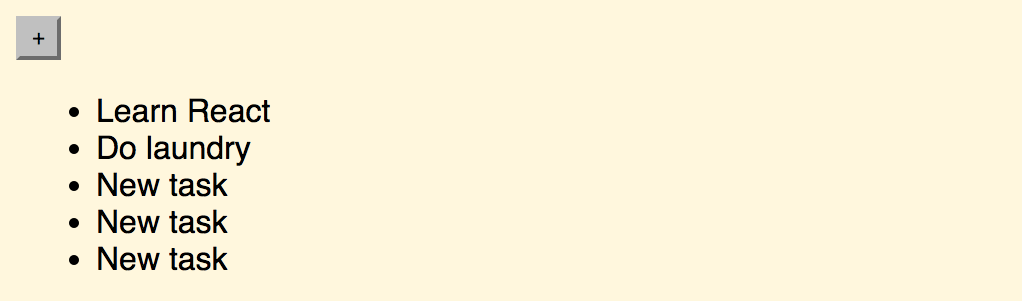
现在刷新浏览器点击按钮你应该看到加入了一个新项目到列表:
我们现在还缺少两个重要的功能: 修改和删除.在这之前,是扩展我们组件层级的好时机.这会为我们以后增加新功能带来便利.使用React常常像这样的,开发一个组件一段时间后,你会拆分这个组件.
this.setState可设置第二个参数像这样:this.setState({...}, () => console.log('set state!')),这会在setState正确完成后,通知到你的一个回调函数.
也可以使用[...this.state.notes, {id: uuid.v4(), task: 'New task'}]达到同样的效果.
autobind-decorator可以为我们自动绑定类或方法到当前对象.这样我们就不用写()=>{}箭头表达式来附加this了
改进组件层级
我们现在,基于一个组件的开发,要增加一个便签集合到它里面是复杂的.并会产生许多重复代码.
幸运的是.我们可以通过建立更多的组件模型来解决这个问题.并可以提高代码复用.理想情况下.我们可以在多个不同程序中共享我们的组件.
便签集合如感觉像是一个组件.我们建模它为Notes,我们还可以从中分离出Note概念. 这样的设置让我们得到三个层级如:
App-App保存应用程序的状态并处理上层逻辑.Notes-Notes是一个中间件.并负责渲染Note组件.Note-Note是我们应用程序的主力,编辑和删除会在这里触发,这些操作将级联到App反应给用户界面.
提取Note
第一步我们将提取Note,Note组件将需要接收task作为prop,并渲染它.在JSX中看起来像<Note task="task goes here" />.
除了state,props是另一个你将大量使用的概念.它描述了一个组件的外部接口.
一个基于函数的组件,将接收props作为它的第一个参数.我们能提取特定的属性通过ES6 destructuring syntax, 基于函数的组件是render()它本身. 与基于类的组件相比限制很多,但对于简单的展现是适合的,比如这个.
app/components/Note.jsx
import React from 'react';

export default ({task}) => <div>{task}</div>;
连接Note和App
现在我们有一个接收task属性的简单组件.为了更接近我们理想的层级结构,我们在App中连接它.
app/components/App.jsx
import uuid from 'node-uuid';
import React from 'react';
leanpub-start-insert
import Note from './Note.jsx';
leanpub-end-insert

export default class App extends React.Component {
  constructor(props) {
    ...
  }
  render() {
    const notes = this.state.notes;

    return (
      <div>
        <button onClick={this.addNote}>+</button>
        <ul>{notes.map(note =>
leanpub-start-delete
          <li key={note.id}>{note.task}</li>
leanpub-end-delete
leanpub-start-insert
          <li key={note.id}>
            <Note task={note.task} />
          </li>
leanpub-end-insert
        )}</ul>
      </div>
    );
  }
  ...
}应用程序看起来还是与之前一样.为了达到我们追求的结构.我们应当做更多的调整继续提取Notes.
提取Notes
提取Notes是简单的.它是属于App的一个部分.它与Note有点儿像.如:
app/components/Notes.jsx
import React from 'react';
import Note from './Note.jsx';

export default ({notes}) => {
  return (
    <ul>{notes.map(note =>
      <li key={note.id}>
        <Note task={note.task} />
      </li>
    )}</ul>
  );
}此外.我们需要在我们的App中使用这个新定义的组定.
app/components/App.jsx
import uuid from 'node-uuid';
import React from 'react';
leanpub-start-delete
import Note from './Note.jsx';
leanpub-end-delete
leanpub-start-insert
import Notes from './Notes.jsx';
leanpub-end-insert

export default class App extends React.Component {
  constructor(props) {
    ...
  }
  render() {
    const notes = this.state.notes;

    return (
      <div>
        <button onClick={this.addNote}>+</button>
leanpub-start-delete
        <ul>{notes.map(note =>
          <li key={note.id}>
            <Note task={note.task} />
          </li>
        )}</ul>
leanpub-end-delete
leanpub-start-insert
        <Notes notes={notes} />
leanpub-end-insert
      </div>
    );
  }
  addNote = () => {
    this.setState({
      notes: this.state.notes.concat([{
        id: uuid.v4(),
        task: 'New task'
      }])
    });
  };
}
运行结果仍与之前相同.但结构要比之前好很多.现在我们可以继续往应用程序中增加新功能了.
编辑Notes
为了可以编辑Notes,我们应该设置一些钩子,理论上应该发生接下来的事.
- 用户点击一个
Note. Note自身展示为一个输入框.并显示当前值.- 用户确让修改(触发
blur事件或按下回车). Note渲染这个新值.
意思是Note需要追踪它的editing状态.此外.当(task)改变时我们需要传递这个值,App需要更新它的状态.因此我们需要一些函数.
跟踪Note editing状态
正如早期的App,我发现在需要在Note中处理状态,所以基于函数的组件是不够的.我们需要改写它到基于类的.我们会跟据用户的行为改变editing状态,最后渲染它.请看如下代码:
app/components/Note.jsx
import React from 'react';

export default class Note extends React.Component {
  constructor(props) {
    super(props);

    // Track `editing` state.
    this.state = {
      editing: false
    };
  }
  render() {
    // Render the component differently based on state.
    if(this.state.editing) {
      return this.renderEdit();
    }

    return this.renderNote();
  }
  renderEdit = () => {
    // We deal with blur and input handlers here. These map to DOM events.
    // We also set selection to input end using a callback at a ref.
    // It gets triggered after the component is mounted.
    //
    // We could also use a string reference (i.e., `ref="input") and
    // then refer to the element in question later in the code. This
    // would allow us to use the underlying DOM API through
    // this.refs.input. This can be useful when combined with
    // React lifecycle hooks.
    return <input type="text"
      ref={
        (e) => e ? e.selectionStart = this.props.task.length : null
      }
      autoFocus={true}
      defaultValue={this.props.task}
      onBlur={this.finishEdit}
      onKeyPress={this.checkEnter} />;
  };
  renderNote = () => {
    // If the user clicks a normal note, trigger editing logic.
    return <div onClick={this.edit}>{this.props.task}</div>;
  };
  edit = () => {
    // Enter edit mode.
    this.setState({
      editing: true
    });
  };
  checkEnter = (e) => {
    // The user hit *enter*, let's finish up.
    if(e.key === 'Enter') {
      this.finishEdit(e);
    }
  };
  finishEdit = (e) => {
    // `Note` will trigger an optional `onEdit` callback once it
    // has a new value. We will use this to communicate the change to
    // `App`.
    //
    // A smarter way to deal with the default value would be to set
    // it through `defaultProps`.
    //
    // See the *Typing with React* chapter for more information.
    const value = e.target.value;

    if(this.props.onEdit) {
      this.props.onEdit(value);

      // Exit edit mode.
      this.setState({
        editing: false
      });
    }
  };
}如果你现在尝试编辑Note,会看到一个输入框并可以输入.因为我们还没有写onEdit函数.所以不能保存我们的输入.下一步我们要获取我们的输入值并且更新App状态,让它完整的工作.
建议命名回调函数时使用
on前缀.可以与其它属性区分开并使你的代码变得更整洁
Note状态改变的传播
考虑到我们当前的页务逻辑是在App中, 我们同样能处理onEdit在那里.另一种选择是可以加入这个逻辑到Notes级别,这样做使得addNote存在问题,因为这个功能不属于Notes范围.因此我们在App级别管理应用状态.
为了使onEdit工作,我们要得到他的输出和包装这个结果到App.此外我们需要知道到底哪一个Note被修改了好做相应的改变.这能通过数据绑定实现.看下图所示:

onEdit定义在App级别.我们需要通过Notes传递onEdit.所以我们需要修改两个文件中的代码.如下所示:
app/components/App.jsx
import uuid from 'node-uuid';
import React from 'react';
import Notes from './Notes.jsx';

export default class App extends React.Component {
  constructor(props) {
    ...
  }
  render() {
    const notes = this.state.notes;

    return (
      <div>
        <button onClick={this.addNote}>+</button>
leanpub-start-delete
        <Notes notes={notes} />
leanpub-end-delete
leanpub-start-insert
        <Notes notes={notes} onEdit={this.editNote} />
leanpub-end-insert
      </div>
    );
  }
  addNote = () => {
    ...
  };
leanpub-start-insert
  editNote = (id, task) => {
    // Don't modify if trying set an empty value
    if(!task.trim()) {
      return;
    }

    const notes = this.state.notes.map(note => {
      if(note.id === id && task) {
        note.task = task;
      }

      return note;
    });

    this.setState({notes});
  };
leanpub-end-insert
}要使其工作.我们仍需要修改Notes.它需要bind相应的便签id,可以通过在bind第一个参数后面添加绑定的值.当触发回调时,这些值会被附加到回调函数的参数中.
app/components/Notes.jsx
import React from 'react';
import Note from './Note.jsx';

export default ({notes, onEdit}) => {
  return (
    <ul>{notes.map(note =>
      <li key={note.id}>
        <Note
          task={note.task}
          onEdit={onEdit.bind(null, note.id)} />
      </li>
    )}</ul>
  );
}现在你可以刷新并编辑Note了.
当前的设计不是完美的.如何让新创建的便签直接可以编辑?考虑到Note封装state,我们没有简单的方法从外部访问它,这种情况我们会在接下来的章节中实现.

删除节点
我们还缺少一个重要的功能,可以让我们能删除便签.我们会为每个节点增加一个按钮并使用它实现这个功能.
开始.我们需要在App中定义一些逻辑.删除节点可以通过查找一个Note基于它的id.当删除后.排除这个Note并修改我们的状态.
和之前一样.它会有三个改变.在App中定义逻辑,在Notes中绑定id,最后触发逻辑在Note中. 我们使用filter在删除逻辑:
app/components/App.jsx
import uuid from 'node-uuid';
import React from 'react';
import Notes from './Notes.jsx';

export default class App extends React.Component {
  ...
  render() {
    const notes = this.state.notes;

    return (
      <div>
        <button onClick={this.addNote}>+</button>
leanpub-start-delete
        <Notes notes={notes} onEdit={this.editNote} />
leanpub-end-delete
leanpub-start-insert
        <Notes notes={notes}
          onEdit={this.editNote}
          onDelete={this.deleteNote} />
leanpub-end-insert
      </div>
    );
  }
leanpub-start-insert
  deleteNote = (id) => {
    this.setState({
      notes: this.state.notes.filter(note => note.id !== id)
    });
  };
leanpub-end-insert
  ...
}Notes修改为如下:
app/components/Notes.jsx
import React from 'react';
import Note from './Note.jsx';

leanpub-start-delete
export default ({notes, onEdit}) => {
leanpub-end-delete
leanpub-start-insert
export default ({notes, onEdit, onDelete}) => {
leanpub-end-insert
  return (
    <ul>{notes.map(note =>
      <li key={note.id}>
leanpub-start-delete
        <Note
          task={note.task}
          onEdit={onEdit.bind(null, note.id)} />
leanpub-end-delete
leanpub-start-insert
        <Note
          task={note.task}
          onEdit={onEdit.bind(null, note.id)}
          onDelete={onDelete.bind(null, note.id)} />
leanpub-end-insert
      </li>
    )}</ul>
  );
}最后在Note中增加删作按钮.并写触发函数onDelete:
app/components/Note.jsx
...

export default class Note extends React.Component {
  ...
  renderNote = () => {
    // If the user clicks a normal note, trigger editing logic.
leanpub-start-delete
    return <div onClick={this.edit}>{this.props.task}</div>;
leanpub-end-delete
leanpub-start-insert
    const onDelete = this.props.onDelete;

    return (
      <div onClick={this.edit}>
        <span>{this.props.task}</span>
        {onDelete ? this.renderDelete() : null }
      </div>
    );
leanpub-end-insert
  };
leanpub-start-insert
  renderDelete = () => {
    return <button onClick={this.props.onDelete}>x</button>;
  };
leanpub-end-insert
  ...
}
最后刷新浏览器点击删除按钮看一下效果.

你可能需要需要刷新浏览器.使用 CTRL/CMD-R 组合键.
附加样式
我们现在的应用程序是不漂亮的.我们可以基于类定义的方式写一些CSS并附加到我们的组件上. 在Styling React章我们会讨论其它更好的方式.
附加类到组件
app/components/App.jsx
import uuid from 'node-uuid';
import React from 'react';
import Notes from './Notes.jsx';

export default class App extends React.Component {
  ...
  render() {
    const notes = this.state.notes;

    return (
      <div>
leanpub-start-delete
        <button onClick={this.addNote}>+</button>
leanpub-end-delete
leanpub-start-insert
        <button className="add-note" onClick={this.addNote}>+</button>
leanpub-end-insert
        <Notes notes={notes}
          onEdit={this.editNote}
          onDelete={this.deleteNote} />
      </div>
    );
  }
  ...
}
app/components/Notes.jsx
import React from 'react';
import Note from './Note.jsx';

export default ({notes, onEdit, onDelete}) => {
  return (
leanpub-start-delete
    <ul>{notes.map(note =>
leanpub-end-delete
leanpub-start-insert
    <ul className="notes">{notes.map(note =>
leanpub-end-insert
leanpub-start-delete
      <li key={note.id}>
leanpub-end-delete
leanpub-start-insert
      <li className="note" key={note.id}>
leanpub-end-insert
        <Note
          task={note.task}
          onEdit={onEdit.bind(null, note.id)}
          onDelete={onDelete.bind(null, note.id)} />
      </li>
    )}</ul>
  );
}
app/components/Note.jsx
import React from 'react';

export default class Note extends React.Component {
  ...
  renderNote = () => {
    const onDelete = this.props.onDelete;

    return (
      <div onClick={this.edit}>
leanpub-start-delete
        <span>{this.props.task}</span>
leanpub-end-delete
leanpub-start-insert
        <span className="task">{this.props.task}</span>
leanpub-end-insert
        {onDelete ? this.renderDelete() : null }
      </div>
    );
  };
  renderDelete = () => {
leanpub-start-delete
    return <button onClick={this.props.onDelete}>x</button>;
leanpub-end-delete
leanpub-start-insert
    return <button
      className="delete-note"
      onClick={this.props.onDelete}>x</button>;
leanpub-end-insert
  };
  ...
}
CSS组件
第一步是为了摆脱可怕的serif 字体.
app/main.css
body {
  background: cornsilk;
  font-family: sans-serif;
}下一步是使Notes摆脱列表前的圆点儿.
app/main.css
.add-note {
  background-color: #fdfdfd;
  border: 1px solid #ccc;
}

.notes {
  margin: 0.5em;
  padding-left: 0;

  max-width: 10em;
  list-style: none;
}
为了使个别的Notes突出我们可以使用:
app/main.css
.note {
  margin-bottom: 0.5em;
  padding: 0.5em;

  background-color: #fdfdfd;
  box-shadow: 0 0 0.3em 0.03em rgba(0, 0, 0, 0.3);
}
.note:hover {
  box-shadow: 0 0 0.3em 0.03em rgba(0, 0, 0, 0.7);

  transition: 0.6s;
}

.note .task {
  /* force to use inline-block so that it gets minimum height */
  display: inline-block;
}
在交互过程中加入了动画显示阴影效果.这可以让用户知道鼠标具体在哪个便签上面.这个效果在基于触摸的界面中不能工作.但在桌面应用中效果不错.
最后我们让鼠标在Note上时才显示删除按钮.其它时候隐藏它.同样在触摸时将失效.
app/main.css
.note .delete-note {
  float: right;

  padding: 0;

  background-color: #fdfdfd;
  border: none;

  cursor: pointer;

  visibility: hidden;
}
.note:hover .delete-note {
  visibility: visible;
}
理解React组件
理解props和state是怎么工作很重要.组件的生命周期是另一个关键概念,虽然我们上面已经提及过它,但是还是需要更详细的理解.通过应用这些概念在您的应用程序,您可以实现React中的大多数任务.React支持下面这些生命周期钩子:
componentWillMount()任何渲染中的组件将触发这个事件一次.一种方式使用它是异步加载数据并通过setState强制渲染组件.componentDidMount()渲染完成后触发.在这里能访问DOM.你可以使用它封装一个jQuery插件在组件内.componentWillReceiveProps(object nextProps)当组件接收新属性时触发.例如,基于你接收到的属性修改你的组件的状态.shouldComponentUpdate(object nextProps, object nextState)允许您优化渲染.如果你查看这个属性和状态并决定不需要更新,则反回false.componentWillUpdate(object nextProps, object nextState)在shouldComponentUpdate之后且render()前触发.在这里不能使用setState,但你能设置类属性.componentDidUpdate()渲染之后触发.在这里能修改DOM.这里能使用其它代码库工作.componentWillUnmount()仅在一个组件是从 DOM 中卸下前被触发,这是执行清理的理想场所(例如移除运行中的定时器,自定义的DOM等).
除了生命周期的钩子.如果你使用React.createClass你需要意识到其它的属性和方法.
displayName- 它是更可取的设置displayName方式.这将改善debug信息.对于ES6的类.这是自动从类名派生出的.getInitialState()- 在基于类的方式通过constructor做相同的事情.getDefaultProps()- 在基于类的定义中可以在constructor设置.mixins-mixins包含一个数组应用于组件中.statics-statics包含了组件中的静态属性和方法.
React组件约定
我更喜欢先写constructor,其次生命周期事件,render(),最后是render()使用的方法.我喜欢这种自上而下的方式.
最后,你会找到适合你的习惯和工作方式.





 扫一扫
扫一扫


 413
413

 被折叠的 条评论
为什么被折叠?
被折叠的 条评论
为什么被折叠?
 到【灌水乐园】发言





