



 本文档介绍了Android中如何设置文本显示,包括设置字符串资源、字体大小及颜色。同时,详细阐述了视图的基础操作,如在代码中动态设置视图的宽高、间距以及对齐方式。通过示例代码展示了如何使用layout_margin和padding属性调整视图间距,以及如何利用layout_gravity和gravity属性设定视图的对齐方式。
目录
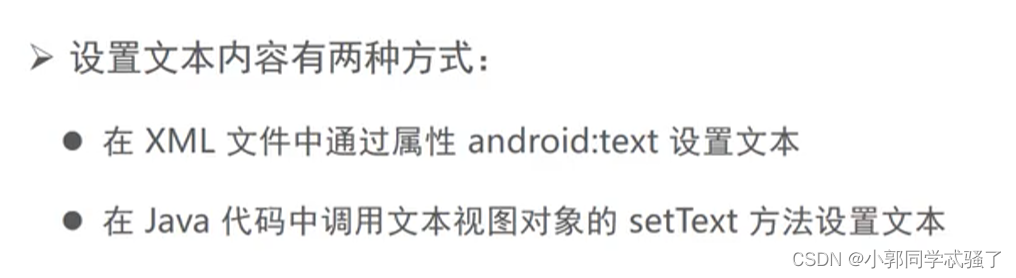
1、文本显示
<resources>
    <string name="app_name">chapter03</string>
    <string name="hello">你好,世界</string>
</resources>
package com.example.chapter03;
import android.os.Bundle;
import android.widget.Button;
import android.widget.TextView;
import androidx.annotation.Nullable;
import androidx.appcompat.app.AppCompatActivity;
public class TextViewActivity extends AppCompatActivity {
@Override
protected void onCreate(@Nullable Bundle savedInstanceState) {
super.onCreate(savedInstanceState);
setContentView(android.R.layout.activity_list_item);
TextView tv_hello=findViewById(R.id.tv_hello);
tv_hello.setText(R.string.hello);
}
}
<?xml version="1.0" encoding="utf-8"?>
<LinearLayout xmlns:android="http://schemas.android.com/apk/res/android"
    android:layout_width="match_parent"
    android:layout_height="match_parent">

    <TextView
        android:id="@+id/tv_hello"
        android:layout_width="wrap_content"
        android:layout_height="wrap_content"
        android:text="@string/hello"/>
</LinearLayout>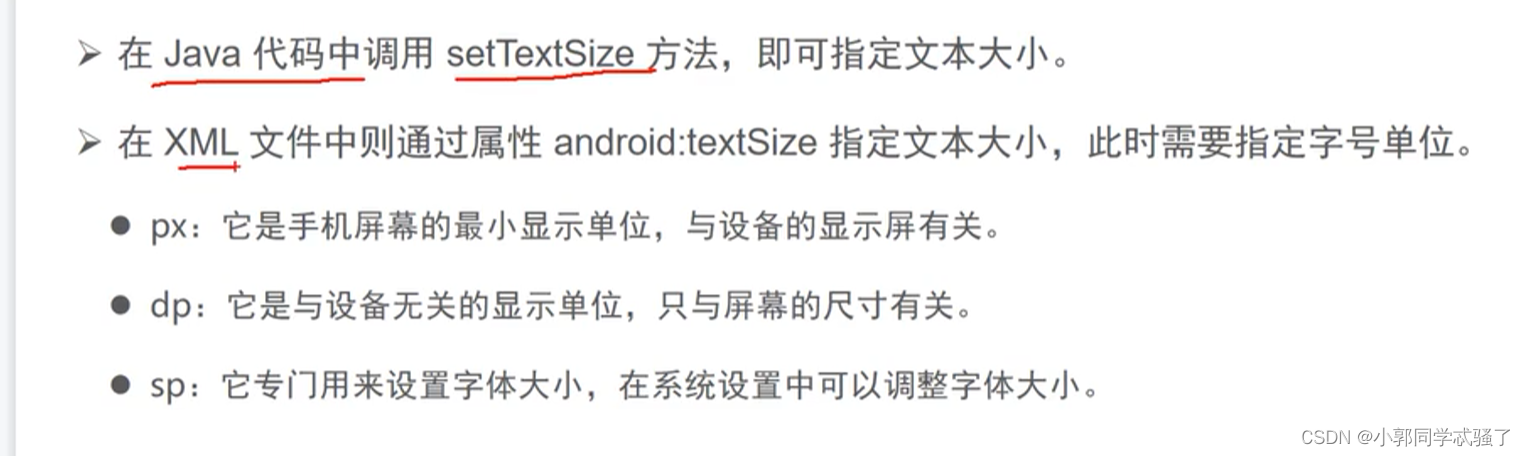
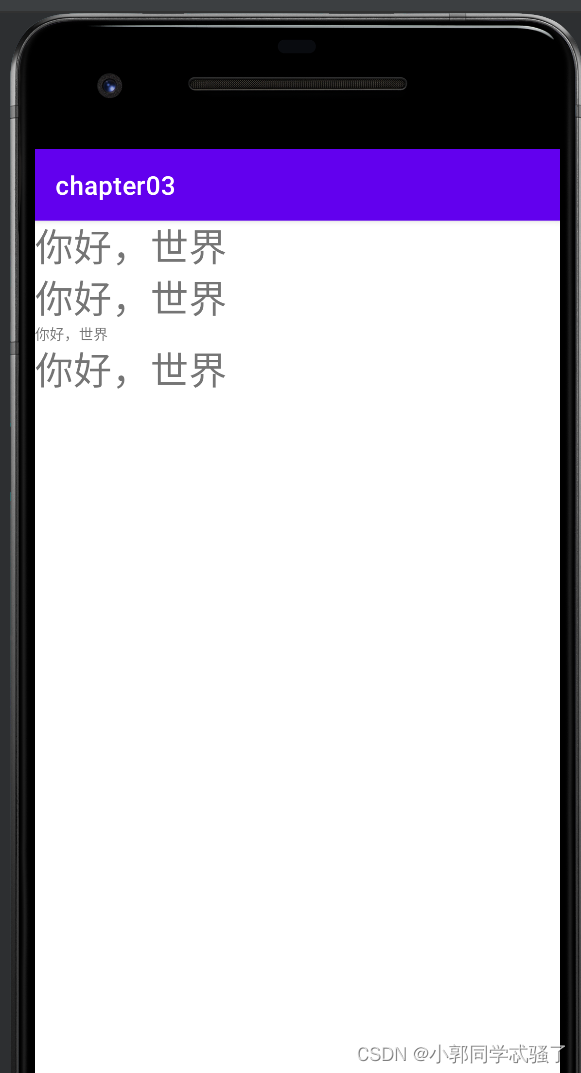
 <TextView
        android:id="@+id/tv_hello"
        android:layout_width="wrap_content"
        android:layout_height="wrap_content"
        android:text="@string/hello"
        android:textSize="30dp"/>


    <TextView
        android:id="@+id/tv_dp"
        android:layout_width="wrap_content"
        android:layout_height="wrap_content"
        android:text="@string/hello"
        android:textSize="30dp"/>

    <TextView
        android:id="@+id/tv_px"
        android:layout_width="wrap_content"
        android:layout_height="wrap_content"
        android:text="@string/hello"
        android:textSize="30px"/>

    <TextView
        android:id="@+id/tv_sp"
        android:layout_width="wrap_content"
        android:layout_height="wrap_content"
        android:text="@string/hello"
android:textSize="30sp"/> 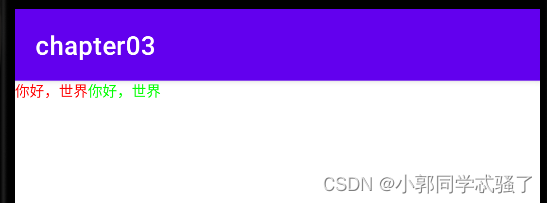
  <TextView
        android:id="@+id/tv_code_system"
        android:layout_width="wrap_content"
        android:layout_height="wrap_content"
        android:text="@string/hello"
        android:textSize="30px"
        android:textColor="@color/purple_700"/>

    <TextView
        android:id="@+id/tv_code_system2"
        android:layout_width="wrap_content"
        android:layout_height="wrap_content"
        android:text="@string/hello"
        android:textColor="#00ff00"
        android:textSize="30px"/>
package com.example.chapter03;
import android.graphics.Color;
import android.os.Bundle;
import android.widget.TextView;
import androidx.annotation.Nullable;
import androidx.appcompat.app.AppCompatActivity;
public class TextColorActivity extends AppCompatActivity {
@Override
protected void onCreate(@Nullable Bundle savedInstanceState) {
super.onCreate(savedInstanceState);
setContentView(R.layout.activity_text_color);
//从布局文件获取文本视图
TextView tv_code_system=findViewById(R.id.tv_code_system);
//将文字颜色设置为系统自带
tv_code_system.setTextColor(Color.RED);
//设置文本颜色
}
}
2、视图基础
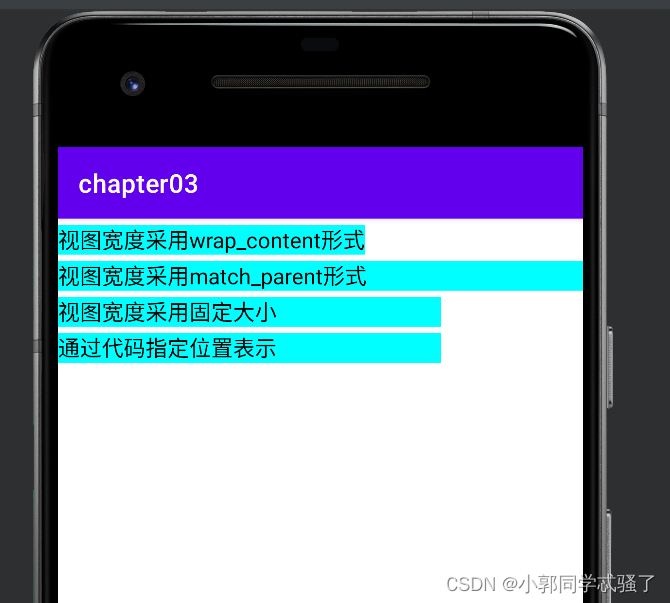
在代码中设置视图宽高
首先确保XML中的宽高属性值为wrap_content,接着打开该页面对应的Java代码,依序执行以下三个步骤:
(1)调用控件对象的getLayoutParams方法,获取该控件的布局参数。
(2)布局参数的width属性表示宽度,height属性表示高度,修改这两个属性值。
(3)调用控件对象的setLayoutParams方法,填入修改后的布局参数使之生效。
package com.example.chapter03;

import android.os.Bundle;
import android.view.ViewGroup;
import android.widget.TextView;

import androidx.annotation.Nullable;
import androidx.appcompat.app.AppCompatActivity;

import com.example.chapter03.utils.util1;

public class ViewBorderActivity extends AppCompatActivity {
    @Override
    protected void onCreate(@Nullable Bundle savedInstanceState) {
        super.onCreate(savedInstanceState);
        setContentView(R.layout.activity_view_border);
        TextView tv_code=findViewById(R.id.tv_code);
        //获取布局参数
        ViewGroup.LayoutParams params=tv_code.getLayoutParams();
        //改变布局参数,默认px
        params.width= util1.dip2px(this,300);
        tv_code.setLayoutParams(params);

    }
}
<?xml version="1.0" encoding="utf-8"?>
<LinearLayout xmlns:android="http://schemas.android.com/apk/res/android"
    android:layout_width="match_parent"
    android:layout_height="match_parent"
    android:orientation="vertical">
    <TextView
        android:layout_width="wrap_content"
        android:layout_height="wrap_content"
        android:layout_marginTop="5dp"
        android:text="视图宽度采用wrap_content形式"
        android:textColor="#000000"
        android:textSize="17sp"
        android:background="#00ffff"

        />

    <TextView
        android:layout_width="match_parent"
        android:layout_height="wrap_content"
        android:layout_marginTop="5dp"
        android:background="#00ffff"
        android:text="视图宽度采用match_parent形式"
        android:textColor="#000000"
        android:textSize="17sp"

        />

    <TextView
        android:layout_width="300dp"
        android:layout_height="wrap_content"
        android:layout_marginTop="5dp"
        android:background="#00ffff"
        android:text="视图宽度采用固定大小"
        android:textColor="#000000"
        android:textSize="17sp"

        />

    <TextView
        android:id="@+id/tv_code"
        android:layout_width="wrap_content"
        android:layout_height="wrap_content"
        android:layout_marginTop="5dp"
        android:background="#00ffff"
        android:text="通过代码指定位置表示"
        android:textColor="#000000"
        android:textSize="17sp"

        />


</LinearLayout>
package com.example.chapter03.utils;
import android.content.Context;
public class util1 {
public static int dip2px(Context context,float dpValue){
float scale=context.getResources().getDisplayMetrics().density;
return (int) (dpValue*scale+0.5f);
}
}
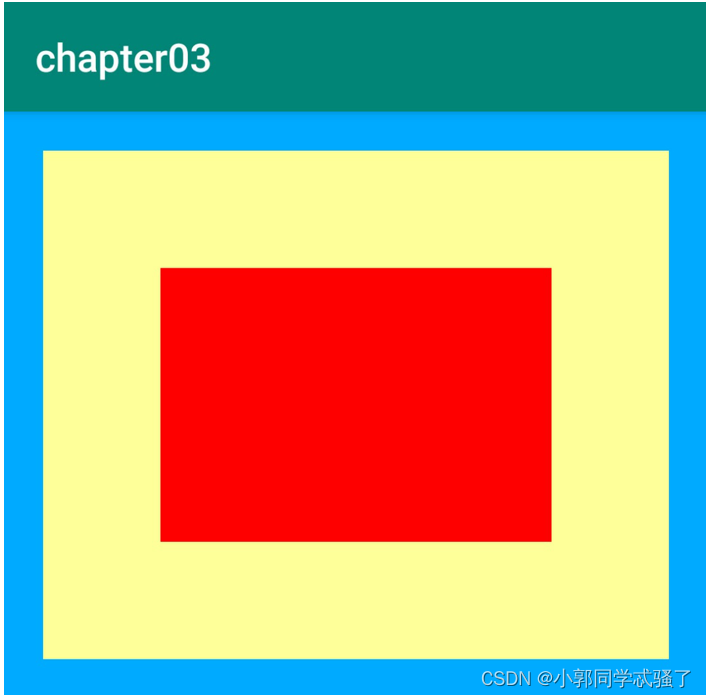
设置视图的间距有两种方式:
(1)采用layout_margin属性,它指定了当前视图与周围平级视图之间的距离。包括layout_margin、layout_marginLeft、layout_marginTop、layout_marginRight、layout_marginBottom
(2)采用padding属性,它指定了当前视图与内部下级视图之间的距离。包括padding、paddingLeft、paddingTop、paddingRight、paddingBottom
<?xml version="1.0" encoding="utf-8"?>
<LinearLayout xmlns:android="http://schemas.android.com/apk/res/android"
    android:layout_width="match_parent"
    android:layout_height="300dp"
    android:background="#00aaff"
    android:orientation="vertical"
    android:padding="5dp">

    <!-- 中间层的布局背景为黄色 -->
    <LinearLayout
        android:layout_width="match_parent"
        android:layout_height="match_parent"
        android:layout_margin="20dp"
        android:background="#ffff99"
        android:padding="30dp">

        <!-- 最内层的视图背景为红色 -->
        <View
            android:layout_width="match_parent"
            android:layout_height="match_parent"
            android:background="#ff0000" />
    </LinearLayout>
</LinearLayout>
设置视图的对齐方式有两种途径:
(1)采用layout_gravity属性,它指定了当前视图相对于上级视图的对齐方式。
(2)采用gravity属性,它指定了下级视图相对于当前视图的对齐方式。 layout_gravity与gravity的取值包括:left、top、right、bottom,还可以用竖线连接各取值,例如“left|top”表示即靠左又靠上,也就是朝左上角对齐。
<?xml version="1.0" encoding="utf-8"?>
<LinearLayout xmlns:android="http://schemas.android.com/apk/res/android"
    android:layout_width="match_parent"
    android:layout_height="300dp"
    android:orientation="horizontal"
    android:background="#ffff99">

    <LinearLayout
        android:layout_width="0dp"
        android:layout_height="200dp"
        android:layout_weight="1"
        android:layout_margin="10dp"
        android:background="#ff0000"
        android:padding="20dp"
        android:layout_gravity="bottom"
        > <View
        android:layout_width="match_parent"
        android:layout_height="match_parent"
        android:background="#000000" />

    </LinearLayout>

    <LinearLayout
        android:layout_width="0dp"
        android:layout_height="200dp"
        android:layout_weight="1"
        android:layout_margin="0dp"
        android:background="#ff0000"
        android:layout_gravity="top">
    </LinearLayout>


</LinearLayout>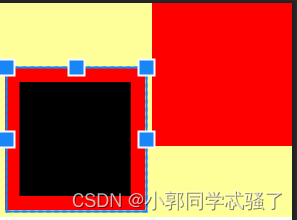





 扫一扫
扫一扫


 485
485

 被折叠的 条评论
为什么被折叠?
被折叠的 条评论
为什么被折叠?
 到【灌水乐园】发言





