vue全屏时隐藏顶部栏

本文介绍了如何在Vue项目中通过点击按钮实现全屏显示,并在全屏状态下隐藏顶部栏。通过监听全屏状态改变,动态调整navbar、sidebar和主要内容区域的高度,以达到隐藏顶部栏并调整布局的效果。同时,别忘了为相关元素设置ID以便于获取和操作。

vue全屏时隐藏顶部栏

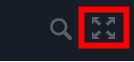
vue可以点击按钮进行全屏显示,如果想在全屏时看到更多,隐藏掉顶部栏,我们可以这样编写代码,按钮图如下
在这里插入图片描述
设置完后效果图如下,这是整个电脑窗口的样子
在这里插入图片描述

首先我们找到这个按钮的代码
screenfull的index.vue
路径在src/components/Screeful/index.vue,找不到就全局搜索下
进入里面我们可以看到如下代码

<template>
  <div>
  //isFullscreen表示全屏与不全屏
    <svg-icon :icon-class="isFullscreen?'exit-fullscreen':'fullscreen'"
              @click="click" />
  </div>
</template>

我们在它的change方法里进行编写

change() {
//navbar是顶部栏,根据是否全屏让顶部栏高度为0不展示或50展示出来
      var navbar = document.getElementById('navbar')
      navbar.style.height = screenfull.isFullscreen ? 0 + 'px' : 50 + 'px'
      //sidebar是侧边栏距离顶部距离,如果不设置,可能会空出一块,看自己代码是什么样的
      var sidebar = document.getElementById('sidebar')
      sidebar.style.top = screenfull.isFullscreen ? 0 + 'px' : 50 + 'px'
      //这个表示右边内容区,因为没有了顶部栏,我这里整体内容上移,下面会出现空白,所以将内容区放大到100%
      var main = document.getElementById('app-main')
      main.style.height = screenfull.isFullscreen ? 100 + '%' : 'calc(100% - 46px)'
      this.isFullscreen = screenfull.isFullscreen
    },

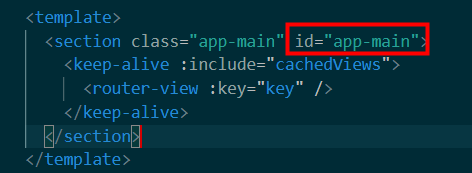
对了别忘记在navbar,sidebar ,app-main地方设置id,不然获取不到
可以全局搜索
class=“navbar”
class="sidebar "
class=“app-main”
找到各自的index.vue
然后在后面加上id=“navbar”
举个栗子
在这里插入图片描述
写完就完成了,效果可以看到了

在 `uni-app` 中隐藏顶部(即导航或标题),需要根据你使用的是 **原生导航** 还是 **自定义导航** 来采取不同的方式。 --- ## ✅ 一、完全隐藏顶部导航(原生标题) ### 方法:在页面的 `pages.json` 中配置 `"navigationStyle": "custom"` ```json { "path": "pages/home/Home", "style": { "navigationStyle": "custom" } } ``` > ✅ 效果: - 隐藏顶部原生导航(包括背景色、标题文字、返回按钮等) - 页面从顶部开始渲染(状态下方) > 📌 常用于:登录页、启动页、全屏内容页 --- ### 🔍 全局设置(所有页面都隐藏) 如果你希望整个项目都不显示顶部,可以在 `pages.json` 的 `globalStyle` 中设置: ```json { "globalStyle": { "navigationStyle": "custom" } } ``` --- ## ✅ 二、只隐藏某个页面的顶部(局部设置) 仅对特定页面生效: ```json { "pages": [ { "path": "pages/index/Index", "style": { "navigationStyle": "default" // 正常显示 } }, { "path": "pages/login/Login", "style": { "navigationStyle": "custom" // 隐藏顶部 } } ] } ``` --- ## ✅ 三、隐藏状态?不能直接隐藏,但可以处理沉浸式布局 ⚠️ 注意:**iOS 和 Android 的状态无法真正“隐藏”**,这是系统级别的 UI。 但你可以做到: ### 1. 让内容延伸到状态下方(沉浸式) 使用 `navigationStyle: "custom"` 后,页面会从 `(0,0)` 开始绘制,你可以自己控制内边距。 #### 示例:控制安全区域 ```vue <template> <view class="container"> <!-- 状态占位(可选:仅在需要添加) --> <view :style="{ height: statusBarHeight + 'px', backgroundColor: '#f8f8f8' }"></view> <!-- 导航内容 --> <view class="navbar"> <text class="title">我的页面</text> </view> <!-- 主体内容 --> <scroll-view class="content"> <!-- 内容 --> </scroll-view> </view> </template> <script> export default { data() { return { statusBarHeight: 0 }; }, onLoad() { const { statusBarHeight } = uni.getSystemInfoSync(); this.statusBarHeight = statusBarHeight; } }; </script> <style> .container { height: 100vh; } .navbar { padding: 20rpx; background-color: #fff; } .content { flex: 1; } </style> ``` --- ## ✅ 四、H5 端额外处理:CSS 隐藏 `.uni-navbar` 如果某些页面仍然看到顶部,尤其是在 H5 平台,可以通过 CSS 强制隐藏: ```css /* 在页面样式中 */ .uni-navbar--border { display: none !important; } /* 或者全局覆盖 */ /* #ifdef H5 */ /deep/ .uni-top-window { display: none !important; } /* #endif */ ``` > ⚠️ 不推荐长期使用 CSS 隐藏,优先用 `navigationStyle: custom` --- ## ✅ 五、配合 `titleNView: false`(App 端旧版本兼容) 如果你使用的是较老的 uni-app 版本(或 App 端),也可以这样写: ```json { "path": "pages/login/Login", "style": { "navigationBarTitleText": "", "navigationBarBackgroundColor": "#FFFFFF", "navigationBarTextStyle": "black", "titleNView": false, "statusBar": { "backgroundImage": "none" } } } ``` 但新项目建议统一使用 `navigationStyle: "custom"` --- ## ✅ 总结对比 | 方式 | 适用平台 | 是否推荐 | 说明 | |------|----------|----------|------| | `"navigationStyle": "custom"` | 所有平台 | ✅ 推荐 | 标准做法,官方支持 | | `titleNView: false` | App/H5 | ⚠️ 兼容旧版 | 已逐渐被替代 | | CSS 隐藏 `.uni-navbar` | H5 | ❌ 最后手段 | 易出问题 | | 自定义导航组件 | 所有平台 | ✅✅ 强烈推荐 | 更灵活美观 | --- ## ✅ 最佳实践建议 - 登录页、引导页 → 使用 `"navigationStyle": "custom"` - 自定义导航 → 自己写一个 `<Navbar />` 组件控制显示/隐藏 - 获取状态高度 → `uni.getSystemInfoSync().statusBarHeight` - 多端适配 → 使用 `env` 判断平台微调样式 ---
评论
成就一亿技术人!
拼手气红包6.0元
还能输入1000个字符
 
红包 添加红包
表情包 插入表情
 条评论被折叠 查看
添加红包

请填写红包祝福语或标题

红包个数最小为10个

红包金额最低5元

当前余额3.43前往充值 >
需支付:10.00
成就一亿技术人!
领取后你会自动成为博主和红包主的粉丝 规则
hope_wisdom
发出的红包
实付
使用余额支付
点击重新获取
扫码支付
钱包余额 0

抵扣说明:

1.余额是钱包充值的虚拟货币,按照1:1的比例进行支付金额的抵扣。
2.余额无法直接购买下载,可以购买VIP、付费专栏及课程。

余额充值