



 本文介绍了如何使用Appium进行混合应用的自动化测试,包括屏幕解锁、滑动操作、触摸动作及在原生与Webview环境间的切换。详细讲解了TouchAction的使用,如press、move_to、release等,并展示了在H5环境中的测试步骤,涉及到Webview的定位和交互。此外,还提到了辅助测试工具如uctool和Chrome DevTools的重要性,以及在不同环境下进行测试的注意事项。
九宫格操作
操作步骤
屏幕解锁
- action = TouchAction(d) # 初始化
- action.press().wait() # 提供坐标
- .move_to().wait # 移动
- .move_to().wait # 移动
- .move_to().release().perfrom() 移动 释放 点击
TouchAction:
1、链式调用,支付的方法有 press, longpress, moveto, release,
2、perform 调用
# 操作步骤
# 屏幕解锁
"""
action = TouchAction(d)
action.press().wait()
.move_to().wait()
.move_to().wait()
....
.move_to().release().perform()
"""

def swipe_up(driver, offset=0.9):
    size = driver.get_window_size()
    height = size['height']
    width = size['width']

    driver.swipe(start_x=width * 0.5,
                 start_y=height * offset,
                 end_x=width * 0.5,
                 end_y=height * (1 - offset))


import time

from appium.webdriver import Remote
from appium.webdriver.common.mobileby import MobileBy
from appium.webdriver.common.touch_action import TouchAction
from selenium.webdriver.common.by import By

caps = {
    'platformName': 'Android',
    'deviceName': 'emulator-5554',
    'appPackage': 'com.lemon.lemonban',
    'appActivity': 'com.lemon.lemonban.activity.WelcomeActivity',
}
driver = Remote(command_executor='http://127.0.0.1:4723/wd/hub',
                desired_capabilities=caps)
driver.implicitly_wait(10)

# 锁屏
driver.lock()
driver.back()       # 让屏幕出来

time.sleep(1)

# 解开屏幕
# driver.unlock()
time.sleep(1)

# 向上滑动
swipe_up(driver)

# 获取元素的属性
# el.rect {"x":56,"y":587,"width":608,"height":608}

# 定位元素
el = driver.find_element(By.XPATH, '//*[@resource-id="com.android.systemui:id/lockPatternView"]')

# 第一个点
# rect = {"x":56,"y":587,"width":608,"height":608}
# 获取元素的x, y, width, height
rect = el.rect
start_x = rect['x']
start_y = rect['y']
width = rect['width']
height = rect['height']

point_01 = {'x': start_x + width * 1 / 6, 'y': start_y + height * 1 / 6}
point_02 = {'x': start_x + width * 1 / 2, 'y': start_y + height * 1 / 6}
point_03 = {'x': start_x + width * 5 / 6, 'y': start_y + height * 1 / 6}
point_04 = {'x': start_x + width * 1 / 6, 'y': start_y + height * 1 / 2}
point_05 = {'x': start_x + width * 1 / 2, 'y': start_y + height * 1 / 2}
point_06 = {'x': start_x + width * 5 / 6, 'y': start_y + height * 1 / 2}
point_07 = {'x': start_x + width * 1 / 6, 'y': start_y + height * 5 / 6}
point_08 = {'x': start_x + width * 1 / 2, 'y': start_y + height * 5 / 6}
point_09 = {'x': start_x + width * 5 / 6, 'y': start_y + height * 5 / 6}

# 调用 touchAction
action = TouchAction(driver)
action.press(**point_01).wait(200).\
    move_to(**point_04).wait(200).\
    move_to(**point_07).wait(200).\
    move_to(**point_08).wait(200).\
    move_to(**point_09).wait(200).\
    release().perform()

time.sleep(1)
==============================================================
appium操作之h5混合应用自动化
混合应用测试
什么是混合应用。
java / kotlin开发的安卓应用程序
混合应用, 使用 web 技术去开发app,
flutter, react native, weex
上下文环境
# 获取现在的环境
print("现在的环境是原生界面", driver.current_context)
print("所有的环境", driver.contexts)

# 定位到师资团队的元素
driver.find_element(By.XPATH, '//*[@text="师资团队"]').click()

# 获取现在的环境
print("现在的环境是h5界面", driver.current_context)
print("所有的环境", driver.contexts)
=========================================================
切换到 webview / h5 环境
# 获取现在的环境
print("现在的环境是原生界面", driver.current_context)
print("所有的环境", driver.contexts)

# 定位到师资团队的元素
driver.find_element(By.XPATH, '//*[@text="师资团队"]').click()

# 切换到 webview / h5 环境
driver.switch_to.context('WEBVIEW_com.lemon.lemonban')

# 获取现在的环境
print("现在的环境是h5界面", driver.current_context)
print("所有的环境", driver.contexts)
=====================================================
步骤:
1、按普通的安卓组件进行测试
2、当点击进入 h5 页面以后, weditor, inspect, 不能使用了,
3、切换环境,就变成了 web 测试。
准备:
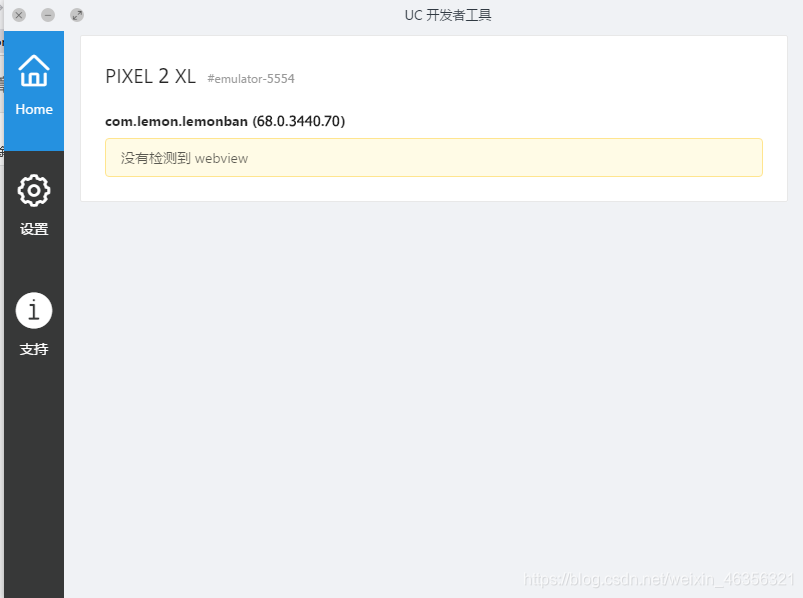
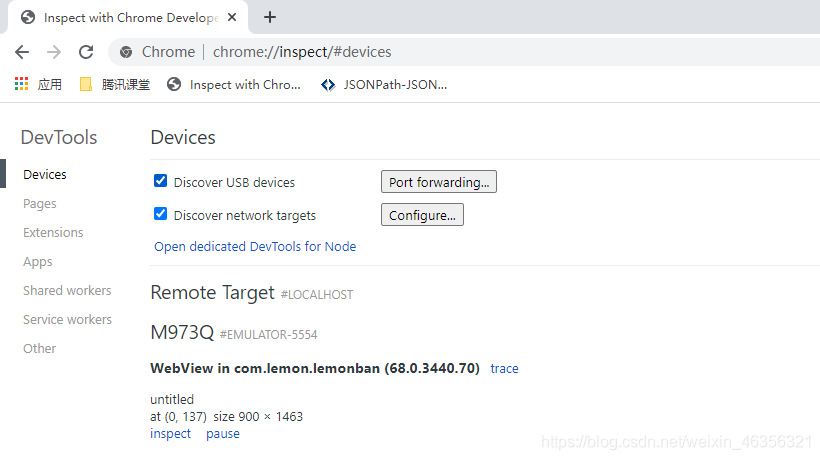
1、辅助定位工具。 uctool, chrome devtools
2、手机浏览器驱动,(版本和电脑是不一样的)
3、webview h5, 必须找开发开启 webview 调试模式。
uctool工具:
chrome devtools工具:
直接在谷歌浏览器上输入网址:chrome://inspect/#devices
如图:
原生app定位
import time

from appium.webdriver import Remote
from appium.webdriver.common.mobileby import MobileBy
from appium.webdriver.common.touch_action import TouchAction
from selenium.webdriver.common.by import By

caps = {
    'platformName': 'Android',
    'deviceName': 'emulator-5554',
    'appPackage': 'com.lemon.lemonban',
    'appActivity': 'com.lemon.lemonban.activity.WelcomeActivity',
    'chromedriverExecutable': 'D:\chromedriver\chromedriver_242.exe'
}
driver = Remote(command_executor='http://127.0.0.1:4723/wd/hub',
                desired_capabilities=caps)
driver.implicitly_wait(10)

# 获取现在的环境
print("现在的环境是原生界面", driver.current_context)
print("所有的环境", driver.contexts)

# 定位到师资团队的元素
driver.find_element(By.XPATH, '//*[@text="师资团队"]').click()

# 切换到 webview / h5 环境
driver.switch_to.context('WEBVIEW_com.lemon.lemonban')

# 获取现在的环境
print("现在的环境是h5界面", driver.current_context)
print("所有的环境", driver.contexts)

time.sleep(1)

# 我没有导入selenium,
# 定位柠檬班几个字
driver.find_element(By.XPATH, '//*[text()="柠檬班"]').click()

driver.back()

# 切换回webview环境
driver.switch_to.context('NATIVE_APP')





 扫一扫
扫一扫


 7277
7277


 到【灌水乐园】发言



