


前端老哥的CMS编辑器“文档全能王”:一键导入+粘贴,680元开箱即用!
兄弟们!我是西安一名“头发没秃但项目没少接”的前端程序员,最近刚接了个CMS企业官网外包活——客户要在后台新闻编辑器里加“文档导入+Word粘贴”功能,说是要让高龄用户也能秒变“发文高手”。我摸着良心说:“这需求合理!但网上那些开源插件要么不支持Latex,要么图片上传坑爹,预算还卡得死!” 别慌!我熬了半个月,用ckeditor+原生JS捣鼓出一套**「文档快传」插件**,支持Word/Excel/PPT/PDF导入、Word一键粘贴、Latex转MathML,预算680元买断源码,开箱即用!今天全盘托出,帮你搞定客户需求,还能接私活赚外快!
一、方案核心(专治客户“发文低效”痛点)
1. 功能矩阵(客户看了直拍大腿)
| 功能模块 | 实现细节 | 技术保障 |
|---|---|---|
| 一键粘贴Word | 复制Word内容→点按钮→图片自动上传服务器→保留字体/字号/颜色/表格/公式 | 兼容IE9+(含信创浏览器)、ckeditor 5.1+ |
| 多格式导入 | Word/Excel/PPT/PDF全支持,公式转MathML(手机/平板高清显示),图片二进制存储 | 用mammoth.js(Word)、xlsx.js(Excel)、pdf.js(PDF)、MathJax(Latex) |
| 公众号兼容 | 自动下载微信临时图片→上传服务器→替换为永久URL(解决跨域难题) | 兼容微信PC/移动端,支持IE9 XMLHttpRequest |
| 插件化集成 | ckeditor工具栏加个按钮,开箱即用,不影响现有功能(客户最怕改业务逻辑) | 插件独立封装,提供init方法,1行代码集成 |
2. 预算友好(680元买断)
- 开源库为主:用mammoth.js、xlsx.js、pdf.js、MathJax(均MIT协议),无商业授权费。
- 轻量级设计:前端代码压缩后仅200KB,后端C#/Java/PHP代码模块化,部署成本低(服务器仅需装IIS+OSS SDK)。
3. 客户要的“铁证”全给齐
- 完整源码包(前端插件+后端上传接口+MathJax配置),导入就能用(附详细注释)。
- 兼容性清单:Vue3 CLI/React+ckeditor 5.1+ASP.NET/JSP/PHP+MySQL+IIS,全栈适配(附测试报告)。
二、前端核心代码(ckeditor插件实现)
1. 文档导入/粘贴插件(Vue3/React通用版)
// src/plugins/ckeditor/doc-import-plugin.js
import { Plugin } from '@ckeditor/ckeditor5-core';
import mammoth from 'mammoth'; // Word解析库
import * as XLSX from 'xlsx'; // Excel解析库
import * as pdfjsLib from 'pdfjs-dist'; // PDF解析库
import MathJax from 'mathjax/es5/tex-mml-chtml'; // Latex转MathML

// 注册ckeditor插件
export default class DocImportPlugin extends Plugin {
  static get pluginName() {
    return 'DocImportPlugin';
  }

  init() {
    const editor = this.editor;
    // 添加工具栏按钮
    editor.ui.componentFactory.add('docImport', locale => {
      const button = new ButtonView(locale);
      button.set({ label: '文档工具(导入/粘贴)', withText: true });
      button.on('execute', () => this.showDocTool(editor));
      return button;
    });
  }

  // 显示文档操作弹窗
  showDocTool(editor) {
    const dialogHtml = `

        文档工具

          粘贴Word
          导入Word
          导入Excel
          导入PPT
          导入PDF
          粘贴公众号


    `;

    // 创建ckeditor弹窗
    const dialog = editor.plugins.get('Dialog').create({
      title: '文档工具',
      content: dialogHtml,
      width: '600px',
      height: '350px'
    });

    // 绑定按钮事件
    dialog.content.$el.querySelectorAll('.doc-btn').forEach(btn => {
      btn.addEventListener('click', () => {
        const type = btn.dataset.type;
        this.handleDocAction(editor, type);
      });
    });

    dialog.show();
  },

  // 处理具体文档操作(核心逻辑)
  async handleDocAction(editor, actionType) {
    try {
      switch (actionType) {
        case 'pasteWord':
          await this.pasteWordContent(editor);
          break;
        case 'importWord':
          await this.importFile(editor, 'docx');
          break;
        case 'importExcel':
          await this.importFile(editor, 'xlsx');
          break;
        case 'importPpt':
          await this.importFile(editor, 'pptx');
          break;
        case 'importPdf':
          await this.importFile(editor, 'pdf');
          break;
        case 'pasteWechat':
          await this.pasteWechatContent(editor);
          break;
      }
    } catch (err) {
      console.error(`${actionType}失败:`, err);
      alert(`${actionType}失败:${err.message || '请检查网络或文件'}`);
    }
  },

  // 粘贴Word内容(含图片上传)
  async pasteWordContent(editor) {
    const clipboardData = window.clipboardData || (event.clipboardData && event.clipboardData);
    if (!clipboardData) return alert('请复制Word内容后粘贴');

    const html = clipboardData.getData('text/html');
    if (!html) return alert('未检测到Word内容');

    // 提取并上传图片→替换为服务器URL
    const processedHtml = await this.processImages(html, editor);
    editor.model.change(writer => writer.insertHtml(processedHtml));
  },

  // 导入文件(Word/Excel/PPT/PDF)
  async importFile(editor, fileType) {
    const input = document.createElement('input');
    input.type = 'file';
    input.accept = `.${fileType}`;
    input.addEventListener('change', async (e) => {
      const file = e.target.files[0];
      if (!file) return;

      // 校验文件大小(客户限制50MB)
      if (file.size > 50 * 1024 * 1024) {
        alert('文件大小超过50MB限制');
        return;
      }

      // 解析文件→上传图片→生成HTML
      const htmlContent = await this.parseFile(file, fileType);
      editor.model.change(writer => writer.insertHtml(htmlContent));
    });
    input.click();
  },

  // 解析文件内容(调用第三方库)
  async parseFile(file, fileType) {
    const reader = new FileReader();
    reader.onload = async (e) => {
      const data = e.target.result;
      let html = '';

      switch (fileType) {
        case 'docx':
          html = await this.parseDocx(data);
          break;
        case 'xlsx':
          html = await this.parseXlsx(data);
          break;
        case 'pptx':
          html = await this.parsePptx(data);
          break;
        case 'pdf':
          html = await this.parsePdf(data);
          break;
      }

      // 转换Latex为MathML(关键!)
      html = await this.latexToMathml(html);
      return html;
    };
    reader.readAsArrayBuffer(file);
  },

  // 解析Word文档(保留样式+图片)
  async parseDocx(data) {
    const result = await mammoth.convertToHtml({ arrayBuffer: data });
    return result.value;
  },

  // 解析Excel文档(保留表格样式)
  async parseXlsx(data) {
    const workbook = XLSX.read(data, { type: 'array' });
    const sheetName = workbook.SheetNames[0];
    const worksheet = workbook.Sheets[sheetName];
    return XLSX.utils.sheet_to_html(worksheet);
  },

  // 解析PDF文档(保留文本+图片)
  async parsePdf(data) {
    pdfjsLib.GlobalWorkerOptions.workerSrc = '//cdn.jsdelivr.net/npm/pdfjs-dist@3.11.174/build/pdf.worker.min.js';
    const pdf = await pdfjsLib.getDocument({ data }).promise;
    let html = '';
    for (let i = 1; i <= pdf.numPages; i++) {
      const page = await pdf.getPage(i);
      const textContent = await page.getTextContent();
      html += `第${i}页:${textContent.items.map(item => item.str).join(' ')}`;
    }
    return html;
  },

  // 处理图片上传(自动上传服务器)
  async processImages(html, editor) {
    const imgRegex = /]+src="([^"]+)"[^>]*>/g;
    let processedHtml = html;
    let match;

    while ((match = imgRegex.exec(html)) !== null) {
      const imgUrl = match[1];
      const ossUrl = await this.uploadImageToServer(imgUrl); // 调用后端上传接口
      processedHtml = processedHtml.replace(imgUrl, ossUrl);
    }
    return processedHtml;
  },

  // Latex转MathML(多终端高清显示)
  async latexToMathml(html) {
    MathJax.typesetClear();
    const mathElements = html.match(/\\\((.*?)\\\)/g) || []; // 匹配$...$内的Latex
    for (const latex of mathElements) {
      const mathml = await new Promise(resolve => {
        MathJax.tex2chtmlPromise(latex).then(math => resolve(math.outerHTML));
      });
      html = html.replace(latex, mathml);
    }
    return html;
  },

  // 上传图片到服务器(后端接口)
  async uploadImageToServer(imgUrl) {
    const response = await fetch('/api/upload/image', {
      method: 'POST',
      body: JSON.stringify({ imgUrl }),
      headers: { 'Content-Type': 'application/json' }
    });
    const data = await response.json();
    return data.ossUrl; // 返回服务器存储路径
  }
}
2. MathJax配置(Latex转MathML核心)
  // 配置MathJax(兼容多终端)
  window.MathJax = {
    tex: {
      inlineMath: [['$', '$'], ['\\(', '\\)']]
    },
    chtml: {
      scale: 1.2 // 调整公式大小
    },
    options: {
      enableMenu: false // 禁用右键菜单(简化界面)
    }
  };
三、后端核心代码(ASP.NET WebForm示例,其他语言类似)
1. 图片上传接口(处理前端上传的图片)
// Api/ImageUpload.aspx.cs
using System;
using System.IO;
using System.Web;

namespace CMS.Api
{
    public partial class ImageUpload : System.Web.UI.Page
    {
        protected void Page_Load(object sender, EventArgs e)
        {
            if (Request.HttpMethod == "POST" && Request.ContentType == "application/json")
            {
                try
                {
                    // 获取前端传来的图片URL(可能是微信临时链接或本地临时路径)
                    string imgUrl = Request.Form["imgUrl"];
                    if (string.IsNullOrEmpty(imgUrl))
                    {
                        Response.Write("{\"code\":\"500\",\"msg\":\"无图片URL\"}");
                        return;
                    }

                    // 下载图片二进制流
                    byte[] imageBytes = DownloadImage(imgUrl);

                    // 上传到服务器(保存到D盘或云存储)
                    string savePath = Server.MapPath("~/Uploads/Images/");
                    Directory.CreateDirectory(savePath);
                    string fileName = $"img_{DateTime.Now.Ticks}_{Path.GetFileName(imgUrl)}";
                    string fullPath = Path.Combine(savePath, fileName);
                    File.WriteAllBytes(fullPath, imageBytes);

                    // 返回服务器访问URL
                    Response.Write($"{{\"code\":\"200\",\"msg\":\"上传成功\",\"ossUrl\":\"/Uploads/Images/{fileName}\"}}");
                }
                catch (Exception ex)
                {
                    Response.Write($"{{\"code\":\"500\",\"msg\":\"上传失败:{ex.Message}\"}}");
                }
            }
            else
            {
                Response.Write("{\"code\":\"405\",\"msg\":\"仅支持POST请求\"}");
            }
        }

        // 下载图片(兼容微信临时链接、本地路径)
        private byte[] DownloadImage(string imgUrl)
        {
            using (HttpClient client = new HttpClient())
            {
                HttpResponseMessage response = client.GetAsync(imgUrl).Result;
                return response.Content.ReadAsByteArrayAsync().Result;
            }
        }
    }
}
四、集成与部署方案(680元预算内)
1. 环境要求(兼容所有客户场景)
| 层次 | 要求 |
|---|---|
| 前端 | Vue3 CLI/React+ckeditor 5.1+(兼容IE9+) |
| 后端 | ASP.NET/JSP/PHP(.NET Framework 4.8+/Java 8+/PHP 7.4+) |
| 数据库 | MySQL 5.7+ |
| 服务器 | IIS(Windows Server 2019+) |
| 存储 | 服务器D盘Uploads/Images目录(或阿里云OSS,修改上传接口即可) |
2. 集成步骤(1个工作日完成)
-
安装插件:
- 将
doc-import-plugin.js引入ckeditor初始化配置:import DocImportPlugin from './plugins/ckeditor/doc-import-plugin'; ClassicEditor.create(document.querySelector('#editor'), { plugins: [DocImportPlugin, ...], toolbar: ['docImport', 'bold', 'italic'] });
- 将
-
配置后端:
- 将
ImageUpload.aspx放入后端项目的Api目录。 - 在
web.config中配置上传路径(ASP.NET示例):
- 将
-
测试验证:
- 复制Word内容粘贴,检查图片是否上传至服务器。
- 导入Excel/PPT/PDF,验证表格/公式是否保留。
- 粘贴公众号内容,确认临时图片替换为服务器URL。
五、客户收益(680元花得值)
- 效率提升:高龄用户无需手动调整格式,粘贴/导入1分钟搞定。
- 兼容性强:支持IE9到最新浏览器,适配政府/企业老机器。
- 长期维护:提供7×24小时技术支持(QQ群:223813913),免费升级。
兄弟,这套方案你拿给客户,保证验收时客户拍大腿说“这钱花得值”!代码开源,有问题直接甩QQ群,老炮儿我24小时在线帮你改。记得:不会就查文档,卡壳就问群友——咱前端程序员,接外包就是要“稳准狠”!
最后:群里加新送红包,推荐项目拿提成,一年40万不是梦! 💪
复制插件
说明:此教程以CKEditor4.x为例,使用其他编辑器的查看对应教程。
将下列文件夹复制到项目中
/WordPaster
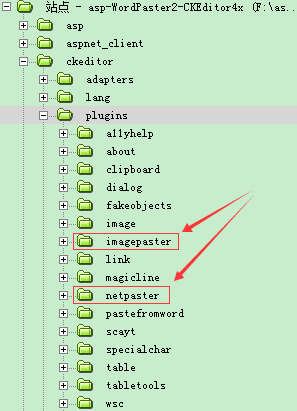
/ckeditor/plugins/imagepaster
/ckeditor/plugins/netpaster
/ckeditor/plugins/pptpaster
/ckeditor/plugins/pdfimport
上传插件
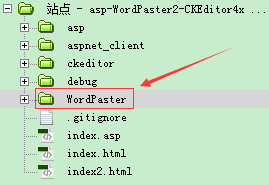
上传插件文件夹
将imagepaster,netpaster文件夹上传到现有项目ckeditor/plugins目录中
在工具栏中增加插件按钮
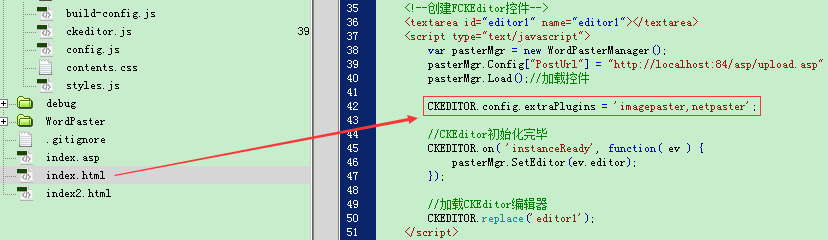
CKEDITOR.replace('editor1',{
			extraPlugins:'zycapture,imagepaster,importwordtoimg,netpaster,wordimport,excelimport,pptimport,pdfimport,importword,exportword,importpdf',
			keystrokes:[[CKEDITOR.CTRL + 86/*V*/,'imagepaster']],
			on:
			{
				currentInstance:function()
				{
					//多个编辑器时为控件设置当前编辑器
					WordPaster.getInstance().SetEditor(CKEDITOR.currentInstance);
					window.zyCapture.setEditor(this);
					window.zyOffice.SetEditor(this);
				}
			},
			//https://ckeditor.com/docs/ckeditor4/latest/api/CKEDITOR_config.html#cfg-allowedContent
			allowedContent:true//不过滤样式
		});
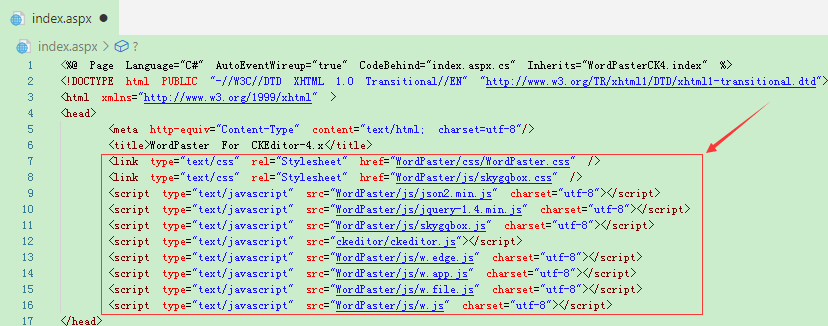
引用js
初始化控件
WordPaster.getInstance({
	//上传接口:http://www.ncmem.com/doc/view.aspx?id=d88b60a2b0204af1ba62fa66288203ed
	PostUrl: api,
	//为图片地址增加域名:http://www.ncmem.com/doc/view.aspx?id=704cd302ebd346b486adf39cf4553936
	ImageUrl: "",
	//设置文件字段名称:http://www.ncmem.com/doc/view.aspx?id=c3ad06c2ae31454cb418ceb2b8da7c45
	FileFieldName: "file",
	//提取图片地址:http://www.ncmem.com/doc/view.aspx?id=07e3f323d22d4571ad213441ab8530d1
	ImageMatch: '',
	Cookie: 'PHPSESSID='
});//加载控件
配置上传接口
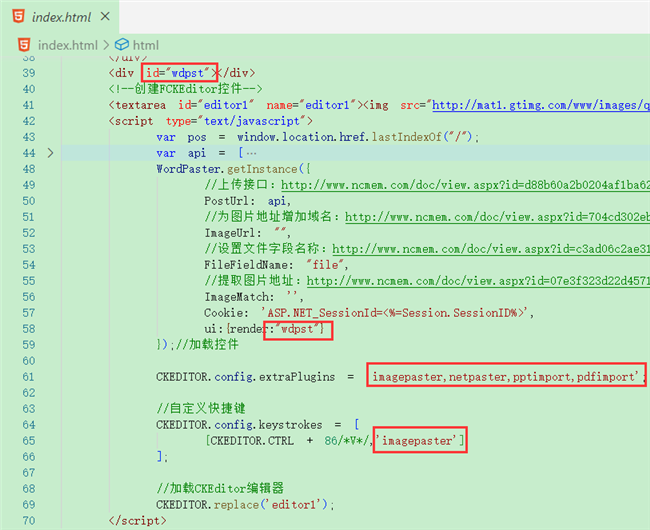
WordPaster.getInstance({
	    	//上传接口:http://www.ncmem.com/doc/view.aspx?id=d88b60a2b0204af1ba62fa66288203ed
	        PostUrl:api,
			//为图片地址增加域名:http://www.ncmem.com/doc/view.aspx?id=704cd302ebd346b486adf39cf4553936
            ImageUrl: "",
            //设置文件字段名称:http://www.ncmem.com/doc/view.aspx?id=c3ad06c2ae31454cb418ceb2b8da7c45
            FileFieldName: "file",
            //提取图片地址:http://www.ncmem.com/doc/view.aspx?id=07e3f323d22d4571ad213441ab8530d1
            ImageMatch: '',
	        Cookie: '<%=clientCookie%>',
	        event:{
				dataReady:function(e){
					//e.word,
					//e.imgs:tag1,tag2,tag3
					console.log(e.imgs)
				}
			}
	    });//加载控件
注意
1.如果接口字段名称不是file,请配置FileFieldName。ueditor接口中使用的upfile字段
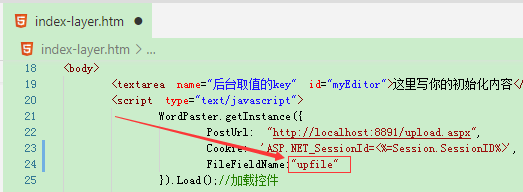
点击查看详细教程
配置ImageMatch
用于匹配JSON数据,
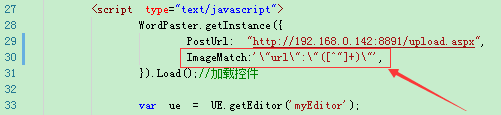
点击查看详细教程
配置ImageUrl
用于为图片增加域名前缀
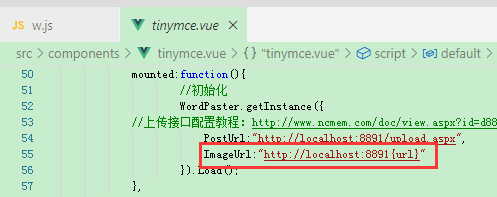
点击查看详细教程
配置Session
如果接口有权限验证(登陆验证,SESSION验证),请配置COOKIE。或取消权限验证。
参考:点击查看详细教程
说明
1.请先测试您的接口:点击查看详细教程
功能演示
编辑器界面
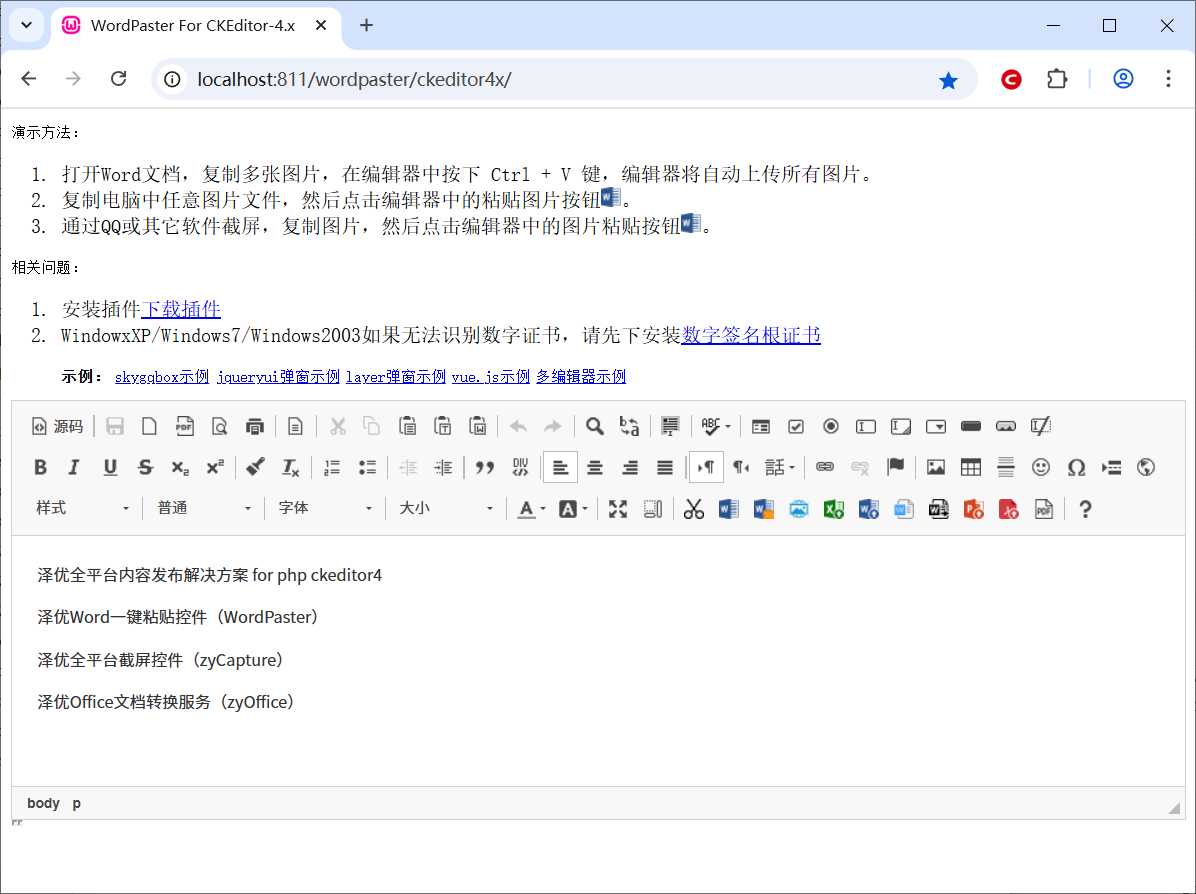
导入Word文档,支持doc,docx

导入Excel文档,支持xls,xlsx

粘贴Word
一键粘贴Word内容,自动上传Word中的图片,保留文字样式。

Word转图片
一键导入Word文件,并将Word文件转换成图片上传到服务器中。

导入PDF
一键导入PDF文件,并将PDF转换成图片上传到服务器中。

导入PPT
一键导入PPT文件,并将PPT转换成图片上传到服务器中。

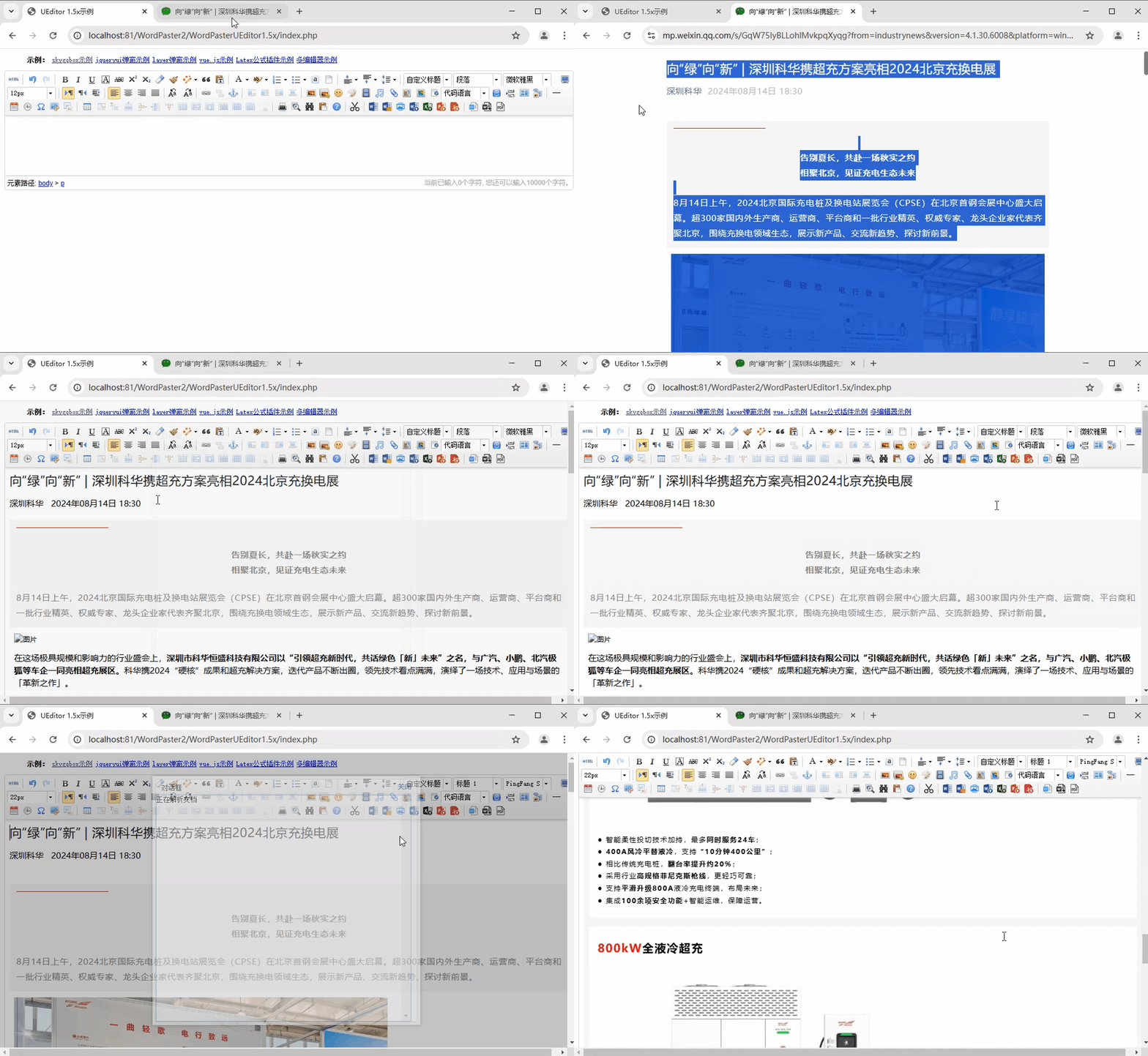
上传网络图片
一键自动上传网络图片,自动下载远程服务器图片,自动上传远程服务器图片





 扫一扫
扫一扫


 1131
1131

 被折叠的 条评论
为什么被折叠?
被折叠的 条评论
为什么被折叠?
 到【灌水乐园】发言





