import PySimpleGUI as Py
import time
import os
import hashlib
import logging
Py.theme('Default') # PySimpleGUI 设置主题颜色,接近护眼色的内置主题:'LightGreen''TanBlue''DefaultNoMoreNagging''GreenTan'
# ======== 原始主程序内容从这里开始 ========
image_path2 = "D:/software/demo/pythonProject/images/image2.png"
image_path3 = "D:/software/demo/pythonProject/images/image3.png"
image_path4 = "D:/software/demo/pythonProject/images/image4.png"
image_path5 = "D:/software/demo/pythonProject/images/image5.png"
image_path6 = "D:/software/demo/pythonProject/images/image6.png"
image_path7 = "D:/software/demo/pythonProject/images/image7.png"
image_path8 = "D:/software/demo/pythonProject/images/image8.png"
image_path9 = "D:/software/demo/pythonProject/images/image9.png"
# 检查图片是否存在
if not os.path.exists(image_path2):
print(f"[!] 图片2不存在: {image_path2}")
image_path2 = None
if not os.path.exists(image_path3):
print(f"[!] 图片3不存在: {image_path3}")
image_path3 = None
if not os.path.exists(image_path4):
print(f"[!] 图片4不存在: {image_path4}")
image_path4 = None
if not os.path.exists(image_path5):
print(f"[!] 图片5不存在: {image_path5}")
image_path5 = None
if not os.path.exists(image_path6):
print(f"[!] 图片6不存在: {image_path6}")
image_path6 = None
if not os.path.exists(image_path7):
print(f"[!] 图片7不存在: {image_path7}")
image_path7 = None
if not os.path.exists(image_path8):
print(f"[!] 图片8不存在: {image_path8}")
image_path8 = None
if not os.path.exists(image_path9):
print(f"[!] 图片9不存在: {image_path9}")
image_path9 = None
a = ' 漫息!' # 其显示收到layout2 = [size=(170, 10)]中10行显示的限制
b = '【'
layout1 = [[Py.Button(b,button_color=('#006400', 'white'), font=("华文楷体", 12))]]
window1_position = (514, 24) # 定义主窗口的布局,这里设置了窗口在屏幕上的起始位置为(横坐标50, 纵坐标50)
window1 = Py.Window('', layout1, size=(1532, 44), no_titlebar=True, location=window1_position, finalize=True)
window1.keep_on_top_set()
layout2 = [[Py.Image(key='img2', filename=image_path2) if image_path2 else Py.Text("加载失败")],
[Py.Text(a, size=(23, 200), auto_size_text=True)]]
window2_position = (2340, 145) # 屏幕尺寸2560*1440
window2 = Py.Window('', layout2, size=(220, 750), no_titlebar=True, location=window2_position, finalize=True)
window2.keep_on_top_set()
# 全局标志防止重复运行
reminder_running = False
def run_periodic_reminder():
global reminder_running
if reminder_running:
print("[!] 提醒功能已在运行,忽略重复调用")
return
reminder_running = True
layout9 = [[Py.Image(key='img9', filename=image_path9) if image_path9 else Py.Text("加载失败")],
[Py.Text("天", font=("华文楷体", 10), text_color='blue')],
[Py.Text("📌 周期性提醒已激活:每次取消后10秒自动重试")],
[Py.Multiline("", size=(60, 4), key='-OUTPUT-', disabled=True, autoscroll=True)],
[Py.Button('退出', key='EXIT', button_color=('#800000', 'Silver')),
Py.Text("", font=("华文楷体", 10), text_color='red')]]
window9_position = (1795, 300)
window9 = Py.Window('', layout9, size=(460, 490), finalize=True, location=window9_position)
window9.keep_on_top_set()
next_popup_time = time.time() + 1
reminder_active = True
popup_active = False
input_popup = None
def show_input_popup():
layout_popup = [[Py.Text(':')],
[Py.Input(key='-INPUT-', size=(6, 1), font=("Arial", 20), focus=True),
Py.Text('或', font=("华文楷体", 16), text_color='#000000'),
Py.Text('动', font=("华文楷体", 22), text_color='red', background_color='#86A8FF')],
[Py.Button('属于', button_color=('#800000', 'white'), bind_return_key=True), Py.Push(),
Py.Button('不属于', button_color=('#000000', 'white'))]]
windowpopup_position = (1890, 680)
return Py.Window('', layout_popup, keep_on_top=True, modal=True, location=windowpopup_position, finalize=True, grab_anywhere=False)
try:
while True: # === 安全 read():用 try-except 捕获 TclError ===
try:
event9, values9 = window9.read(timeout=100)
except (RuntimeError, Exception) as e: # 常见于窗口关闭后底层 TK 资源已释放
if "wrapped C/C++ object has been deleted" in str(e) or "TclError" in str(e):
print("[INFO] 窗口已被系统关闭,退出提醒循环。")
break
else:
print(f"[ERROR] Unexpected error: {e}")
break
if event9 in (None, 'EXIT', Py.WINDOW_CLOSED): # 如果 read 返回 None,说明窗口被关闭
layout10 = [[Py.Image(key='img2', filename=image_path2) if image_path2 else Py.Text("加载失败")],
[Py.Text(a, size=(23, 200), auto_size_text=True)]]
window10_position = (2340, 145) # 屏幕尺寸2560*1440
window10 = Py.Window('', layout10, size=(220, 750), location=window10_position,
finalize=True)
window10.keep_on_top_set()
break
now = time.time() # 自动弹出输入框逻辑
if reminder_active and not popup_active and next_popup_time and now >= next_popup_time:
popup_active = True
try:
input_popup = show_input_popup()
except Exception as e:
print(f"[Error] 无法创建弹窗: {e}")
popup_active = False
next_popup_time = now + 10
continue
if input_popup: # 处理输入弹窗
try:
event_p, values_p = input_popup.read(timeout=100)
except (RuntimeError, Exception):
input_popup = None
popup_active = False
continue
if event_p == '属于':
user_input = values_p['-INPUT-'].strip()
try:
num = float(user_input)
formatted_num = int(num) if num.is_integer() else num
window9['-OUTPUT-'].update(f"✔️ 录入成功:{formatted_num} —— 提醒停止\n", append=True)
reminder_active = False
next_popup_time = None
except ValueError:
window9['-OUTPUT-'].update(f"❌ 输入无效:'{user_input}',60秒后重试...\n", append=True)
next_popup_time = time.time() + 60
finally:
try:
input_popup.close()
except:
pass
input_popup = None
popup_active = False
elif event_p in (None, '不属于', Py.WINDOW_CLOSED):
try:
input_popup.close()
except:
pass
input_popup = None
popup_active = False
window9['-OUTPUT-'].update("⛔ 用户取消,60秒后将再次提醒...\n", append=True)
next_popup_time = time.time() + 60
finally:
# 确保清理
if 'window9' in locals() or window9 is not None:
try:
window9.close()
except:
pass
if input_popup is not None:
try:
input_popup.close()
except:
pass
reminder_running = False
def run_single_flow():
"""运行一次完整的 window4 流程"""
Py.theme('LightBlue')
input_history = [] # 存储已确认的数字
last_input_time = None
INPUT_TIMEOUT = 5.0
current_text = ''
# 使用一个固定宽度的 Text 框实现横向排列 + 自动换行
layout4 = [[Py.Image(key='img4', filename=image_path4) if image_path4 else Py.Text("加载失败")],
[Py.Text("请在5秒内输入当前动量,之后5秒无操作将自动记录:")],
[Py.Input(key='-INPUT-', size=(10, 1), font=("Arial", 20), focus=True), Py.Text("", size=(60, 1), key='-STATUS-')],
[Py.Text(":")], # 设置size=(None, 10)表示不限宽度列,高度最多10行;text_color和background_color提升可读性
[Py.Frame('', [[Py.Text("", size=(48, 15), key='-HISTORY-', relief='sunken', background_color='white',
text_color='black', font=('Courier', 15))]], size=(590, 75), pad=10)],
# 外层长590*75,最多10行,字体大小为15,内层长度48超出则自动换行,控制内层显示区域大小以便触发换行,内层过长超过外层将会看不到换行
[Py.Button('美边', button_color=('#006400', 'Silver'))], # 用一个大括号使他们在同一行显示
[Py.Button('同向', button_color=('#000000', 'white')),
Py.Button('不符合', button_color=('#800000', 'Silver'))]]
window4_position = (1795, 300)
window4 = Py.Window('', layout4, size=(460, 500), resizable=True, location=window4_position, finalize=True)
window4.keep_on_top_set()
while True:
event4, values4 = window4.read(timeout=100)
if event4 == Py.WINDOW_CLOSED:
break
new_text = values4['-INPUT-'].strip()
input_changed = new_text != current_text
current_text = new_text
valid_number = False # 验证是否为有效数字
try:
if current_text:
float(current_text)
valid_number = True
except ValueError:
pass
if input_changed and valid_number: # 输入变化且合法 → 重置计时器
last_input_time = time.time()
window4['-STATUS-'].update(f"✅ 输入中 '{current_text}' ... 5秒无操作将自动提交")
if last_input_time is not None: # 超时自动提交
elapsed = time.time() - last_input_time
if elapsed >= INPUT_TIMEOUT:
try:
num = float(current_text)
formatted_num = int(num) if num.is_integer() else num
input_history.append(formatted_num)
history_str = ' '.join(map(str, input_history)) # 更新历史显示:空格分隔,让系统自动换行
window4['-HISTORY-'].update(history_str)
window4['-STATUS-'].update("🎉 已自动记录!")
window4['-INPUT-'].update('')
current_text = ''
last_input_time = None
except Exception as e:
window4['-STATUS-'].update("❌ 提交失败")
last_input_time = None
elif last_input_time is None and current_text and not valid_number: # 状态栏提示
window4['-STATUS-'].update("❌ 请输入有效的数字")
elif last_input_time and valid_number:
remaining = max(0, int(INPUT_TIMEOUT - (time.time() - last_input_time) + 0.9))
if remaining > 0:
window4['-STATUS-'].update(f"⏳ 还剩 {remaining} 秒自动提交...")
if event4 in (Py.WIN_CLOSED, '不符合'):
window4.close()
elif event4 == '同向':
window4.close()
layout5 = [[Py.Image(key='img5', filename=image_path5) if image_path5 else Py.Text("加载失败")],
[Py.Text("请在5秒内输入当前动量,之后5秒无操作将自动记录:")],
[Py.Input(key='-INPUT-', size=(10, 1), font=("Arial", 20)), Py.Text("", size=(60, 1), key='-STATUS-')],
# 设置 size=(None, 10) 表示不限宽度列,高度最多10行;text_color 和 background_color 提升可读性
[Py.Frame('', [[Py.Text("",
size=(49, 15), key='-HISTORY-', relief='sunken', background_color='white',
text_color='black', font=('Courier', 15))]], size=(410, 50), pad=10)], # 控制整体显示区域大小以便触发换行
[Py.Button('进入弱', button_color=('#000000', 'Silver')), Py.Push(),
Py.Button('进入强', button_color=('#000000', 'Silver'))]]
window5_position = (1795, 300)
window5 = Py.Window('', layout5, size=(460, 430), resizable=True, location=window5_position, finalize=True)
window5.keep_on_top_set()
while True:
event5, values5 = window5.read(timeout=100)
if event5 == Py.WINDOW_CLOSED:
break
new_text = values5['-INPUT-'].strip()
input_changed = new_text != current_text
current_text = new_text
valid_number = False # 验证是否为有效数字
try:
if current_text:
float(current_text)
valid_number = True
except ValueError:
pass
if input_changed and valid_number: # 输入变化且合法 → 重置计时器
last_input_time = time.time()
window5['-STATUS-'].update(f"✅ 输入中 '{current_text}' ... 5秒无操作将自动提交")
if last_input_time is not None: # 超时自动提交
elapsed = time.time() - last_input_time
if elapsed >= INPUT_TIMEOUT:
try:
num = float(current_text)
formatted_num = int(num) if num.is_integer() else num
input_history.append(formatted_num)
history_str = ' '.join(map(str, input_history)) # 更新历史显示:空格分隔,让系统自动换行
window5['-HISTORY-'].update(history_str)
window5['-STATUS-'].update("🎉 已自动记录!")
window5['-INPUT-'].update('')
current_text = ''
last_input_time = None
except Exception as e:
window5['-STATUS-'].update("❌ 提交失败")
last_input_time = None
elif last_input_time is None and current_text and not valid_number: # 状态栏提示
window5['-STATUS-'].update("❌ 请输入有效的数字")
elif last_input_time and valid_number:
remaining = max(0, int(INPUT_TIMEOUT - (time.time() - last_input_time) + 0.9))
if remaining > 0:
window5['-STATUS-'].update(f"⏳ 还剩 {remaining} 秒自动提交...")
elif event5 == '进入弱':
window5.close()
Py.theme('LightBlue')
recorded_numbers = [] # 历史记录列表
layout6 = [[Py.Image(key='img6', filename=image_path6) if image_path6 else Py.Text("加载失败")],
[Py.Input(key='-INPUT-', size=(10, 1), font=("Arial", 20), do_not_clear=False)], # do_not_clear=False 表示默认清空
[Py.Button('【中进】',
button_color=('#006400', 'Silver'), bind_return_key=True),
Py.Button('不于进', button_color=('#800000', 'Silver'))],
[Py.HorizontalSeparator()],
[Py.Text("", size=(50, 2), key='-HISTORY-', relief='sunken',
background_color='white', text_color='black')]]
window6_position = (1795, 300)
window6 = Py.Window('', layout6, size=(460, 395), location=window6_position, finalize=True)
window6.keep_on_top_set()
while True:
event6, values6 = window6.read()
if event6 == Py.WINDOW_CLOSED:
break
input_value = values6['-INPUT-'].strip()
if event6 == '【中进】':
window2.close()
if input_value == '':
window6['-HISTORY-'].update("⚠️ 输入为空,无法保留")
else:
try:
num = float(input_value)
formatted_num = int(num) if num.is_integer() else num
recorded_numbers.append(formatted_num)
history_text = ' '.join(map(str, recorded_numbers))
window6['-HISTORY-'].update(history_text)
window6['-INPUT-'].update('') # ✅ 在 close 前更新
except ValueError:
# 注意:这里 '-STATUS-' 并未定义,建议检查 layout 是否包含该 key
pass # 避免异常中断
window6.close() # ✅ 关闭放最后
run_periodic_reminder()
elif event6 == '不于进':
window6['-INPUT-'].update('') # 直接清空输入框
elif event5 == '进入强':
window5.close()
Py.theme('LightBlue')
recorded_numbers = [] # 历史记录列表
layout7 = [[Py.Image(key='img7', filename=image_path7) if image_path7 else Py.Text("加载失败")],
[Py.Text("请:")],
[Py.Input(key='-INPUT-', size=(10, 1), font=("Arial", 20), do_not_clear=False)], # do_not_clear=False表示默认清空
[Py.Button('出现【再',
button_color=('#006400', 'Silver'), bind_return_key=True),
Py.Button('不于进', button_color=('#800000', 'Silver'))],
[Py.HorizontalSeparator()],
[Py.Text("", size=(53, 2), key='-HISTORY-', relief='sunken',
background_color='white', text_color='black')]]
window7_position = (1795, 350)
window7 = Py.Window('', layout7, size=(460, 450), location=window7_position, finalize=True)
window7.keep_on_top_set()
while True:
event7, values7 = window7.read()
if event7 == Py.WINDOW_CLOSED:
break
input_value = values7['-INPUT-'].strip()
if event7 == '出现【再':
window2.close()
if input_value == '':
window7['-HISTORY-'].update("⚠️ 输入为空,无法保留")
else:
try:
num = float(input_value)
formatted_num = int(num) if num.is_integer() else num
recorded_numbers.append(formatted_num)
history_text = ' '.join(map(str, recorded_numbers))
window7['-HISTORY-'].update(history_text)
window7['-INPUT-'].update('') # ✅ 先更新
except ValueError:
pass
window7.close() # ✅ 再关闭
run_periodic_reminder()
elif event7 == '不于进':
# 直接清空输入框
window7['-INPUT-'].update('')
elif event4 == '美边':
window2.close()
window4.close()
run_periodic_reminder() # 弹出礼物窗口
while True: # 主事件循环
event1, values1 = window1.read()
if event1 == Py.WIN_CLOSED:
break
if event1 == b:
layout3 = [[Py.Image(key='img3', filename=image_path3) if image_path3 else Py.Text("加载失败")],
[Py.Button('第1', button_color=('#006400', 'white')),Py.Push(),
Py.Button('第3', button_color=('#006400', 'white'))]] # 用一个大括号使他们在同一行显示
window3_position = (1795, 400)
window3 = Py.Window('交易类型', layout3, size=(460, 190), location=window3_position, finalize=True, keep_on_top=True)
window3.keep_on_top_set()
while True:
event3, values3 = window3.read()
if event3 == Py.WINDOW_CLOSED:
break
if event3 == '第1':
window3.close()
run_single_flow()
if event3 == '第3':
window3.close()
layout8 = [[Py.Image(key='img8', filename=image_path8) if image_path8 else Py.Text("加载失败")],
[Py.Text("决战", font=("华文楷体", 13), text_color='blue')],
[Py.Input(key='-INPUT-', size=(10, 1), font=("Arial", 20), focus=True),
Py.Text("", size=(60, 1), key='-STATUS-')],
# 设置size=(None, 10)表示不限宽度列,高度最多10行;text_color和background_color提升可读性
[Py.Frame('', [
[Py.Text("", size=(48, 15), key='-HISTORY-', relief='sunken', background_color='white',
text_color='black', font=('Courier', 15))]], size=(590, 75), pad=10)],
# 外层长590*75,最多10行,字体大小为15,内层长度48超出则自动换行,控制内层显示区域大小以便触发换行,内层过长超过外层将会看不到换行
[Py.Button('败退', button_color=('#006400', 'Silver')),
Py.Button('反击', button_color=('#006400', 'Silver')), # 用一个大括号使他们在同一行显示
Py.Button('不符合', button_color=('#800000', 'Silver'))]]
window8_position = (1795, 300)
window8 = Py.Window('', layout8, size=(460, 470), resizable=True, location=window8_position, finalize=True)
window8.keep_on_top_set()
while True:
event8, values8 = window8.read(timeout=100)
if event8 == Py.WINDOW_CLOSED:
break
if event8 in (Py.WIN_CLOSED, '不符合'):
window8.close()
if event8 == '败退' or event8 == '反击':
window8.close()
window2.close()
run_periodic_reminder()
if event8 == '不符合':
window8.close()
在窗口9的点击退出按钮后会出现窗口10,然后在窗口4的美边按钮,窗口6的中进按钮,窗口7的出现【再按钮,窗口8的败退和反击按钮,在点击上述按钮时候窗口10关闭
最新发布


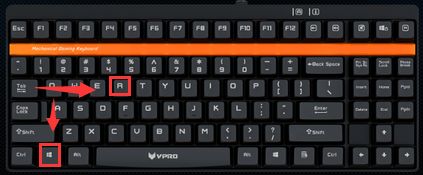
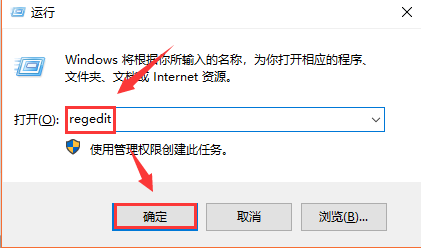
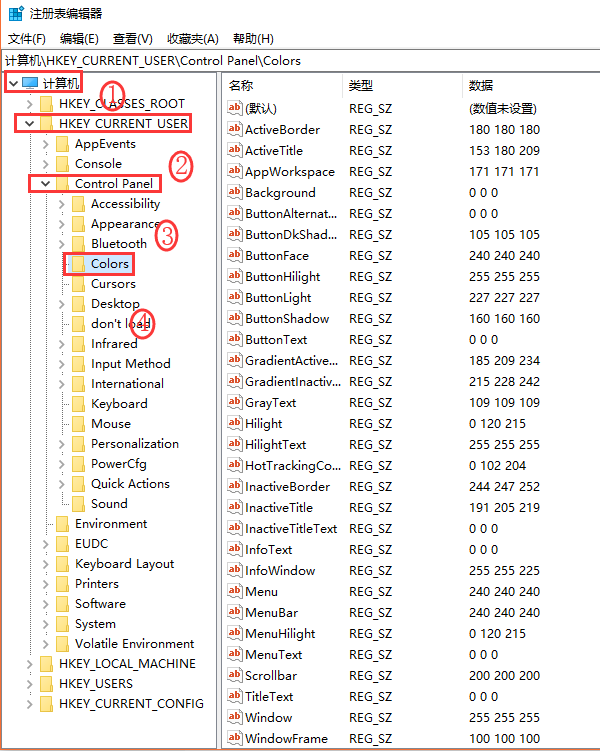
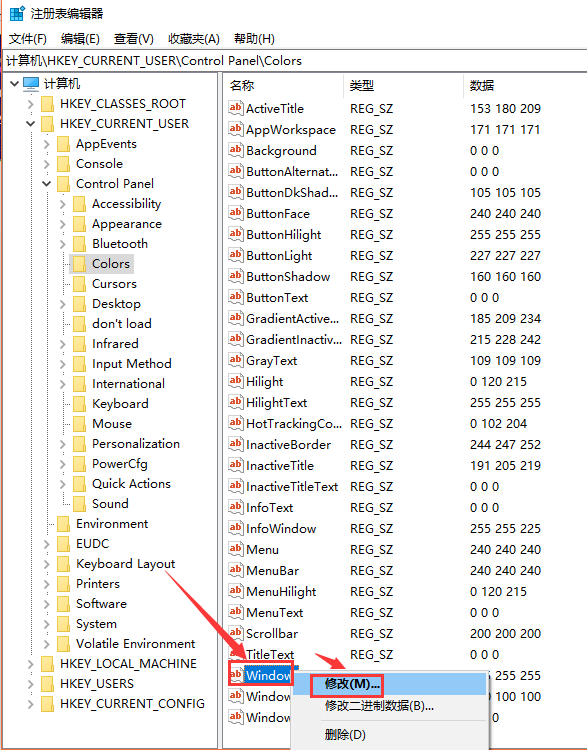
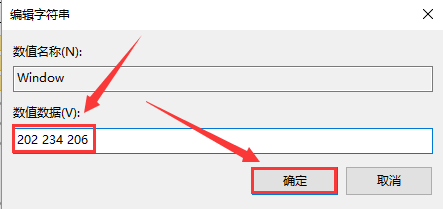
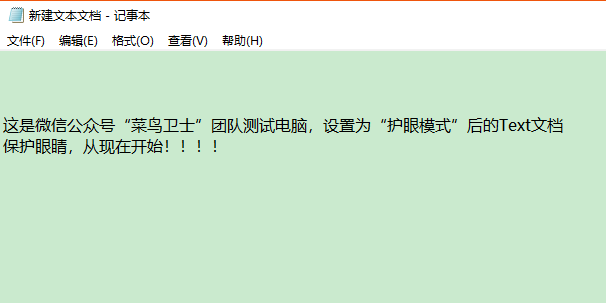
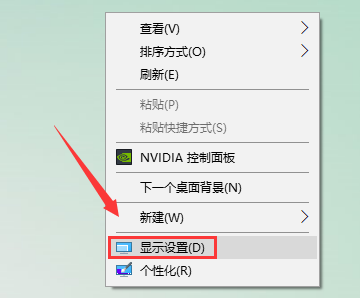
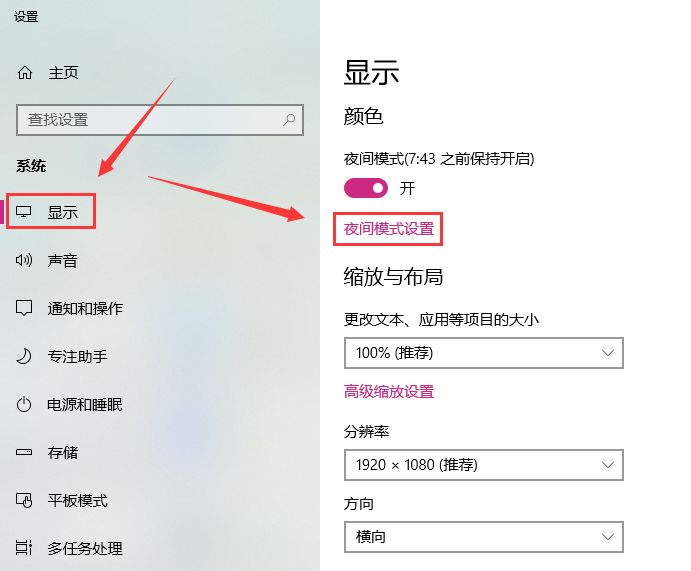
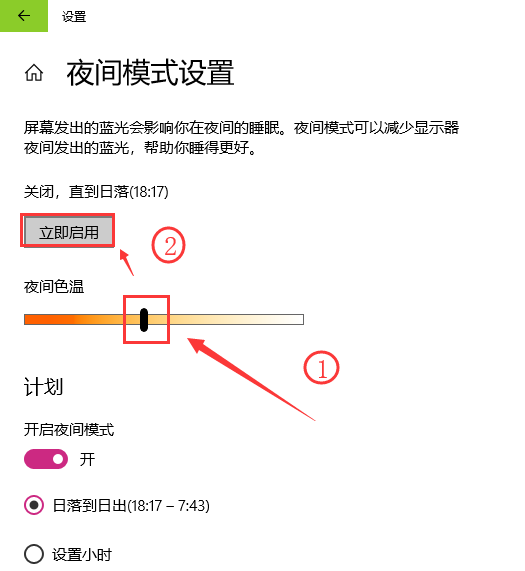
 长期使用电脑办公对眼睛伤害大,建议开启护眼模式。所谓护眼模式是减少屏幕蓝光,降低对眼睛的伤害。文章介绍了两种在Windows10系统设置护眼模式的方法,一是通过运行命令框修改注册表,二是在显示设置中进行夜间模式设置。















 扫一扫
扫一扫


 983
983

 被折叠的 条评论
为什么被折叠?
被折叠的 条评论
为什么被折叠?
 到【灌水乐园】发言





