


 本文详细介绍了Selenium自动化测试的全过程,从环境搭建到具体应用案例,包括浏览器控制、元素定位、鼠标操作及测试流程等关键步骤。同时,探讨了接口测试、安全测试等高级主题。
一些总结
1.目前的firefox浏览器不全部支持插件安装,火狐33是可以成功安装插件的
2.about:config 可以设置插件的安装、
3.火狐安装的时候会覆盖原来版本的浏览器,
并要求关闭原来浏览器
4selenium搞好之后会在插件里面显示的,之后在导航栏里面
显示出来
5.打开selenium之后输入url在地址栏里面输入地址,
然后点击红色的圆圈开始录制
6.一般来说破解吧指的是一个软件,设置路径。
7.整个测试流程:
7.1录制好脚本,导出脚本
7.2配置好Java和webdriver环境,
7.3导入项目运行即可
8.火狐浏览器是自带驱动的,但是Google是没有驱动的
9.把浏览器的路径和elisse设置到同一个盘符里面。
1到30
1,接口测试一般使用postman,当请求的参数抽选了错误,会出现提示,关键词测试,
空值测试,长度测试,错误测试。安全测试:cookie测试,header测试,
2.fiddler是一个很好的咋报工具
3.postman主要用来做接口测试,4.接下来有空测试自己的项目的功能是否正确。
1.安装python的时候要配置Path,安装pip的时候也要配置path,转到该目录下面
,python install pip 安装pip,
2.使用pip这个管理pythond的包来安装Django,pip install django,展示django的话使用pip show django
3.cmd不是内部或外部命令,也不是可运行的程序或批处理文件,根本原因就是你没有创建Path来安装按个软件。1.控制浏览器:前进后退,获取编辑框属性
driver.navigate().forward();
driver.navigate().back();
size.getSize();
2.控制鼠标:获取鼠标的各种操作右击:
contextClick()
左击 doubleClick()
释放 release(),
双击 doubleclick(),
mobe_to elemnt()鼠标悬停
3.获取URL,title,text信息进行测试。
4.设置元素等待:
thread.sleep(2000)等待
TimeUtil.timeout(2000)给出异常反应时间
基础代码
import java.util.ArrayList;
import java.util.List;
import org.openqa.selenium.By;
import org.openqa.selenium.WebDriver;
import org.openqa.selenium.WebElement;
import org.openqa.selenium.firefox.FirefoxDriver;
import org.openqa.selenium.interactions.Actions;
import org.openqa.selenium.support.ui.Select;
public class FireFoxRunner {
static WebDriver driver;
static boolean flag;
// 新房销售状态单选下拉框这个失败了
public void getStuta() {
	Select userSelect = new Select(driver.findElement(By.id("openTimeWord")));
	userSelect.selectByVisibleText("下月开盘");
}

public static void main(String[] args) throws InterruptedException {
	FireFoxRunner fr = new FireFoxRunner();
	fr.initwebderiver();
	try {
		Thread.sleep(3000);
		fr.login();
	} catch (Exception e) {
		e.printStackTrace();
	}
	System.out.println("start firefox browser succeed...");
}

private void initwebderiver() {
	System.setProperty("webdriver.firefox.bin", "C://Program Files (x86)//Mozilla Firefox//firefox.exe");
	driver = new FirefoxDriver();
	driver.get("http://10.100.3.2/mainsite/src/html/login/login.html");

}

// 账号密码登录凤凰会
public void login() throws InterruptedException {
	driver.findElement(By.id("username")).sendKeys("yc003");
	driver.findElement(By.id("password")).sendKeys("a123456"); // 点击登录
	Thread.sleep(3000);
	driver.findElement(By.id("login-btn")).click();
	Thread.sleep(3000);
	String handle = driver.getWindowHandle();
	// 获取所有页面的句柄,并循环判断不是当前的句柄
	for (String temhandle : driver.getWindowHandles()) {
		if (!temhandle.equals(handle))
			driver.close();
		driver.switchTo().window(temhandle);
	}
	gotostartsendpaint();

}

// 测试百度的搜素功能
private void search() {
	driver.get("https://www.baidu.com/");
	driver.findElement(By.id("kw")).sendKeys("北京大学");
	driver.findElement(By.id("su")).click();
}

private void gotostartsendpaint() throws InterruptedException {

	driver.get("http://10.100.3.2/output/output/sysmgmt/userMgmt");
	// driver.findElement(By.linkText("用户中心")).click();
	driver.findElement(By.linkText("添加用户")).click();
	driver.findElement(By.id("ivu-input")).sendKeys("155109909009");
	driver.findElement(By.id("ivu-input")).sendKeys("史新发");
	driver.findElement(By.id("ivu-input")).sendKeys("研发部门");
	driver.findElement(By.className("bw-btn margin")).click();
	downloadfile();
	/*
	 * List<WebElement> list =
	 * driver.findElements(By.className("openArea")); list.get(0).click();
	 */
	// driver.findElement(By.xpath(".//*[@id='btn_submit0']")).click();
	try {
		Thread.sleep(9000);
	} catch (InterruptedException e) {
		e.printStackTrace();
	}
}
 //下载文件
private void downloadfile() {
	driver.findElement(By.id("bw-btn bw-btn-first margin")).click();

}
//批量导入数据
private void importfile(){
driver.findElement(By.id(“bw-btn bw-btn-first margin”)).click();
}
//管理角色
public void managejuese(){
driver.findElement(By.id(“ivu-menu-item”)).click();
	driver.findElement(By.id("bw-btn bw-btn-first margin")).click();
	driver.findElement(By.id("bw-btn bw-btn-first margin")).click();
}


// 鼠标的操作事件
public void action() throws InterruptedException {
	// 左击
	Actions action = new Actions(driver);
	WebElement test1item = driver.findElement(By.partialLinkText("门头沟楼盘"));
	// action.doubleClick(test1item).perform();双击
	// action.moveToElement(test1item).perform();拖动
	// action.contextClick(test1item).perform();右击
	// action.click(test1item).perform();左击
	Thread.sleep(4000);

}
}
1.byclassname,byid的目标不能包含空格,不然会报错
2.firepath的使用必须依赖firebug的安装
常见难点
1.时间太短,导致无法准确定位到元素
2.通过TagName定位到一开始就有标签的页面元素
3.div下拉列表无法通过select进行定位,无法完成转换
4.无法获取到图片验证码,无法自动输入短信验证码
5.进入退出页面多次循环比较费时
6.无法获取到编辑框已经输入的字符串
7.下载弹出comfire提示框,竟然无法操作该元素
selenium+cucumber的使用
全部的配置文件
userName_input:
type: id
value: username
password_input:
type: id
value: password
login_button:
type: id
value: login-btn
menuTopList:
type: XPath
value: “//*[contains(@class,‘ivu-menu-item’)]”
menuLeftLists:
type: XPath
value: “//*[contains(@class,‘ivu-menu-submenu’)]”
breadCrumb:
type: className
value: ivu-breadcrumb
yunKaiPiao:
type: XPath
value: “//*[contains(@class,‘bw-yunkaipiao’)]”
xiaoXiang:
type: XPath
value: “//*[contains(@class,‘bw-xiaoxiang’)]”
buyerTable:
type: className
value: trader
goodsTable:
type: className
value: grid-list-body-data
ifTax_button:
type: XPath
value: “//*[contains(@class,‘switch-item’)]”
sales_input:
type: XPath
value: “/html/body/div[7]/div[2]/div/div/div[2]/div/div[1]/div/div[2]/input”
difference_input:
type: XPath
value: “/html/body/div[7]/div[2]/div/div/div[2]/div/div[2]/div/div[2]/input”
note_input:
type: className
value: remark
goodsName_input:
type: className
value: ivu-input
all_button:
type: XPath
value: “//*[contains(@class,‘bw-btn bw-btn-first’)]”
goodsWrapTable:
type: XPath
value: “//*[contains(@class,‘ivu-table-body ivu-table-overflowX’)]/table”
ticketRegion:
type: className
value: region
ok_button1:
type: XPath
#value: “//[contains(@class,‘ivu-btn-large’)]"
value: "//[contains(@class,‘ivu-btn’)]”
discountTax_radio:
type: XPath
value: “//*[contains(@class,‘ivu-radio-wrapper ivu-radio-group-item’)]”
discountAmount_input:
type: className
value: ivu-input-number-input
issuedPomp:
type: className
value: ivu-modal-body
customerInfo_input:
type: className
value: inputground
closeBtn:
type: className
value: ivu-modal-close
#language: zh-CN
功能: 发票开具验证
场景大纲: 用户登录
假设 输入正确的用户名"“密码”"
当 点击用户登录按钮
那么 进入网站首页面
	例子:
	| userName | password |
	| userName | password |

 #该方法可通用,可到任意页面
#场景大纲: 进入发票开具页面
#    假设 保持当前页不变
#    当 用户进入销项"<item>"某云开票下菜单"<menu>"的其他菜单的"<open>"页面,单击该页面下的"<ticket>"菜单
#    那么 该用户成功进入该"<ticketName>"菜单

#    例子:
#    | item | menu | open | ticket | ticketName |
#    |销项 | 云开票 | 发票开具 | 正数发票(普票) | 正数发票(普票) |
    #|销项 | 云单据 |待开发票管理 | | 待开发票管理 |
   # | |  | | |  |
    #|销项 | 云开票 | 发票开具 | 负数发票(普票) | 负数发票(普票) |

 场景大纲: 普票开具发票
     假设 选择票面类型"<ticketName>",是否含税"<ifTax>"是否差额征收"<ifLevyDifference>"是否清单"<ifList>",输入客户邮箱"<email>"手机号"<phone>"
     ****selenium+TestNg的使用****
     全部的代码
import org.openqa.selenium.WebDriver;
import org.openqa.selenium.firefox.FirefoxDriver;
import org.openqa.selenium.chrome.ChromeDriver;
import org.testng.Assert;
import org.testng.annotations.Test;
public class JenkinsUsedemo {
@Test

public void testbaidu(){

	WebDriver driver = new ChromeDriver();

	driver.get("http://www.baidu.com");


	String Expectedtitle = "百度一下,na你就知道";

	String Actualtitle = driver.getTitle();

	System.out.println("Before Assetion " + Expectedtitle + Actualtitle);

	Assert.assertEquals(Actualtitle, Expectedtitle);


	System.out.println("After Assertion " + Expectedtitle + Actualtitle + " Title matched ");

}
}
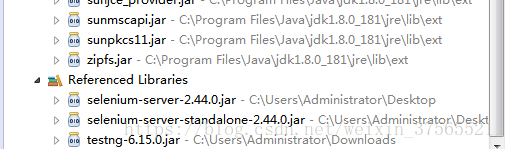
导入的jar包
返回的结果





 扫一扫
扫一扫


 1023
1023

 被折叠的 条评论
为什么被折叠?
被折叠的 条评论
为什么被折叠?
 到【灌水乐园】发言





