



 文章介绍了如何使用Python将一张大图片按给定的boundingbox列表分割成子图像,并演示了如何使用pdfplumber库将PDF文件的页面切割为PNG图片,包括处理ImageMagick和gswin64c.exe依赖的问题。
图像切割小图保存
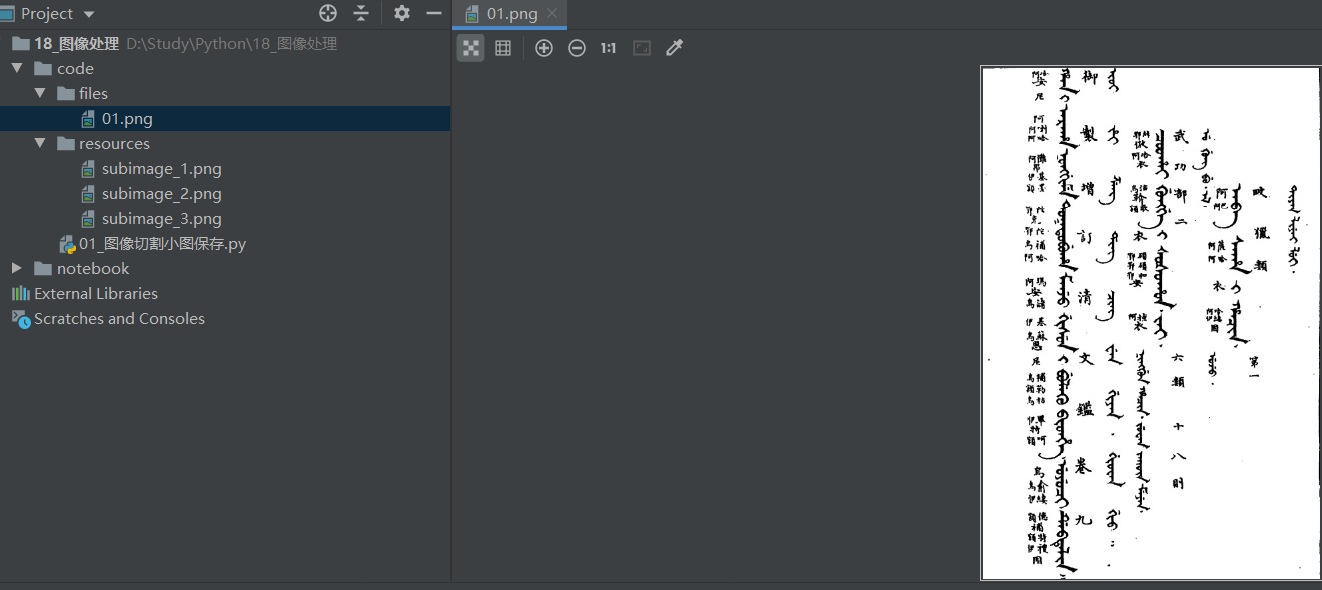
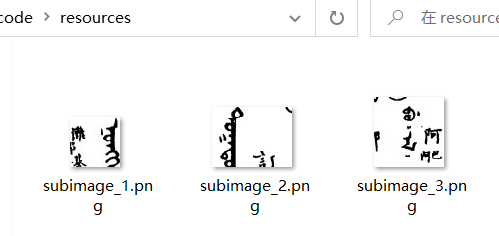
假如有一张大图片,然后给你一些boundingbox的列表,每个box为[左上角x,左上角y,宽,高],请你写一段python代码,实现从大图片中根据boundingbox列表分割小图片并保存在subimages文件夹中
import os

from PIL import Image


def split_images(original_image_path, bounding_box_list, output_folder):
    os.makedirs(output_folder, exist_ok=True)
    # 打开原始图像
    original_image = Image.open(original_image_path)

    # 遍历边界框列表
    for i, box in enumerate(bounding_box_list):
        # 提取边界框坐标
        x, y, width, height = box
        # 从原始图像中裁剪子图像
        sub_image = original_image.crop((x, y, x + width, y + height))
        # 保存子图像
        sub_image_path = os.path.join(output_folder, f"subimage_{i + 1}.png")
        sub_image.save(sub_image_path)

    # 关闭原始图像
    original_image.close()


if __name__ == '__main__':
    bounding_box_list = [[80, 120, 50, 50], [100, 200, 80, 60], [300, 150, 70, 70]]
    original_image_path = "./files/01.png"
    output_folder = "./resources/"

    split_images(original_image_path, bounding_box_list, output_folder)
pdf切割为图片
对于一个pdf文档,希望将其每一页或部分页切割为png、jpg等格式的图片保存到本地
本节参考链接
语法
page.to_image会返回一个PageImage对象,该类的成员方法如下:
image.reset():重置,清除已绘制的所有内容image.copy():将图像复制到新的PageImage实例image.save(path):将切割出来的图片保存在哪里,必须以.png或.jpg等图片格式结尾
示例
import os
import pdfplumber

def pdf_split_2_imgs(pdf_path, save_dir, page_from=1, page_end=-1):
    """ 将pdf文件切割为png图片 """
    # 保存路径不存在,新建
    if not os.path.exists(save_dir):
        os.mkdir(save_dir)
    # 开始切割
    with pdfplumber.open(pdf_path) as pdf:
        # 切割页码
        if page_from < 1:
            page_from = 1
        if page_end == -1 or page_end > len(pdf.pages):
            pages = pdf.pages[page_from - 1:page_end]
        else:
            pages = pdf.pages[page_from - 1:]
        for i, page in enumerate(pages):  # pdf.pages:全部页
            image = page.to_image(resolution=150)  # 分辨率,默认resolution=72
            # 保存
            image.save(os.path.join(save_dir, 'page_{}.png'.format(page_from + i)))
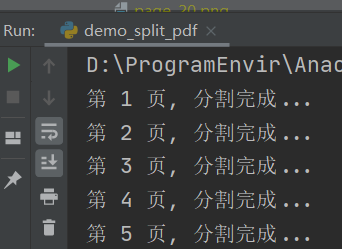
            print('第 {} 页, 分割完成...'.format(page_from + i))

if __name__ == '__main__':
	# TODO 要处理的pdf路径
    pdf_path = './resources/manchu_book.pdf'
    # TODO 切割后的png保存在哪个目录里
    save_dir = './resources/split/'
    pdf_2_imgs(pdf_path, save_dir)

报错—本地没有安装ImageMagick
-
运行上述代码,如果报如下错误:

-
解决:直接点击报错提示中的链接,下载ImageMagick安装包安装即可。此处下载的版本是:ImageMagick-7.1.1-21-Q16-HDRI-x64-dll.exe。安装过程遇到下面的界面,建议只勾选2、3项。

报错—找不到gswin64c.exe
-
解决上面的错误,运行代码,如果报如下错误:

-
解决:
-
从镜像网站中找到
octave-8.2.0-w64.zip并下载;

-
解压octave-8.2.0-w64.zip,并将
octave-8.2.0-w64\mingw64\bin\路径下的【gs.exe】文件改名为【gswin64c.exe】

-
配置环境变量,将
octave-8.2.0-w64\mingw64\bin\的绝对路径添加到系统Path环境变量中

-






 扫一扫
扫一扫


 4606
4606

 被折叠的 条评论
为什么被折叠?
被折叠的 条评论
为什么被折叠?
 到【灌水乐园】发言





