
vba编程

本文介绍了VBA宏编程的基础,包括前期安装条件、编辑界面、核心函数介绍和真实执行步骤。通过解决"用户定义类型未定义 ADODB.Connection"的问题,演示如何启用宏并编写简单函数,例如getTable和getColIndex。最后,提到了在特定环境中运行宏的方法及一些调试技巧。

VBA 宏编程

相关文件在连接  https://download.youkuaiyun.com/download/wei198621/10589098


一 前期安装条件


  1. 解压13+Vba6.3+for+WPS+.zip 文件夹内容,执行安装
  2. 将后缀从pptx改为pptm,这样可以运行宏


  1. 错误 用户定义类型未定义  ADODB.Connection

执行的时候可能会提示如下,  用户定义类型未定义  ADODB.Connection 需要添加引用,我机器上面安装的office版本比较多,选一个  Microsfot ActiveX Data Objects 版本 就可以

工具--》引用   

二  编辑界面

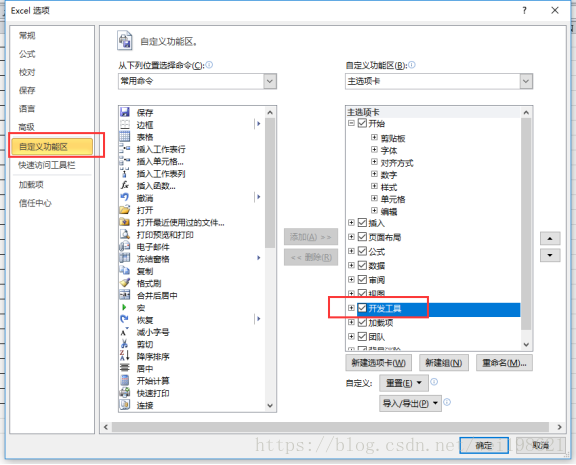
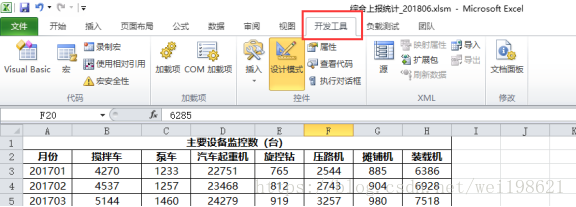
打开 开发工具 -》 宏 -》

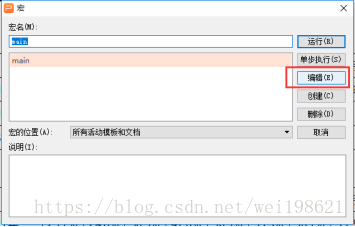
选择编辑
 

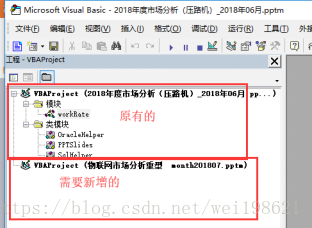
插入  模块  定义要工作的PPT页码
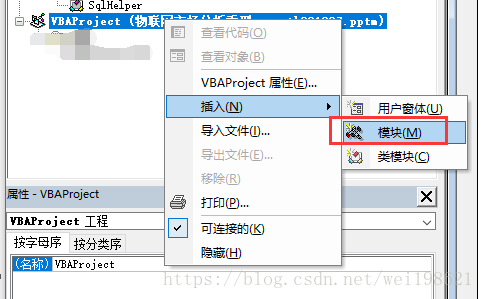
如示例中定义了再幻灯片 2  3  中将会执行宏
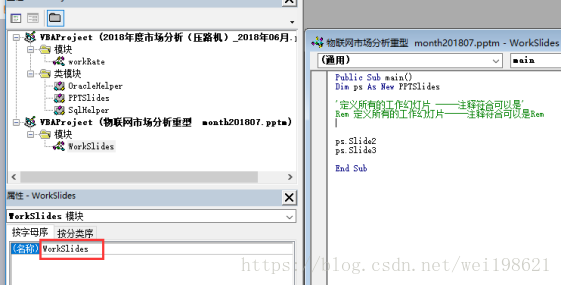
 

插入--》类模块
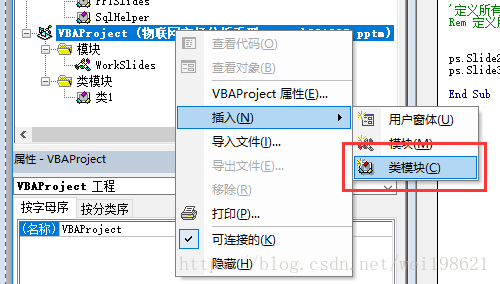
SqlString  类模块内容


OracleHelper类模块内容
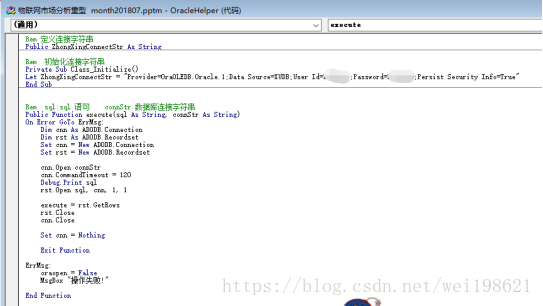


宏启用
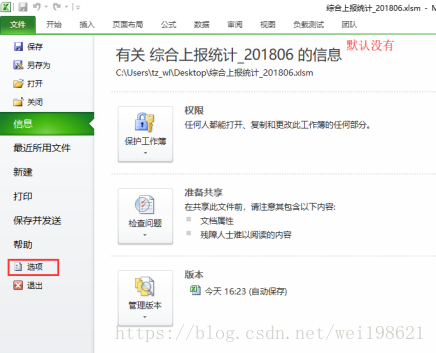


默认应该是灰色的,需要安装宏工具,安装如下工具
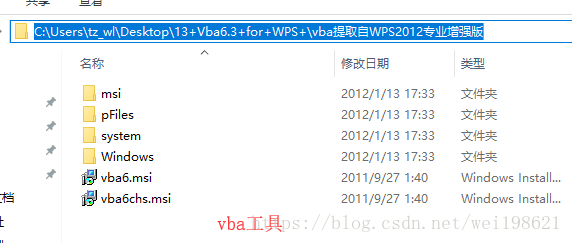
 

打开VBA方法

ALT+F11 == 菜单 工具 宏 == (放在某个sheet名上面)右键 查看代码 == excel visual basic


三 核心函数介绍


最简单的宏写法

https://jingyan.baidu.com/article/4ae03de32663953efe9e6b47.html


getTable

getTable(ActivePresentation.Slides(1), 1) '(从1开始)

ActivePresentation.Slides(1) ,Slide 是幻灯片,从1开始,第一个就是1 ,不是0


Private Function getTable(slide As slide, index As Integer)

Dim sh As Integer

Dim ei As Integer

ei = 0

Rem 获取第2页

With slide

 For sh = 1 To .Shapes.count

   If .Shapes(sh).HasTable Then

    ei = ei + 1

    If ei = index Then

      Set getTable = .Shapes(sh).table

      Exit For

    End If

   End If

 Next

End With

End Function


getColIndex

Rem   key:7月 table:指定table   rowIndex:指定行  获取指定列索引

Private Function getColIndex(key As String, table As table, rowIndex As Integer)

    Dim colCount As Integer

        colCount = table.Columns.count

    Dim i As Integer

    For i = 1 To colCount

    If Trim(table.Rows(rowIndex).Cells(i).Shape.TextFrame.TextRange.text) = key Then

    Let getColIndex = i

    Exit For

    End If

    Next

End Function


四 真实执行

10.10.128.143:15389  上面有徐磊安装好的环境,将pptm文件放到这个上面,稍微修改 ,运行就可以了

大概执行6 7 分钟,P11页的SQL比较大


五 小知识点

1: 调试快捷键 :  F8  单步执行

2: Debug.Print  :打印变量等内容

3: xlsm 后缀  pptm 后缀  的可以进行VBA 编程  

由于VBA或者宏代码有一定的危害性,为了提高安全意识,凡是以XLSX为后缀名的文件都不能含有宏代码,需要将后缀保存为XLSM


OfficeTips Home || VBA Section || General Section || Download Section || Privacy Policy Useful PowerPoint VBA code snippets More Sharing Services Share | Share on gmail Share on google Share on facebook Share on twitter Determine the current slide in the Slide View mode: Sub SlideIDX() MsgBox "The slide index of the current slide is:" & _ ActiveWindow.View.Slide.SlideIndex End Sub Determine the current slide in Slide Show mode: Sub SlideIDX() MsgBox "The slide index of the current slide is:" & _ ActivePresentation.SlideShowWindow.View.Slide.SlideIndex End Sub Difference between SlideIndex property and SlideNumber property: The SlideIndex property returns the actual position of the slide within the presentation. The SlideNumber property returns the PageNumber which will appear on that slide. This property value is dependent on "Number Slide from" option in the Page Setup. Go to Page Setup and Change the value of "Number Slide from" to 2 and then while on the 1st slide in Slide View run the following Macro Sub Difference() MsgBox "The Slide Number of the current slide is:" & _ ActiveWindow.View.Slide.SlideNumber & _ " while the Slide Index is :" & _ ActiveWindow.View.Slide.SlideIndex End Sub Macro to exit all running slide shows: Sub ExitAllShows() Do While SlideShowWindows.Count > 0 SlideShowWindows(1).View.Exit Loop End Sub Code to refresh current slide during the slide show: Sub RefreshSlide() Dim lSlideIndex As Long lSlideIndex = SlideShowWindows(1).View.CurrentShowPosition SlideShowWindows(1).View.GotoSlide lSlideIndex End Sub Code to reset animation build for the current slide during the slide show: Sub ResetSlideBuilds() Dim lSlideIndex As Long lSlideIndex = SlideShowWindows(1).View.CurrentShowPosition SlideShowWindows(1).View.GotoSlide lSlideIndex, True End Sub Insert a slide after current slide Sub InsertSlide() Dim oView As View With ActivePresentation.Slides Set oView = ActiveWindow.View oView.GotoSlide .Add(oView.Slide.SlideIndex + 1, _ ppLayoutTitleOnly).SlideIndex Set oView = Nothing End With End Sub Copyright 1999-2011 (c) Shyam Pillai. All rights reserved.
评论
成就一亿技术人!
拼手气红包6.0元
还能输入1000个字符
 
红包 添加红包
表情包 插入表情
 条评论被折叠 查看
添加红包

请填写红包祝福语或标题

红包个数最小为10个

红包金额最低5元

当前余额3.43前往充值 >
需支付:10.00
成就一亿技术人!
领取后你会自动成为博主和红包主的粉丝 规则
hope_wisdom
发出的红包
实付
使用余额支付
点击重新获取
扫码支付
钱包余额 0

抵扣说明:

1.余额是钱包充值的虚拟货币,按照1:1的比例进行支付金额的抵扣。
2.余额无法直接购买下载,可以购买VIP、付费专栏及课程。

余额充值