



Git 常用命令
官方:
官网 https://git-scm.com/
ProGit 官方中文建议多用
git status
Git常用命令图
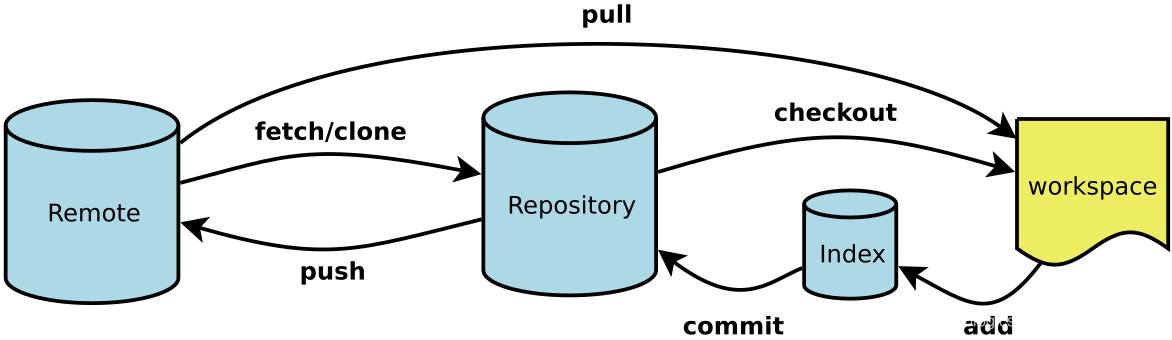
创建
git init # 在当前目录新建一个Git代码库
git init [project-name] # 新建一个目录,将其初始化为Git代码库
git clone <url> # 下载一个项目和它的整个代码历史
修改和提交
git add <file>/<dir> # 添加指定文件(或目录)到Index区
git add -u # 将已修改的跟踪文件全部添加到Index区
git add -p # 对于同一个文件的多处变化,可以实现分次提交
git rm <file1> <file2> ... # 删除指定文件
git rm --cached <file> # 停止追踪指定文件但不删除
git mv <oldFileName> <newFileName> # 移动文件,重命名
git commit -m <messege> # 将Index区的代码提交到本地仓库
git commit [file1] [file2] ... -m [message] # 提交暂存区的指定文件到仓库区
git commit --amend -m [message] # 如果代码没有任何新变化,则用来改写上一次commit的提交信息
撤销
git checkout HEAD <file> # 撤消指定的未提交文件的修改
git checkout <commit> <file> # 将指定文件回滚到指定的旧版本,缓存区和工作区都更新
git reset --hard HEAD # 撤消未提交的所有文件的修改
git revert <commit> # 撤消指定提交
查看信息
git status # 显示有变更的文件
git log # 查看提交历史
git log -p <file> # 查看指定文件的提交历史
git log --stat # 显示commit历史,以及每次commit发生变更的文件
git log -S [keyword] # 搜索提交历史,根据关键词
git log --oneline # 将提交信息压缩在一行中显示
git shortlog -sn # 显示所有提交过的用户,按提交次数排序
Git log高级用法
自定义log "PRETTY FORMATS"小节详细介绍了自定义格式输出
比较差异
git diff --stat # 统计每个文件更改的行数
git diff # 显示暂存区和工作区的差异
git diff HEAD # 显示工作区与当前分支最新commit之间的差异
git diff --cached [file] # 显示暂存区和上一个commit的差异
git diff [first-branch]...[second-branch] # 显示两次提交之间的差异
git diff [branchName] # 当前的工作目录与指定分支的差别
git diff [branchName] -- [path] # 当前的工作目录中的指定文件或目录与指定分支的差别:例 git diff HEAD – ./test
分支
git branch -av # 显示所有分支并显示哈希值和主题
gtt checkout <branch> # 切换到branch分支
git checkout -b <newbranch> # 从当前分支创建分支
git checkout -b <newbranch> <basebranch> # 在basebranch的最新提交点的基础上新建分支
git branch -D <branch> # 删除指定分支
git branch --set-upstream [branchName] [originName]/[remoteBranchName] # 将本地分支与远程某分支建立追踪关系
git branch --track [originName]/[remoteBranchName] # 将当前分支与某远程分支建立联系
git branch --set-upstream-to [originName]/[remoteBranchName] # 将当前分支与某远程分支建立联系
git push -u [originName] [branchName]:[remoteBranchName] # 是先建立[branchName]:[remoteBranchName]追踪关系,再推送更新
标签
git tag -a [tagName] -m "[comment]" # 打标签:将当前分支创建标签并添加版本说明
git tag [tagName] [commitID] # 打标签:将对应的commitID打标签[tagName]
git tag # 显示:查看已有标签
git show [tagName] # 显示:详细查看指定标签
git push origin [tagName] # 推送:指定标签到远程仓库
git push --tags # 推送:上传所有标签
git tag -d [tagname] # 删除本地指定tag
git push origin :refs/tags/<tagname> # 删除远程仓库指定tag
合并与衍合
git merge [branchName] --no-ff -m "[comment]" # 使用branchName分支与当前分支合并,并添加说明
远程仓库
git remote add [originName] [repoLocation] # 添加远程仓库
git remote -v # 查看远程仓库地址
git fetch [originName] # 取回指定远程仓库的所有更新,但不更改工作目录
git fetch [originName] [branchName] # 取回指定远程分支的更新
注意: 分支推送顺序的写法是<来源地>:<目的地>
所以git pull是<远程分支>:<本地分支>
而git push是<本地分支>:<远程分支>
git pull <远程主机名> <远程分支名>:<本地分支名> # 取回远程主机某个分支的更新,再与本地的指定分支合并
git pull <远程主机名> <远程分支名> # 取回远程指定分支更新并与当前分支合并
git pull <远程主机名> # 如果当前分支与远程分支存在追踪关系,可以省略远程分支名
git pull # 如果当前分支只有一个追踪分支,当前分支自动与唯一一个追踪分支进行合并
git pull -p [originName] # 在本地删除远程仓库已经删除的分支
git push <远程主机名> <本地分支名>:<远程分支名> # 将本地分支的更新,推送到远程主机
git push <远程主机名> <本地分支名> # 将本地分支推送与之存在"追踪关系"的远程分支
git push <远程主机名> # 当前分支与远程分支之间存在追踪关系,则本地分支和远程分支都可以省略
git push # 当前分支只有一个追踪分支,那么主机名都可以省略
git push <originName> :<branch/tag-name> # 删除远程分支或标签
git push [originName] --delete [branchName] # 删除远程指定分支
配置
配置比较及合并工具为Beyond Compare
官网说明,含各平台配置方法
diff
git config --global diff.tool bc3
git config --global difftool.bc3.trustExitCode true
例:git difftool file.ext
Merge
git config --global merge.tool bc3
git config --global mergetool.bc3.trustExitCode true
例:git mergetool file.ext
高级命令
git add -i # 交互式暂存
git blame [file] # 显示指定文件是什么人在什么时间修改过
git blame -L starLine,endLine <filename> # 查看指定行代码的修改历史
git log -L starLine,endLine <filename> # 查看指定行代码的修改历史
git filter-branch # 此命令慎重使用,大面积地修改你的历史
git stash # 储藏当前工作(保存现场,但不用提交)
git stash list # 查看现有的储藏
git stash pop # 应用储藏,并将其从堆栈中移走
- 自定义log显示
git config --global alias.lg "log --color --graph --pretty=format:'%Cred%h%Creset -%C(yellow)%d%Creset %s %Cgreen(%cr) %C(bold blue)<%an>%Creset' --abbrev-commit --"
git lg
中文显示
\274\232\350\256\256.txt 中文显示不对解决方法:
git config --global core.quotepath false





 扫一扫
扫一扫


 598
598


 到【灌水乐园】发言



