



注: 本文为 “iPad 与 PC 文件互传” 相关文章合辑。
机翻未校。
4 Ways to Transfer Files from a Windows PC to an iPad
将文件从 Windows PC 传输到 iPad 的 4 种方法
By Parth Shah
Updated August 23, 2024
Quick Tips
You can use iTunes, cloud storage apps to transfer photos and videos from a PC to an iPad
您可以使用 iTunes 云存储应用程序将照片和视频从 PC 传输到 iPad
You can also use iCloud to move photos from a PC to an iPad
您还可以使用 iCloud 将照片从 PC 移动到 iPad
Method 1: Use iTunes to Transfer Files From a PC to an iPad
方法 1:使用 iTunes 将文件从 PC 传输到 iPad
While Apple has retired iTunes on Mac, the company offers the same on Windows to manage your devices. Follow the steps below to use iTunes to move photos and videos from PC to an iPad.
虽然 Apple 已在 Mac 上停用了 iTunes,但该公司在 Windows 上提供相同的 iTunes 来管理您的设备。请按照以下步骤使用 iTunes 将照片和视频从 PC 移动到 iPad。
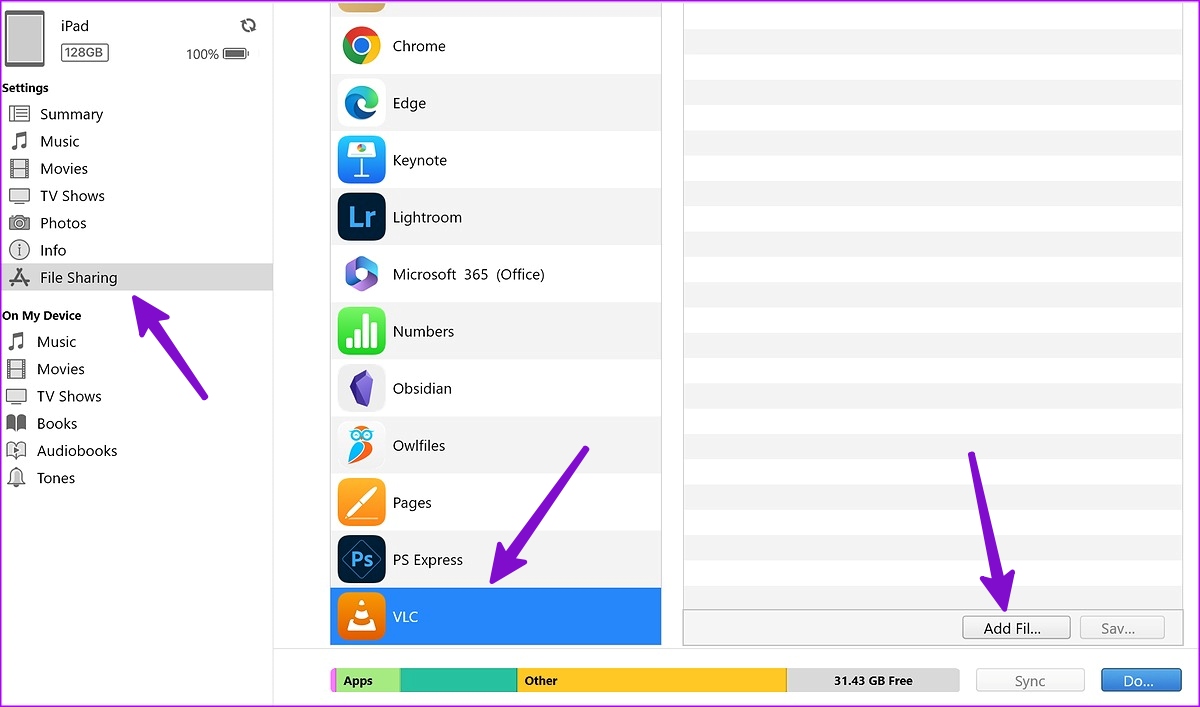
Step 1: Open iTunes and connect your iPad to the Windows PC. Click iPad at the top and select File Sharing from the left sidebar.
第 1 步:打开 iTunes 并将 iPad 连接到 Windows PC。点击 iPad 在顶部,然后选择 文件共享 从左侧边栏。
Step 2: Install VLC and then select VLC. Click Add Files. It will open the File Explorer menu.
第 2 步:安装 VLC,然后选择 VLC。单击 Add Files(添加文件)。它将打开 File Explorer 菜单。
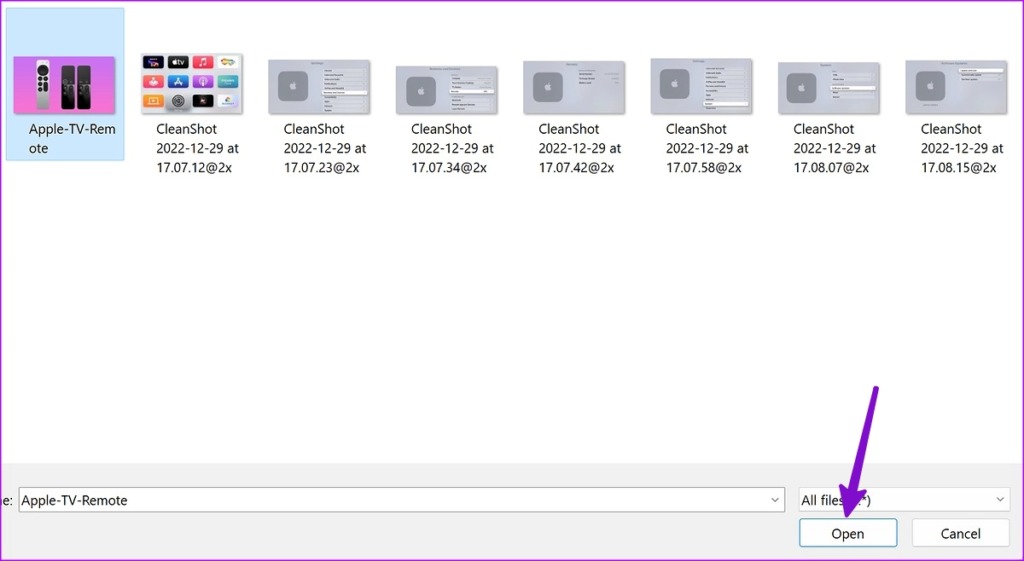
Step 3: Find videos you want to transfer from PC to VLC. Click Open. Launch the VLC Player app on your iPad, and your videos will be ready to stream.
第 3 步:找到要从 PC 传输到 VLC 的视频。单击 Open。在 iPad 上启动 VLC Player 应用程序,您的视频就可以流式传输了。
Note: Similarly, if you want to transfer documents, use the Adobe Acrobat app on your iPad.
注: 同样,如果要传输文档,请使用 iPad 上的 Adobe Acrobat 应用程序。
Method 2: Use iCloud to Move Photos From a PC to an iPad
方法 2:使用 iCloud 将照片从 PC 移动到 iPad
Apple also offers a dedicated iCloud app on Windows to manage your iCloud photos, Safari bookmarks, iCloud passwords, calendars, and more. You can set up iCloud and transfer photos and videos from your PC to Apple’s cloud platform.
Apple 还在 Windows 上提供了一个专用的 iCloud 应用程序来管理您的 iCloud 照片、Safari 书签、iCloud 密码、日历等。您可以设置 iCloud 并将照片和视频从您的 PC 传输到 Apple 的云平台。
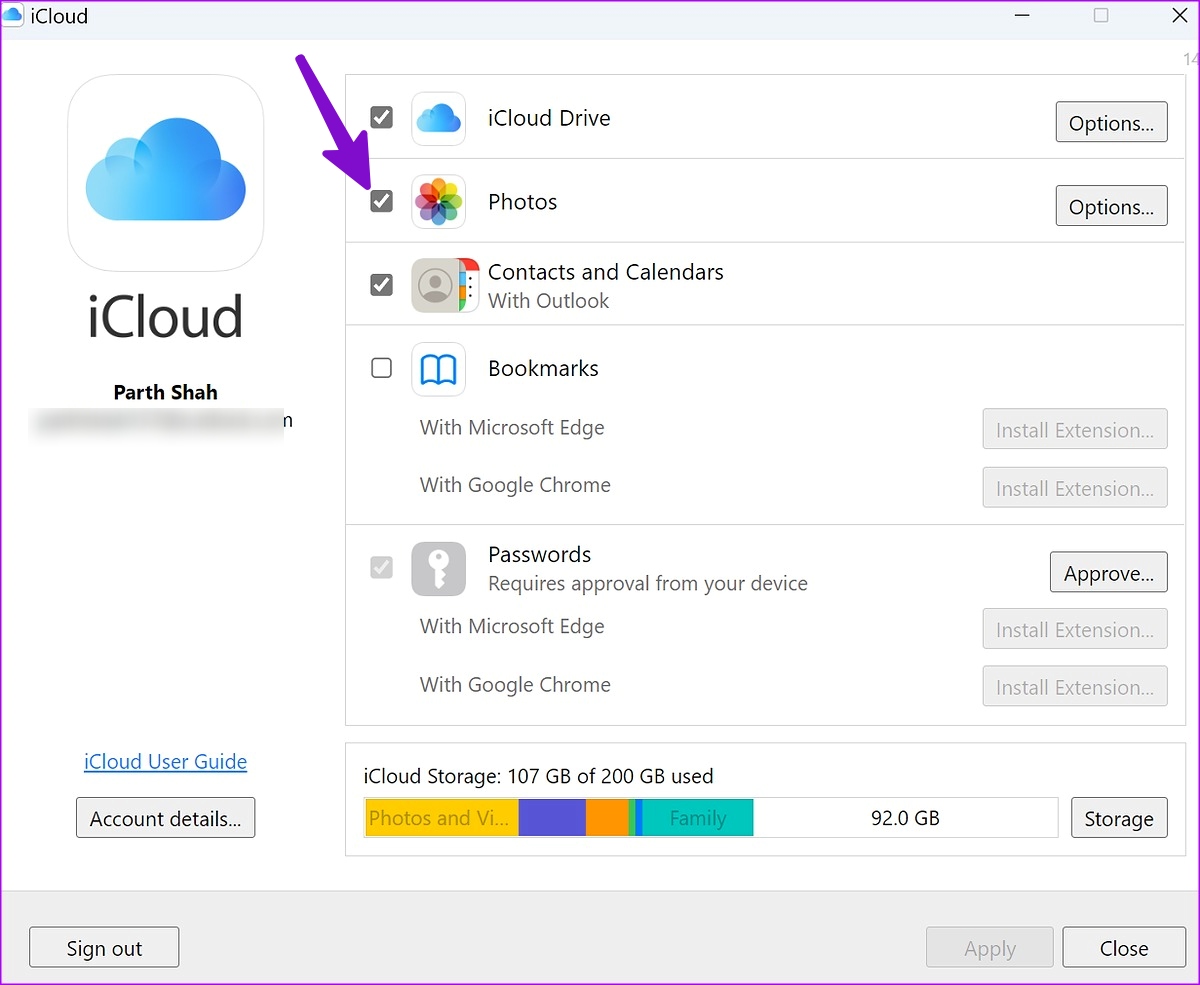
Step 1: Download iCloud from Microsoft Store. Open iCloud and sign in with your Apple account details.
第 1 步:从 Microsoft Store 下载 iCloud。打开 iCloud 并使用您的 Apple 帐户详细信息登录。
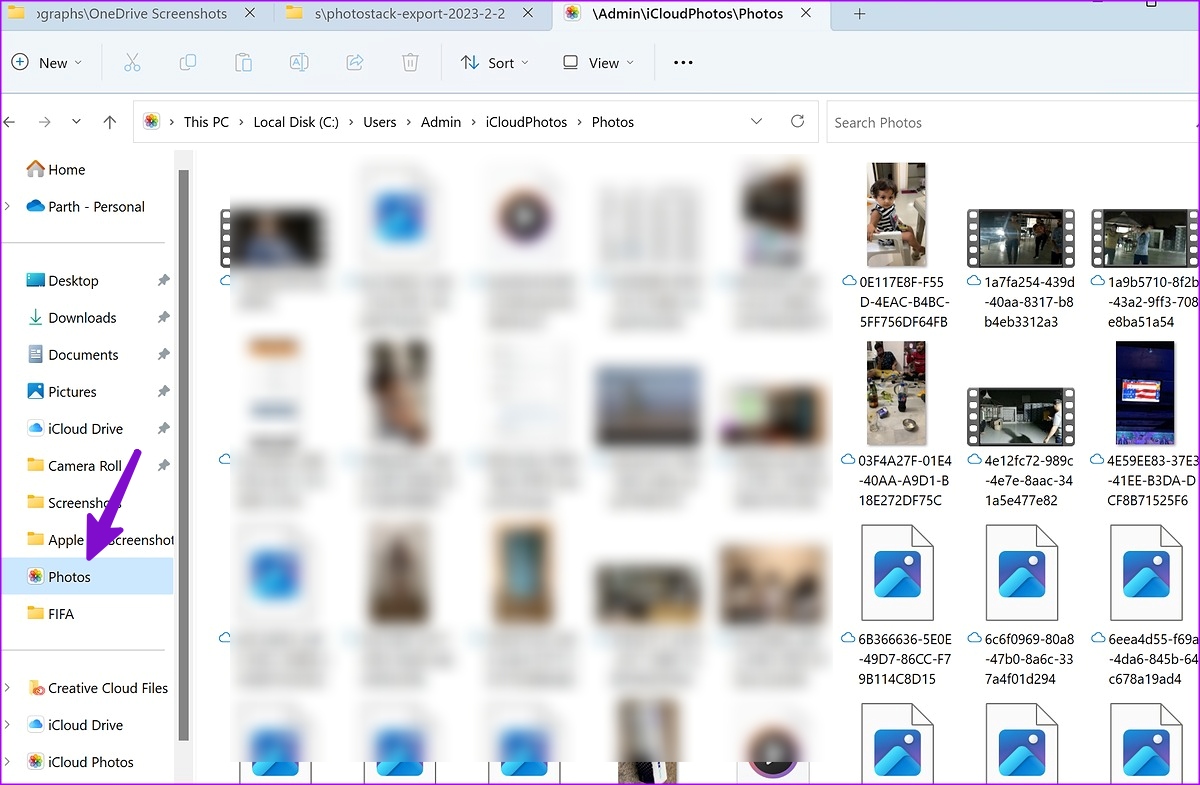
Step 2: Press Windows + E keys to launch Windows Explorer (previously File Explorer) and you will see iCloud Photos appearing from the sidebar. Copy photos and videos from your PC and paste them to iCloud Photos.
第 2 步:按 Windows + E 键启动 Windows 资源管理器(以前是文件资源管理器),您将看到 iCloud 照片出现在侧边栏中。从 PC 拷贝照片和视频,然后粘贴到“iCloud 照片”。
After syncing, your transferred photos and videos will be available in the Photos App.
同步后,您传输的照片和视频将在照片应用程序中可用。
Method 3: OneDrive to Transfer Files From a PC to an iPad
方法 3:OneDrive 将文件从 PC 传输到 iPad
Microsoft offers 1TB OneDrive storage to all Microsoft 365 subscribers. Since OneDrive has a neat integration on Windows, transferring files from a PC to an iPad has never been easier. Here’s what you need to do.
Microsoft 为所有 Microsoft 1 订阅者提供 365TB OneDrive 存储空间。由于 OneDrive 在 Windows 上有一个简洁的集成,因此将文件从 PC 传输到 iPad 从未如此简单。这是您需要做的。
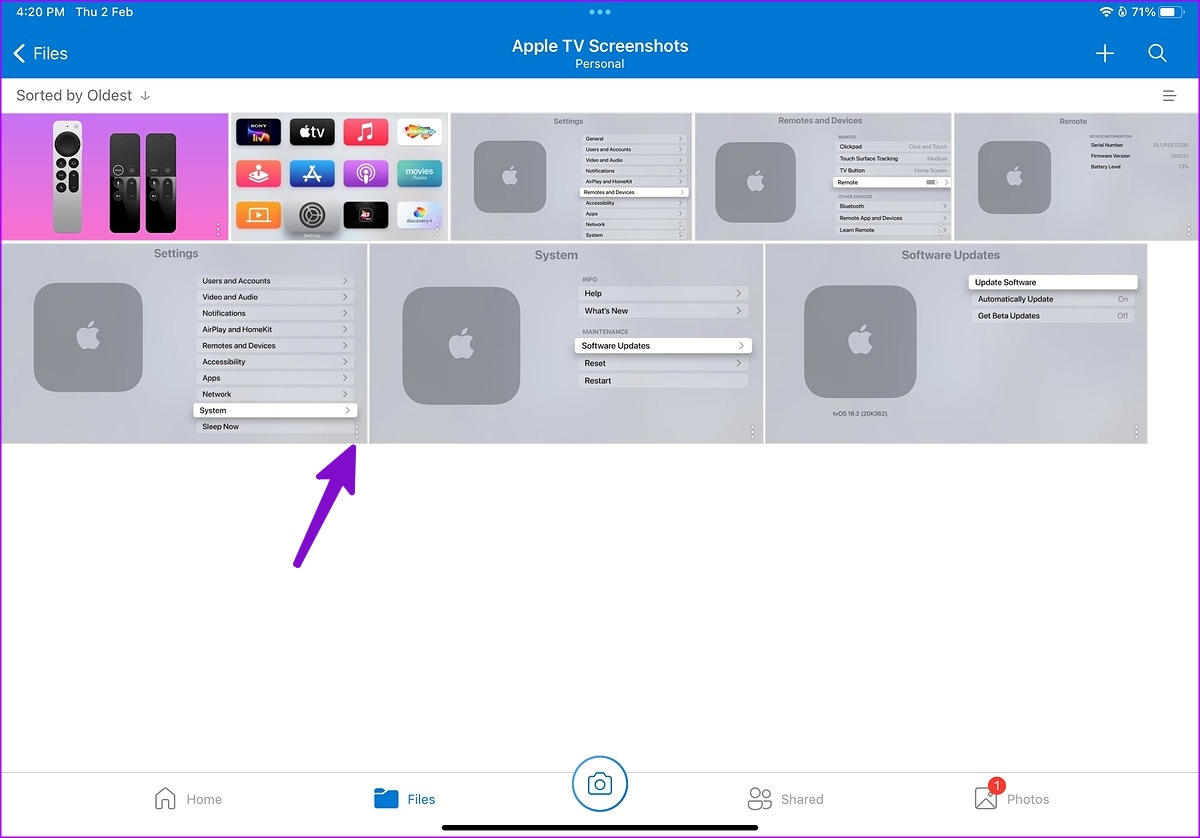
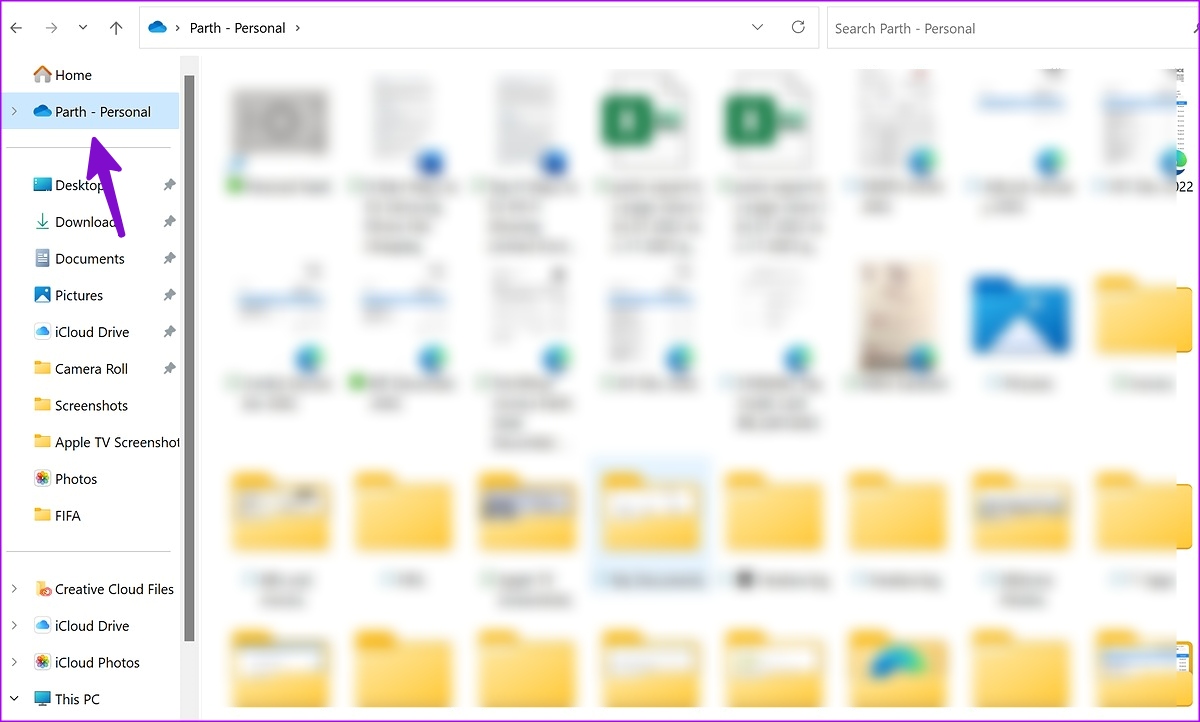
Step 1: Open OneDrive and sign in with your Microsoft account details. Press Windows + E keys to launch Windows Explorer (previously File Explorer) on your Windows PC. Copy files from your PC to OneDrive folder that appears on the left sidebar in Windows Explorer.
第 1 步:打开 OneDrive 并使用您的 Microsoft 帐户详细信息登录。按 Windows + E 键在您的 Windows PC 上启动 Windows 资源管理器(以前的文件资源管理器)。将文件从您的 PC 复制到 Windows 资源管理器左侧边栏上显示的 OneDrive 文件夹。
Method 4: Share Files From PC to iPad Over Wi-Fi
方法 4:通过 Wi-Fi 将文件从 PC 共享到 iPad
It’s one of the easiest ways to transfer files from a PC to an iPad. You can use VLC on your iPad and move files from PC to iPad wirelessly.
这是将文件从 PC 传输到 iPad 的最简单方法之一。您可以在 iPad 上使用 VLC,并以无线方式将文件从 PC 移动到 iPad。
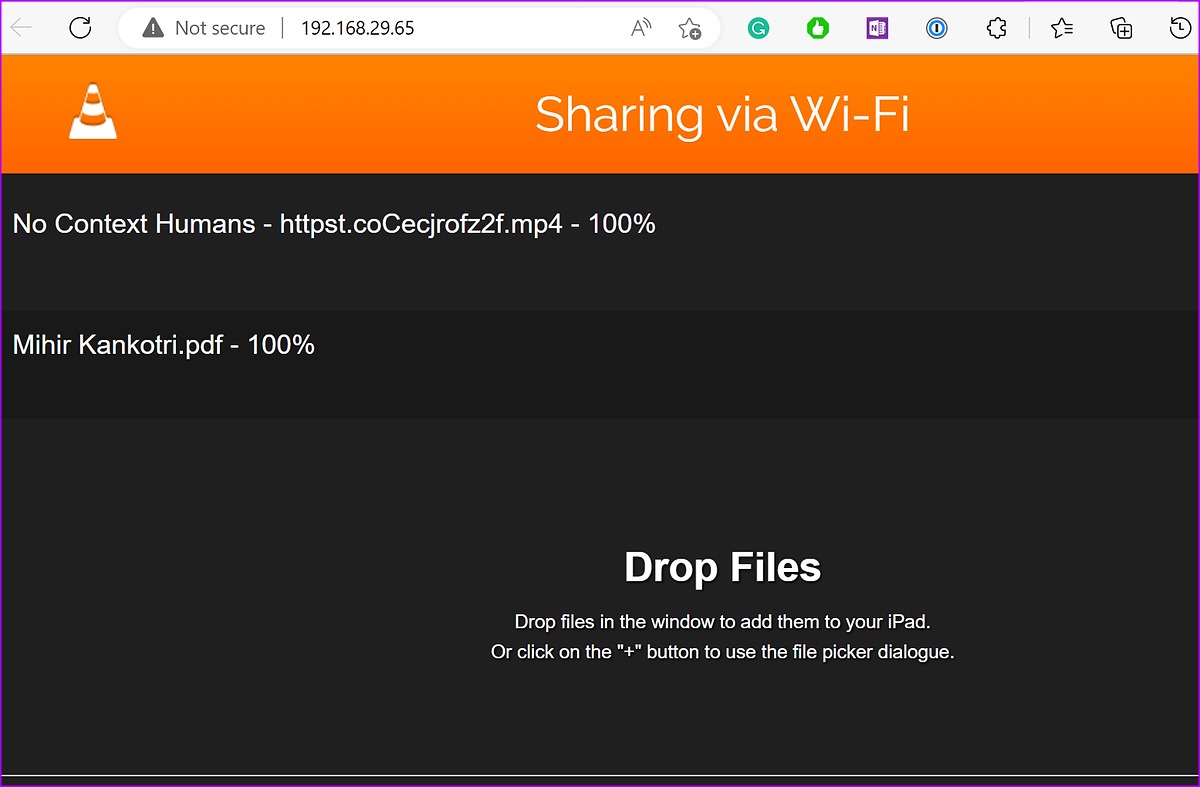
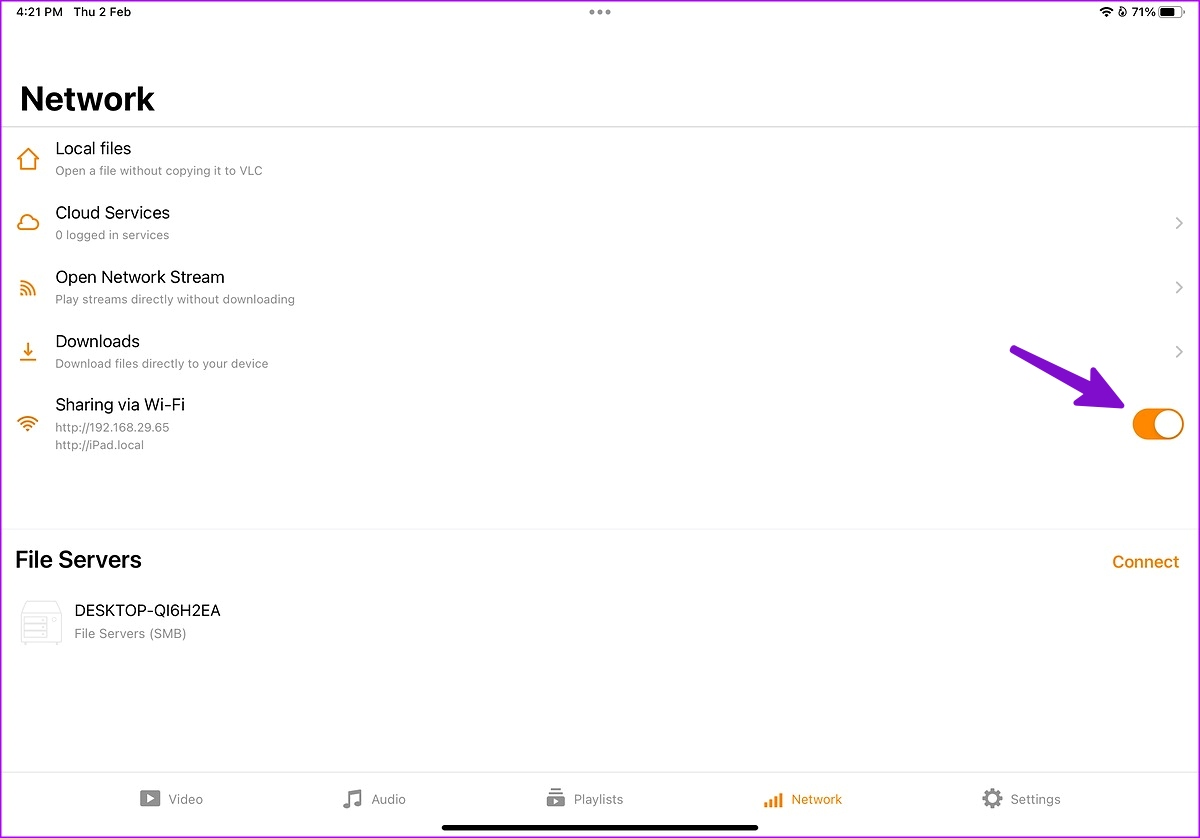
Step 1: Launch the VLC app on your iPad. Move to the Network tab. Enable the toggle next to ‘Sharing via Wi-Fi.’ Next, open your preferred browser on Windows and type the IP address. Here, ensure that your iPad and Windows PC are on the same Wi-Fi network. It will open VLC’s ‘Sharing via Wi-Fi’ window.
第 1 步:在 iPad 上启动 VLC 应用程序。移至 Network 选项卡。启用“通过 Wi-Fi 共享”旁边的切换。接下来,在 Windows 上打开您喜欢的浏览器并键入 IP 地址。在这里,确保您的 iPad 和 Windows PC 位于同一 Wi-Fi 网络上。它将打开 VLC 的“通过 Wi-Fi 共享”窗口。
Step 2: Launch File Explorer on Windows. Drag and drop files from PC to VLC.
第 2 步:在 Windows 上启动文件资源管理器。将文件从 PC 拖放到 VLC。
Last updated on 23 August, 2024
4 Ways to Transfer Files From Apple iPad to PC
将文件从 Apple iPad 传输到 PC 的 4 种方法
By Parth Shah
Updated August 27, 2024
Reviewed & Updated by Ashish Mohta
Quick Tips
OneDrve and iCloud for Windows and iPad make syncing files across both platforms easy.
OneDrve 和 Windows 和 iPad 版 iCloud 使跨两个平台同步文件变得容易。
Owlfiles – File Manager allows you to upload files to your iPad on WiFi.
Owlfiles – 文件管理器允许您通过 WiFi 将文件上传到 iPad。
Connecting to a PC is handy for transferring files of smaller sizes quickly.
连接到 PC 对于快速传输较小大小的文件非常方便。
Method 1. Use iTunes
方法 1.使用 iTunes
Although Apple has retired iTunes on Mac, it remains the go-to software for managing your iPhone or iPad on Windows. Follow the steps below to transfer files from iPad to PC using iTunes.
尽管 Apple 已在 Mac 上停用了 iTunes,但它仍然是在 Windows 上管理 iPhone 或 iPad 的首选软件。请按照以下步骤使用 iTunes 将文件从 iPad 传输到 PC。
Step 1: Download and install iTunes from the Microsoft Store on Windows.
第 1 步:从 Windows 上的 Microsoft Store 下载并安装 iTunes。
从 Apple Store 下载
Step 2: Open iTunes and grab a data cable to connect your iPad to a PC.
第 2 步:打开 iTunes 并获取数据线将 iPad 连接到 PC。
Step 3: Grant permission to let the Windows device recognize your iPad.
第 3 步:授予权限让 Windows 设备识别您的 iPad。
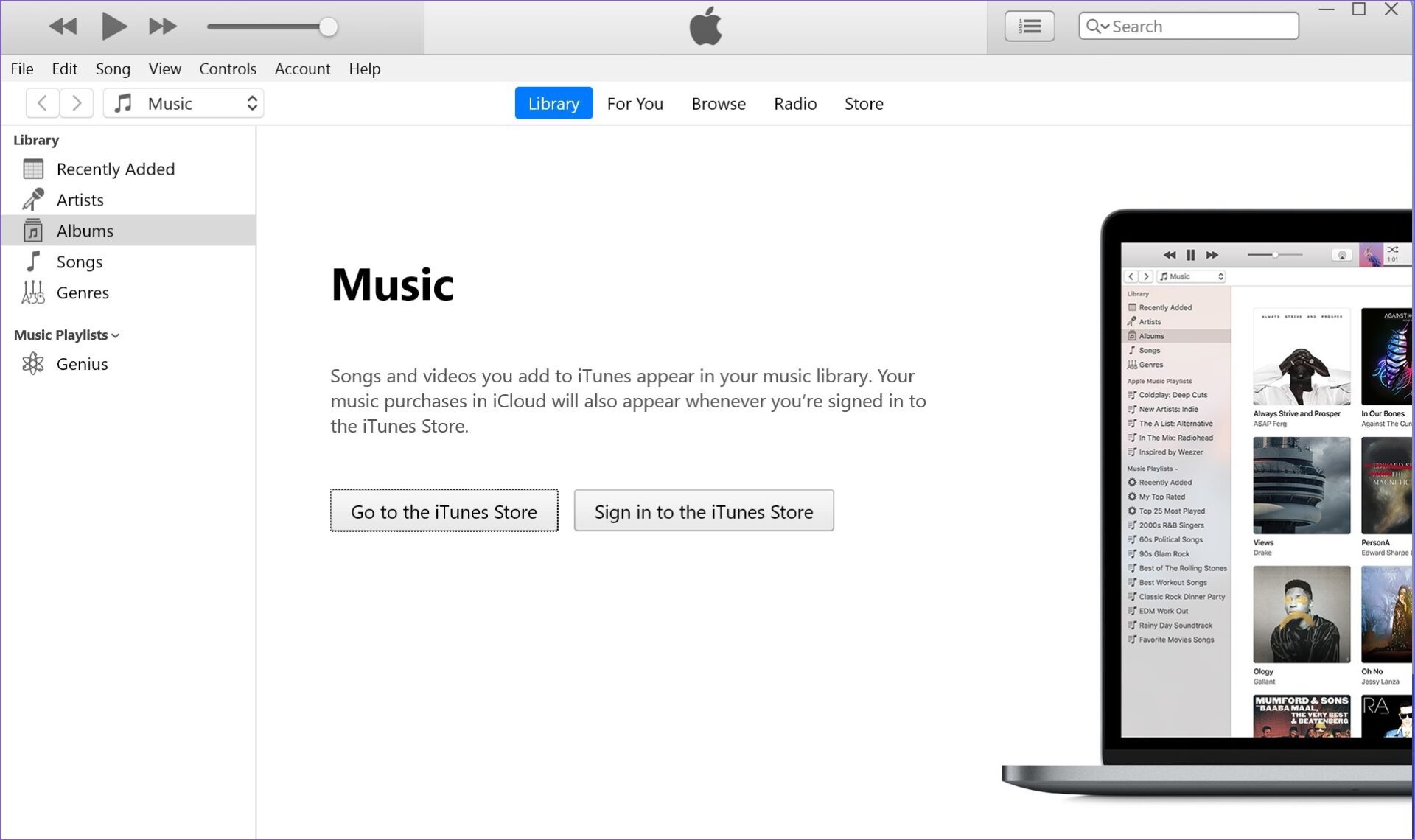
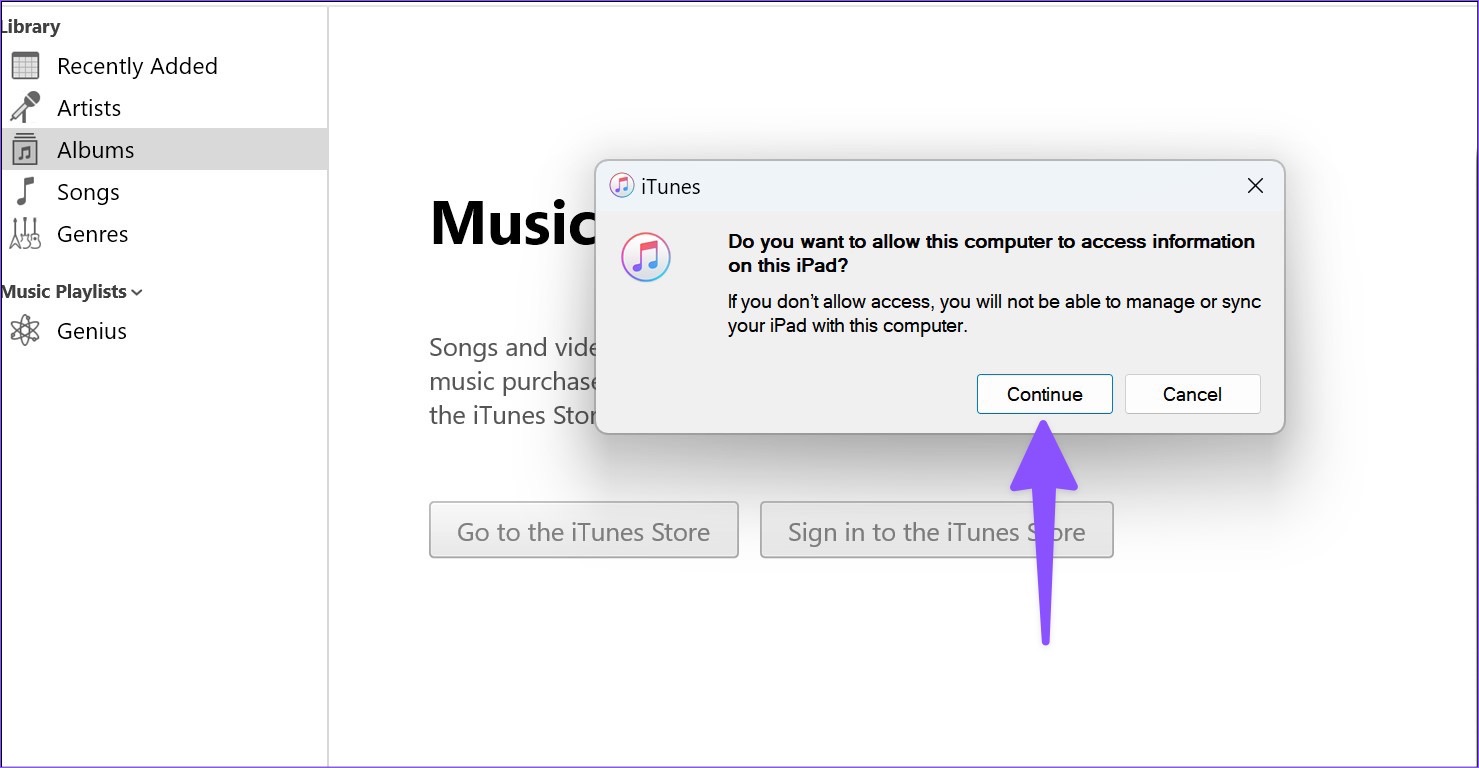
Step 4: The device icon will appear in iTunes in the top left corner. The software will ask you to allow the computer to access iPad data. Press the Continue button.
第 4 步:设备图标将出现在 iTunes 的左上角。该软件会要求您允许计算机访问 iPad 数据。按 Continue 按钮。
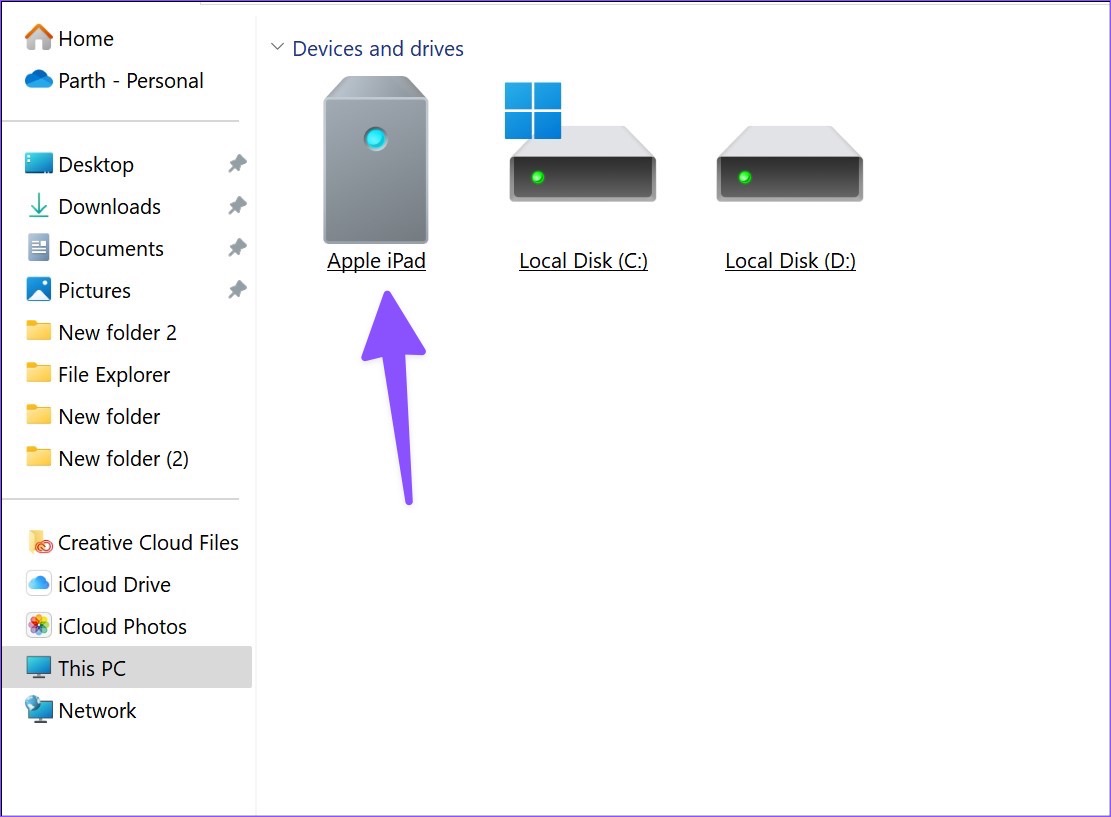
Step 5: Press the Windows + E keys shortcut to open File Explorer. Click on ‘This PC‘ in the left column, and your Apple iPad will appear on the list.
第 5 步:按 Windows + E 键快捷方式打开文件资源管理器。单击左栏中的“这台电脑”,您的 Apple iPad 将出现在列表中。
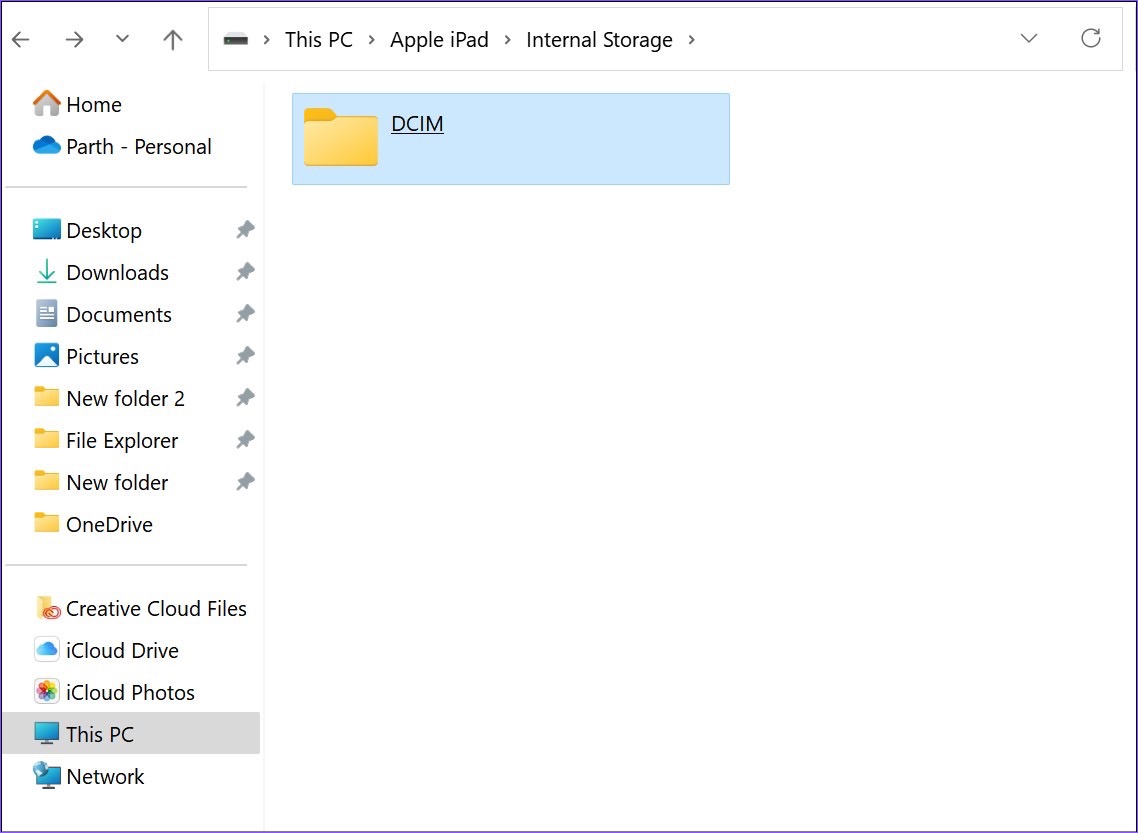
Step 6: Select your iPad to check device storage. Open relevant folders and move your files to the PC.
第 6 步:选择您的 iPad 以检查设备存储。打开相关文件夹并将您的文件移动到 PC。
Using iTunes on Windows is a below-average experience. The software looks dated, and you might face issues with the data cable connection. Read along to find the top ways to transfer files from iPad to PC without iTunes.
在 Windows 上使用 iTunes 是一种低于平均水平的体验。该软件看起来过时了,您可能会遇到数据线连接问题。继续阅读以找到在没有 iTunes 的情况下将文件从 iPad 传输到 PC 的最佳方法。
Method 2. Using iCloud
方法 2.使用 iCloud
iCloud is the default cloud storage solution on iPad. You can upload your photos, videos, and relevant files to iCloud and access them using the iCloud native app or iCloud web on Windows. First, you must enable iCloud to upload on the iPad.
iCloud 是 iPad 上的默认云存储解决方案。您可以将照片、视频和相关文件上传到 iCloud,并使用 iCloud 原生应用程序或 Windows 上的 iCloud 网页访问它们。首先,您必须启用 iCloud 才能在 iPad 上上传。
Step 1: Open the Settings app on your iPad.
第 1 步:打开 个人设置 iPad 上的应用程序。
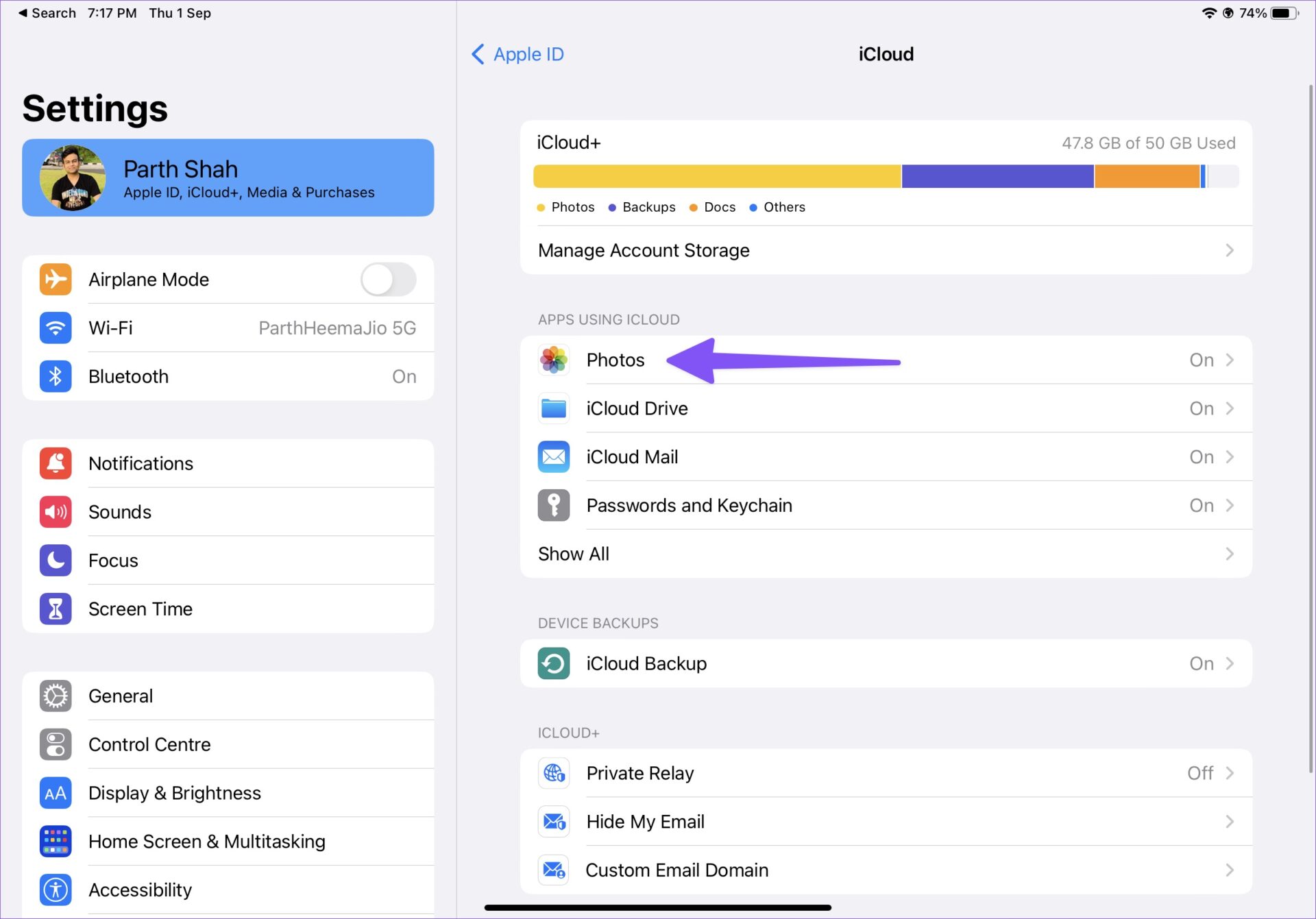
Step 2: Select your account and open iCloud from the following menu. Select Photos.
第 2 步:选择您的帐户并从以下菜单中打开 iCloud。选择 照片.
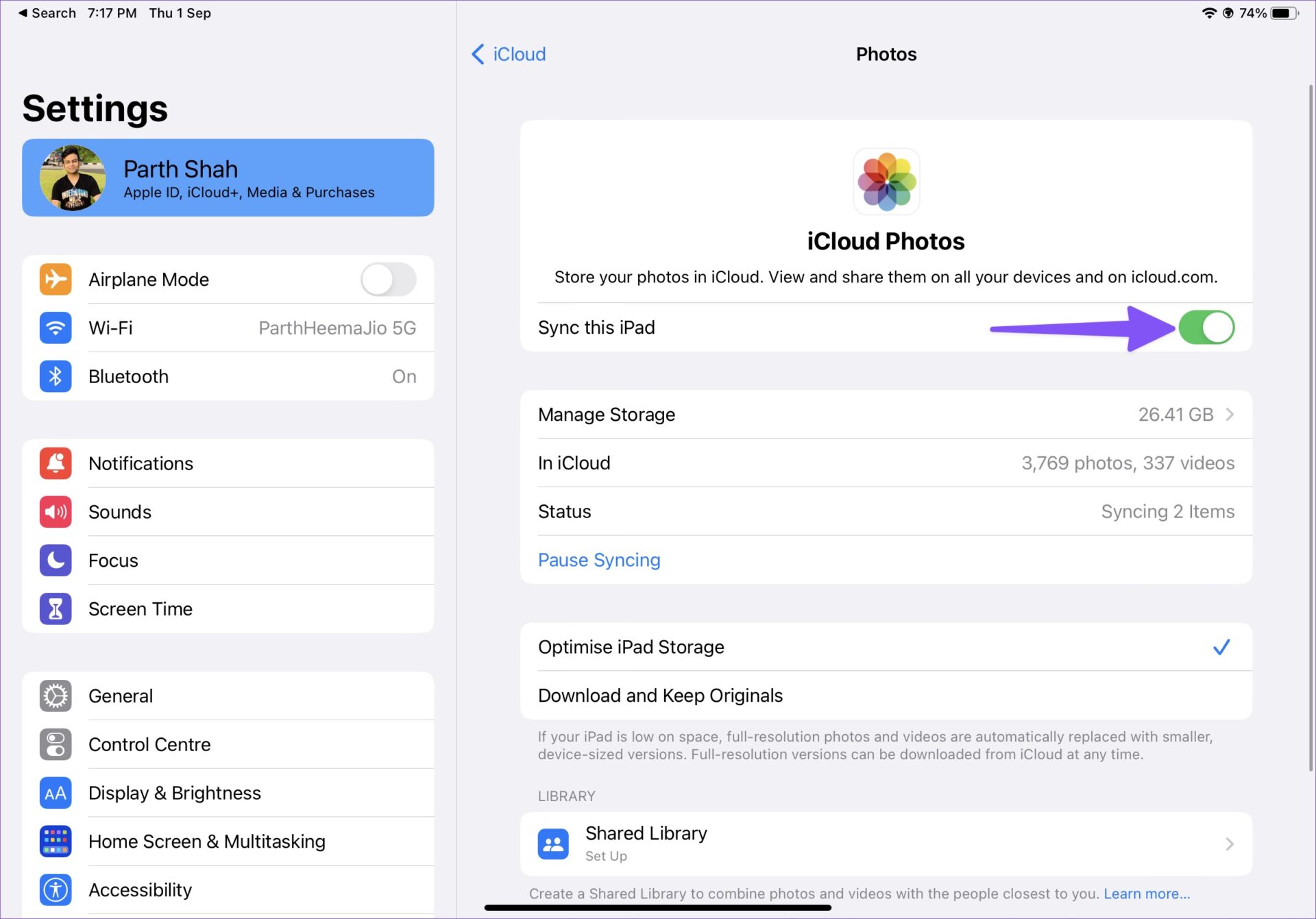
Step 3: Next, enable the Sync this iPad toggle.
第三步: 接下来,启用 同步此 iPad 切换。
If you have PDFs and other documents, you can use the Files app on your iPad and move them to a relevant folder in iCloud Drive. Let’s access and move your uploaded files to the PC.
如果您有 PDF 和其他文档,则可以使用 iPad 上的“文件”应用程序并将它们移动到 iCloud Drive 中的相关文件夹。让我们访问您上传的文件并将其移动到 PC。
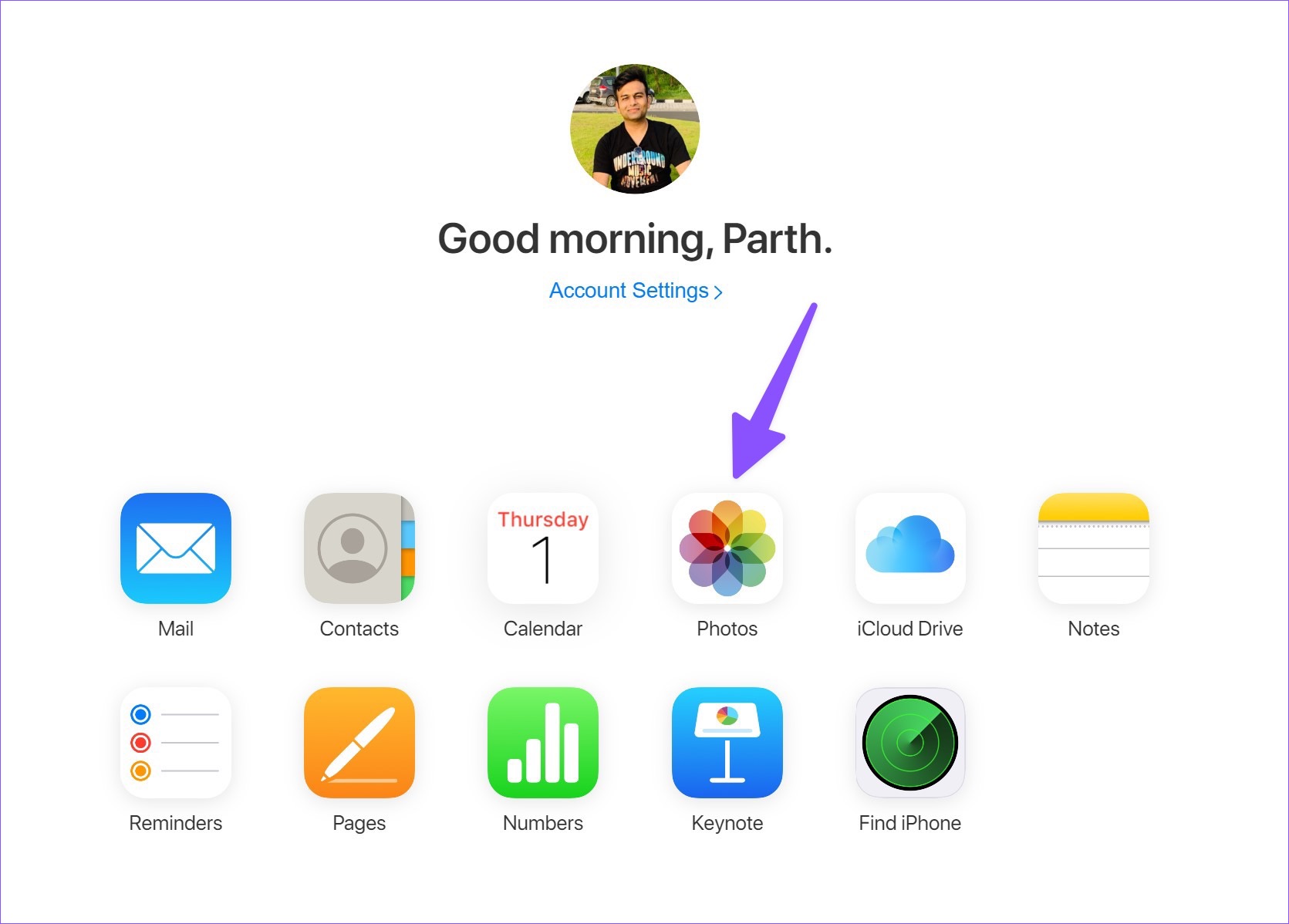
Step 1: Open the iCloud website in a browser on your Windows computer.
第 1 步:在 Windows 计算机上的浏览器中打开 iCloud 网站。
Step 2: Sign in with your Apple account details and complete the authentication process.
第 2 步:使用您的 Apple 帐户详细信息登录并完成身份验证过程。
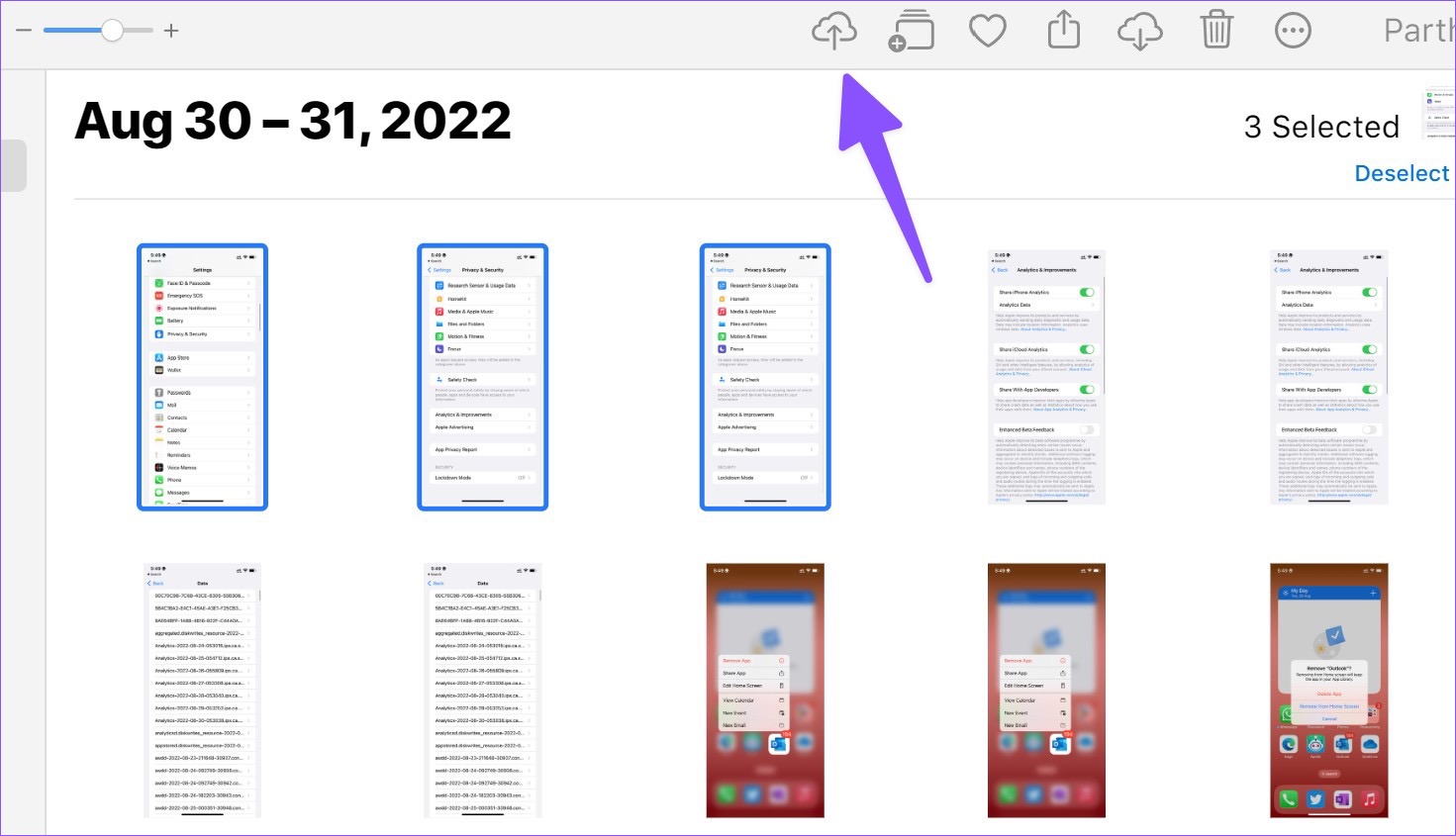
Step 3: Open Photos and select media files. Press the download button at the top and save them on your PC.
第 3 步:打开照片并选择媒体文件。按顶部的下载按钮并将它们保存在您的 PC 上。
Step 4: Select iCloud Drive from the homepage and download PDFs and documents.
第 4 步:从主页选择 iCloud Drive 并下载 PDF 和文档。
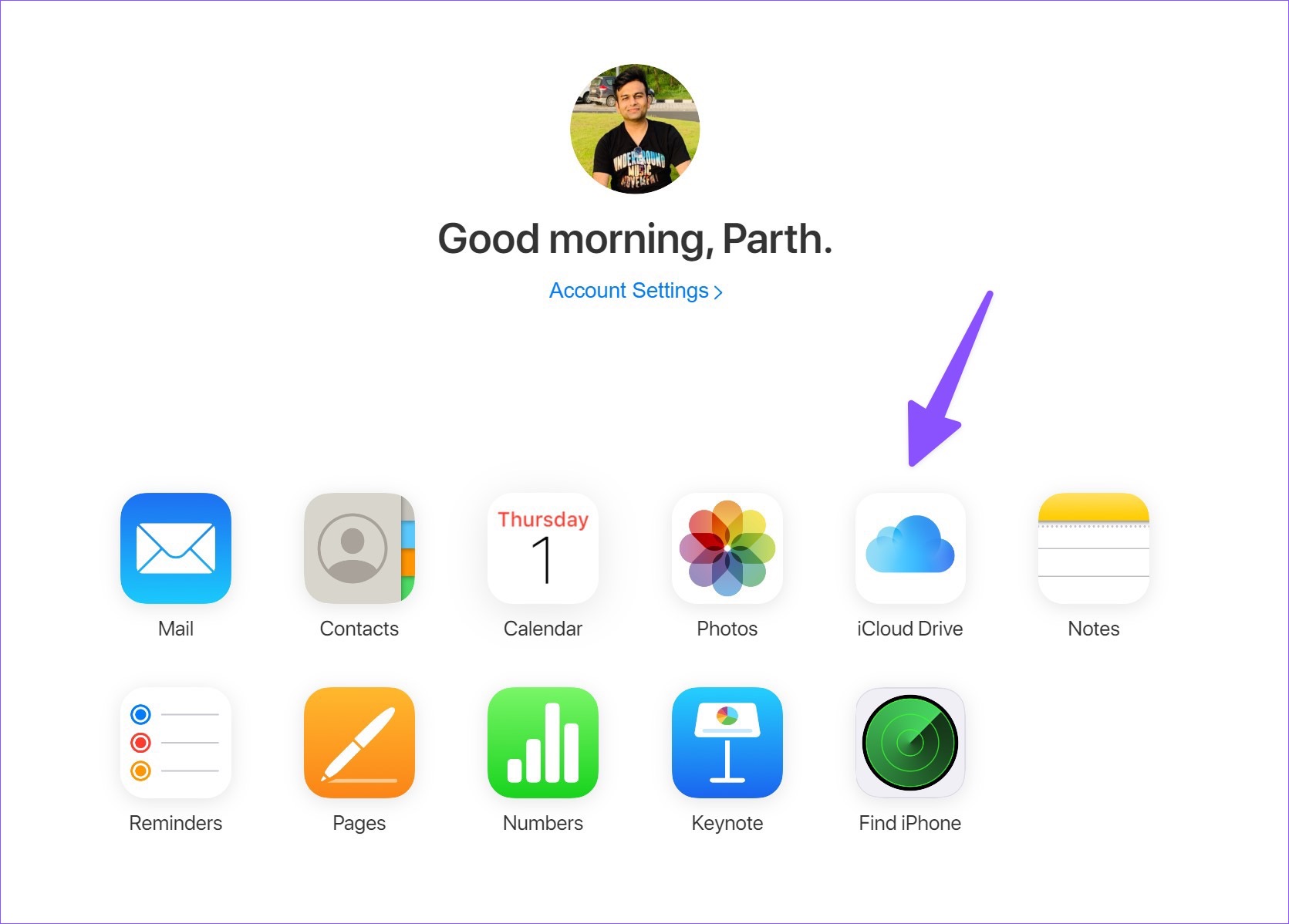
If you don’t want to visit iCloud web every time, set up iCloud on Windows and access your iCloud photos and folders from the File Explorer menu. Read our dedicated guide to adding iCloud to File Explorer on Windows. With a native iCloud app, you can also access the iCloud password on your PC.
如果您不想每次都访问 iCloud 网页,请在 Windows 上设置 iCloud 并从文件资源管理器菜单访问您的 iCloud 照片和文件夹。阅读我们的专用指南,了解如何在 Windows 上将 iCloud 添加到文件资源管理器。使用原生 iCloud 应用程序,您还可以在 PC 上访问 iCloud 密码。
Method 3. Using OneDrive
方法 3.使用 OneDrive
Not everyone prefers iCloud to store sensitive data online. Microsoft’s OneDrive is an excellent alternative to iCloud and comes by default on Windows. Besides, if you are an existing Microsoft 365 subscriber, you get 1TB of OneDrive storage.
并非每个人都喜欢使用 iCloud 在线存储敏感数据。Microsoft 的 OneDrive 是 iCloud 的绝佳替代品,默认情况下在 Windows 上提供。此外,如果您是现有的 Microsoft 365 订阅者,您将获得 1TB 的 OneDrive 存储空间。
Step 1: Install OneDrive on iPad.
第 1 步:在 iPad 上安装 OneDrive。
从 Apple Store 下载
Step 2: Sign in with your Microsoft account details.
第 2 步:使用您的 Microsoft 帐户详细信息登录。
Step 3: Select photos or files on your iPad and use the iPadOS share menu to upload them on OneDrive.
第 3 步:在 iPad 上选择照片或文件,然后使用 iPadOS 共享菜单将它们上传到 OneDrive。
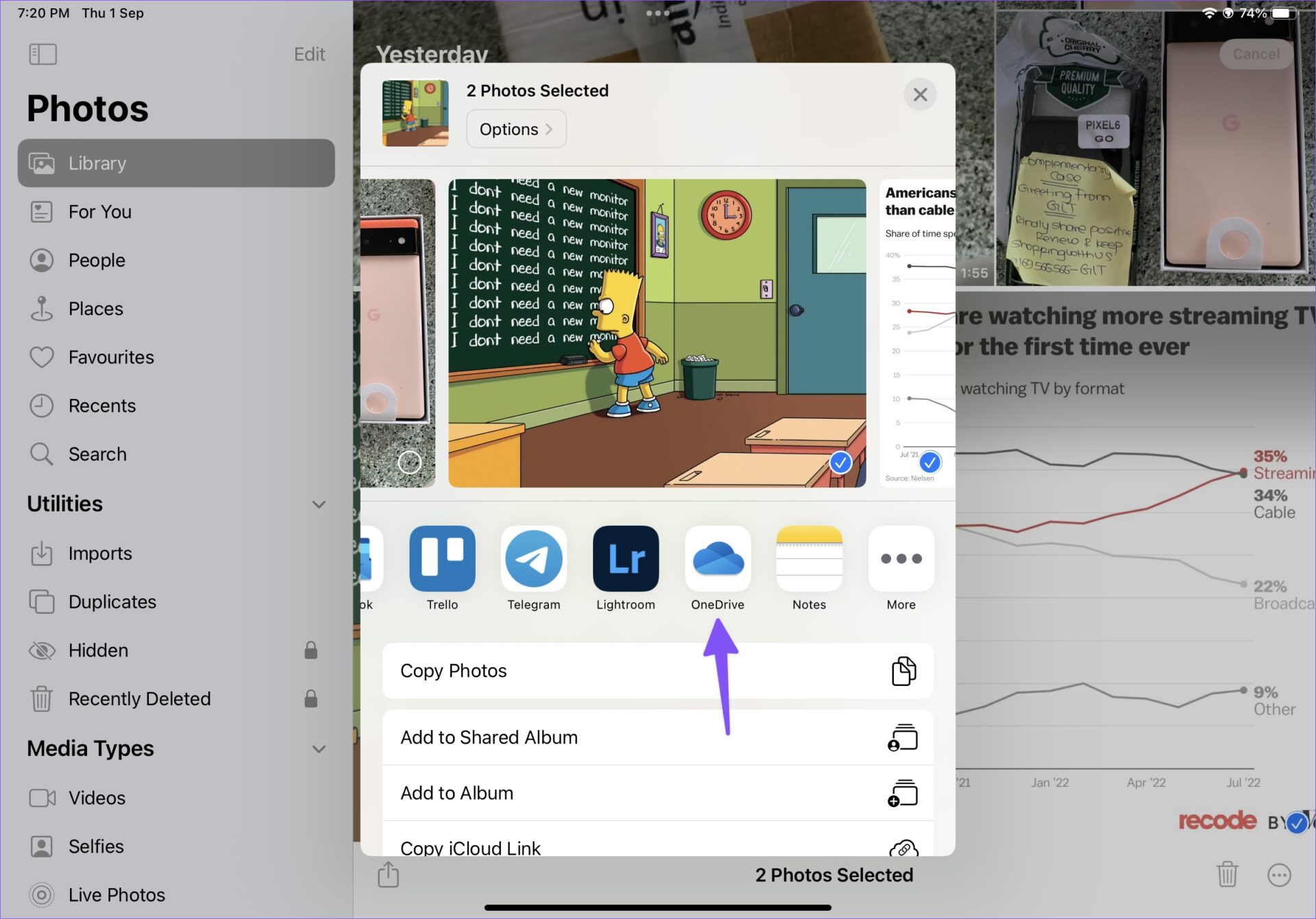
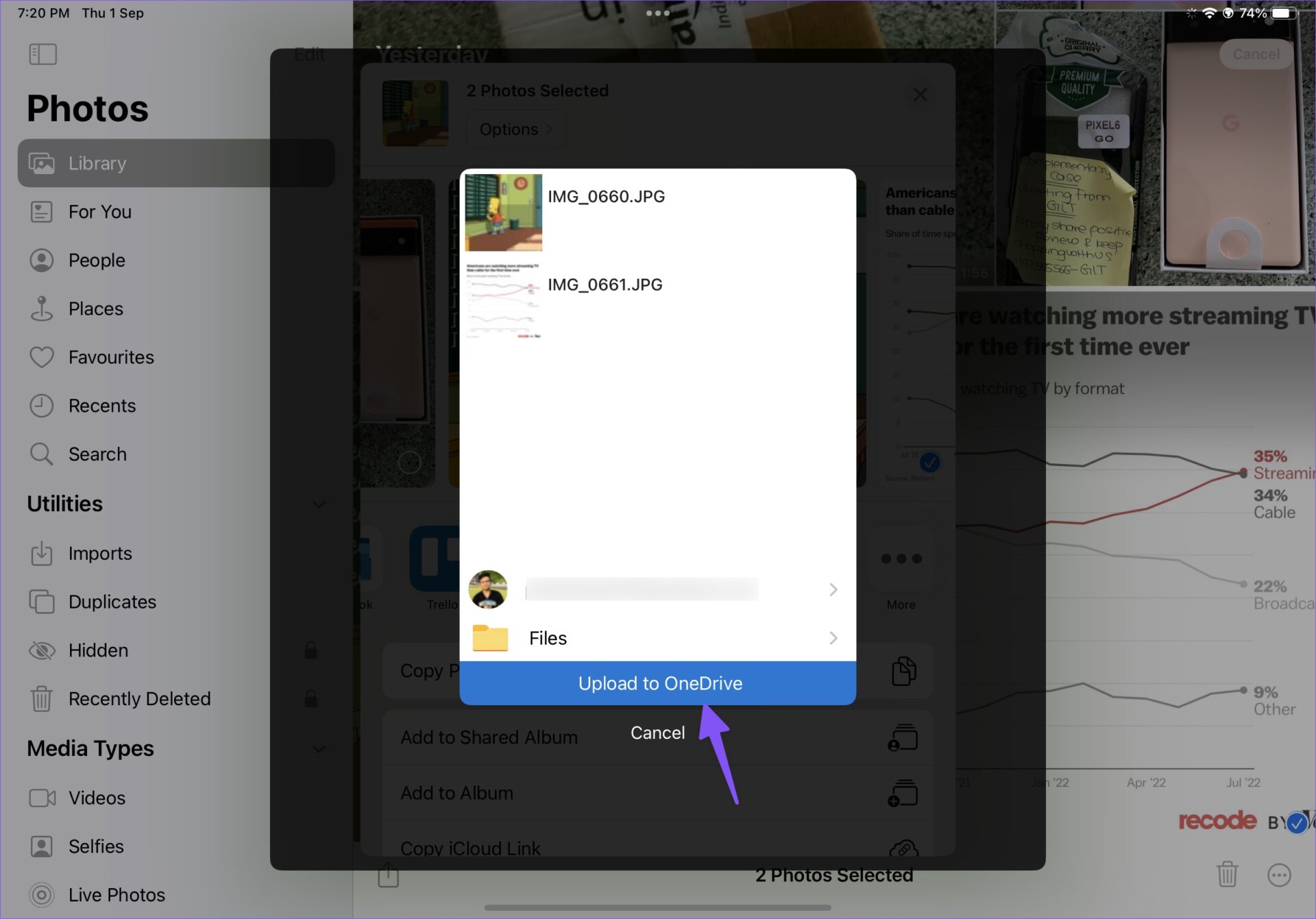
Step 4: Successfully upload files to OneDrive.
第 4 步:成功将文件上传到 OneDrive。
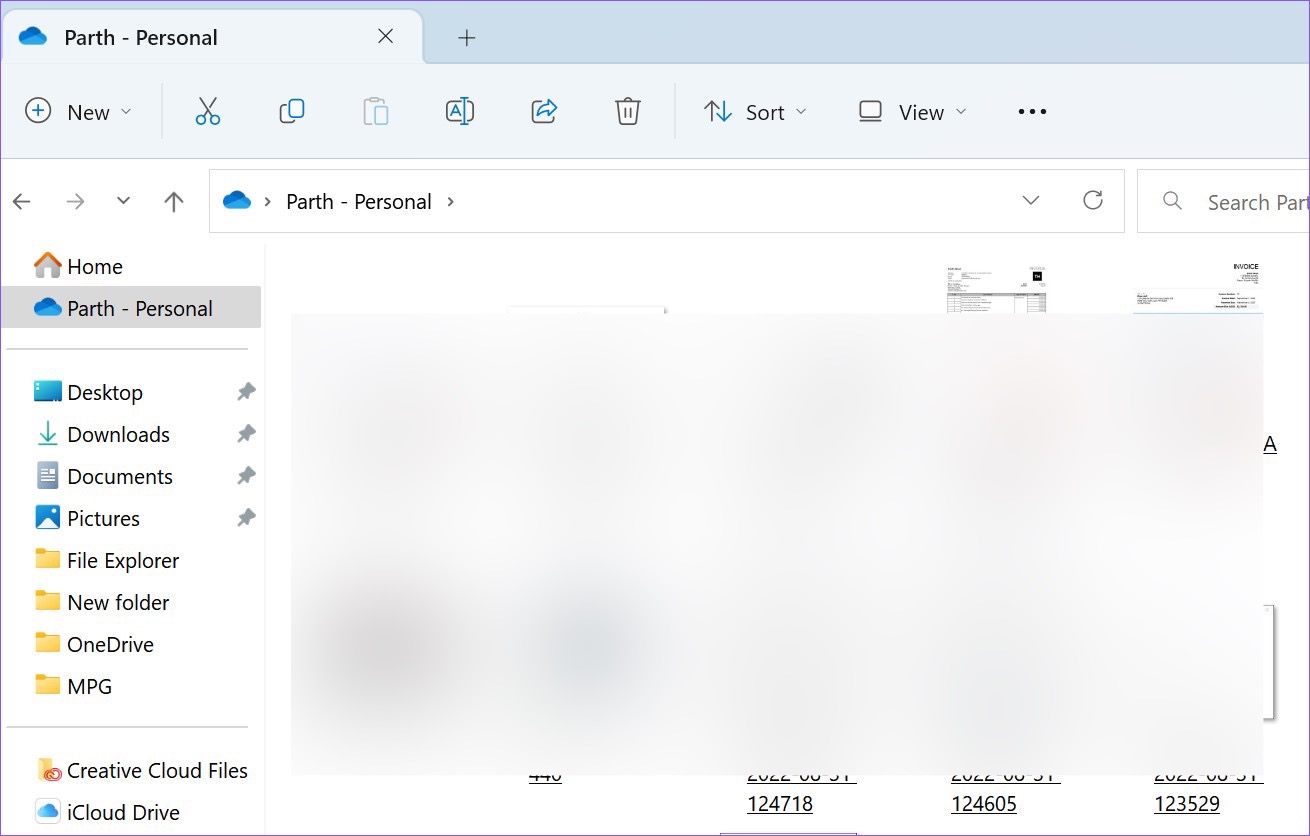
Step 5: Press the Windows + E keys to open the File Explorer on your Windows computer. Select OneDrive from the left column to check the files you uploaded to the iPad.
第 5 步:按 Windows + E 键打开 文件资源管理器 在您的 Windows 计算机上。选择 OneDrive 从左栏中检查您上传到 iPad 的文件。
Method 4. Establish an FTP Server
方法 4.建立 FTP 服务器
FTP (File Transfer Protocol) is yet another effective method to transfer files from iPad to PC. We will use the FE File Explorer app to establish an FTP connection on the PC.
FTP(文件传输协议)是将文件从 iPad 传输到 PC 的另一种有效方法。我们将使用 FE File Explorer 应用程序在 PC 上建立 FTP 连接。
Step 1: Download the FE File Explorer app from the App Store.
第 1 步:从 App Store 下载 FE File Explorer 应用程序。
从 Apple Store 下载
Step 2: Open the app and permit it to access photos and device content.
第 2 步:打开应用程序并允许它访问照片和设备内容。
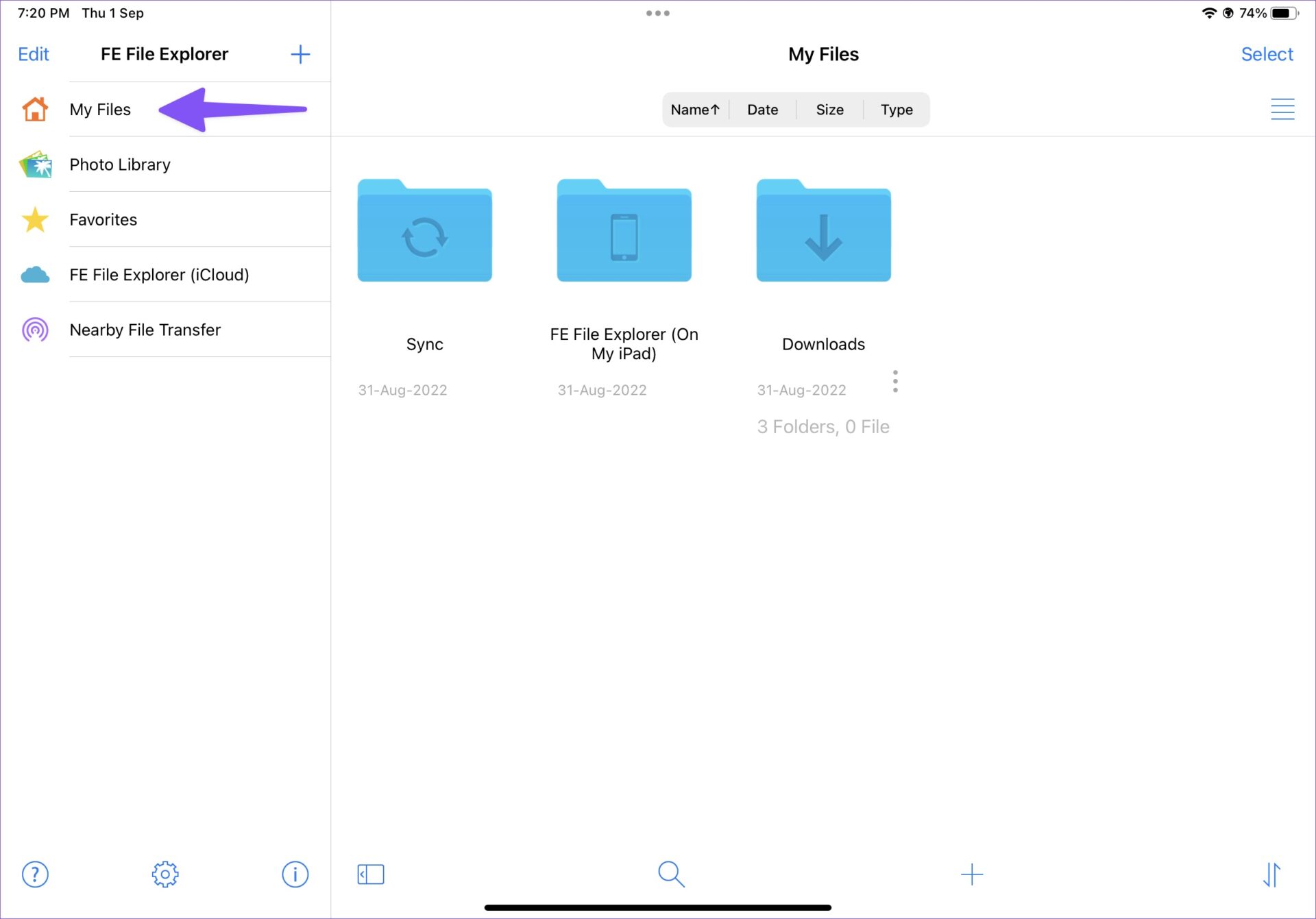
Step 3: Select the photos you want to transfer and move them to any folder in the My Files tab.
第 3 步:选择要传输的照片并将它们移动到 我的文件 标签。
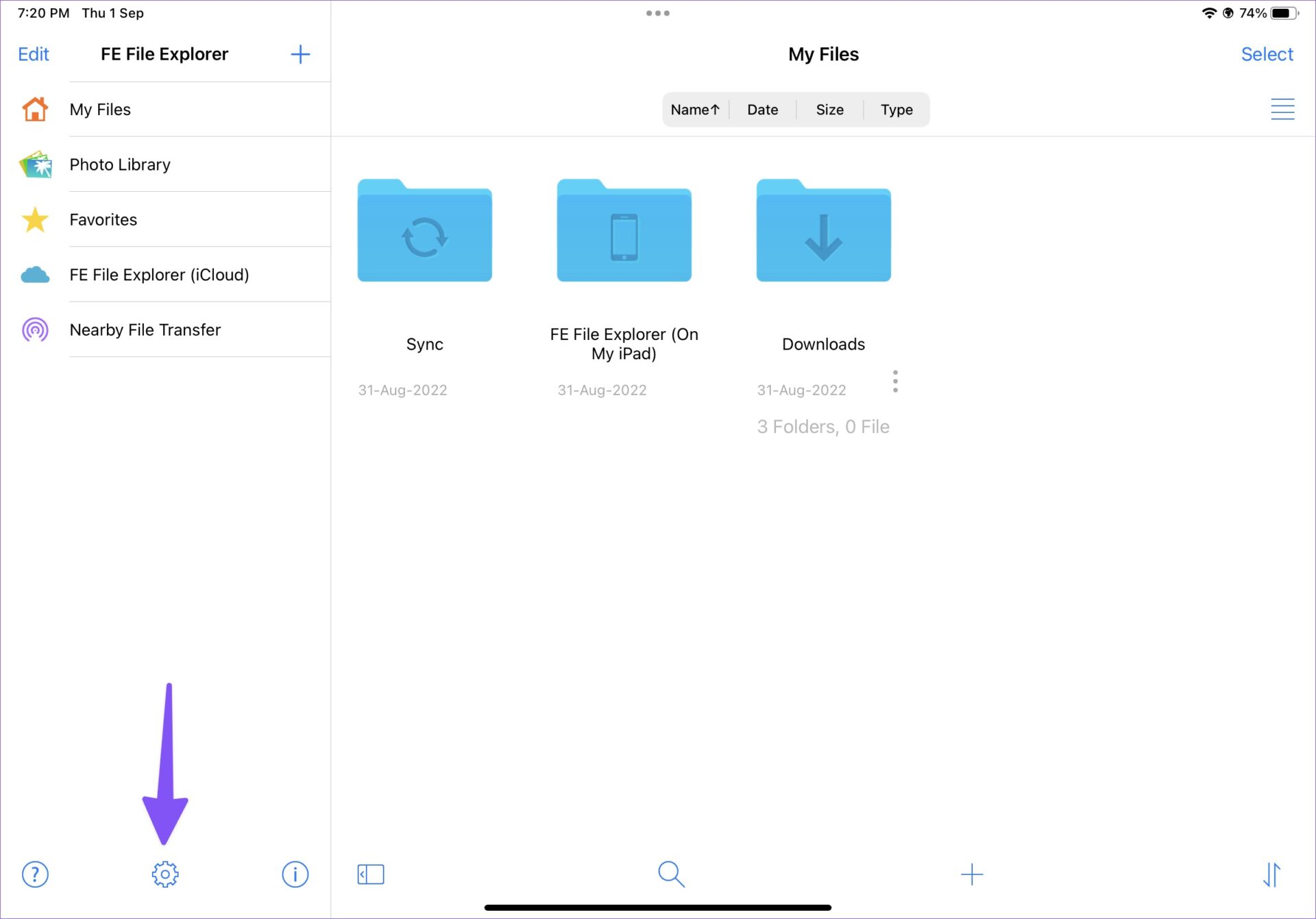
Step 4: Tap on the Settings gear.
第 4 步:点击 个人设置 齿轮。
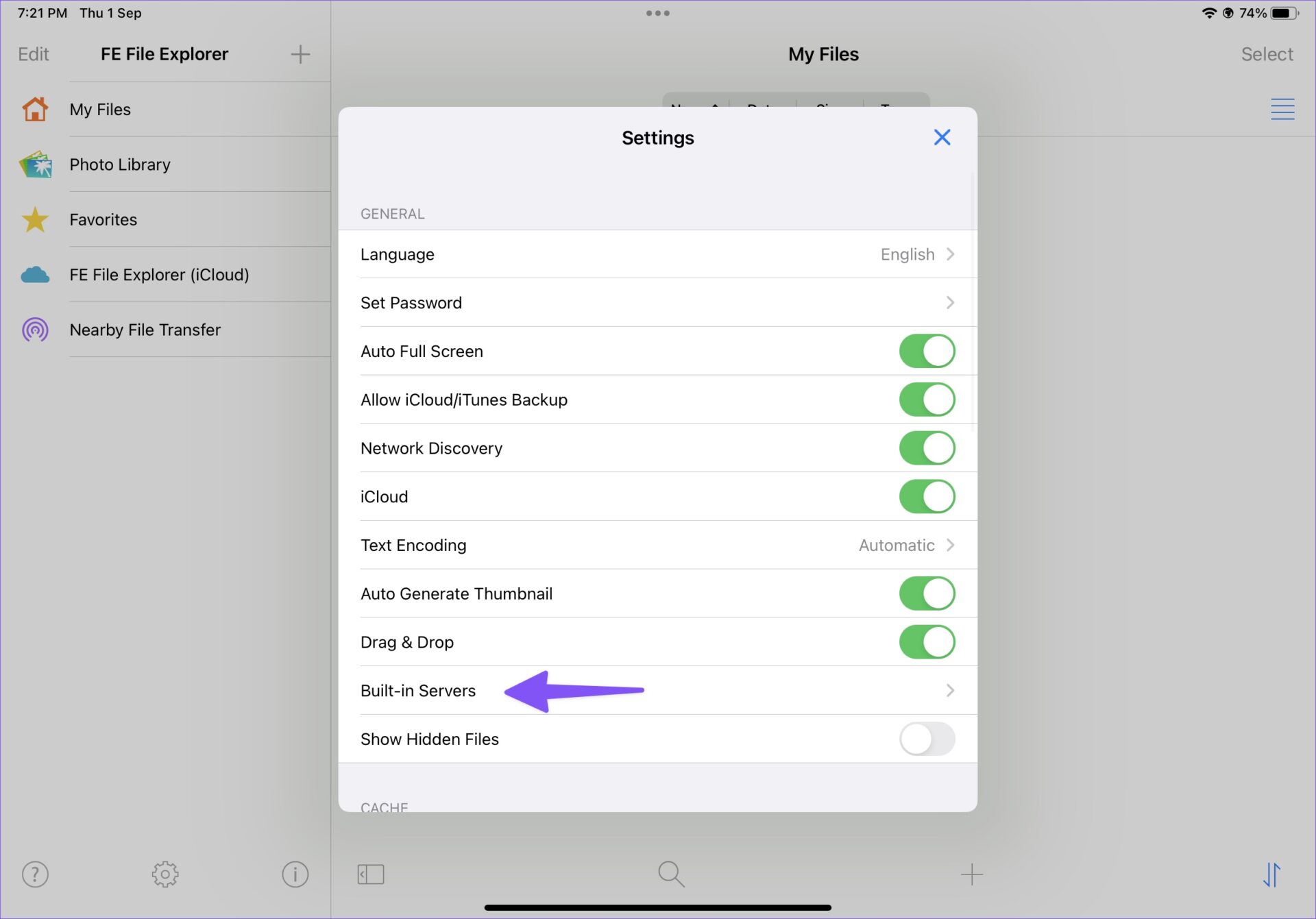
Step 5: Select Built-in Servers.
第 5 步:选择内置服务器。
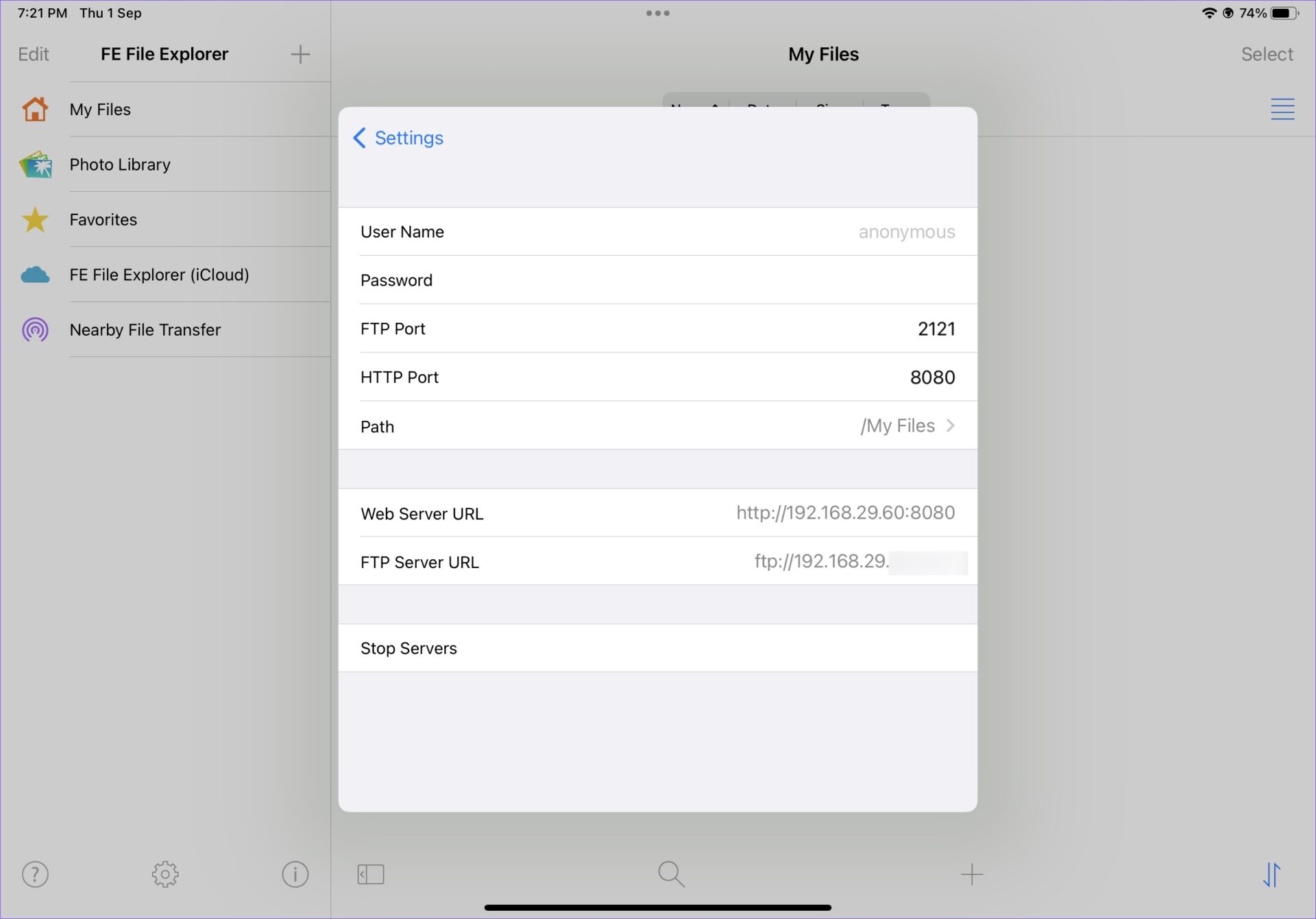
Step 6: Note down the FTP Server URL.
第 6 步:记下 FTP 服务器 URL。
Step 7: Open File Explorer on Windows (use Windows + E keys) and type the FTP server name in the address bar.
第 7 步:在 Windows 上打开文件资源管理器(使用 Windows + E 键)并在地址栏中键入 FTP 服务器名称。
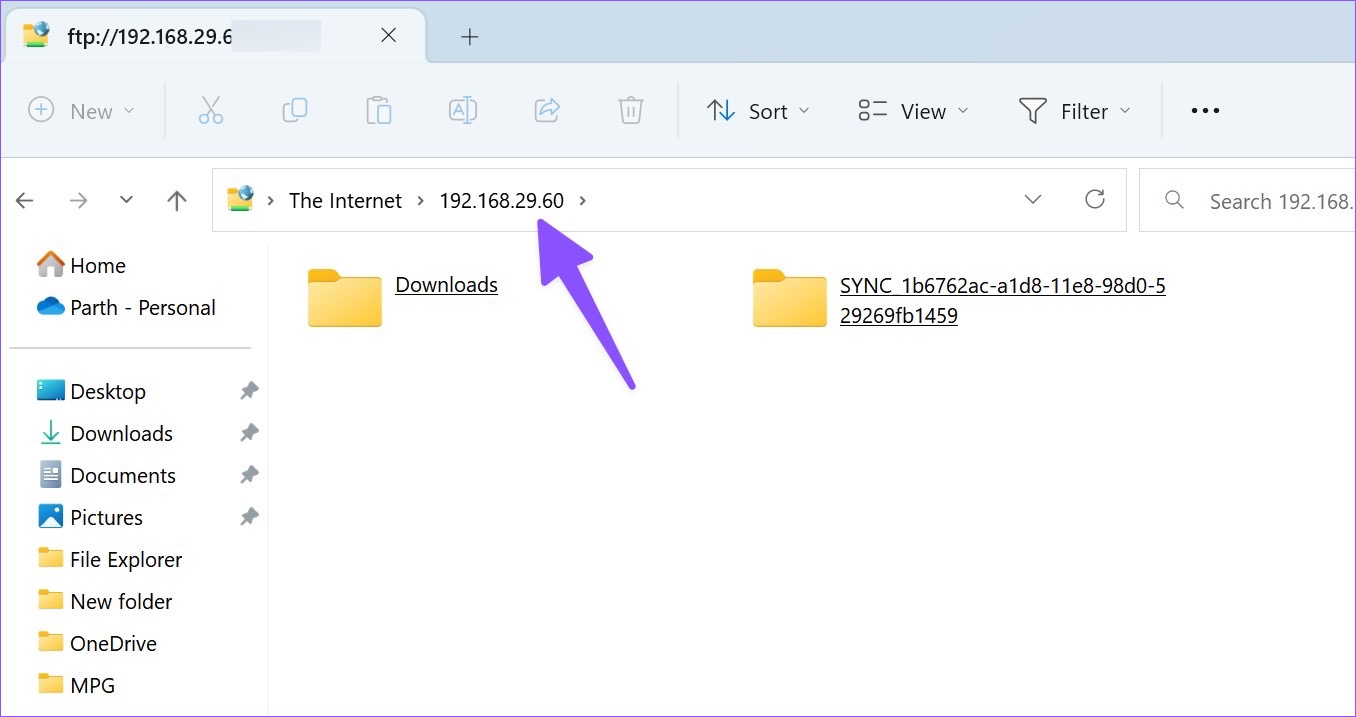
Step 8: The My Files folders in the file manager.
第 8 步:文件管理器中的“我的文件”文件夹。
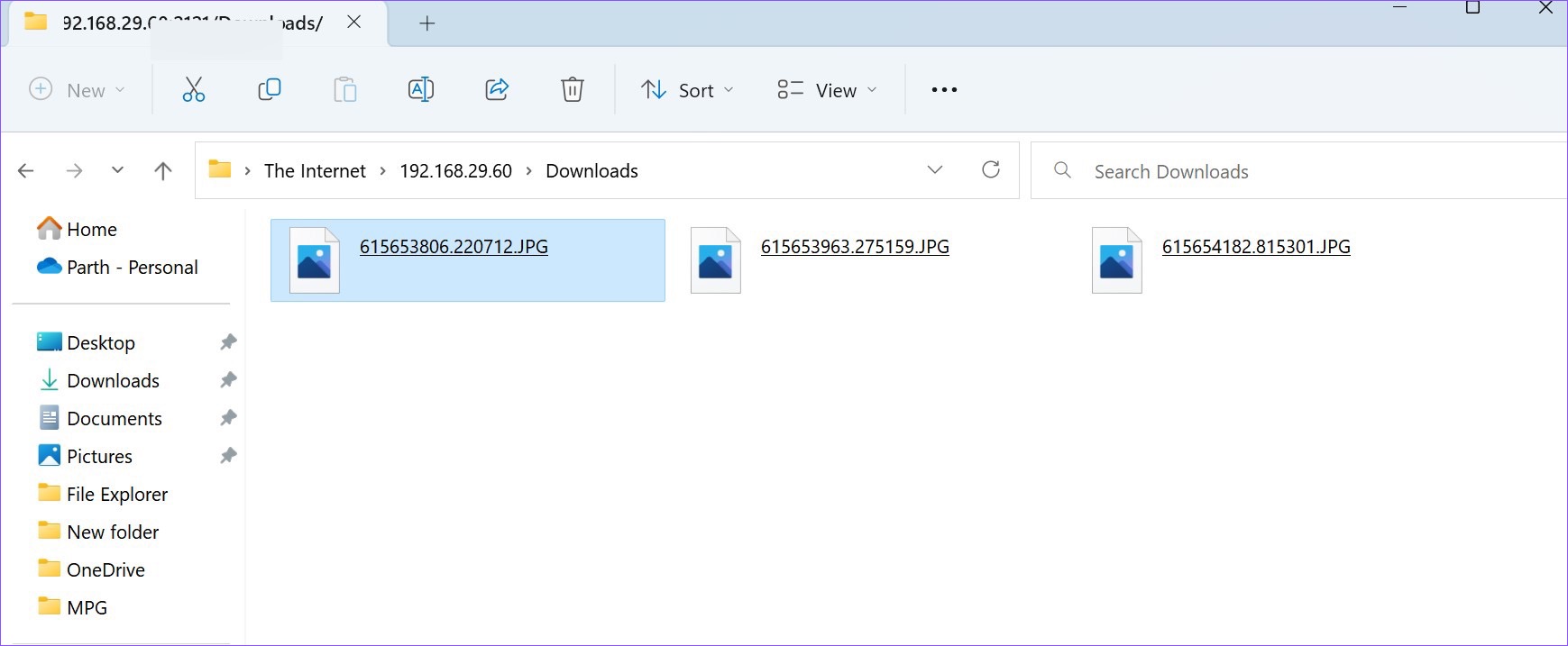
Step 9: Select the files you want to move to the PC.
第 9 步:选择要移动到 PC 的文件。
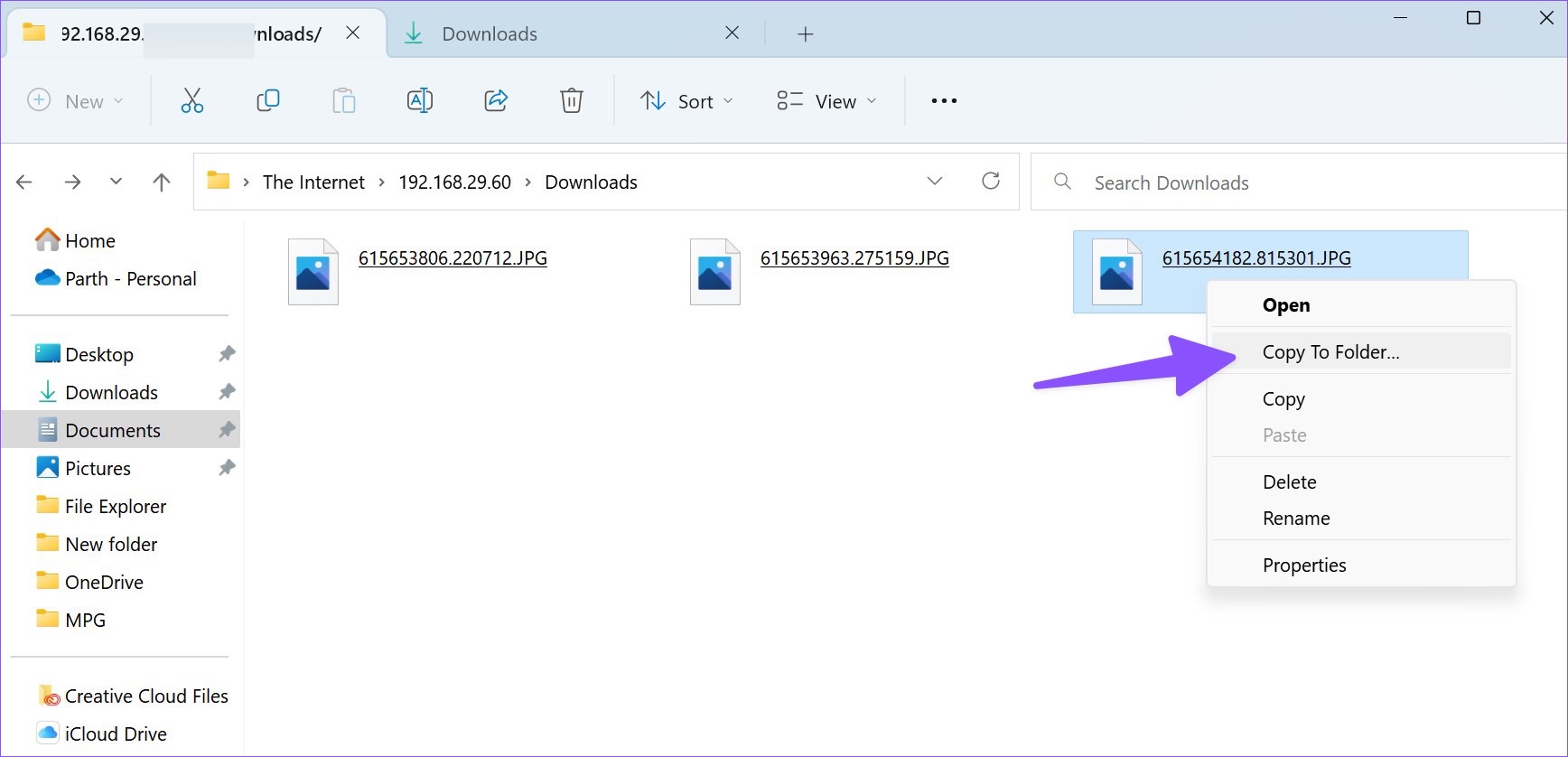
Step 10: Right-click on them and select Copy to Folder from the context menu. Select a relevant folder on your PC to move the iPad files.
第 10 步:右键单击它们并选择 复制到文件夹 从上下文菜单中。在您的 PC 上选择一个相关文件夹来移动 iPad 文件。
Last updated on 27 August, 2024
使用 iTunes 可能遇到的问题
PC 连接 iPad 后,允许此设备访问照片和视频

问题 1
iTunes 无法连接到 iTunes Store。发生未知错误 (0x80090302) 。确定您的网络连接是活动的,然后重新尝试。

问题 2
无法联系 iTunes 更新服务器。请查看您的互联网连接,或者稍后重新尝试。
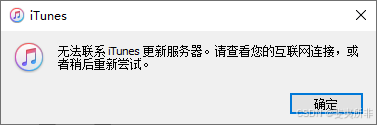
问题 1、问题 2 解决方法
彻底卸载如下五个程序(部分卸载重装修复不起作用),
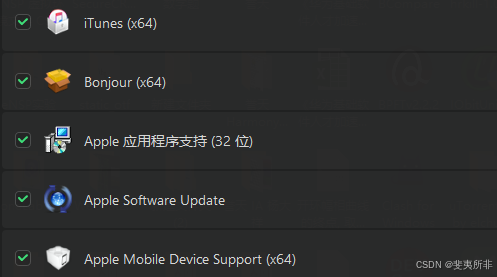
重启计算机后,重新安装 iTunes。
问题 3
没有复制到 iPad,因为它不能在此 iPad 上播放。
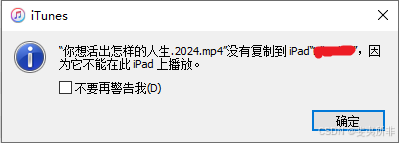
问题 3 解决方法
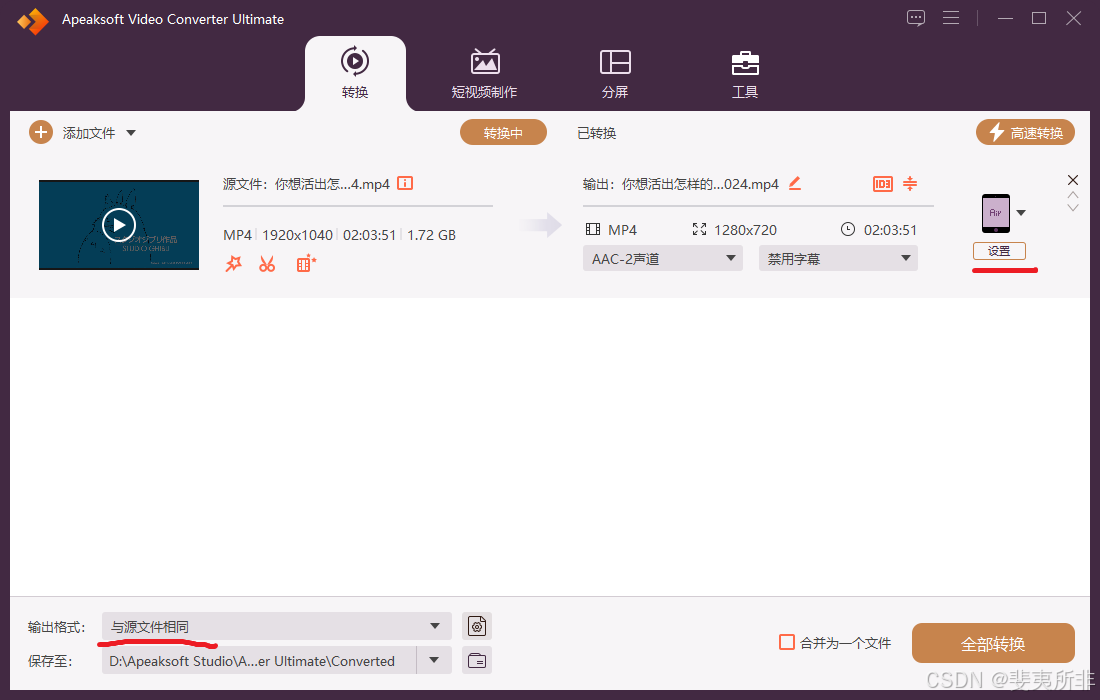
使用熟悉的转换工具转码,这里以 “Apeaksoft Video Converter Ultimate” 示例
设置,选择设备类型

或选择与源文件相同
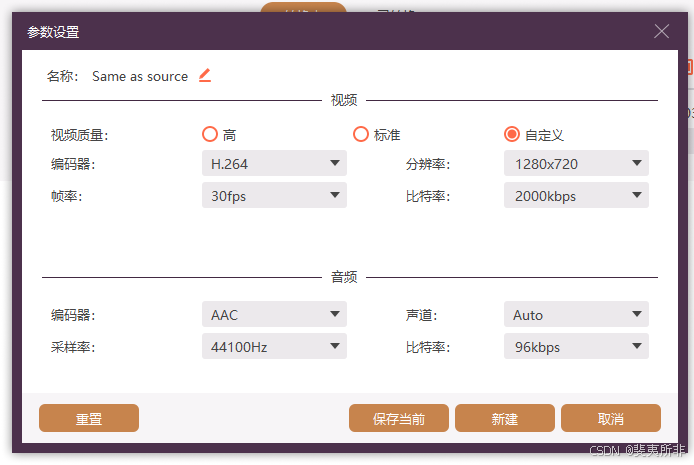
减小转码体积可调整以下参数,示例
问题 4
某些文件未被复制到 iPad,因为此 iPad 上的 iCloud 音乐资料库已启用。
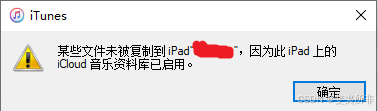
问题 4 解决方法
先从手机端设置 - 音乐 - 关闭 iCloud 音乐资料库,再在电脑端把 iTunes 退出重新打开,即可复制。
避免使用 iTunes 遇到的上述问题
对于视频文件,如果 iPad 端有合适的播放器,通过 WiFi 传输中 3 个选项之一传输,或通过 smb 传输 ,可以避免使用 iTunes 遇到的上述问题。
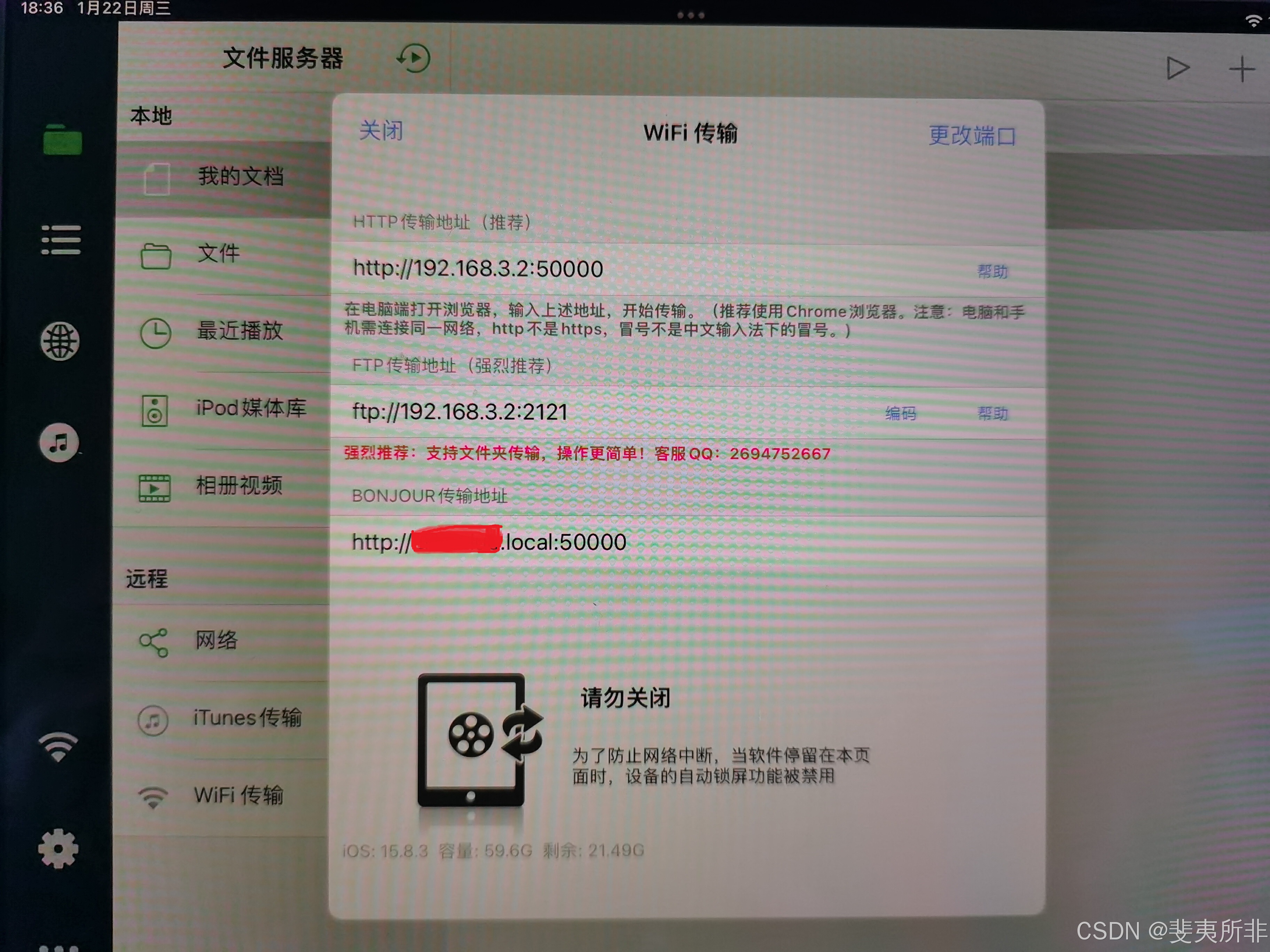
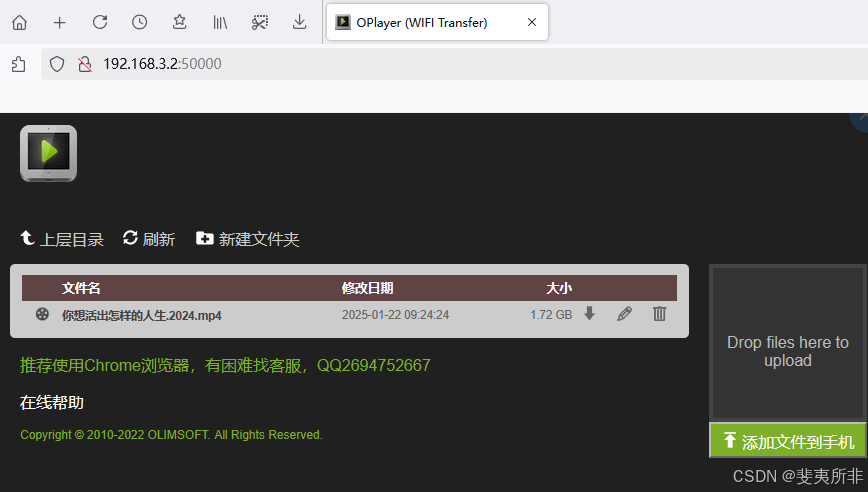
WiFi 传输(iPad 与 PC 同一网段)
在 PC 浏览器地址栏输入 【WiFi 传输】中看到地址
smb 传输(iPad 与 PC 同一网段)
PC 系统需要设置账户密码,文件所在文件夹需要设置【共享】权限
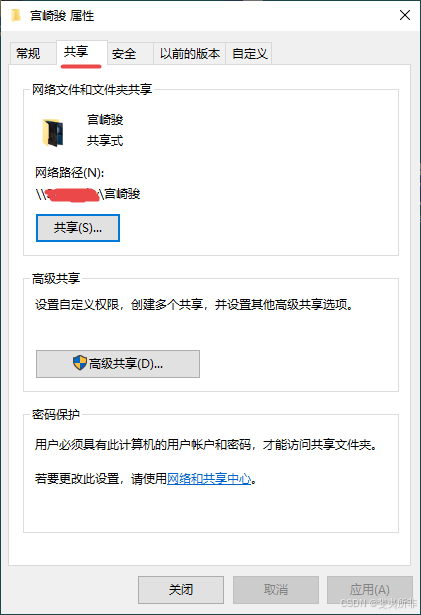
【高级共享 (D)】

【共享 (S)】,添加 Everyone,并设置所需权限
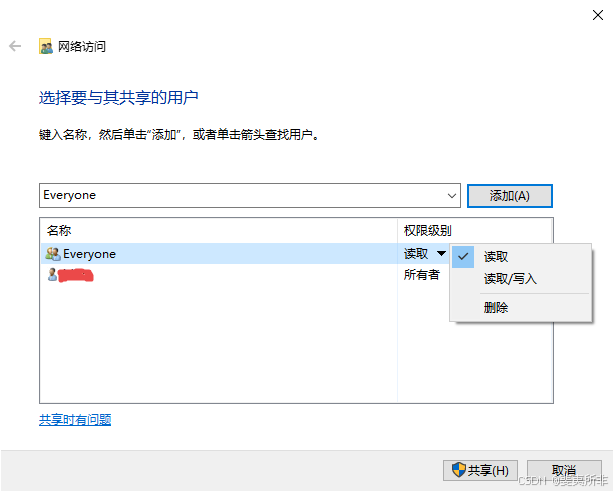
回到 iPad ,smb://PC IP 地址,选择 PC 端已共享的文件传输到 iPad。
Windows 中查看本机 IP 地址
IPv4 地址
C:\WINDOWS\system32>ipconfig /all | findstr "IPv4"
IPv6 地址
C:\WINDOWS\system32>ipconfig /all | findstr "IPv6"
via:
-
4 Ways to Transfer Files from a Windows PC to an iPad - Guiding Tech
https://www.guidingtech.com/top-ways-to-transfer-files-from-a-pc-to-an-ipad/ -
4 Ways to Transfer Files From Apple iPad to PC - Guiding Tech
https://www.guidingtech.com/best-ways-to-transfer-files-from-ipad-to-pc/ -
How to Transfer Files from a PC to iPad: 6 Quick Methods
https://mynexttablet.com/how-to-transfer-files-from-a-pc-to-ipad/ -
How to Transfer Files to iPad from a Computer
https://www.wikihow.com/Transfer-Files-to-iPad-from-a-Computer -
8 Best Ways to Transfer Files from iPad to PC
https://www.mobikin.com/idevice/transfer-files-from-ipad-to-pc.html -
How to transfer files from iPhone to PC or Mac | Documents
https://readdle.com/documents/how-to-transfer-files -
将文件从 Windows PC 传输到 iPad 的 4 种常用方法
https://guid.cam/tech/blogs/top-ways-to-transfer-files-from-a-pc-to-an-ipad/





 扫一扫
扫一扫


 1636
1636

 被折叠的 条评论
为什么被折叠?
被折叠的 条评论
为什么被折叠?
 到【灌水乐园】发言





