



 本文介绍了微信小程序中事件绑定的规则,包括正确的写法和事件传值方式。接着讲解了WXSS的基本概念,如响应式长度单位rpx、样式导入和选择器的使用。同时,文章还探讨了小程序中常用的组件,如view、text、image、swiper、navigator和rich-text的用法和属性配置,展示了实际代码示例。
1.小程序事件绑定
⼩程序中绑定事件,通过bind关键字来实现,bindtap,bindinput``bindchange等; 1-1.wxml
<input type="text" bindinput='handelInput'/>
1-2.js
Page({
    data:{
        num:0
    },
    handelInput(e){
        this.setData{
            num:e.detail.value
        }
    }
})
1-3.注意
1.绑定事件时不能带参数不能带括号以下为错误写法
<input bindinput="handleInput(100)" />
2.2.事件传值通过标签⾃定义属性的⽅式和value
<input bindinput="handleInput" data-item="100" />
2.3事件触发时获取数据
handelInput(e){
     console.log(e.currentTarget.dataset)
       console.log(e.detail.value)
    }
2.样式wxss
https://developers.weixin.qq.com/miniprogram/dev/framework/view/wxss.html
`WXSS( WeiXin Style Sheets )是⼀套样式语⾔,⽤于描述 WXML 的组件样式。
与 CSS 相⽐,WXSS 扩展的特性有:
响应式⻓度单位 rpx
样式导⼊
2-1: 尺寸单位
rpx :可以根据屏幕宽度进行自适应,规定屏幕的宽度为750rpx;
1rpx=0.5px=1物理像素
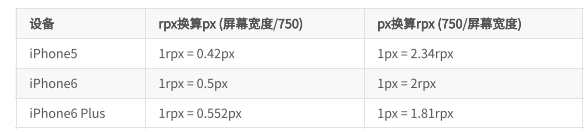
建议:开发微信⼩程序时设计师可以⽤ iPhone6 作为视觉稿的标准。
使⽤步骤:
-
确定设计稿宽度 pageWidth
-
计算⽐例 750rpx = pageWidth px ,因此 1px=750rpx/pageWidth 。
-
在less⽂件中,只要把设计稿中的 px => 750/pageWidth rpx 即可。
转换rpx的公式:
1px =750rpx/设计稿宽度;
100px=750rpx *100/设计稿宽度
在代码中不能直接写公式
要用calc属性
2-2.样式导入
使⽤ @import 语句可以导⼊外联样式表,只⽀持相对路径。
代码:
/** common.wxss **/
.small-p {
  padding:5px;
}
/** app.wxss **/
@import "common.wxss";
.middle-p {
  padding:15px;
}
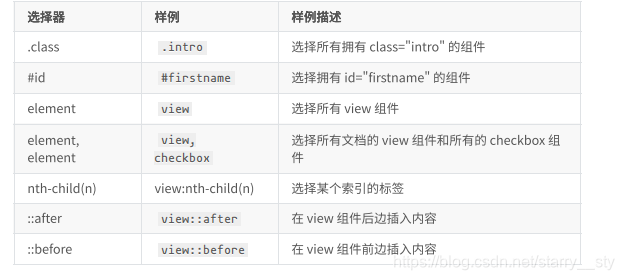
2-3:选择器
注意:微信小程序里面不能使用*
支持的选择器有:
2-4.小程序中使用less
原生的小程序不支持less,
可以通过以下方法使用less:
1. 编辑器是 vscode
2.安装插件 easy less

3.在vscode的设置中加入如下配置
  "less.compile": {
        "outExt":".wxss"
   }
4在要编写样式的地⽅,新建 less ⽂件,如 index.less ,然后正常编辑可。
3.常见的组件
view,text,rich,text,button,image,navigator,icon,swiper,radio,checkbox 等;
3-1: view
详细属性配置:https://developers.weixin.qq.com/miniprogram/dev/component/view.html
他代替了原来的div;
 <view hover-class="h-class">
 点击我试试
  </view>
3-2: text
https://developers.weixin.qq.com/miniprogram/dev/component/text.html
他类似于span标签
1. ⽂本标签
2.只能嵌套text
3.⻓按⽂字可以复制(只有该标签有这个功能;
4.可以对空格 回⻋ 进⾏编码

3-2-1代码:
<text selectable="{{false}}" decode="{{false}}">
普 通
</text>
3-3.image
https://developers.weixin.qq.com/miniprogram/dev/component/image.html
注意:图片为了节省内存,把本地图片变成网络图片,使用遇见图床(不需要注册账户)上传图片;
遇见图床:https://www.hualigs.cn/
-
图⽚标签,image组件默认宽度320px、⾼度240px
-
⽀持懒加载
-
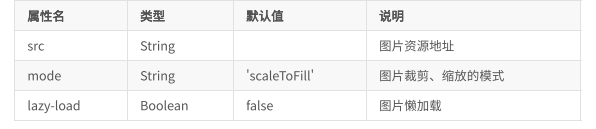
属性:
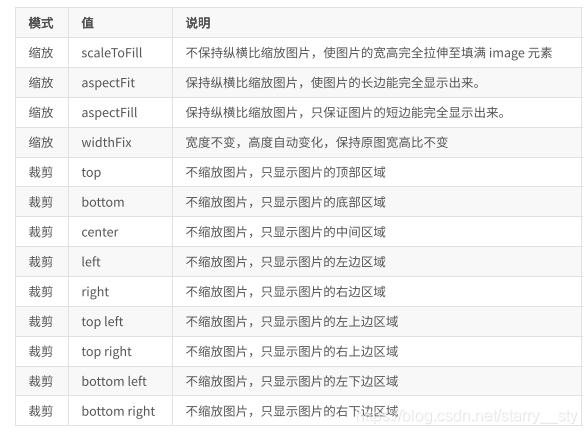
mode 决定图片内容 如何和图片的大小做适配
1.scaleToFill 默认值 不包吃曾恒比缩放图 ,使图片的宽高完全拉伸至填满 image 元素
2.aspectFit 保持宽高比例 一般用来页面的轮播
3.aspectFill 宽度不变,⾼度⾃动变化,保持原图宽⾼⽐不变
4.widthFix 宽度不变,高度自适应;
代码示意:
<image mode='bottom' src='https://www.hualigs.cn/image/60d12b2b19b71.jpg'/>
mode的有效值:
mode 有 13 种模式,其中 4 种是缩放模式,9种是裁剪模式
3-4.swiper
https://developers.weixin.qq.com/miniprogram/dev/component/swiper.html
微信内置轮播图组件
步骤:
1.轮播最外层是 swiper
2.每一个轮播 swiper-item
3.swiper 存在默认样式 width:100% height 150px image: 320*24
swiper的height无法由内容撑开
4.找到原图的宽和高 等比 swiper 的宽高
	比如:原图高度和宽度:1140*400 px

	swiper宽度/swiper 高度 =原图的宽度/原图的高度

	 swiper高度 = swiper 宽度 *原图的的高度/原图的宽度

		  height: 750rpx*400 /1140
swiper宽度 = swiper 宽度 *原图的的宽度/原图的高度
注意:默认宽度100%,高度150px
5.常见属性:
autoplay 自动播放 默认五分钟
interval 修改轮播时间
circular 衔接轮播图
indicator-dots 显示指示器
indicator-color 指示器未选中的颜色 rgba()
indicator-active-color 指示器选中的颜色
代码示意:
<!-- demo.wxml -->
<swiper autoplay interval='1000' circular indicator-dots indicator-color='rgb(00,99,255)' indicator-active-color='#ff0094'>
<swiper-item > <image  mode = '						widthFix'src='https://b.appsimg.com/upload/momin/2021/06/19/177/1624075422101.jpg' ></image></swiper-item>
<swiper-item><image  mode = 'widthFix' src='https://b.appsimg.com/upload/momin/2021/06/19/49/1624089146400.jpg'></image></swiper-item>
<swiper-item><image  mode = 'widthFix' src='https://b.appsimg.com/upload/momin/2021/06/19/49/1624089146400.jpg'></image></swiper-item>
</swiper>
/* demo.wxss */
swiper{
  width:100%;
  height:calc(750rpx*400 /1140)
}
image{
  width:100%;
}
3-5 navigator
导航组件 类似超链接标签 块级元素,默认会换行
https://developers.weixin.qq.com/miniprogram/dev/component/navigator.html
属性:
1.url 要跳转页面路径 绝对路径和性对路径
2.target 要跳到当前的小程序,换是其他的小程序 self 默认值 自己的小程序
miniProgram 跳到其他的小程序
3.open-type 跳转的方式
3-1.navigate 默认值 保留当前⻚⾯,跳转到应⽤内的某个⻚⾯,但是不能跳
到tabbar⻚⾯
3-2. redirect 关闭当前⻚⾯,跳转到应⽤内的某个⻚⾯,但是不允许跳转
到tabbar⻚⾯。
3-3.switchTab 跳转到tabBar⻚⾯,并关闭其他所有不是tabBar⻚⾯
3-4.reLaunch 关闭所有⻚⾯,打开到应⽤内的某个⻚⾯
3-5.navigateBack 和返回按钮类似 关闭当前⻚⾯,返回上⼀⻚⾯或多级⻚
⾯。可通过getCurrentPages()获取当前的⻚⾯栈,决定需要返回⼏层
3-6.exit 退出⼩程序,target= miniProgram生效
代码示意:
<!-- demo/wxml -->
<navigator url='../demo10/demo10'>轮播页面相对路径</navigator>
 <navigator url='/pages/demo10/demo10'>轮播页面 绝对路径</navigator>
 <navigator url='/pages/index/index'>轮播页面  不能跳转到tabbar </navigator>
 <navigator open-type='redirect'url='/pages/demo10/demo10'>redirect 跳转到其他页面不能跳tabbar</navigator>
 <navigator open-type='switchTab' url='/pages/index/index'>switchTab 跳转到tabar</navigator>
 <navigator open-type='reLaunch' url='/pages/demo9/demo9'>reLaunch 可以随便跳</navigator>
3-6 .rich-text
富文本标签
可以将字符串解析成对应标签,类似vue中v–html功能
属性:
1.nodes 属性来实现
		1.接收标签字符串

		 2.接收数组对象
代码示意:
<!--pages/demo12/demo12.wxml-->
 <rich-text nodes="{{html}}"></rich-text>
// pages/demo12/demo12.js
Page({

  /**
   * 页面的初始数据
   */
  data: {
    // html:"写要渲染的内容"
    // 2.对象数组
    html:[
      {
        //1.div标签 name属性来制定
        name:"div",
        //2.标签上有哪些属性
        attrs:{
          //标签上的属性 class style
          class:'my_div',
          style:"color:red"
        },
        //3子节点 children 要接受的数据类型  nodes的第二种渲染方式的数据类型一样
        children:[
          {
            name:'p',
            attrs:{},
            //放文本
            children:[
              {
                type:"text",
                text:"hello"
              }
            ]

          }
        ]
      }
    ]

  },
3-6-1.nodes属性
nodes属性⽀持字符串和标签节点数组
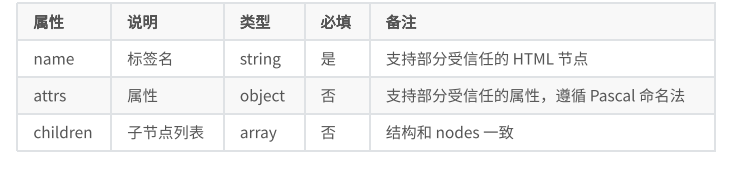
⽂本节点:type=text

注意:
nodes不推荐使⽤String类型,性能会有所下降。rich--text组件内屏蔽所有节点的事件。attrs属性不⽀持id,⽀持class。name属性⼤⼩写不敏感;- 如果使⽤了不受信任的HTML节点,该节点及其所有⼦节点将会被移除。
img标签仅⽀持⽹络图⽚。
总结:
- 学习了小程序的事件绑定,样式引入 有less 和sass;
- 小程序的功能太强大了;
- 给开发人员减轻了很大的压力;





 扫一扫
扫一扫


 3291
3291

 被折叠的 条评论
为什么被折叠?
被折叠的 条评论
为什么被折叠?
 到【灌水乐园】发言





