


原文链接
简介
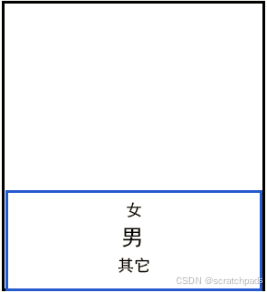
Picker提供了滑动选择器,允许用户从预定义范围中进行选择。一般都是在三个以上选项的时候 才建议使用 该功能。
如下图这种,可以上下滑动选择需要的信息。
用到的属性
Picker的共有XML属性继承自:DirectionalLayout (线性布局),所以说 学习好布局多么的重要,很多无法实现的布局 都可以通过重写来自定义。

本篇讲解的属性 主要这几种,也是最常用的几种:
ohos:normal_text_size="16fp" // 默认字体大小
ohos:normal_text_color="#FFA500" // 默认字体颜色
ohos:selected_text_size="16fp" // 选中字体大小
ohos:selected_text_color="#00FFFF" // 选中字体颜色
ohos:bottom_line_element="#40E0D0" // 选中项底部分割线颜色
ohos:top_line_element="#40E0D0" // 选中项顶部分割线颜色
// 下面两个不常用,因为一般 选择器中数据一般是没有规律,都是需要自定义设置。
ohos:min_value="1"
ohos:max_value="10"
实战
1,创建一个项目 添加 Picker
<Picker
    ohos:id="$+id:picker"
    ohos:height="100vp"
    ohos:width="match_content"
    ohos:layout_alignment="horizontal_center"
    ohos:background_element="#E1FFFF"
    ohos:normal_text_size="16fp"
    ohos:selected_text_size="22fp"
    ohos:min_value="100"
    ohos:max_value="120"
    />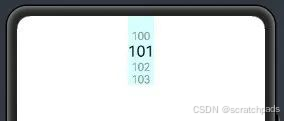
为了能更好的理解 ,这个是完全使用配置属性来设置,所以设置了一个滑动选中数据 是 100 -120。
属性也只是设置了选中和未选中的字体大小。
2,下面我们添加一个 时间选择器,获取时间。
布局文件:
<?xml version="1.0" encoding="utf-8"?>
<DirectionalLayout
    xmlns:ohos="http://schemas.huawei.com/res/ohos"
    ohos:height="match_parent"
    ohos:width="match_parent"
    ohos:orientation="vertical">

    <Picker
        ohos:id="$+id:picker"
        ohos:height="100vp"
        ohos:width="match_content"
        ohos:layout_alignment="horizontal_center"
        ohos:background_element="#E1FFFF"
        ohos:normal_text_size="16fp"
        ohos:selected_text_size="22fp"
        ohos:wheel_mode_enabled="true"
        ohos:min_value="100"
        ohos:max_value="120"
        />


    <DirectionalLayout
        ohos:height="match_content"
        ohos:width="match_parent"
        ohos:alignment="center"
        ohos:top_margin="50vp"
        ohos:background_element="#000000"
        ohos:orientation="horizontal">

        <Picker
            ohos:id="$+id:picker1"
            ohos:height="match_content"
            ohos:width="0vp"
            ohos:weight="1"
            ohos:layout_alignment="horizontal_center"
            ohos:background_element="#0000cc"
            ohos:normal_text_size="16fp"
            ohos:selected_text_size="25fp"
            ohos:normal_text_color="#ffffff"
            ohos:bottom_line_element="#999999"
            ohos:top_line_element="#999999"
            ohos:wheel_mode_enabled="true"
            />

        <Picker
            ohos:id="$+id:picker2"
            ohos:height="match_content"
            ohos:width="0vp"
            ohos:weight="1"
            ohos:layout_alignment="horizontal_center"
            ohos:background_element="#0066cc"
            ohos:normal_text_size="16fp"
            ohos:selected_text_size="25fp"
            ohos:normal_text_color="#ffffff"
            ohos:selected_text_color="#FF3030"
            ohos:wheel_mode_enabled="true"
            />

        <Picker
            ohos:id="$+id:picker3"
            ohos:height="match_content"
            ohos:width="0vp"
            ohos:weight="1"
            ohos:layout_alignment="horizontal_center"
            ohos:background_element="#00cccc"
            ohos:normal_text_size="16fp"
            ohos:selected_text_size="25fp"
            ohos:normal_text_color="#7FFF00"
            ohos:selected_text_color="#000000"
            ohos:wheel_mode_enabled="true"
            />

    </DirectionalLayout>

</DirectionalLayout>
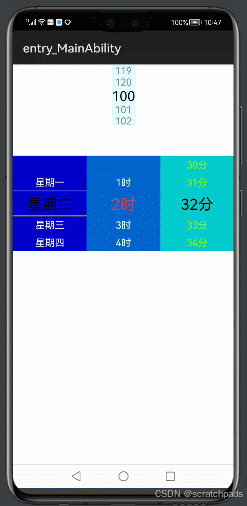
1,布局中添加了四个选择器,第一个时默认数字在100-120之间的数字。
2,第二个选择器设置星期,可以设置上下的下划线
3,第三个选择器设置了选中选项的颜色
4,第四个选择器设置了未选中选项的颜色
代码逻辑:
package com.example.picker.slice;

import com.example.picker.ResourceTable;
import ohos.aafwk.ability.AbilitySlice;
import ohos.aafwk.content.Intent;
import ohos.agp.components.Picker;

import java.util.ArrayList;
import java.util.List;

public class MainAbilitySlice extends AbilitySlice {
    @Override
    public void onStart(Intent intent) {
        super.onStart(intent);
        super.setUIContent(ResourceTable.Layout_ability_main);

        Picker picker1 = (Picker)findComponentById(ResourceTable.Id_picker1);
        picker1.setDisplayedData(new String[]{"星期一", "星期二", "星期三", "星期四", "星期五", "星期六", "星期日"});

        Picker picker2 = (Picker)findComponentById(ResourceTable.Id_picker2);
        List<String> shiList =new ArrayList<String>();
        for(int i=1;i<=12;i++){
            shiList.add(i+"时");
        }
        String [] shi = shiList.toArray( new String[]{});

        picker2.setMaxValue(12);
        picker2.setDisplayedData(shi);

        Picker picker3 = (Picker)findComponentById(ResourceTable.Id_picker3);

        List<String> fenList =new ArrayList<String>();
        for(int i=0;i<=59;i++){
            fenList.add(i+"分");
        }
        String [] fen = fenList.toArray( new String[]{});
        picker3.setMaxValue(60);
        picker3.setDisplayedData(fen);
    }

    @Override
    public void onActive() {
        super.onActive();
    }

    @Override
    public void onForeground(Intent intent) {
        super.onForeground(intent);
    }
}
1,通过picker1.setDisplayedData属性设置选择器的内容信息
2,通过picker3.setMaxValue(60);属性设置选择器的数据的内容大小。
源码:
https://gitee.com/codegrowth/haomony-develop/tree/master/Picker
————————————————
版权声明:本文为博主原创文章,遵循 CC 4.0 BY-SA 版权协议,转载请附上原文出处链接和本声明。
原文链接:https://blog.youkuaiyun.com/jianpengxuexikaifa/article/details/118499728





 扫一扫
扫一扫


 1455
1455

 被折叠的 条评论
为什么被折叠?
被折叠的 条评论
为什么被折叠?
 到【灌水乐园】发言





