


A Visual Git Reference
If the images do not work, you can try the Non-SVG version of this page.
This page gives brief, visual reference for the most common commands in git. Once you know a bit about how git works, this site may solidify your understanding. If you're interested in how this site was created, see my GitHub repository.
Contents
Basic Usage

The four commands above copy files between the working directory, the stage (also called the index), and the history (in the form of commits).
git add filescopies files (at their current state) to the stage.git commitsaves a snapshot of the stage as a commit.git reset -- filesunstages files; that is, it copies files from the latest commit to the stage. Use this command to "undo" agit add files. You can alsogit resetto unstage everything.git checkout -- filescopies files from the stage to the working directory. Use this to throw away local changes.
You can use git reset -p, git checkout -p, or git add -p instead of (or in addition to) specifying particular files to interactively choose which hunks copy.
It is also possible to jump over the stage and check out files directly from the history or commit files without staging first.

git commit -ais equivalent to running git add on all filenames that existed in the latest commit, and then running git commit.git commit filescreates a new commit containing the contents of the latest commit, plus a snapshot of files taken from the working directory. Additionally, files are copied to the stage.git checkout HEAD -- filescopies files from the latest commit to both the stage and the working directory.
Conventions
In the rest of this document, we will use graphs of the following form.

Commits are shown in green as 5-character IDs, and they point to their parents. Branches are shown in orange, and they point to particular commits. The current branch is identified by the special reference HEAD, which is "attached" to that branch. In this image, the five latest commits are shown, with ed489 being the most recent. master (the current branch) points to this commit, while maint (another branch) points to an ancestor of master's commit.
Commands in Detail
Diff
There are various ways to look at differences between commits. Below are some common examples. Any of these commands can optionally take extra filename arguments that limit the differences to the named files.

Commit
When you commit, git creates a new commit object using the files from the stage and sets the parent to the current commit. It then points the current branch to this new commit. In the image below, the current branch is master. Before the command was run, master pointed toed489. Afterward, a new commit, f0cec, was created, with parent ed489, and then master was moved to the new commit.

This same process happens even when the current branch is an ancestor of another. Below, a commit occurs on branch maint, which was an ancestor of master, resulting in 1800b. Afterward, maint is no longer an ancestor of master. To join the two histories, a merge (or rebase) will be necessary.

Sometimes a mistake is made in a commit, but this is easy to correct with git commit --amend. When you use this command, git creates a new commit with the same parent as the current commit. (The old commit will be discarded if nothing else references it.)

A fourth case is committing with a detached HEAD, as explained later.
Checkout
The checkout command is used to copy files from the history (or stage) to the working directory, and to optionally switch branches.
When a filename (and/or -p) is given, git copies those files from the given commit to the stage and the working directory. For example, git checkout HEAD~ foo.c copies the file foo.c from the commit called HEAD~ (the parent of the current commit) to the working directory, and also stages it. (If no commit name is given, files are copied from the stage.) Note that the current branch is not changed.

When a filename is not given but the reference is a (local) branch, HEAD is moved to that branch (that is, we "switch to" that branch), and then the stage and working directory are set to match the contents of that commit. Any file that exists in the new commit (a47c3 below) is copied; any file that exists in the old commit (ed489) but not in the new one is deleted; and any file that exists in neither is ignored.

When a filename is not given and the reference is not a (local) branch — say, it is a tag, a remote branch, a SHA-1 ID, or something likemaster~3 — we get an anonymous branch, called a detached HEAD. This is useful for jumping around the history. Say you want to compile version 1.6.6.1 of git. You can git checkout v1.6.6.1 (which is a tag, not a branch), compile, install, and then switch back to another branch, say git checkout master. However, committing works slightly differently with a detached HEAD; this is covered below.

Committing with a Detached HEAD
When HEAD is detached, commits work like normal, except no named branch gets updated. (You can think of this as an anonymous branch.)

Once you check out something else, say master, the commit is (presumably) no longer referenced by anything else, and gets lost. Note that after the command, there is nothing referencing 2eecb.

If, on the other hand, you want to save this state, you can create a new named branch using git checkout -b name.

Reset
The reset command moves the current branch to another position, and optionally updates the stage and the working directory. It also is used to copy files from the history to the stage without touching the working directory.
If a commit is given with no filenames, the current branch is moved to that commit, and then the stage is updated to match this commit. If --hard is given, the working directory is also updated. If --soft is given, neither is updated.

If a commit is not given, it defaults to HEAD. In this case, the branch is not moved, but the stage (and optionally the working directory, if --hard is given) are reset to the contents of the last commit.

If a filename (and/or -p) is given, then the command works similarly to checkout with a filename, except only the stage (and not the working directory) is updated. (You may also specify the commit from which to take files, rather than HEAD.)

Merge
A merge creates a new commit that incorporates changes from other commits. Before merging, the stage must match the current commit. The trivial case is if the other commit is an ancestor of the current commit, in which case nothing is done. The next most simple is if the current commit is an ancestor of the other commit. This results in a fast-forward merge. The reference is simply moved, and then the new commit is checked out.

Otherwise, a "real" merge must occur. You can choose other strategies, but the default is to perform a "recursive" merge, which basically takes the current commit (ed489 below), the other commit (33104), and their common ancestor (b325c), and performs a three-way merge. The result is saved to the working directory and the stage, and then a commit occurs, with an extra parent (33104) for the new commit.

Cherry Pick
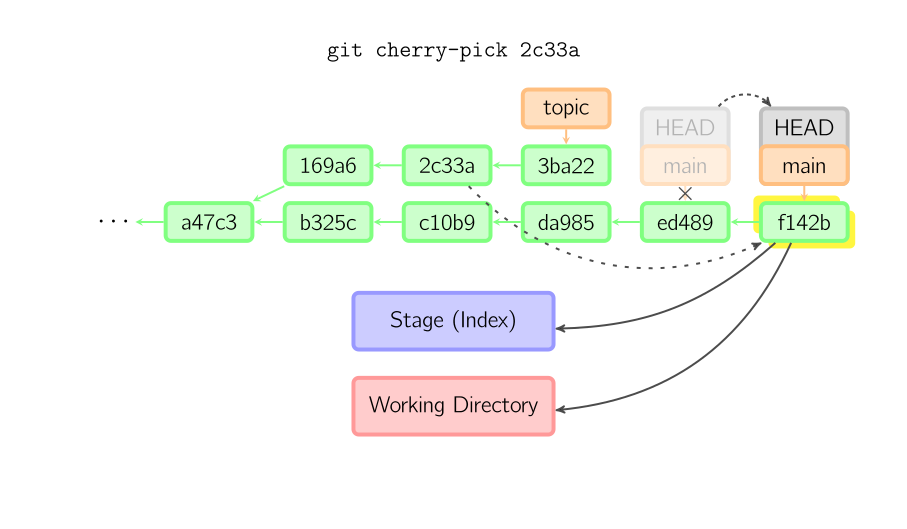
The cherry-pick command "copies" a commit, creating a new commit on the current branch with the same message and patch as another commit.
Rebase
A rebase is an alternative to a merge for combining multiple branches. Whereas a merge creates a single commit with two parents, leaving a non-linear history, a rebase replays the commits from the current branch onto another, leaving a linear history. In essence, this is an automated way of performing several cherry-picks in a row.

The above command takes all the commits that exist in topic but not in master (namely 169a6 and 2c33a), replays them onto master, and then moves the branch head to the new tip. Note that the old commits will be garbage collected if they are no longer referenced.
To limit how far back to go, use the --onto option. The following command replays onto master the most recent commits on the current branch since 169a6 (exclusive), namely 2c33a.

There is also git rebase --interactive, which allows one to do more complicated things than simply replaying commits, namely dropping, reordering, modifying, and squashing commits. There is no obvious picture to draw for this; see git-rebase(1) for more details.
Technical Notes
The contents of files are not actually stored in the index (.git/index) or in commit objects. Rather, each file is stored in the object database (.git/objects) as a blob, identified by its SHA-1 hash. The index file lists the filenames along with the identifier of the associated blob, as well as some other data. For commits, there is an additional data type, a tree, also identified by its hash. Trees correspond to directories in the working directory, and contain a list of trees and blobs corresponding to each filename within that directory. Each commit stores the identifier of its top-level tree, which in turn contains all of the blobs and other trees associated with that commit.
If you make a commit using a detached HEAD, the last commit really is referenced by something: the reflog for HEAD. However, this will expire after a while, so the commit will eventually be garbage collected, similar to commits discarded with git commit --amend or git rebase.
Copyright © 2010, Mark Lodato. Japanese translation © 2010, Kazu Yamamoto. Korean translation © 2011, Sean Lee. Russian translation © 2012, Alex Sychev. French translation © 2012, Michel Lefranc. Chinese translation © 2012, wych. Spanish translation © 2012, Lucas Videla. Italian translation © 2012, Daniel Londero. German translation © 2013, Martin Funk. Slovak translation © 2013, Ľudovít Lučenič.
 This work is licensed under a Creative Commons Attribution-Noncommercial-Share Alike 3.0 United States License.

 274


 扫一扫


 被折叠的 条评论
为什么被折叠?
 到【灌水乐园】发言


