


 本文介绍了如何在Vue项目中使用nmi-sviewerjs创建图片预览功能,包括安装、元素挂载、图片列表动态加载以及自定义底部操作栏。重点展示了如何通过文件列表动态调整图片数组并利用ViewerJS实现图片查看。
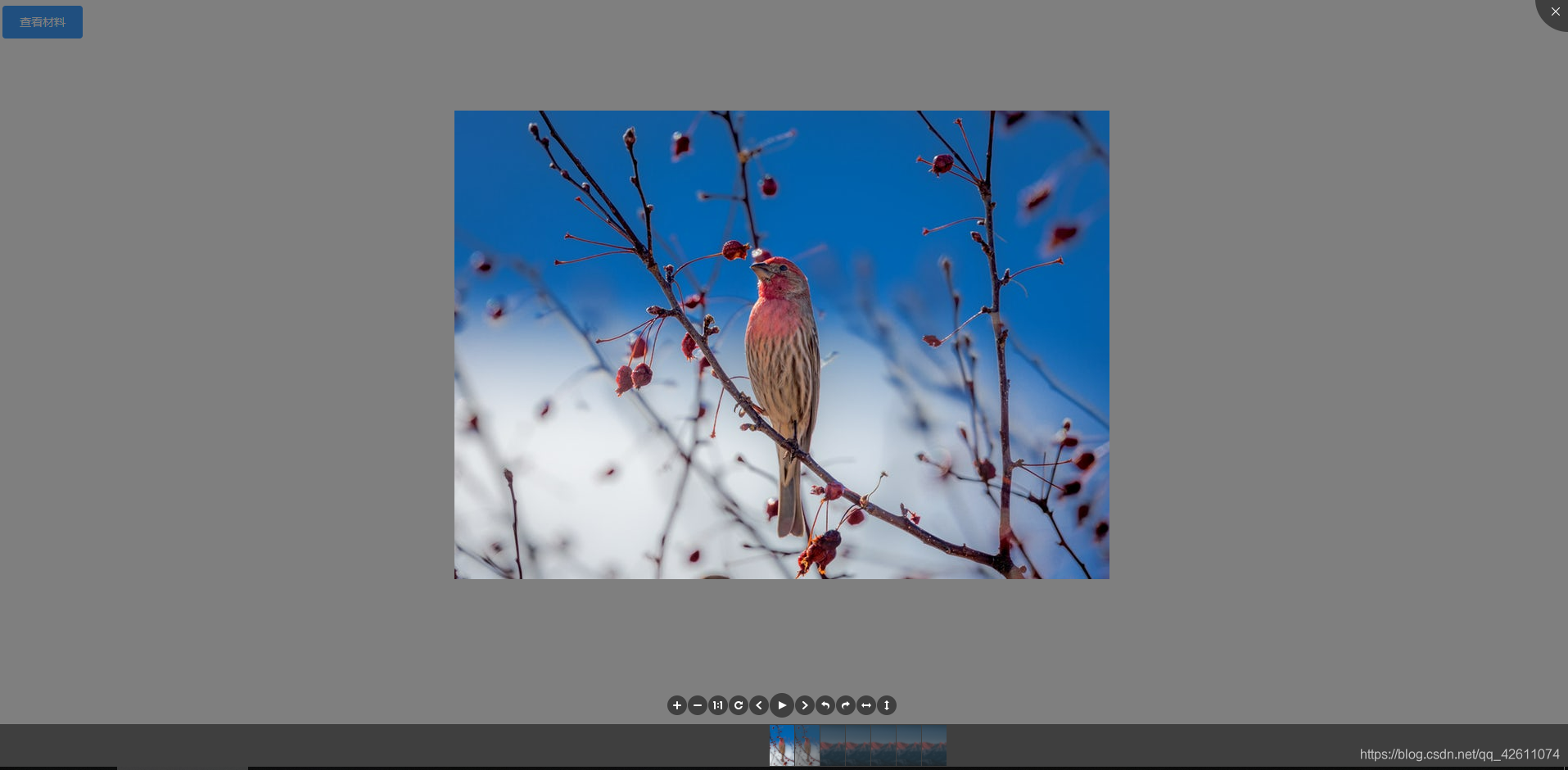
1.安装
npm i -s viewerjs
2.挂载元素
<template>
  <!-- 挂载viewer到元素上,设置一个id,因为需求不需要展示图片,点击按钮时直接查看图片即可,所以v-show="false" -->
  <div id="viewerjs" v-show="false">
    <img :src="item" v-for="(item, index) in imgarr" :key="index" />
  </div>
  <!-- 点击展示viewer -->
  <el-button type="primary" @click="lookimg">
    查看图片
  </el-button>
</template>
3.导入
<script>
import Viewer from 'viewerjs';
import 'viewerjs/dist/viewer.css';
export default {
  data() {
    return {
      // 后端返回的文件列表
      fileList:[{fileBlob:'',fileName:''}],
      imgarr: [
        'https://fuss10.elemecdn.com/e/5d/4a731a90594a4af544c0c25941171jpeg.jpeg',
        'https://fuss10.elemecdn.com/e/5d/4a731a90594a4af544c0c25941171jpeg.jpeg',
      ],
    };
  },
  methods: {
    lookimg() {
      // 只需要修改imgarr中的图片列表,即可实现不同的图片查看,比如发起后端请求,赋值图片数组,就在这一步进行。
      this.imgarr = this.fileList.map((item) => {
        return 'data:image/jpeg;base64,' + item.fileBlob;
      });
      //更改了图片数组imgarr,并且图片列表使用v-for渲染,需要使用this.$nextTick获取更新后的dom
      this.$nextTick(() => {
        const viewerdom = document.getElementById('viewerjs');
        const viewer = new Viewer(viewerdom, {
          // 1表示一直显示,viewer.index为当前轮播的图片索引,第二个函数自定义显示内容
          title: [
            1,
            (image, imageData) => {
              return `${this.fileList[viewer.index].fileName} (${imageData.naturalWidth} × ${imageData.naturalHeight})`;
            },
          ],
          hide: () => {
            viewer.destroy();
          },
          zIndex: 999,
          // 自定义底部操作栏
          toolbar: {
            zoomIn: true,
            zoomOut: true,
            oneToOne: true,
            reset: true,
            prev: true,
            play: true,
            next: true,
            rotateLeft: true,
            rotateRight: true,
            flipHorizontal: true,
            flipVertical: true,
            // 自定义下载按钮
            download: function() {
              const a = document.createElement('a');
              a.style.display = 'none';
              a.href = viewer.image.src;
              a.download = this.fileList[viewer.index].fileName;
              document.body.appendChild(a);
              a.click();
              document.body.removeChild(a);
            },
          },
        });
        viewer.show();
      });
    },
  },
};
</script>
4.新增tooltab底部操作栏图标
toolbar属性中新增函数,则会生成viewer-函数名的class,为这个class绑定图标样式即可
项目中有用到font-awesome图标库
import './assets/font-awesome.min.css';
比如上一节代码中自定义了一个download方法,加一下相应class
.viewer-download {
  color: #fff;
  font-family: FontAwesome, serif;
  font-size: 10px;
  line-height: 25px;
  text-align: center;
}

.viewer-download::before {
  content: '\f019';
}





 扫一扫
扫一扫


 9923
9923

 被折叠的 条评论
为什么被折叠?
被折叠的 条评论
为什么被折叠?
 到【灌水乐园】发言





