



1.新增组件
为了提高复用性,首先将导航栏封装为组件
- 首先在app.json中在windows中设置(这一步的作用为把导航栏设置为自定义)

	"window": {
	    "navigationStyle": "custom"
 	 }
- 之后在app.js中(根据不同的机型,获取距顶部距离)
// app.js
App({
  onLaunch() {
    let menuButtonObject = wx.getMenuButtonBoundingClientRect();
    wx.getSystemInfo({
      success: res => {
        let statusBarHeight = res.statusBarHeight,
          navTop = menuButtonObject.top,//胶囊按钮与顶部的距离
          navHeight = statusBarHeight + menuButtonObject.height + (menuButtonObject.top - statusBarHeight)*2;//导航高度
        this.globalData.navHeight = navHeight;
        this.globalData.navTop = navTop;
        this.globalData.windowHeight = res.windowHeight;
      },
      fail(err) {
        console.log(err);
      }
    })
  },
  globalData: {
    userInfo: null,
    ifHellowShow:false,
  }
})
- 之后创建一个navbar 组件(目录结构如图)
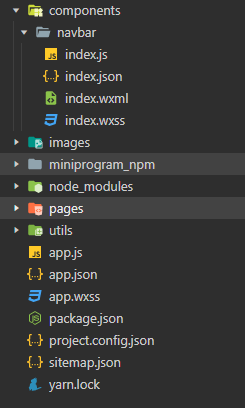
index.wxml
<view class="navbar custom-class" style='height:{{navHeight}}px;background-color:{{bgColor}}'>
 <view wx:if="{{showNav}}" class="navbar-action-wrap navbar-action-group row item-center" style='top:{{navTop}}px;background-color:rgba(255,255,255,.6)'>
     <view>123</view>
 </view>
 <view class='navbar-title' style='top:{{navTop}}px'>
   {{pageName}}
 </view>
</view>
index.js
// components/navbar/index.js
const App = getApp();

Component({
  options: {
    addGlobalClass: true,
  },
  /**
   * 组件的属性列表
   */
  properties: {
    pageName:String,
    showNav:{
      type:Boolean,
      value:true
    },
    showHome: {
      type: Boolean,
      value: true
    }
  },

  /**
   * 组件的初始数据
   */
  data: {

  },
  lifetimes: {
    attached: function () {
      this.setData({
        navHeight: App.globalData.navHeight,
        navTop:App.globalData.navTop,
      })
     }
  },
  methods: {

  }
})
index.wxss
/* components/navbar/index.wxss */

.navbar {
  width: 100%;
  overflow: hidden;
  position: relative;
  top: 0;
  left: 0;
  z-index: 10;
  flex-shrink: 0;
}

.navbar-title {
  width: 100%;
  box-sizing: border-box;
  padding-left: 115px;
  padding-right: 115px;
  height: 32px;
  line-height: 32px;
  text-align: center;
  position: absolute;
  left: 0;
  z-index: 10;
  color: #333;
  font-size: 16px;
  font-weight: bold;
  text-overflow: ellipsis;
  overflow: hidden;
  white-space: nowrap;
}

.navbar-action-wrap {
  display: -webkit-flex;
  display: flex;
  -webkit-box-align: center;
  -ms-flex-align: center;
  -webkit-align-items: center;
  align-items: center;
  position: absolute;
  left: 10px;
  z-index: 11;
  line-height: 1;
  padding-top: 4px;
  padding-bottom: 4px;
}
- 然后将封装好的组件注册进 app.json
  "usingComponents": {
    "navbar": "/components/navbar/index",
    "f2": "@antv/wx-f2"
  }
2.调用组件
/pages/index/index.wxss
<!--index.wxml-->
<view class="my-index">
  <navbar page-name="CRM管理系统"></navbar>
  <scroll-view class='bg-gray overflow' style='height:calc(100vh - {{navHeight}}px)' scroll-y >
  	<view>
  		本页内容
  	</view>
  </scroll-view>


</view>
/pages/index/index.js (需要获取navbar的高度)
// index.js
// 获取应用实例
const app = getApp()

Page({
  data: {
    navHeight:app.globalData.navHeight,
  },

})





 扫一扫
扫一扫


 1605
1605

 被折叠的 条评论
为什么被折叠?
被折叠的 条评论
为什么被折叠?
 到【灌水乐园】发言





