





 本文详细指导如何通过SourceForge下载并安装Mingw-w64,包括选择x86_64架构、指定安装目录,以及如何将Mingw-w64编译器添加到Windows PATH环境变量。最后,验证安装的有效性,确保g++和gdb命令可用。
Example: Install MinGW-x64#
We will install Mingw-w64 via the SourceForge website. You can use this Mingw-w64 link to download the Windows Mingw-w64 installer.
-
Run the installer, which should be named
mingw-w64-install.exein your Download folder.
2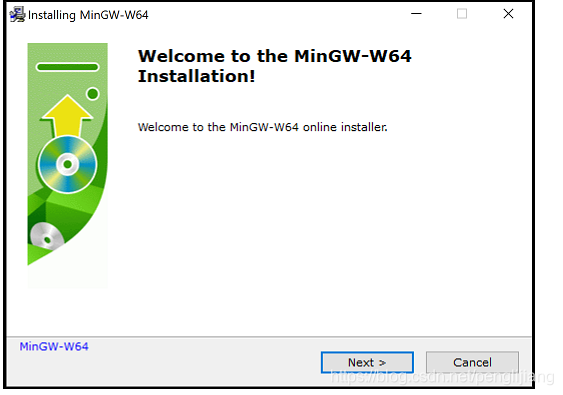
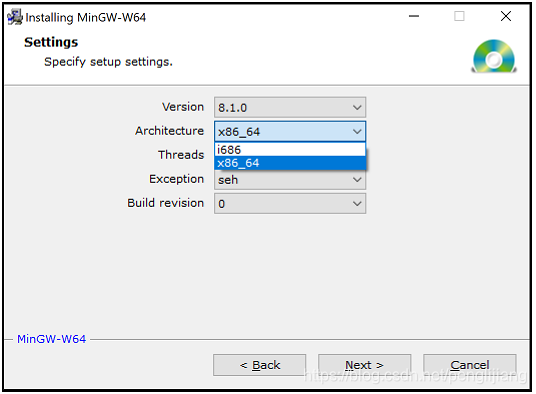
For Architecture select x86_64 and then select Next.
-
On the Installation Folder page, use the default location for the Destination folder. Copy the location as you will need it later.
-
Select Next to start the installation.
Add the MinGW compiler to your path#
Add the path to your Mingw-w64 bin folder to the Windows PATH environment variable by using the following steps:
- In the Windows search bar, type ‘settings’ to open your Windows Settings.
- Search for Edit environment variables for your account.
- Choose the
Pathvariable and then select Edit. - Select New and add the Mingw-w64 destination folder path, with
\mingw64\binappended, to the system path. The exact path depends on which version of Mingw-w64 you have installed and where you installed it. If you used the settings above to install Mingw-w64, then add this to the path:C:\Program Files\mingw-w64\x86_64-8.1.0-posix-seh-rt_v6-rev0\mingw64\bin. - Select OK to save the updated PATH. You will need to reopen any console windows for the new PATH location to be available.
Check your MinGW installation#
To check that your Mingw-w64 tools are correctly installed and available, open a new Command Prompt and type:
g++ --version
gdb --version
If you don’t see the expected output or g++ or gdb is not a recognized command, check your installation (Windows Control Panel > Programs > Programs and Features) and make sure your PATH entry matches the Mingw-w64 binary location where the compiler tools are located.





 扫一扫
扫一扫


 1817
1817

 被折叠的 条评论
为什么被折叠?
被折叠的 条评论
为什么被折叠?
 到【灌水乐园】发言





