


安装ubuntu server 22.04 ,配置好时间同步,改好各个主机的主机名称,配置好ssh证书登录,以上过程简化记录如下:
sudo hostnamectl set-hostname k8s01   #每一台机器都设置自己的主机名称
sudo nano /etc/netplan/00-installer-config.yaml #每一台都设置好自己的IP地址和网关及dns信息


#用xshell的发送命令到所有打开的主机或者MobaxTerm的Multiexec功能对所有打开的主机同时执行编辑命令

sudo nano /etc/hosts
172.0.34.141  k8s01
172.0.34.142  k8s02
...
172.0.34.145  k8s05

#以上批量对所有主机配置主机名和IP地址的解析关系,以下更换国内的apt源


sudo nano /etc/apt/sources.list #注释掉旧的apt源并添加阿里云apt源

deb http://mirrors.aliyun.com/ubuntu/ jammy main restricted universe multiverse
deb-src http://mirrors.aliyun.com/ubuntu/ jammy main restricted universe multiverse
deb http://mirrors.aliyun.com/ubuntu/ jammy-security main restricted universe multiverse
deb-src http://mirrors.aliyun.com/ubuntu/ jammy-security main restricted universe multiverse
deb http://mirrors.aliyun.com/ubuntu/ jammy-updates main restricted universe multiverse
deb-src http://mirrors.aliyun.com/ubuntu/ jammy-updates main restricted universe multiverse
deb http://mirrors.aliyun.com/ubuntu/ jammy-proposed main restricted universe multiverse
deb-src http://mirrors.aliyun.com/ubuntu/ jammy-proposed main restricted universe multiverse
deb http://mirrors.aliyun.com/ubuntu/ jammy-backports main restricted universe multiverse
deb-src http://mirrors.aliyun.com/ubuntu/ jammy-backports main restricted universe multiverse


sudo nano /etc/systemd/timesyncd.conf  #配置时间同步

[Time]  #在Time下面添加以下两行内容
NTP=ntp.aliyun.com ntp1.aliyun.com ntp2.aliyun.com ntp3.aliyun.com
FallbackNTP=ntp.tencent.com cn.pool.ntp.org


sudo systemctl restart systemd-timesyncd  #重启时间同步服务

sudo timedatectl set-timezone Asia/Shanghai  #设置时区为东八区
date  #看一下时间对不对
sudo apt update

sudo apt install net-tools htop curl wget unzip tar #安装一些基本的工具

sudo apt upgrade
sudo reboot

#等待更新及重启完成以后,以下开始配置ssh 证书登录

#在某一台机器上面单独执行下面的命令:

ssh-keygen -t rsa -b 4096 -C "k8s-cluster"   #然后一路回车
#编辑一个shell脚本
nano tmp_install_ssh_key.sh
# 定义节点IP列表
NODES="172.0.34.141 172.0.34.142 172.0.34.143 172.0.34.144 172.0.34.145"

# 批量复制公钥
for node in $NODES; do
    echo "配置节点: $node"
    ssh-copy-id -i ~/.ssh/id_rsa.pub root@$node
done

# 逐个测试每个节点
for node in $NODES; do
    echo "测试节点: $node"
    ssh root@$node "hostname -I"
done
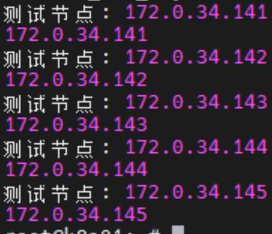
sh tmp_install_ssh_key.sh 执行该脚本进行ssh key安装,需要不断的输入yes以及目标机器的密码,正常情况下应该会显示每一台机器的IP地址:
接下来开始安装kubeasz,我这里使用的是一个较旧的版本3.6.4来进行k8s搭建安装
export release=3.6.4
wget https://github.com/easzlab/kubeasz/releases/download/${release}/ezdown
chmod +x ./ezdown
./ezdown -D 开始安装
我这里安装docker以后报错,拉取镜像失败,需要编辑一下docker的配置增加几个可以用的国内docker代理
sudo nano /etc/docker/daemon.json

{
  "registry-mirrors": [
    "https://docker.mirrors.ustc.edu.cn",
    "https://docker.1panel.live",
    "https://mirrors.tencent.com",
    "https://docker.1ms.run",
    "https://crpi-69a1zdaf7pucxvnx.cn-hangzhou.personal.cr.aliyuncs.com"
  ]
}
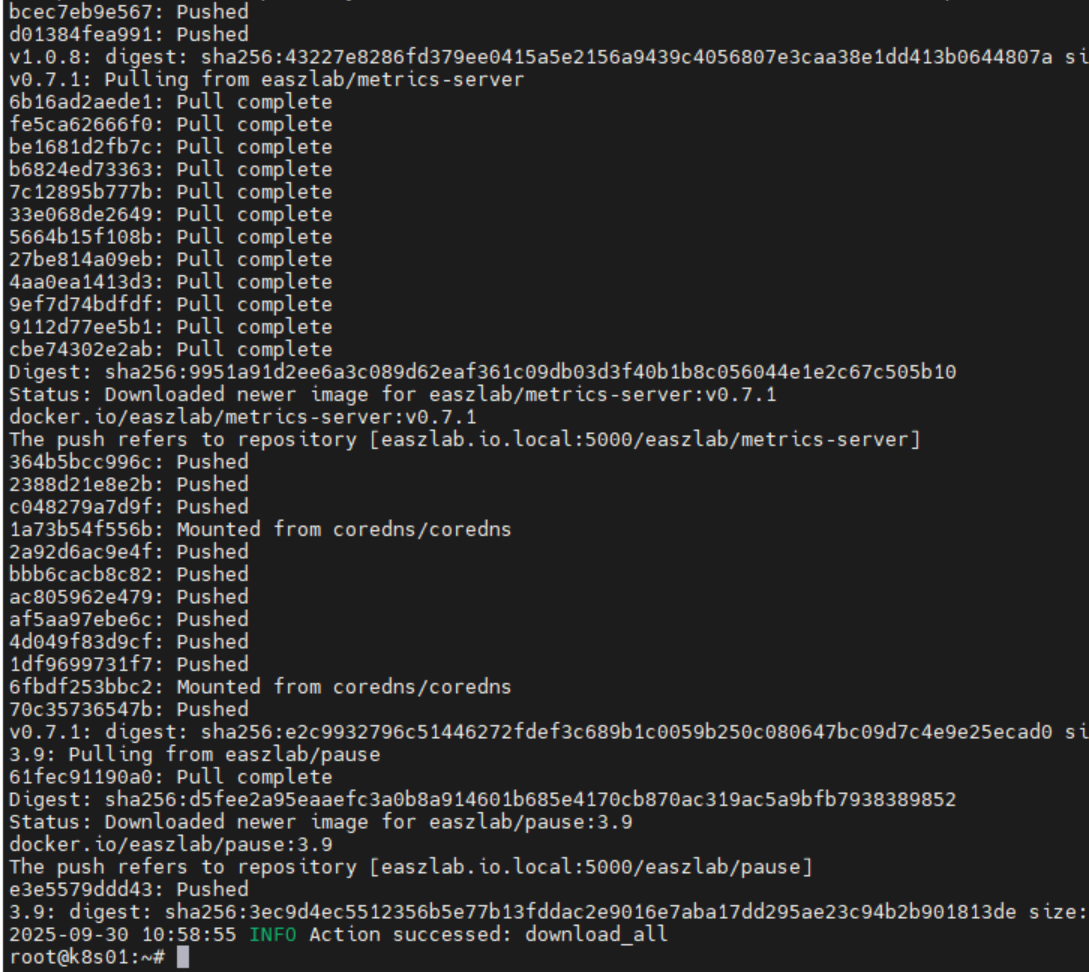
配置好代理以后再次执行./ezdown -D,耐心等待所有docker镜像下载完成:
接下来开始生成安装配置文件以便我们进行手动编辑修改:
./ezdown -S输出结果:
root@k8s01:~# ./ezdown -S
2025-09-30 11:02:58 INFO Action begin: start_kubeasz_docker
Loaded image: easzlab/kubeasz:3.6.4
2025-09-30 11:03:01 INFO try to run kubeasz in a container
2025-09-30 11:03:01 DEBUG get host IP: 172.0.34.141
6e843856bb1e5c207b1b3cbefc40ba84111ac86b0190e09ad25457a9ed26bcc1
2025-09-30 11:03:01 INFO Action successed: start_kubeasz_docker
root@k8s01:~#
执行下面的命令开始创建一个名称叫做k8stest的集群
# 创建新集群 k8s-01
# docker exec -it kubeasz ezctl new k8stest

root@k8s01:~# docker exec -it kubeasz ezctl new k8stest
2025-09-30 11:05:02 DEBUG generate custom cluster files in /etc/kubeasz/clusters/k8stest
2025-09-30 11:05:02 DEBUG set versions
2025-09-30 11:05:02 DEBUG cluster k8stest: files successfully created.
2025-09-30 11:05:02 INFO next steps 1: to config '/etc/kubeasz/clusters/k8stest/hosts'
2025-09-30 11:05:02 INFO next steps 2: to config '/etc/kubeasz/clusters/k8stest/config.yml'
可以看到最后的提示,stpes 1是需要编辑/etc/kubeasz/clusters/k8stest/hosts ,步骤二是需要编辑/etc/kubeasz/clusters/k8stest/config.yml,编辑这两个文件,改成实际的IP地址。
我规划的k8s节点情况如下:
| 主机IP | 用途 |
|---|---|
| 172.0.34.141 | etcd服务/Master节点 |
| 172.0.34.142 | etcd服务/Master节点 |
| 172.0.34.143 | etcd服务/Master节点 |
| 172.0.34.144 | worker节点 |
| 172.0.34.145 | worker节点 |
| 172.0.34.146 | 高可用虚拟ip |
一共5台机器,6个IP,配置结果如下:
root@k8s01:~# cat  /etc/kubeasz/clusters/k8stest/hosts
# 'etcd' cluster should have odd member(s) (1,3,5,...)
[etcd]
172.0.34.141
172.0.34.142
172.0.34.143

# master node(s), set unique 'k8s_nodename' for each node
# CAUTION: 'k8s_nodename' must consist of lower case alphanumeric characters, '-' or '.',
# and must start and end with an alphanumeric character
[kube_master]
172.0.34.141 k8s_nodename='master-01'
172.0.34.142 k8s_nodename='master-02'
172.0.34.143 k8s_nodename='master-03'

# work node(s), set unique 'k8s_nodename' for each node
# CAUTION: 'k8s_nodename' must consist of lower case alphanumeric characters, '-' or '.',
# and must start and end with an alphanumeric character
[kube_node]
172.0.34.144 k8s_nodename='worker-01'
172.0.34.145 k8s_nodename='worker-02'

# [optional] harbor server, a private docker registry
# 'NEW_INSTALL': 'true' to install a harbor server; 'false' to integrate with existed one
[harbor]
#192.168.1.8 NEW_INSTALL=false

# [optional] loadbalance for accessing k8s from outside
[ex_lb]
172.0.34.141 LB_ROLE=backup EX_APISERVER_VIP=172.0.34.146 EX_APISERVER_PORT=8443
172.0.34.142 LB_ROLE=master EX_APISERVER_VIP=172.0.34.146 EX_APISERVER_PORT=8443

# [optional] ntp server for the cluster
[chrony]
#192.168.1.1

[all:vars]
# --------- Main Variables ---------------
# Secure port for apiservers
SECURE_PORT="6443"

# Cluster container-runtime supported: docker, containerd
# if k8s version >= 1.24, docker is not supported
CONTAINER_RUNTIME="containerd"

# Network plugins supported: calico, flannel, kube-router, cilium, kube-ovn
CLUSTER_NETWORK="calico"

# Service proxy mode of kube-proxy: 'iptables' or 'ipvs'
PROXY_MODE="ipvs"

# K8S Service CIDR, not overlap with node(host) networking
SERVICE_CIDR="10.68.0.0/16"

# Cluster CIDR (Pod CIDR), not overlap with node(host) networking
CLUSTER_CIDR="172.20.0.0/16"

# NodePort Range
NODE_PORT_RANGE="30000-32767"

# Cluster DNS Domain
CLUSTER_DNS_DOMAIN="cluster.local"

# -------- Additional Variables (don't change the default value right now) ---
# Binaries Directory
bin_dir="/opt/kube/bin"

# Deploy Directory (kubeasz workspace)
base_dir="/etc/kubeasz"

# Directory for a specific cluster
cluster_dir="{{ base_dir }}/clusters/k8stest"

# CA and other components cert/key Directory
ca_dir="/etc/kubernetes/ssl"

# Default 'k8s_nodename' is empty
k8s_nodename=''

# Default python interpreter
ansible_python_interpreter=/usr/bin/python3
第二个配置/etc/kubeasz/clusters/k8stest/config.yml修改添加可用的docker国内仓库地址,例如:
############################
# role:runtime [containerd,docker]
############################
# [.]启用拉取加速镜像仓库
ENABLE_MIRROR_REGISTRY: true

# [.]添加信任的私有仓库
# 必须按照如下示例格式,协议头'http://'和'https://'不能省略
INSECURE_REG:
  - "http://easzlab.io.local:5000"
  - "https://harbor.xxx.com.cn"   #你们公司内部的harbor服务器
  - "https://docker.1ms.run"
我这里第一次没有添加可用的国内镜像仓库地址,造成了安装失败,结果第二次修改了上面的配置以后也不生效,需要手动修改集群里面的每一台机器的/etc/containerd/config.toml文件去正确添加国内可用的docker仓库镜像地址。
设置好镜像仓库信息以后执行下面的命令开始安装
source ~/.bashrc

dk ezctl setup k8stest all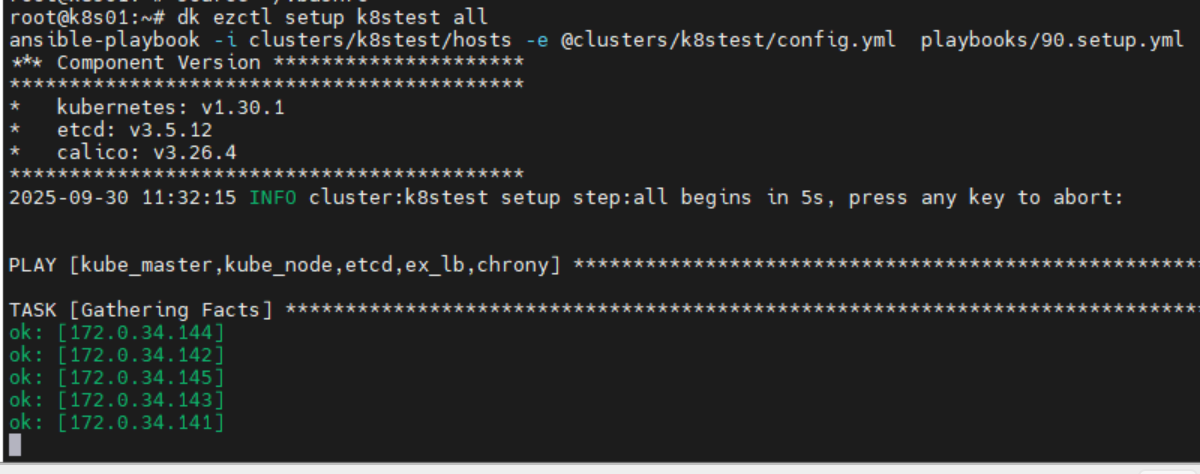
如果一切正常的话应该是下面这样:
root@master-01:~# kubectl get pods -A
NAMESPACE     NAME                                         READY   STATUS    RESTARTS   AGE
kube-system   calico-kube-controllers-6946cb87d6-gzh7r     1/1     Running   0          81m
kube-system   calico-node-2bkqh                            1/1     Running   0          14d
kube-system   calico-node-7dw9v                            1/1     Running   0          14d
kube-system   calico-node-f67dn                            1/1     Running   0          70m
kube-system   calico-node-kqrf7                            1/1     Running   0          45m
kube-system   calico-node-pjxhp                            1/1     Running   0          16m
kube-system   coredns-c5768dcc7-sl2z6                      1/1     Running   0          14d
kube-system   dashboard-metrics-scraper-69b9b44766-7xlpd   1/1     Running   0          14d
kube-system   kubernetes-dashboard-7df74bff86-vncb7        1/1     Running   0          14d
kube-system   metrics-server-65b5b555f5-nw2kj              1/1     Running   0          14d
kube-system   node-local-dns-5stsr                         1/1     Running   0          14d
kube-system   node-local-dns-7gd7n                         1/1     Running   0          14d
kube-system   node-local-dns-xw685                         1/1     Running   0          14d
kube-system   node-local-dns-zvf6t                         1/1     Running   0          14d
kube-system   node-local-dns-zzj5w                         1/1     Running   0          14d
root@master-01:~# kubectl get cs
Warning: v1 ComponentStatus is deprecated in v1.19+
NAME                 STATUS    MESSAGE   ERROR
etcd-0               Healthy   ok
scheduler            Healthy   ok
controller-manager   Healthy   ok
root@master-01:~# kubectl get nodes
NAME        STATUS                     ROLES    AGE   VERSION
master-01   Ready,SchedulingDisabled   master   14d   v1.30.1
master-02   Ready,SchedulingDisabled   master   14d   v1.30.1
master-03   Ready,SchedulingDisabled   master   14d   v1.30.1
worker-01   Ready                      node     14d   v1.30.1
worker-02   Ready                      node     14d   v1.30.1
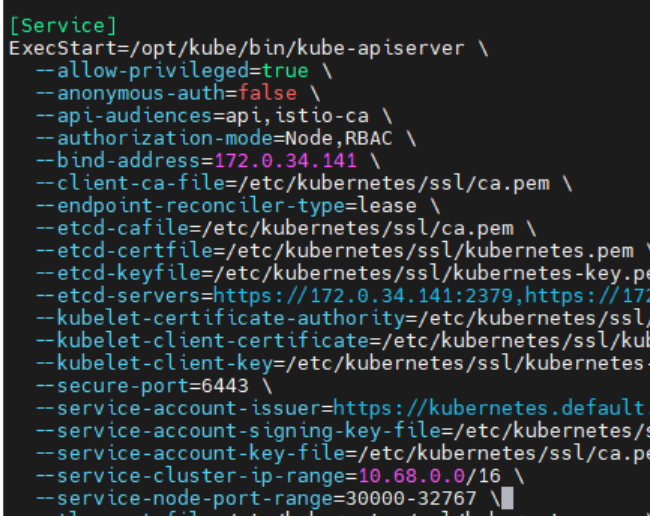
下面为准备安装ingress做准备,编辑/etc/systemd/system/kube-apiserver.service文件,找到-service-node-port-range=30000-32767那一行,改成80-65534

systemctl daemon-reload
systemctl restart kube-apiserver
三个master节点一个一个的处理,不要一块重启服务,注意三个master节点都要修改。
ingress-nginx的docker镜像并没有在docker hub里面,所以国内的各种docker加速服务并不能让你成功下载到ingress-nginx的镜像,直连registry.k8s.io网又不通,可以用以下两种方案之一,推荐用方案一可以一劳永逸解决:
两种方案,第一种是配置代理,在每一个节点(包括master和workder)上面按照下面的步骤配置代理

sudo mkdir -p /etc/systemd/system/containerd.service.d
sudo touch /etc/systemd/system/containerd.service.d/http-proxy.conf
nano /etc/systemd/system/containerd.service.d/http-proxy.conf


[Service]
Environment="HTTP_PROXY=http://ip:port"
Environment="HTTPS_PROXY=http://ip:port"
Environment="NO_PROXY=localhost,172.0.34.0/24,10.0.0.0/8,127.0.0.1"


sudo systemctl daemon-reload
sudo systemctl restart containerd


推荐使用方案1,因为后续你可能还需要部署其他的东西要用
第二种方案是从能下载的机器下载镜像并压缩后传回来供后续使用

#第一个
docker pull registry.k8s.io/ingress-nginx/controller:v1.13.3

#第二个
docker pull registry.k8s.io/ingress-nginx/kube-webhook-certgen:v1.6.3

#打包为tar压缩包
docker save -o ingress-nginx-images.tar \
  registry.k8s.io/ingress-nginx/controller:v1.13.3 \
  registry.k8s.io/ingress-nginx/kube-webhook-certgen:v1.6.3

# 加载
docker load -i ingress-nginx-images.tar

# 标记第一个镜像
docker tag registry.k8s.io/ingress-nginx/controller:v1.13.3 harbor.example.com/library/ingress-nginx-controller:v1.13.3
# 标记第二个镜像
docker tag registry.k8s.io/ingress-nginx/kube-webhook-certgen:v1.6.3 harbor.example.com/library/kube-webhook-certgen:v1.6.3

docker login harbor.example.com
docker push harbor.example.com/library/ingress-nginx-controller:v1.13.3
docker push harbor.example.com/library/kube-webhook-certgen:v1.6.3
然后安装helm,后续通过helm安装ingress-nginx
sudo snap install helm --classic    #安装helm

#实际执行效果如下
root@master-01:~# sudo snap install helm --classic
helm 3.19.0 from Snapcrafters✪ installed
root@master-01:~# helm version
version.BuildInfo{Version:"v3.19.0", GitCommit:"3d8990f0836691f0229297773f3524598f46bda6", GitTreeState:"clean", GoVersion:"go1.24.7"}
root@master-01:~#


# 添加稳定版仓库
helm repo add stable https://charts.helm.sh/stable  #这个仓库我这里连不上

# 添加douban仓库
helm repo add douban https://douban.github.io/charts/

# 添加Bitnami仓库
helm repo add bitnami https://charts.bitnami.com/bitnami

# 更新仓库
helm repo update


#实际执行效果如下
root@master-01:~# helm repo add bitnami https://charts.bitnami.com/bitnami
"bitnami" has been added to your repositories
root@master-01:~# helm repo add douban https://douban.github.io/charts/
"douban" has been added to your repositories
root@master-01:~# helm repo update
Hang tight while we grab the latest from your chart repositories...
...Successfully got an update from the "douban" chart repository
...Successfully got an update from the "bitnami" chart repository
Update Complete. ⎈Happy Helming!⎈
开始创建ingress
#添加ingress仓库
helm repo add ingress-nginx https://kubernetes.github.io/ingress-nginx

#更新helm
helm repo update

参考这篇文件配置ingress  https://www.cnblogs.com/linuxk/p/18105831

#查看ingress版本,等一会要用这个版本号
helm search repo ingress-nginx
NAME                            CHART VERSION   APP VERSION     DESCRIPTION
ingress-nginx/ingress-nginx     4.13.3          1.13.3          Ingress controller for Kubernetes using NGINX a...

#拉取配置压缩包,会得到刚才看到的带有版本号的压缩文件
helm pull ingress-nginx/ingress-nginx


tar -zxvf ingress-nginx-4.13.3.tgz
cd ingress-nginx
nano values.yaml


往下找到以下配置参数并进行修改
  hostNetwork: true
dnsPolicy: ClusterFirstWithHostNet
kind: DaemonSet

    nodePorts:
      # -- Node port allocated for the external HTTP listener. If left empty, the service controller allocates one from the configured node port range.
      http: "80"
      # -- Node port allocated for the external HTTPS listener. If left empty, the service controller allocates one from the configured node port range.
      https: "443"


#完成以上修改以后开始安装

kubectl create ns ingress-nginx
helm install ingress-nginx -n ingress-nginx .
如果没有网络问题应该很快就可以安装完成,如下:

下面演示通过helm部署dify到k8s集群里面
#搜一下哪个仓库里面有dify的安装配置源
root@master-01:~# helm search repo dify
NAME            CHART VERSION   APP VERSION     DESCRIPTION
douban/dify     0.7.0           1.9.1           A Helm chart for Dify


#创建一个新的namespace
kubectl create namespace fucking-ai

#创建默认的配置文件以便修改
helm show values douban/dify > values.yaml

nano values.yaml  #修改values.yaml适应部署环境,如是否使用内置redis,pg数据库等

#执行安装
helm upgrade -i dify douban/dify -f values.yaml -n fucking-ai
下面是修改的values.yaml的配置内容示例,我这里把redis,pg和对象存储都设置成外部服务了
# Default values for dify.
# This is a YAML-formatted file.
# Declare variables to be passed into your templates.


# volume and volumeMounts would be injected to api and worker
volumes: []

volumeMounts: []

nameOverride: ""
fullnameOverride: ""

global:
  host: "dify.test.local"
  # Change this is your ingress is exposed with port other than 443, 80, like 8080 for instance
  port: ""
  enableTLS: false
  image:
    tag: "1.9.2"
  edition: "SELF_HOSTED"
  storageType: "s3"
  # the following extra configs would be injected into:
  # * frontend
  # * api
  # * worker
  # * plugin_daemon
  extraEnvs:
    # PostgreSQL 连接配置
    - name: DB_HOST
      value: "x.x.x.x"
    - name: DB_PORT
      value: "5432"
    - name: DB_USERNAME
      value: "postgres"
    - name: DB_PASSWORD
      value: "aaaaaaaaaaaaaaaa"

    # Redis 连接配置
    - name: REDIS_HOST
      value: "x.x.x.x"
    - name: REDIS_PORT
      value: "6379"
    - name: REDIS_DB
      value: "0"
    - name: REDIS_PASSWORD
      value: "aaaaaaaaaaaaaaaaaa"

    # Plugin daemon 专用数据库
    - name: PLUGIN_DB_DATABASE
      value: "dify_plugin"

  # the following extra configs would be injected into:
  # * api
  # * worker
  # * plugin_daemon
  extraBackendEnvs:
  # SECRET_KEY is a must, check https://docs.dify.ai/getting-started/install-self-hosted/environments#secret_key for detail
  # read more on the readme page for secret ref
  - name: SECRET_KEY
    value: "aaaaaaaaaaaaaaaaaaaaaa"
  # use secretRef to protect your secret
  # - name: SECRET_KEY
  #   valueFrom:
  #     secretKeyRef:
  #       name: dify
  #       key: SECRET_KEY
  # Provide extra labels for all deployments and related pods of this chart
  - name: S3_ENDPOINT
    value: "https://aaaaaaaaaaaaaaaaaaaaa.com"
  - name: S3_REGION
    value: "aaaaaaaaaaaaa"
  - name: S3_BUCKET_NAME
    value: "aaaaaaaaaaaaa"
  - name: S3_ACCESS_KEY
    value: "aaaaaaaaaaaaaaaaaaaaaaaaaa"
  - name: S3_SECRET_KEY
    value: "aaaaaaaaaaaaaaaaaaaaaaaaaaaaaaaaa"

  labels: {}


ingress:
  enabled: true
  className: "nginx"
  annotations:
    nginx.ingress.kubernetes.io/proxy-body-size: "100m"
    nginx.ingress.kubernetes.io/proxy-connect-timeout: "600"
    nginx.ingress.kubernetes.io/proxy-send-timeout: "600"
    nginx.ingress.kubernetes.io/proxy-read-timeout: "600"
  hosts:
    - host: dify.test.local
      paths:
        - path: /
          pathType: Prefix
          backend:
            service:
              name: dify-frontend
              port:
                number: 80
        - path: /api
          pathType: Prefix
          backend:
            service:
              name: dify-api-svc
              port:
                number: 80
        - path: /v1
          pathType: Prefix
          backend:
            service:
              name: dify-api-svc
              port:
                number: 80
  tls: []                 # 不配置 TLS

serviceAccount:
  # Specifies whether a service account should be created
  create: true
  # Annotations to add to the service account
  annotations: {}
  # The name of the service account to use.
  # If not set and create is true, a name is generated using the fullname template
  name: ""

frontend:
  replicaCount: 1

  image:
    repository: langgenius/dify-web
    pullPolicy: IfNotPresent
    # Overrides the image tag whose default is the chart appVersion.
    tag: ""

  envs:
    - name: MARKETPLACE_API_URL
      value: 'https://marketplace.dify.ai'
    - name: MARKETPLACE_URL
      value: 'https://marketplace.dify.ai'
  imagePullSecrets: []

  podAnnotations: {}

  podSecurityContext: {}
    # fsGroup: 2000

  securityContext: {}
    # capabilities:
    #   drop:
    #   - ALL
    # readOnlyRootFilesystem: true
    # runAsNonRoot: true
    # runAsUser: 1000

  service:
    type: NodePort
    port: 80

  containerPort: 3000


  resources:
    # We usually recommend not to specify default resources and to leave this as a conscious
    # choice for the user. This also increases chances charts run on environments with little
    # resources, such as Minikube. If you do want to specify resources, uncomment the following
    # lines, adjust them as necessary, and remove the curly braces after 'resources:'.
    limits:
      cpu: 1000m
      memory: 2Gi
    requests:
      cpu: 500m
      memory: 512Mi

  autoscaling:
    enabled: false
    minReplicas: 1
    maxReplicas: 100
    targetCPUUtilizationPercentage: 80
    # targetMemoryUtilizationPercentage: 80

  nodeSelector: {}

  tolerations: []

  affinity: {}
  livenessProbe:
    httpGet:
      path: /apps
      port: http
      httpHeaders:
      - name: accept-language
        value: en
    initialDelaySeconds: 30
    timeoutSeconds: 10
    periodSeconds: 30
    successThreshold: 1
    failureThreshold: 3
  readinessProbe:
    httpGet:
      path: /apps
      port: http
      httpHeaders:
      - name: accept-language
        value: en
    initialDelaySeconds: 30
    timeoutSeconds: 10
    periodSeconds: 30
    successThreshold: 1
    failureThreshold: 3


api:
  replicaCount: 1

  image:
    repository: langgenius/dify-api
    pullPolicy: IfNotPresent
    # Overrides the image tag whose default is the chart appVersion.
    tag: ""
  envs:
  # sandbox
  - name: CODE_MAX_NUMBER
    value: "9223372036854775807"
  - name: CODE_MIN_NUMBER
    value: "-9223372036854775808"
  - name: CODE_MAX_STRING_LENGTH
    value: "80000"
  - name: TEMPLATE_TRANSFORM_MAX_LENGTH
    value: "80000"
  - name: CODE_MAX_STRING_ARRAY_LENGTH
    value: "30"
  - name: CODE_MAX_OBJECT_ARRAY_LENGTH
    value: "30"
  - name: CODE_MAX_NUMBER_ARRAY_LENGTH
    value: "1000"
  imagePullSecrets: []

  podAnnotations: {}

  podSecurityContext: {}
    # fsGroup: 2000

  securityContext: {}
    # capabilities:
    #   drop:
    #   - ALL
    # readOnlyRootFilesystem: true
    # runAsNonRoot: true
    # runAsUser: 1000

  service:
    type: NodePort
    port: 80

  containerPort: 5001

  resources:
    # We usually recommend not to specify default resources and to leave this as a conscious
    # choice for the user. This also increases chances charts run on environments with little
    # resources, such as Minikube. If you do want to specify resources, uncomment the following
    # lines, adjust them as necessary, and remove the curly braces after 'resources:'.
    limits:
      cpu: 1000m
      memory: 2Gi
    requests:
      cpu: 500m
      memory: 512Mi

  autoscaling:
    enabled: false
    minReplicas: 1
    maxReplicas: 100
    targetCPUUtilizationPercentage: 80
    # targetMemoryUtilizationPercentage: 80

  nodeSelector: {}

  tolerations: []

  affinity: {}

  livenessProbe:
    httpGet:
      path: /health
      port: http
    initialDelaySeconds: 30
    timeoutSeconds: 10
    periodSeconds: 30
    successThreshold: 1
    failureThreshold: 3
  readinessProbe:
    httpGet:
      path: /health
      port: http
    initialDelaySeconds: 30
    timeoutSeconds: 10
    periodSeconds: 5
    successThreshold: 1
    failureThreshold: 10

worker:
  replicaCount: 1

  image:
    repository: langgenius/dify-api
    pullPolicy: IfNotPresent
    # Overrides the image tag whose default is the chart appVersion.
    tag: ""

  imagePullSecrets: []

  podAnnotations: {}

  podSecurityContext: {}
    # fsGroup: 2000

  securityContext: {}
    # capabilities:
    #   drop:
    #   - ALL
    # readOnlyRootFilesystem: true
    # runAsNonRoot: true
    # runAsUser: 1000

  # Add envs here for worker specific environment variables
  envs: []

  resources:
    # We usually recommend not to specify default resources and to leave this as a conscious
    # choice for the user. This also increases chances charts run on environments with little
    # resources, such as Minikube. If you do want to specify resources, uncomment the following
    # lines, adjust them as necessary, and remove the curly braces after 'resources:'.
    limits:
      cpu: 1000m
      memory: 2Gi
    requests:
      cpu: 500m
      memory: 128Mi

  autoscaling:
    enabled: false
    minReplicas: 1
    maxReplicas: 100
    targetCPUUtilizationPercentage: 80
    # targetMemoryUtilizationPercentage: 80

  nodeSelector: {}

  tolerations: []

  affinity: {}

  # livenessprobe for worker, default no probe
  livenessProbe: {}
  readinessProbe: {}

sandbox:
  replicaCount: 1
  # please change to avoid abuse
  apiKey: "dify-sandbox"
  # prefer to use secret
  apiKeySecret: ""
  image:
    repository: langgenius/dify-sandbox
    pullPolicy: IfNotPresent
    # Overrides the image tag whose default is the chart appVersion.
    tag: "0.2.12"
  config:
    # python_requirements: |
    #   numpy==1.20.3
    #   scipy==1.6.3
    python_requirements: ""

  envs:
  - name: GIN_MODE
    value: "release"
  - name: WORKER_TIMEOUT
    value: "15"
  imagePullSecrets: []

  podAnnotations: {}

  podSecurityContext: {}
    # fsGroup: 2000

  securityContext: {}
    # capabilities:
    #   drop:
    #   - ALL
    # readOnlyRootFilesystem: true
    # runAsNonRoot: true
    # runAsUser: 1000

  service:
    type: ClusterIP
    port: 80

  containerPort: 8194


  resources:
    # We usually recommend not to specify default resources and to leave this as a conscious
    # choice for the user. This also increases chances charts run on environments with little
    # resources, such as Minikube. If you do want to specify resources, uncomment the following
    # lines, adjust them as necessary, and remove the curly braces after 'resources:'.
    limits:
      cpu: 1000m
      memory: 2Gi
    requests:
      cpu: 500m
      memory: 512Mi

  autoscaling:
    enabled: false
    minReplicas: 1
    maxReplicas: 100
    targetCPUUtilizationPercentage: 80
    # targetMemoryUtilizationPercentage: 80

  nodeSelector: {}

  tolerations: []

  affinity: {}


  readinessProbe:
    tcpSocket:
      port: http
    initialDelaySeconds: 1
    timeoutSeconds: 5
    periodSeconds: 5
    successThreshold: 1
    failureThreshold: 10
  livenessProbe:
    tcpSocket:
      port: http
    initialDelaySeconds: 30
    timeoutSeconds: 5
    periodSeconds: 30
    successThreshold: 1
    failureThreshold: 2

# 新增plugin_daemon服务
pluginDaemon:
  enabled: true
  replicaCount: 1
  updateStrategy:
    type: Recreate
  # please change to avoid abuse
  serverKey: "aaaaaaaaaaaaaaaaaaaaaaaaaaaaaaaaaa"
  # prefer to use secret
  serverKeySecret: ""
  # please change to avoid abuse
  difyInnerApiKey: "aaaaaaaaaaaaaaaaaaaaaaaaaaaaaaa"
  # prefer to use secret
  difyInnerApiKeySecret: ""
  image:
    repository: langgenius/dify-plugin-daemon
    pullPolicy: IfNotPresent
    tag: "0.3.0-local"

  envs:
  - name: SERVER_PORT
    value: "5002"
  - name: MAX_PLUGIN_PACKAGE_SIZE
    value: "52428800"
  - name: PPROF_ENABLED
    value: "false"
  - name: FORCE_VERIFYING_SIGNATURE
    value: "true"
  - name: DB_DATABASE
    value: "dify_plugin"
  - name: PLUGIN_REMOTE_INSTALLING_HOST
    value: "0.0.0.0"
  - name: PLUGIN_REMOTE_INSTALLING_PORT
    value: "5003"

  service:
    type: ClusterIP
    port: 5002

  containerPort: 5002

  persistence:
    enabled: true
    storageClass: "nfs-client"
    accessMode: ReadWriteMany
    size: 20Gi
    resourcePolicy: "keep"

  resources: {}

  nodeSelector: {}

  tolerations: []

  affinity: {}

##### dependencies #####

redis:
  embedded: false


postgresql:
  embedded: false


minio:
  embedded: false
经过漫长的等待下载docker镜像过程以及反复来回自动重启服务以后最后成功运行:
上面服务中的dify-plugin-daemon-5cb6c4579f-xcrwc 的状态是Pending,是因为需要存储卷,下面基于nfs搭建一个存储卷供其使用,下面需要你找一台硬盘空间大的机器准备安装nfs-server
# 更新系统包
sudo apt update

# 安装NFS内核服务器
sudo apt install -y nfs-kernel-server

# 启用并启动NFS服务
sudo systemctl enable --now nfs-kernel-server

# 创建NFS共享目录
sudo mkdir -p /srv/nfs/kubernetes-volumes

# 设置适当的权限和所有者
sudo chown nobody:nogroup /srv/nfs/kubernetes-volumes
sudo chmod 0777 /srv/nfs/kubernetes-volumes


# 备份原有配置
sudo mv /etc/exports /etc/exports.bak

# 创建新的exports配置
# 替换 172.0.34.0/24 为你的Kubernetes集群网络段
echo '/srv/nfs/kubernetes-volumes 172.0.34.0/24(rw,sync,no_subtree_check,no_root_squash)' | sudo tee /etc/exports

# 应用新的导出配置
sudo exportfs -ra

# 重启NFS服务
sudo systemctl restart nfs-kernel-server

# 检查NFS导出状态
sudo exportfs -v
以上nfs server准备就绪,在集群里面的其他工作节点机器上面安装nfs客户端
# 安装NFS客户端工具
sudo apt update
sudo apt install -y nfs-common

# 测试NFS挂载(可选)
# sudo mkdir -p /tmp/nfs-test
# sudo mount -t nfs <NFS服务器IP>:/srv/nfs/kubernetes-volumes /tmp/nfs-test
# ls /tmp/nfs-test
# sudo umount /tmp/nfs-test
下面为k8s集群安装NFS存储支持
# 添加nfs-subdir-external-provisioner的Helm仓库
helm repo add nfs-subdir-external-provisioner https://kubernetes-sigs.github.io/nfs-subdir-external-provisioner/

# 更新Helm仓库
helm repo update

# 安装NFS子目录外部供应器
# 请将 <NFS服务器IP> 替换为实际的NFS服务器IP地址
helm install nfs-subdir-external-provisioner nfs-subdir-external-provisioner/nfs-subdir-external-provisioner \
  --set nfs.server=<NFS服务器IP> \
  --set nfs.path=/srv/nfs/kubernetes-volumes \
  --set storageClass.onDelete=retain \
  --set storageClass.pathPattern='/${.PVC.namespace}-${.PVC.name}'
执行过程像下面这样: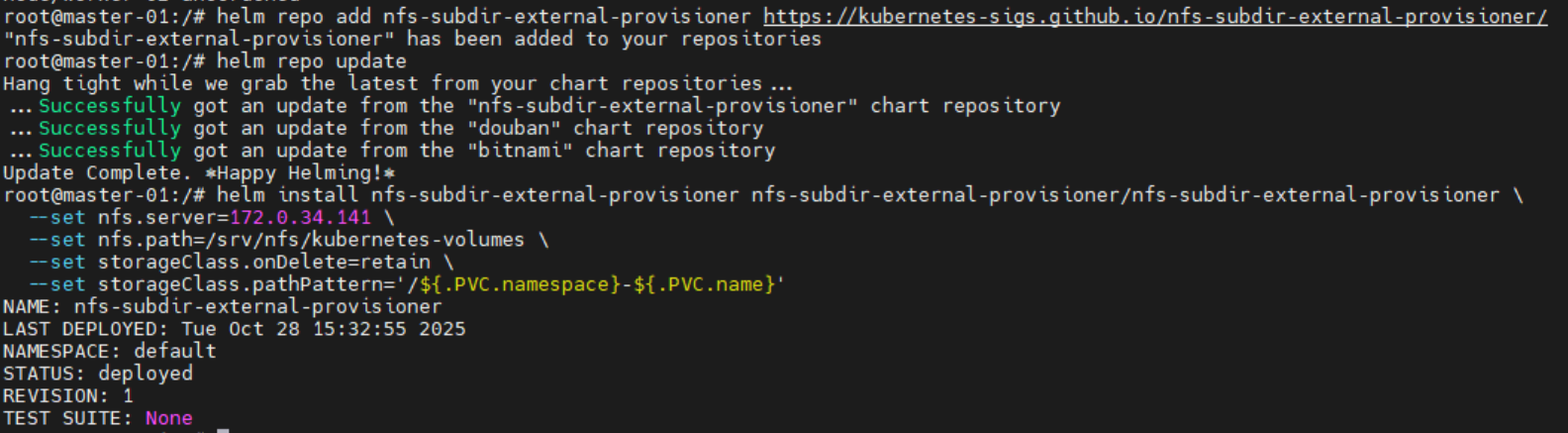
我这里安装再次报错找不到该镜像,先手动拉下来再打标签修正吧,在worker工作节点执行
#下面的命令用于从国内代理拉取对应的镜像
sudo ctr -n k8s.io images pull docker.1ms.run/eipwork/nfs-subdir-external-provisioner:v4.0.2


#上一步拉取成功以后对拉取到的镜像重新打标签
sudo ctr -n k8s.io images tag docker.1ms.run/eipwork/nfs-subdir-external-provisioner:v4.0.2  registry.k8s.io/sig-storage/nfs-subdir-external-provisioner:v4.0.2

#然后回到k8s管理节点,查看镜像拉取失败的Pod名称并删除让其自动重建
root@master-01:/# kubectl get pods
NAME                                               READY   STATUS             RESTARTS   AGE
nfs-subdir-external-provisioner-76999765f7-64d6p   0/1     ImagePullBackOff   0          7m47s

#删除pod等待自动重建
root@master-01:/# kubectl delete pod nfs-subdir-external-provisioner-76999765f7-64d6p

pod "nfs-subdir-external-provisioner-76999765f7-64d6p" deleted

#再次查看就成功运行了
root@master-01:/# kubectl get pods
NAME                                               READY   STATUS    RESTARTS   AGE
nfs-subdir-external-provisioner-76999765f7-r85vx   1/1     Running   0          3s
记得在其他工作节点也这么搞一下拉取镜像并打标签,防止未来Pod漂移或者pod驱逐的时候其他工作节点找不到nfs提供者,这一步应该还真不是国内网络的锅,单纯就是那个Helm找不到正确的镜像。
可以通过执行下面的三个命令查看nfs 存储类的工作情况:
# 检查供应器Pod状态
kubectl get pods

# 检查存储类
kubectl get storageclass

# 查看详细的存储类信息
kubectl describe storageclass nfs-client
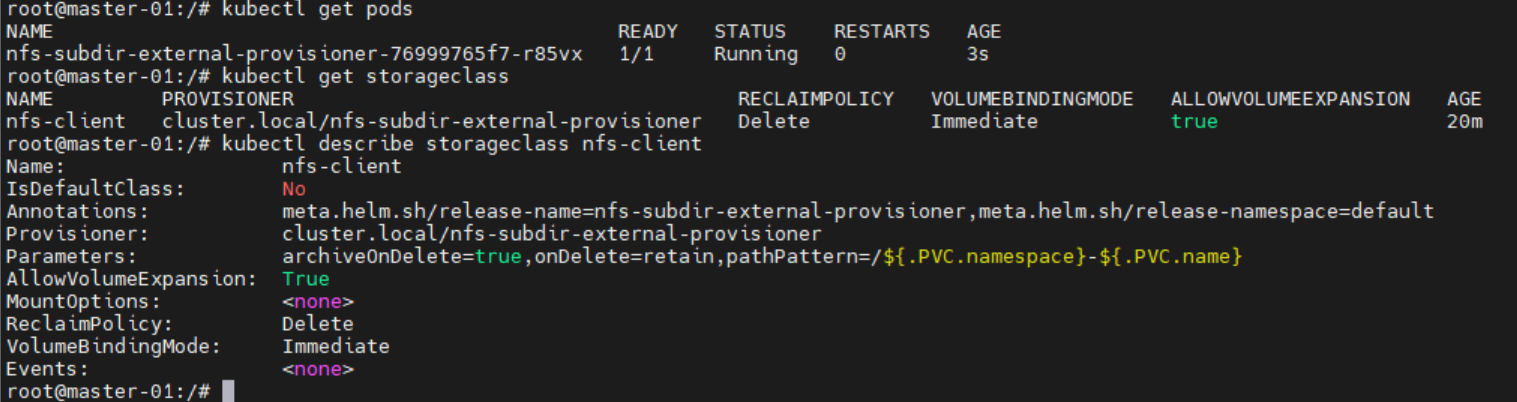
后记
下面记录的内容是因为我第一次安装的时候没有正确配置可用的国内docker仓库,所以安装完以后k8s工作状态不正常,如下面:
root@master-01:~# kubectl get pods -A
NAMESPACE     NAME                                         READY   STATUS             RESTARTS   AGE
kube-system   calico-kube-controllers-6946cb87d6-gzh7r     0/1     ImagePullBackOff   0          76m
kube-system   calico-node-2bkqh                            1/1     Running            0          14d
kube-system   calico-node-7dw9v                            1/1     Running            0          14d
kube-system   calico-node-f67dn                            1/1     Running            0          65m
kube-system   calico-node-kqrf7                            1/1     Running            0          40m
kube-system   calico-node-pjxhp                            1/1     Running            0          12m
kube-system   coredns-c5768dcc7-sl2z6                      1/1     Running            0          14d
kube-system   dashboard-metrics-scraper-69b9b44766-7xlpd   1/1     Running            0          14d
kube-system   kubernetes-dashboard-7df74bff86-vncb7        1/1     Running            0          14d
kube-system   metrics-server-65b5b555f5-nw2kj              1/1     Running            0          14d
kube-system   node-local-dns-5stsr                         1/1     Running            0          14d
kube-system   node-local-dns-7gd7n                         1/1     Running            0          14d
kube-system   node-local-dns-xw685                         1/1     Running            0          14d
kube-system   node-local-dns-zvf6t                         1/1     Running            0          14d
kube-system   node-local-dns-zzj5w                         1/1     Running            0          14d
root@master-01:~#
执行查看命令看具体要下载的docker镜像是什么:
 kubectl describe pod calico-kube-controllers-6946cb87d6-gzh7r -n kube-system


Events:
  Type     Reason            Age                     From               Message
  ----     ------            ----                    ----               -------
  Warning  FailedScheduling  12m (x13 over 72m)      default-scheduler  0/5 nodes are available: 2 node(s) had untolerated taint {node.kubernetes.io/not-ready: }, 3 node(s) were unschedulable. preemption: 0/5 nodes are available: 5 Preemption is not helpful for scheduling.
  Normal   Scheduled         8m50s                   default-scheduler  Successfully assigned kube-system/calico-kube-controllers-6946cb87d6-gzh7r to worker-01
  Normal   Pulling           7m25s (x4 over 8m49s)   kubelet            Pulling image "easzlab.io.local:5000/calico/kube-controllers:v3.26.4"
  Warning  Failed            7m25s (x4 over 8m49s)   kubelet            Failed to pull image "easzlab.io.local:5000/calico/kube-controllers:v3.26.4": rpc error: code = NotFound desc = failed to pull and unpack image "easzlab.io.local:5000/calico/kube-controllers:v3.26.4": failed to resolve reference "easzlab.io.local:5000/calico/kube-controllers:v3.26.4": easzlab.io.local:5000/calico/kube-controllers:v3.26.4: not found
  Warning  Failed            7m25s (x4 over 8m49s)   kubelet            Error: ErrImagePull
  Warning  Failed            7m12s (x6 over 8m49s)   kubelet            Error: ImagePullBackOff
  Normal   BackOff           3m35s (x22 over 8m49s)  kubelet            Back-off pulling image "easzlab.io.local:5000/calico/kube-controllers:v3.26.4"
root@master-01:~#
可以看到要下载的镜像是:easzlab.io.local:5000/calico/kube-controllers:v3.26.4
这么下载:
sudo wget https://github.com/containerd/containerd/releases/download/v1.7.7/containerd-1.7.7-linux-amd64.tar.gz
sudo tar -zxvf containerd-1.7.7-linux-amd64.tar.gz
sudo cp ./bin/ctr /usr/bin/

sudo ctr -n k8s.io images pull docker.1ms.run/calico/cni:v3.26.4
sudo ctr -n k8s.io images tag docker.1ms.run/calico/cni:v3.26.4 docker.io/calico/cni:v3.26.4

sudo ctr -n k8s.io images pull docker.1ms.run/calico/node:v3.26.4
sudo ctr -n k8s.io images tag docker.1ms.run/calico/node:v3.26.4  docker.io/calico/node:v3.26.4

sudo ctr -n k8s.io images pull docker.1ms.run/calico/kube-controllers:v3.26.4
sudo ctr -n k8s.io images tag docker.1ms.run/calico/kube-controllers:v3.26.4  docker.io/calico/kube-controllers:v3.26.4


sudo ctr -n k8s.io images tag docker.io/calico/cni:v3.26.4 easzlab.io.local:5000/calico/cni:v3.26.4
sudo ctr -n k8s.io images tag docker.io/calico/node:v3.26.4 easzlab.io.local:5000/calico/node:v3.26.4
sudo ctr -n k8s.io images tag docker.io/calico/kube-controllers:v3.26.4 easzlab.io.local:5000/calico/kube-controllers:v3.26.4
要是还不行,可以删除pod(不删service的话会自动创建删掉的pod强制加载镜像)强制重建pod进行尝试。






 扫一扫
扫一扫


 1180
1180

 被折叠的 条评论
为什么被折叠?
被折叠的 条评论
为什么被折叠?
 到【灌水乐园】发言





