


 本文详细介绍了如何通过AWS CLI创建openEuler与Rancher兼容的云原生AMI镜像,包括调整分区、使用cloud-init配置自动启动RKE2集群,以及后续的Base AMI和Packer配置。重点在于解决ARM架构的网络问题与内核模块编译。
作者简介
王瀚兴,SUSE 软件工程师,主要负责 Rancher 产品线相关的研发工作。
欧拉开源社区的 RFO SIG 正在努力将 openEuler 与 Rancher 整合,以推动社区的云原生版图发展。而 openEuler 如何在云环境开箱即用是一个非常重要的基础,承接上篇文章,本篇将主要介绍 openEuler AWS AMI 镜像制作的详细过程。
通过创建 AWS AMI 镜像可将 openEuler 与 AWS 云服务相结合,支持云环境中标准的 ssh key注入、分区扩容、用户数据执行等功能,并使用 cloud-init 机制实现自动启动 Rancher RKE2 集群。今后,openEuler Cloud Images 的工作也将成为 RFO SIG 的一部分,逐步扩展支持更多的云平台。
调整硬盘分区大小
openEuler 官方提供的 qcow2 格式的镜像为一个总磁盘大小为 40G 的虚拟机镜像,在 qemu 中启动虚拟机,查看分区情况。
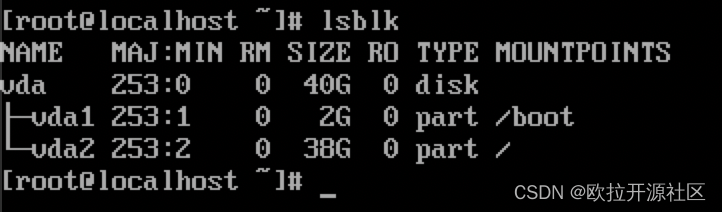
可以看到磁盘含有两个分区,其中 2G 为 boot 分区,38G 为 root 分区。
使用 Net Based Disk (NBD) 将 qcow2 镜像的分区加载到 Linux 系统中,之后使用 resize2fs 压缩 ext4 文件系统的体积,并使用分区调整工具 fdisk 调整分区的大小。
# 加载 NBD 内核模块
$ sudo modprobe nbd max_part=3
# 加载 qcow2 镜像中的分区至系统
sudo qemu-nbd -c "/dev/nbd0" "openEuler-22.03-LTS-x86_64.qcow2"
$ lsblk
NAME         MAJ:MIN RM  SIZE RO TYPE MOUNTPOINT
nbd0          43:0    0   40G  0 disk
|-nbd0p1      43:1    0    2G  0 part
|-nbd0p2      43:2    0   38G  0 part

# 调整 ext4 文件系统大小至6G
$ sudo resize2fs /dev/nbd0p2 6G
# 使用fdisk调整分区大小至6G
$ sudo fdisk /dev/nbd0

Welcome to fdisk (util-linux 2.34).
Changes will remain in memory only, until you decide to write them.
Be careful before using the write command.


Command (m for help): d
Partition number (1,2, default 2): 2

Partition 2 has been deleted.

Command (m for help): n
Partition type
   p   primary (1 primary, 0 extended, 3 free)
   e   extended (container for logical partitions)
Select (default p):

Using default response p.
Partition number (2-4, default 2): 2
First sector (4194304-83886079, default 4194304):
Last sector, +/-sectors or +/-size{

   K,M,G,T,P} (4194304-83886079, default 83886079): +6G

Created a new partition 2 of type 'Linux' and of size 6 GiB.
Partition 2 contains a ext4 signature.

Do you want to remove the signature? [Y]es/[N]o: N

Command (m for help): w

The partition table has been altered.
Calling ioctl() to re-read partition table.
Syncing disks.

# 从系统中卸载 qcow2 镜像的分区
$ sudo qemu-nbd -d /dev/nbd0
之后使用 qemu-img 将 qcow2 镜像缩小至8G,并转换为 RAW 格式。
$ qemu-img resize openEuler-22.03-LTS-x86_64.qcow2 --shrink 8G
$ qemu-img convert openEuler-22.03-LTS-x86_64.qcow2 openEuler-22.03-LTS-x86_64.raw
Snapshot 和 Base AMI 的创建
首先使用 awscli 提供的工具,将 RAW 镜像上传至 AWS S3 bucket 中。
$ aws s3 cp openEuler-22.03-LTS-x86_64.raw s3://${BUCKET_NAME}/
创建 vmimport policy 和 role policy。
$ cat << 最低0.47元/天 解锁文章






 扫一扫
扫一扫


 2352
2352

 被折叠的 条评论
为什么被折叠?
被折叠的 条评论
为什么被折叠?
 到【灌水乐园】发言





