



一、问题背景
最近在虚拟机里编译一个大型项目时,突然收到磁盘空间不足的提示。打开 VirtualBox 管理器一看,当初分配的 20GB 空间果然快满了。想着直接在图形界面调整磁盘大小,结果遇到了错误提示:返回VBOX__E__NOT_SUPPORTED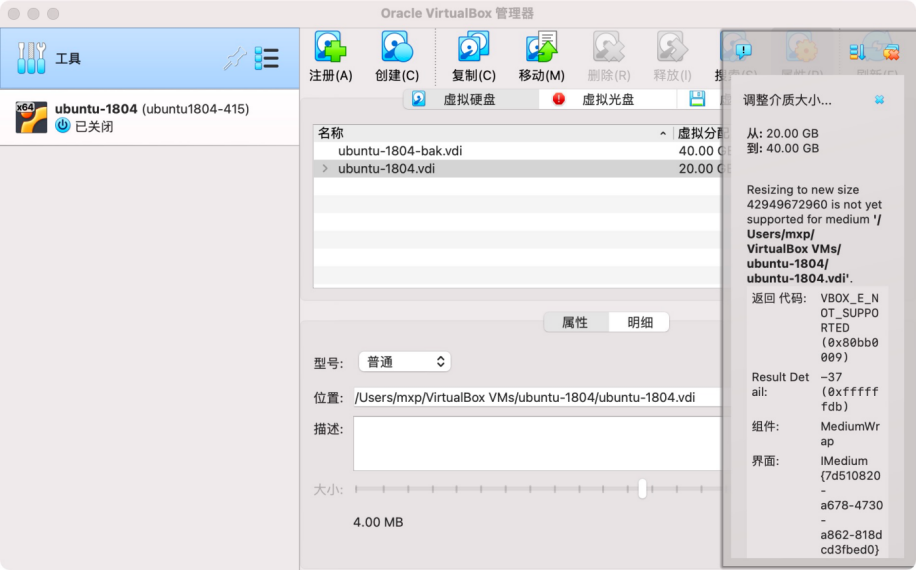
二、问题分析
通过命令查看磁盘信息:
vboxmanage showhdinfo "/Users/mxp/VirtualBox VMs/ubuntu-1804/ubuntu-1804.vdi"
查看结果
UUID: 9628b5d8-9fd8-44d8-af87-16f788a4871d
Parent UUID: base
State: created
Type: normal (base)
Location: /Users/mxp/VirtualBox VMs/ubuntu-1804/ubuntu-1804.vdi
Storage format: VDI
Format variant: fixed default
Capacity: 20480 MBytes
Size on disk: 20482 MBytes
Encryption: disabled
Property: AllocationBlockSize=1048576
In use by VMs: ubuntu-1804 (UUID: 988d3157-1d0f-4572-8e57-b7566598eb50) [ubuntu1804-415 (UUID: e85fef02-d9c5-4664-b278-7679a3894716)]
Child UUIDs: 62feb962-2611-48fe-8269-9b05a827226a
99f5e3c7-aac7-4ff2-888c-fcf0f28484c2
看到 Format variant: fixed default 这一行就明白了,原来虚拟机磁盘使用的是固定大小格式,这种格式不能直接在图形界面扩容,需要先转换为动态大小格式。
三、解决方案
1. 克隆磁盘并转换为动态格式
首先需要克隆当前磁盘,并将其转换为动态大小格式。打开终端,执行以下命令:
vboxmanage clonehd "/Users/mxp/VirtualBox VMs/ubuntu-1804/ubuntu-1804.vdi" "/Users/mxp/VirtualBox VMs/ubuntu-1804/ubuntu-1804-bak.vdi" --format VDI --variant Standard
克隆完成后,再次查看新磁盘的信息:
vboxmanage showhdinfo "/Users/mxp/VirtualBox VMs/ubuntu-1804/ubuntu-1804-bak.vdi"
UUID: 83cea274-5bce-40ee-be0b-649c16c06652
Parent UUID: base
State: created
Type: normal (base)
Location: /Users/mxp/VirtualBox VMs/ubuntu-1804/ubuntu-1804-bak.vdi
Storage format: VDI
Format variant: dynamic default
Capacity: 20480 MBytes
Size on disk: 20129 MBytes
Encryption: disabled
Property: AllocationBlockSize=1048576
2. 在 Ubuntu 系统中调整分区
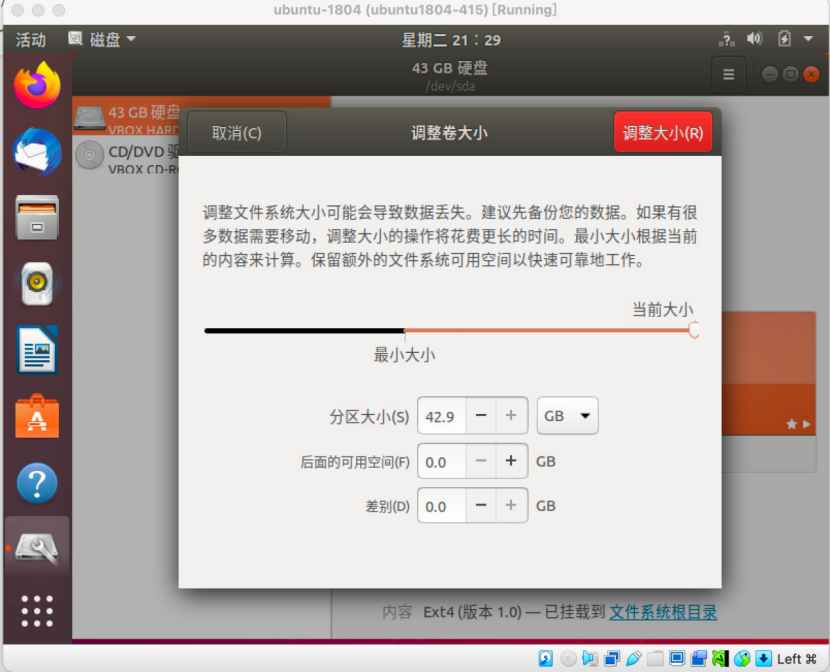
然后再在gui界面上调整大小即可
进入ubuntu系统通过磁盘工具可以手动调整大小
四、总结
整个扩容过程关键在于理解磁盘格式的区别,固定大小格式需要先转换为动态格式才能扩容。另外,在调整分区时一定要小心,最好先备份重要数据,避免因操作失误导致数据丢失。
希望这篇文章能帮助到在 Macbook Pro 上使用 VirtualBox 扩容 Ubuntu 系统的朋友。如果大家在操作过程中遇到什么问题,欢迎在评论区留言,我们一起讨论解决。





 扫一扫
扫一扫


 1590
1590


 到【灌水乐园】发言




