


 本文介绍了如何在Sublime Text3中安装并配置SFTP插件,以实现文件与远程服务器的同步。首先,需要安装SFTP插件,然后在新建文件夹中通过右键操作生成sftp-config.json配置文件,并根据示例进行个性化设置。完成配置后,可结合快捷键提升工作效率。
第一步、安装:sftp插件
第二步、
安装完成后,在新建的文件夹中点击右键

自动生成一个sftp-config.json文件,根据下图设置,红色箭头指向的是必须要自己重新设置的

1、新建文件夹 Skynet 映射远端 文件夹
2、用sublime新建一个窗口,把文件夹拖进去,再显示出左栏窗口
ctrl + k , ctrl + b 3、配置同步信息
一般都可以了,紧接着就是新建一个目录,名字要和服务器中的一样,这个才能让插件找到位置,在这个目录下点击右键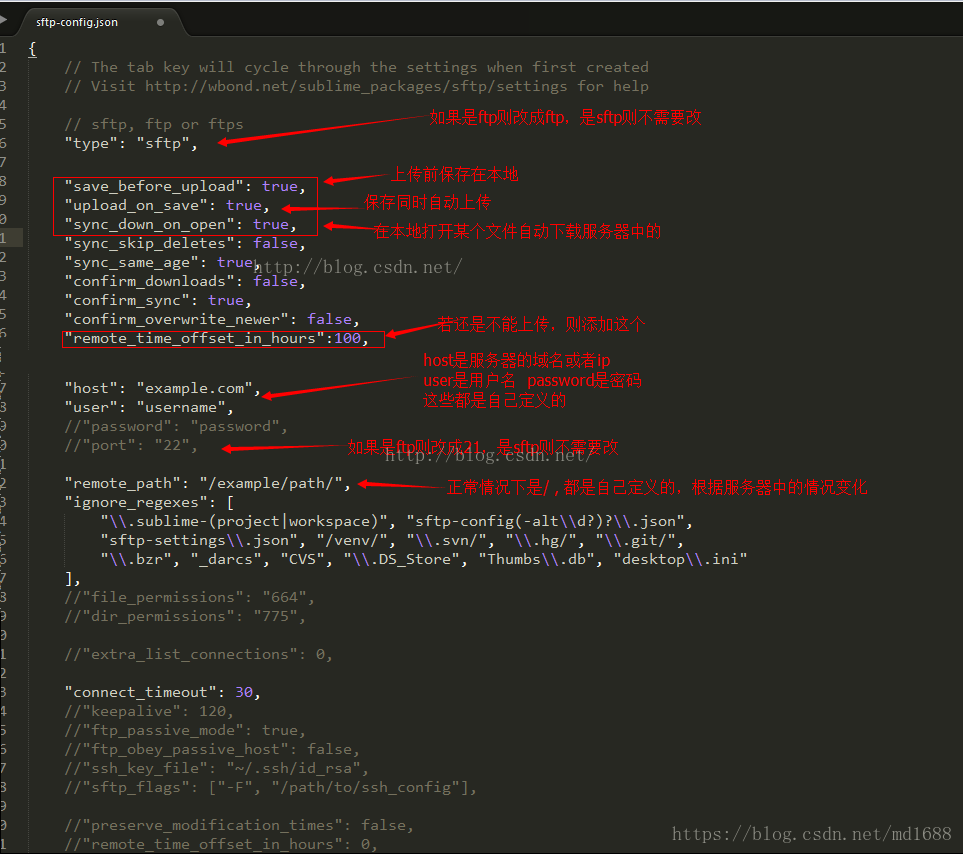
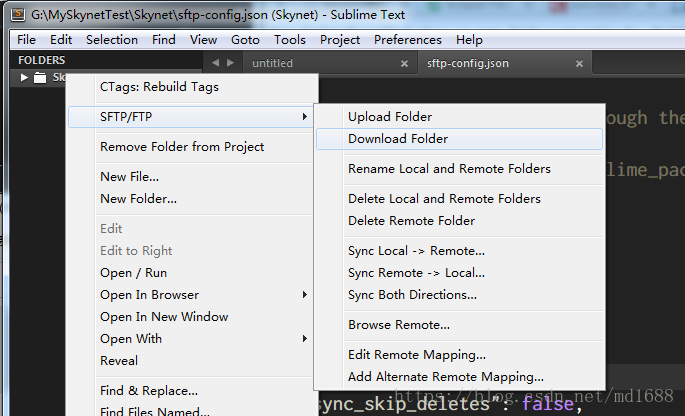
5、done
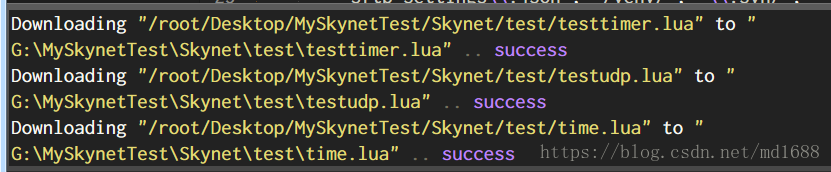
6、修改文件后直接同步到远端
ctrl + alt u , ctrl + alt + y配上快捷键更好用:
[
    { "keys": ["ctrl+alt+u","ctrl+alt+f"], "command": "sftp_upload_file" },
    { "keys": ["ctrl+alt+u","ctrl+alt+r"], "command": "sftp_upload_folder" },
    { "keys": ["ctrl+alt+u","ctrl+alt+y"], "command": "sftp_sync_up" }, //本地同步到远端
    { "keys": ["ctrl+alt+u","ctrl+alt+n"], "command": "sftp_upload_open_files" },
    { "keys": ["ctrl+alt+u","ctrl+alt+m"], "command": "sftp_monitor_file" },

    { "keys": ["ctrl+alt+u","ctrl+alt+o"], "command": "sftp_download_file" },
    { "keys": ["ctrl+alt+u","ctrl+alt+e"], "command": "sftp_download_folder" },
    { "keys": ["ctrl+alt+u","ctrl+alt+d"], "command": "sftp_sync_down" }, //远端同步到本地
    { "keys": ["ctrl+alt+u","ctrl+alt+i"], "command": "sftp_diff_remote_file" },

    { "keys": ["ctrl+alt+u","ctrl+alt+b"], "command": "sftp_sync_both" },
    { "keys": ["ctrl+alt+u","ctrl+alt+c"], "command": "sftp_vcs_changed_files" },

    { "keys": ["ctrl+alt+u","ctrl+alt+w"], "command": "sftp_browse" },

    { "keys": ["ctrl+alt+r","ctrl+alt+s"], "command": "sftp_create_server" },
    { "keys": ["ctrl+alt+r","ctrl+alt+b"], "command": "sftp_browse_server" },
    { "keys": ["ctrl+alt+r","ctrl+alt+n"], "command": "sftp_last_server" },
    { "keys": ["ctrl+alt+r","ctrl+alt+e"], "command": "sftp_edit_server" },
    { "keys": ["ctrl+alt+r","ctrl+alt+d"], "command": "sftp_delete_server" },

    { "keys": ["ctrl+alt+u","ctrl+alt+s"], "command": "sftp_show_panel" },
    { "keys": ["ctrl+alt+u","ctrl+alt+x"], "command": "sftp_cancel_upload" }
]





 扫一扫
扫一扫


 997
997

 被折叠的 条评论
为什么被折叠?
被折叠的 条评论
为什么被折叠?
 到【灌水乐园】发言





