<template>
<!-- 模板内容完全不变,此处省略(与原代码一致) -->
<view class="preview-container">
<!-- 重命名弹窗 -->
<view class="rename-modal-mask" v-if="showRenameModal">
<view class="rename-modal-content">
<text class="rename-modal-title">请输入文件名</text>
<input
v-model="tempPdfName"
class="rename-modal-input"
placeholder="请输入PDF名称"
/>
<view class="rename-modal-buttons">
<button class="rename-modal-btn rename-modal-cancel" @click="cancelRename">取消</button>
<button class="rename-modal-btn rename-modal-confirm" @click="confirmRename">确定</button>
</view>
</view>
</view>
<!-- 顶部导航:取消 + PDF名称输入 + 占位 -->
<view class="preview-nav">
<text class="nav-btn cancel-btn" @click="handleCancel">取消</text>
<view class="nav-title-wrap">
<input
v-model="pdfName"
class="nav-title-input"
placeholder="请输入PDF名称"
@blur="handleNameBlur"
/>
<image src="/static/lawyerletter/Close.svg" class="edit-icon" @click="handleEditClick" />
</view>
<view class="nav-btn empty-btn"></view>
</view>
<!-- 图片列表:垂直排列 -->
<view class="images-list" v-if="imageList.length > 0">
<view
class="image-item"
v-for="(img, idx) in imageList"
:key="idx"
>
<!-- 图片容器:相对定位,确保删除按钮基于图片定位 -->
<view class="image-wrapper">
<image :src="img" class="list-image" mode="cover"></image>
<view
class="delete-img-btn"
@click.stop="handleDeleteImg(idx)"
>
<image src="/static/lawyerletter/delete.svg" class="delete-icon"></image>
</view>
</view>
</view>
</view>
<!-- 底部操作栏:排列 + 添加图片 + 确定 -->
<view class="preview-bottom-bar">
<text class="bottom-btn sort-btn" @click="showSortActionSheet">
<image src="/static/lawyerletter/sort.svg" class="btn-icon"></image>
<text>排序</text>
</text>
<text class="bottom-btn add-img-btn" @click="showAddImgActionSheet">
<image src="/static/lawyerletter/add.svg" class="btn-icon"></image>
<text>添加图片</text>
</text>
<button
class="bottom-btn confirm-btn"
@click="handleConfirm"
>
确定
</button>
</view>
</view>
</template>
<script setup>
import { onLoad } from '@dcloudio/uni-app';
import { ref, onUnmounted } from 'vue';
import jsPDF from 'jspdf';
// 状态变量
const imageList = ref([]); // 临时图片路径列表(支持多图存储)
const currentIndex = ref(0); // 当前图片索引(用于删除时定位)
const pdfName = ref(''); // PDF名称
let uploadTasks = []; // 上传任务(用于中断)
// 重命名弹窗相关状态
const showRenameModal = ref(false); // 弹窗显示状态
const tempPdfName = ref(''); // 弹窗中临时输入的名称
// 页面加载:接收临时图片路径(支持多图)
onLoad((options) => {
const { images } = options;
if (images) {
// 修复:添加try-catch,避免解析失败导致页面崩溃
try {
// 解析多图路径数组,直接赋值给imageList
imageList.value = JSON.parse(decodeURIComponent(images));
} catch (err) {
console.error('解析图片列表失败:', err);
imageList.value = [];
}
}
// 默认PDF名称
pdfName.value = `合同${new Date().toLocaleDateString()}`;
});
// 点击“修改图标”:显示弹窗并赋值当前名称
const handleEditClick = () => {
tempPdfName.value = pdfName.value;
showRenameModal.value = true;
};
// 确认重命名:同步临时名称到pdfName
const confirmRename = () => {
if (tempPdfName.value.trim()) { // 非空时才更新
pdfName.value = tempPdfName.value.trim();
}
showRenameModal.value = false;
};
// 取消重命名:直接关闭弹窗
const cancelRename = () => {
showRenameModal.value = false;
};
// 取消:返回原页面,中断上传
const handleCancel = () => {
uni.navigateTo({
url: '/pages/legalservice/lawyerletter/lawyerletter'
});
};
// 删除图片:支持删除单张(保留至少1张)
const handleDeleteImg = (idx) => {
// 限制:至少保留1张图片
if (imageList.value.length <= 1) {
uni.showToast({ title: '至少保留1张图片', icon: 'none' });
return;
}
uni.showModal({
title: '确定删除图片',
success: (res) => {
if (res.confirm) {
// 删除指定索引的图片
imageList.value.splice(idx, 1);
// 若删除当前显示的图片,切换到前一张(避免空白)
if (idx === currentIndex.value && imageList.value.length > 0) {
currentIndex.value = Math.min(currentIndex.value, imageList.value.length - 1);
}
}
}
});
};
// 确保PDF名称不为空
const handleNameBlur = () => {
if (!pdfName.value.trim()) {
pdfName.value = `证据图片_${new Date().toLocaleDateString()}.pdf`;
}
};
// 排序:跳转排序页(支持多图排序)
const showSortActionSheet = () => {
uni.navigateTo({
url: `/pages/legalservice/lawyerletter/SortImages?images=${encodeURIComponent(JSON.stringify(imageList.value))}`
});
// 监听排序完成事件,更新预览页图片列表(多图同步)
uni.$on('imagesSorted', (sortedPaths) => {
imageList.value = sortedPaths;
});
};
// 核心修改:添加图片(支持拍照/相册多图选择)
const showAddImgActionSheet = () => {
// 1. 显示操作菜单(拍照/相册)
uni.showActionSheet({
itemList: ['拍照', '从相册选择'],
success: (res) => {
// 2. 根据选择类型设置图片来源(相机/相册)
const sourceType = res.tapIndex === 0 ? ['camera'] : ['album'];
// 3. 调用选择图片API(配置多图参数)
uni.chooseImage({
count: 99, // 最多选择20张(可按需调整,最大支持99张)
sourceType: sourceType, // 图片来源
sizeType: ['compressed'], // 压缩图片(减少体积,提升上传速度)
success: (res) => {
// 4. 批量添加选中的图片(res.tempFilePaths为多图路径数组)
if (res.tempFilePaths.length > 0) {
// 扩展运算符(...)批量添加所有选中图片路径
imageList.value.push(...res.tempFilePaths);
// 提示用户添加成功(显示添加数量)
uni.showToast({
title: `成功添加${res.tempFilePaths.length}张图片`,
icon: 'success'
});
}
},
fail: (err) => {
// 错误处理(权限不足、取消选择等)
console.error('选择图片失败:', err);
if (err.errMsg.includes('deny')) {
// 权限被拒绝时,引导用户开启权限
uni.showModal({
title: '权限不足',
content: `请在手机设置中开启${sourceType[0] === 'camera' ? '相机' : '相册'}权限`,
confirmText: '去设置',
success: (res) => res.confirm && uni.openSetting()
});
} else if (!err.errMsg.includes('cancel')) {
// 排除用户主动取消的情况,显示失败提示
uni.showToast({ title: `选择图片失败:${err.errMsg}`, icon: 'none' });
}
}
});
},
fail: (err) => {
console.error('打开选择菜单失败:', err);
}
});
};
// 确定:批量上传多图 + 生成PDF(逻辑不变,已支持多图)
const handleConfirm = async () => {
if (imageList.value.length === 0) {
uni.showToast({ title: '至少选择1张图片', icon: 'none' });
return;
}
uni.showLoading({ title: '上传中...' });
const uploadPromises = imageList.value.map((imgPath, index) => {
return new Promise((resolve, reject) => {
uni.uploadFile({
url: 'http://192.168.1.80:1592/api/ocr/upload-evidence',
filePath: imgPath,
name: 'file',
formData: {
user_token: uni.getStorageSync('token') || ''
},
success: (res) => {
if (res.statusCode === 200) {
try {
const data = JSON.parse(res.data);
if (data.code === 200) {
const url = data.data;
console.log(`第${index + 1}张图片上传成功,返回的 url:`, url);
resolve(url);
} else {
uni.showToast({ title: `第${index + 1}张上传失败: ${data.msg}`, icon: 'none' });
reject(new Error(data.msg));
}
} catch (parseErr) {
uni.showToast({ title: `第${index + 1}张上传后解析数据失败`, icon: 'none' });
console.error(`第${index + 1}张上传后解析数据失败:`, parseErr);
reject(parseErr);
}
} else {
uni.showToast({ title: `第${index + 1}张上传失败: 服务端错误,状态码${res.statusCode}`, icon: 'none' });
reject(new Error(`服务端错误,状态码${res.statusCode}`));
}
},
fail: (err) => {
uni.showToast({ title: `第${index + 1}张上传失败: ${err.errMsg}`, icon: 'none' });
reject(err);
}
});
});
});
try {
const urls = await Promise.all(uploadPromises);
uni.hideLoading();
// 生成PDF
const pdfBase64 = await generatePdfFromUrls(urls, pdfName.value);
// 创建PDF证据项
const pdfEvidence = {
id: new Date().getTime(),
name: pdfName.value,
type: 'pdf',
path: pdfBase64,
size: 0, // 可根据实际情况设置
duration: 0,
uploadStatus: 'success',
uploadProgress: 100,
backendId: '',
originalFileName: pdfName.value,
acquisitionTime: new Date().toISOString()
};
// 触发事件,通知lawyerletter页面添加PDF证据
uni.$emit('addPdfEvidence', pdfEvidence);
// 跳转到lawyerletter页面
uni.navigateTo({
url: '/pages/legalservice/lawyerletter/lawyerletter'
});
} catch (error) {
uni.hideLoading();
uni.showToast({ title: '上传失败,请重试', icon: 'none' });
}
}
// 替换原有的 generatePdfFromUrls 函数
const generatePdfFromUrls = async (imageUrls, pdfName) => {
const doc = new jsPDF();
for (let i = 0; i < imageUrls.length; i++) {
try {
// 1. 下载图片到本地临时路径(关键修改)
const downloadRes = await uni.downloadFile({
url: imageUrls[i],
timeout: 30000, // 超时时间30秒(根据网络调整)
});
// 检查下载是否成功(H5环境返回临时路径)
if (downloadRes.statusCode !== 200) {
throw new Error(`图片下载失败,状态码:${downloadRes.statusCode}`);
}
const tempFilePath = downloadRes.tempFilePath; // 本地临时路径(H5环境有效)
// 2. 添加图片到PDF(使用本地路径)
// A4尺寸布局(上下边距10,单张高度277,间距10)
const yOffset = 10 + i * 287; // 计算垂直偏移量
doc.addImage(tempFilePath, 'JPEG', 10, yOffset, 190, 277); // 格式需与图片实际格式一致
// 3. 分页逻辑(最后一张不新增页)
if (i < imageUrls.length - 1) {
doc.addPage();
}
} catch (err) {
console.error(`处理第${i+1}张图片失败:`, err);
uni.showToast({ title: `生成PDF失败:${err.message}`, icon: 'none' });
return null; // 返回null表示生成失败
}
}
return doc.output('datauristring'); // 返回PDF的Base64数据
};
// 页面卸载:释放资源(中断上传任务、移除事件监听)
onUnmounted(() => {
uploadTasks.forEach(task => task?.abort());
uni.$off('imagesSorted'); // 移除排序事件监听
});
</script>
<style scoped>
/* 样式完全不变,此处省略(与原代码一致) */
/* 1. 全局按钮基础样式重置(强制清除边框、背景、内边距等) */
button {
border: none !important; /* 强制清除所有边框 */
outline: none !important; /* 清除点击/聚焦时的外边框(如高亮边框) */
background: transparent !important; /* 清除默认背景色 */
padding: 0 !important; /* 清除默认内边距 */
margin: 0 !important; /* 清除默认外边距 */
border-radius: 0 !important; /* 清除默认圆角(如需保留圆角,后续单独设置) */
box-shadow: none !important; /* 清除默认阴影(如有) */
}
/* 2. 重命名弹窗按钮样式(仅保留自定义样式,无默认边框) */
.rename-modal-btn {
width: 200rpx;
height: 60rpx;
line-height: 60rpx; /* 使文字垂直居中,替代内边距 */
text-align: center;
border-radius: 8rpx !important; /* 单独设置自定义圆角 */
font-size: 28rpx;
}
.rename-modal-cancel {
background-color: #f5f5f5 !important; /* 自定义背景色 */
color: #333 !important;
}
.rename-modal-confirm {
background-color: #e74c3c !important; /* 自定义背景色 */
color: #fff !important;
}
/* 3. 顶部导航按钮样式(无默认边框) */
.nav-btn {
display: flex;
align-items: center;
justify-content: center;
height: 60rpx;
padding: 0 20rpx !important; /* 单独设置自定义内边距 */
border-radius: 8rpx !important; /* 自定义圆角 */
background-color: #fff !important; /* 自定义背景色 */
font-size: 28rpx;
color: #333 !important;
transition: all 0.2s ease;
}
.nav-btn:active {
opacity: 0.8; /* 点击反馈效果 */
}
.cancel-btn {
color: #333 !important;
}
/* 4. 底部操作栏按钮样式(无默认边框) */
.bottom-btn {
display: flex;
flex-direction: column;
align-items: center;
justify-content: center;
font-size: 24rpx;
color: #333 !important;
background-color: #fff !important; /* 自定义背景色 */
padding: 10rpx !important; /* 自定义点击区域内边距 */
transition: all 0.2s ease;
}
.bottom-btn:active {
opacity: 0.8; /* 点击反馈效果 */
}
.btn-icon {
width: 40rpx;
height: 35rpx;
margin-bottom: 6rpx;
}
/* 底部“确定”按钮(自定义样式,无默认边框) */
.confirm-btn {
background-color: #e74c3c !important; /* 自定义背景色 */
color: #fff !important;
width: 350rpx;
height: 70rpx;
line-height: 70rpx !important; /* 垂直居中,替代内边距 */
border-radius: 35rpx !important; /* 自定义圆角 */
font-size: 28rpx;
transition: all 0.2s ease;
}
.confirm-btn:active {
opacity: 0.8;
}
.confirm-btn:disabled {
background-color: #ccc !important;
opacity: 0.6;
}
/* 以下为其他原有样式(保持不变) */
.rename-modal-mask {
position: fixed;
top: 0;
left: 0;
right: 0;
bottom: 0;
background-color: rgba(0, 0, 0, 0.5);
display: flex;
align-items: center;
justify-content: center;
z-index: 9999;
}
.rename-modal-content {
width: 600rpx;
background-color: #fff;
border-radius: 16rpx;
padding: 30rpx;
display: flex;
flex-direction: column;
align-items: center;
}
.rename-modal-title {
font-size: 32rpx;
font-weight: bold;
margin-bottom: 20rpx;
}
.rename-modal-input {
width: 100%;
height: 60rpx;
line-height: 60rpx;
border: 1rpx solid #eee;
border-radius: 8rpx;
padding: 0 16rpx;
margin-bottom: 30rpx;
font-size: 28rpx;
}
.rename-modal-buttons {
display: flex;
justify-content: space-around;
width: 100%;
}
.nav-title-wrap {
flex: 1;
display: flex;
align-items: center;
justify-content: center;
padding: 0 20rpx;
position: relative;
}
.edit-icon {
width: 32rpx;
height: 32rpx;
margin-left: 1rpx;
}
.preview-container {
height: 100vh;
display: flex;
flex-direction: column;
background-color: #fff;
padding-bottom: 142rpx;
box-sizing: border-box;
}
.preview-nav {
display: flex;
align-items: center;
height: 88rpx;
padding: 0 24rpx;
background-color: #fff !important;
border-bottom: 1rpx solid #eee;
position: sticky;
top: 0;
z-index: 10;
}
.nav-title-input {
width: 100%;
max-width: 400rpx;
height: 60rpx;
line-height: 60rpx;
text-align: center;
font-size: 30rpx;
border: none;
}
.empty-btn {
visibility: hidden;
}
/* 图片列表样式(支持多图垂直排列,宽度沾满屏幕) */
.images-list {
flex: 1;
overflow-y: auto;
padding: 20rpx 0;
box-sizing: border-box;
}
.image-item {
width: 100%;
margin-bottom: 30rpx;
display: flex;
align-items: center;
justify-content: center;
}
.image-wrapper {
position: relative;
width: 100%;
min-height: 300rpx;
background-color: #f5f5f5;
border-radius: 8rpx;
overflow: hidden;
box-shadow: 0 2rpx 8rpx rgba(0, 0, 0, 0.1);
}
.list-image {
width: 100%;
min-height: 300rpx;
object-fit: cover;
vertical-align: middle;
}
/* 删除按钮样式(多图时显示,单图时隐藏) */
.delete-img-btn {
position: absolute;
bottom: 10rpx;
right: 10rpx;
width: 40rpx;
height: 40rpx;
border-radius: 50%;
background-color: rgba(0, 0, 0, 0.5);
display: flex;
align-items: center;
justify-content: center;
z-index: 5;
/* 单图时隐藏删除按钮(通过imageList长度控制,已在脚本中处理) */
}
.delete-icon {
width: 28rpx;
height: 28rpx;
color: #fff;
}
.preview-bottom-bar {
position: fixed;
bottom: 0;
left: 0;
right: 0;
display: flex;
align-items: center;
justify-content: space-around;
height: 122rpx;
background-color: #fff;
border-top: 1rpx solid #eee;
z-index: 20;
}
</style>
根据这个代码修改 将获取到侯丹数据的网络地址url 转换为pdf格式


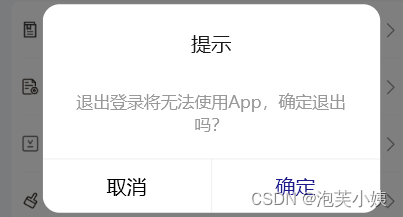
 文章讲述了作者在官方文档未提供更改样式指导时,通过直接操作DOM来修改弹窗圆角和宽度的过程,寻求更高效方法的呼吁。





 扫一扫
扫一扫


 3089
3089

 被折叠的 条评论
为什么被折叠?
被折叠的 条评论
为什么被折叠?
 到【灌水乐园】发言





