
路晓彤的作业

本文介绍了一个用于展示学生基本信息的系统,包括学号、姓名、专业等字段,并通过表格形式直观呈现。
 <h1 style="text-align: center;">学生信息</h1>

        <table align="center" border=1;>
            <tr>
                <th>编号</th>
                <th>学号</th>
                <th>姓名</th>
                <th>专业</th>
                <th>班级</th>
                <th>性别</th>
            </tr>
        @foreach ($students as $item)
        <tr align="center" >
            <td>{{$item['id']}}</td>
            <td>{{$item['xh']}}</td>
            <td>{{$item['xingming']}}</td>
            <td>{{$item['zhuanye']}}</td>
            <td>{{$item['banji']}}</td>
            <td>{{$item['xingbie']}}</td>
            </tr>
            @endforeach

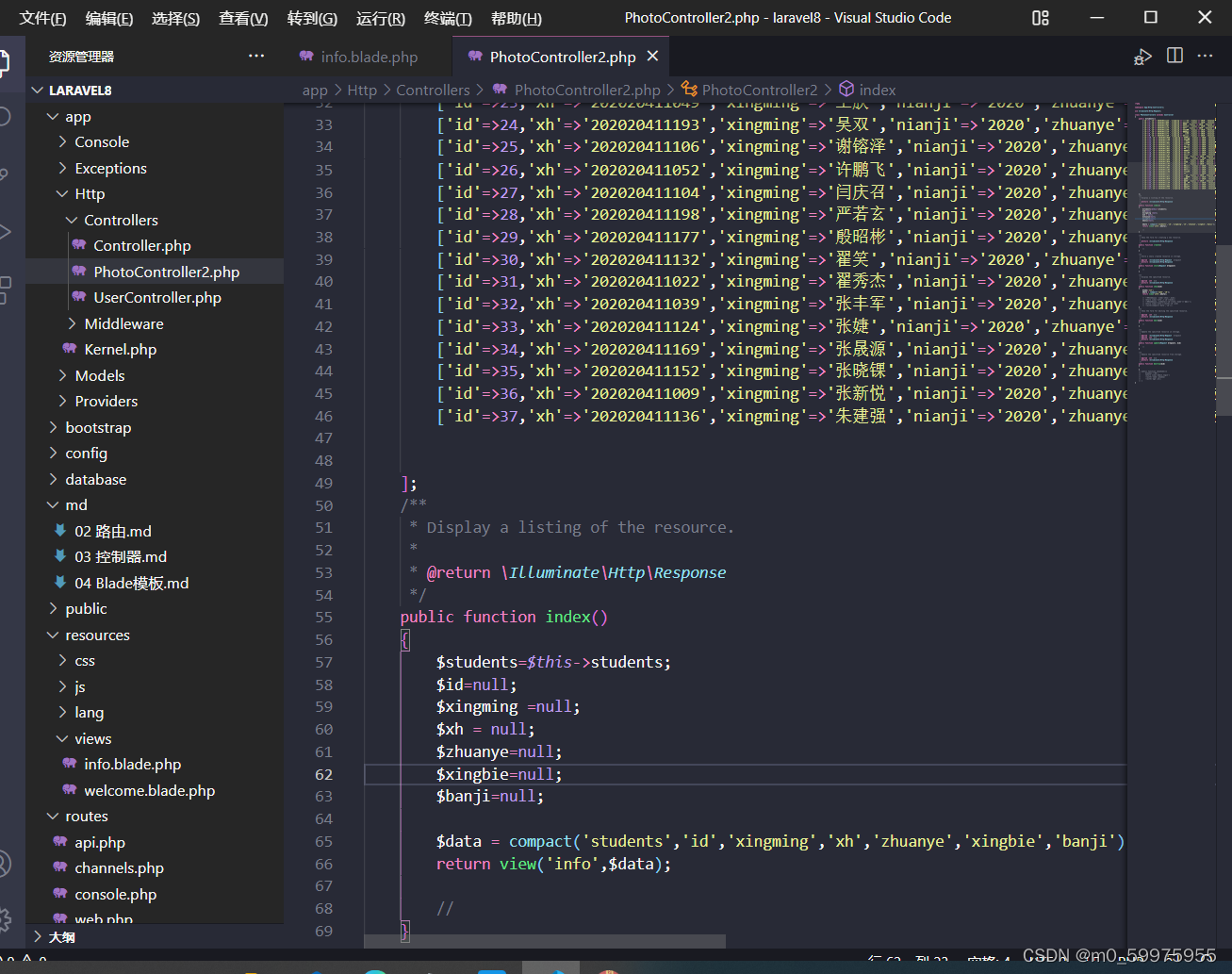
第二块代码:

public function index()
    {
        $students=$this->students;
        $id=null;
        $xingming =null;
        $xh = null;
        $zhuanye=null;
        $xingbie=null;
        $banji=null;

        $data = compact('students','id','xingming','xh','zhuanye','xingbie','banji');
        return view('info',$data);

        //
    }
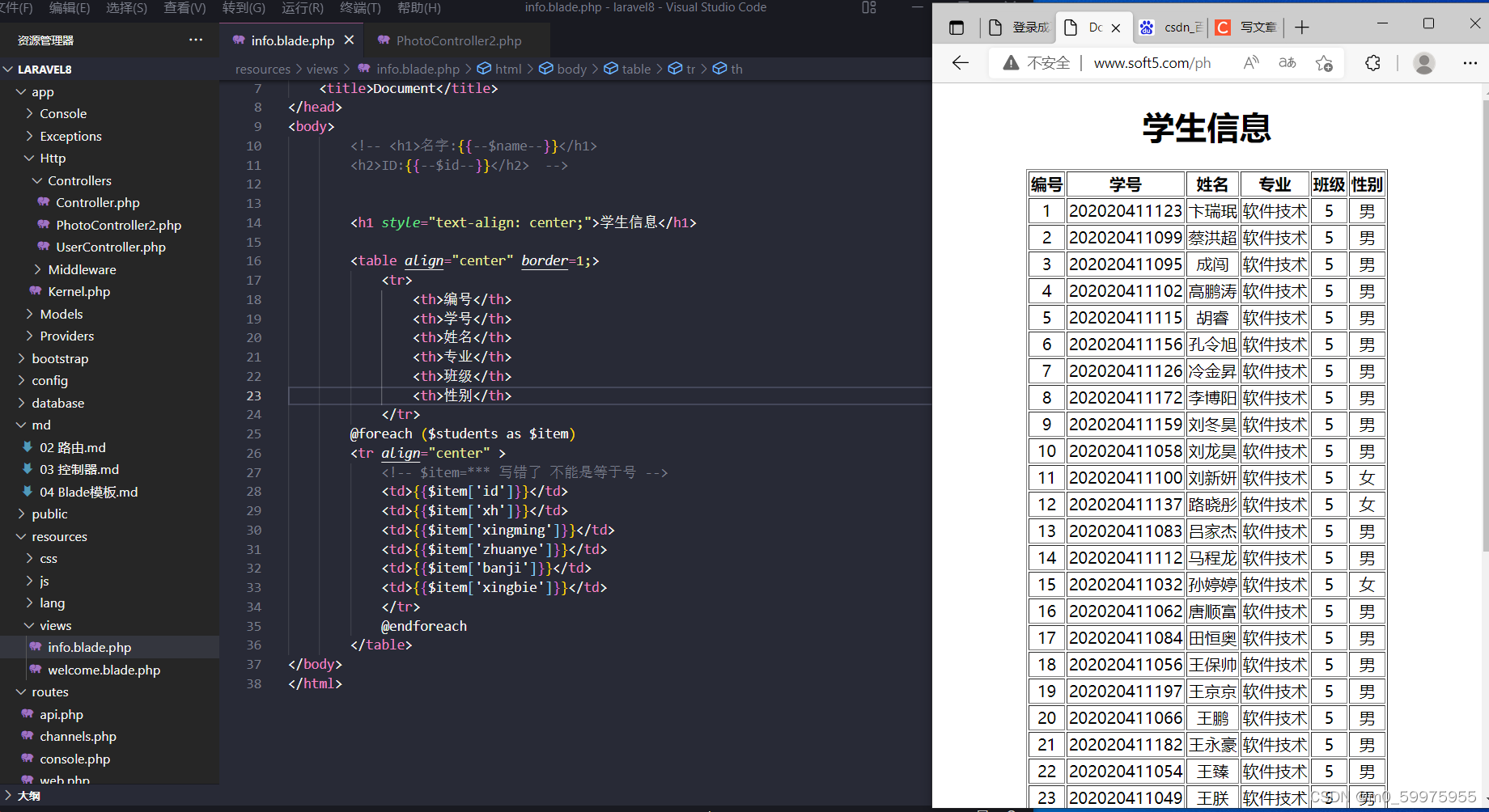
在这里插入图片描述
在这里插入图片描述

创建一个爱心粒子特效并显示"毕晓彤"文字,通常需要结合Windows Presentation Foundation (WPF) 或 Unity 等游戏开发引擎中的粒子系统和UI元素。这里我将以WPF为例给出一个简单的示例: ```xml <Window x:Class="LovingParticles.MainWindow" xmlns="http://schemas.microsoft.com/winfx/2006/xaml/presentation" xmlns:x="http://schemas.microsoft.com/winfx/2006/xaml" Title="LovingParticles" Height="450" Width="800"> <Canvas Background="Transparent"> <!-- 粒子系统 --> <ParticleSystem x:Name="LoveParticles"> <!-- 添加爱心粒子效果 --> <ParticleSystem.Emitter> <PointEmitter EmissionRate="10" /> </ParticleSystem.Emitter> <!-- 每个粒子的视觉属性 --> <VisualStateManager.VisualStateGroups> <VisualStateGroup> <VisualState Name="Regular"> <Storyboard> <DoubleAnimation Storyboard.TargetProperty="(ParticleAnimation.Position.X)" From="0" To="100" Duration="0:0:2" RepeatBehavior="Forever"/> <DoubleAnimation Storyboard.TargetProperty="(ParticleAnimation.Position.Y)" From="0" To="100" Duration="0:0:2" RepeatBehavior="Forever"/> <!-- 添加颜色和大小变化动画 --> </Storyboard> </VisualState> <!-- 更改状态以显示文字 --> <VisualState Name="ShowBaiXiaoTong"> <Storyboard> <TextBlock Canvas.Left="{Binding Position.X}" Canvas.Top="{Binding Position.Y}" Text="毕晓彤" Foreground="White" FontSize="20" Visibility="Visible" Duration="0:0:1"/> </Storyboard> </VisualState> </VisualStateGroup> </VisualStateManager.VisualStateGroups> </ParticleSystem> <!-- 文本控件,隐藏在开始 --> <TextBlock x:Name="MessageText" Text="毕晓彤" Visibility="Collapsed" /> </Canvas> </Window> ``` 然后,在对应的代码-behind文件(例如 MainWindow.xaml.cs)中,设置粒子系统的启动和状态切换: ```csharp public partial class MainWindow : Window { public MainWindow() { InitializeComponent(); LoveParticles.Start(); VisualStateManager.GoToState(this, "Regular", true); } private void LoveParticles_ParticleGenerated(object sender, EventArgs e) { var particle = sender as Particle; // 当粒子生成时,检查是否达到特定条件显示文字 if (/*满足条件,如粒子寿命等*/) { VisualStateManager.GoToState(this, "ShowBaiXiaoTong", true); MessageText.Visibility = Visibility.Visible; // 显示文本 } } } ``` 这只是一个基本的例子,实际效果可能需要更复杂的粒子系统和自定义动画。
评论 1
成就一亿技术人!
拼手气红包6.0元
还能输入1000个字符
 
红包 添加红包
表情包 插入表情
 条评论被折叠 查看
添加红包

请填写红包祝福语或标题

红包个数最小为10个

红包金额最低5元

当前余额3.43前往充值 >
需支付:10.00
成就一亿技术人!
领取后你会自动成为博主和红包主的粉丝 规则
hope_wisdom
发出的红包
实付
使用余额支付
点击重新获取
扫码支付
钱包余额 0

抵扣说明:

1.余额是钱包充值的虚拟货币,按照1:1的比例进行支付金额的抵扣。
2.余额无法直接购买下载,可以购买VIP、付费专栏及课程。

余额充值


