



一、页面布局
vim my.vue
<template>
	<view class='my'>
		<!--头部-->
		<view class='my-header'>
			<view class='header-main'>
				<view class='header-config'>
					<image class='config-img' src="../../static/img/config.png" mode=""></image>
				</view>
				<view class='header-logo'>
					<image class='logo-img' src="../../static/img/Children.jpg" mode=""></image>
					<view class='logo-name'>用户昵称</view>
				</view>
			</view>
		</view>
		<!--我的订单-->
		<view class='order'>
			<view class='order-title'>
				<view>我的订单</view>
				<view>全部订单 > </view>
			</view>
			<view class='order-list'>
				<view class='order-item'>
					<image  class='order-img' src="../../static/img/order1.png" mode=""></image>
					<view>待付款</view>
				</view>
				<view class='order-item'>
					<image  class='order-img' src="../../static/img/order2.png" mode=""></image>
					<view>待付款</view>
				</view>
				<view class='order-item'>
					<image  class='order-img' src="../../static/img/order3.png" mode=""></image>
					<view>待付款</view>
				</view>
				<view class='order-item'>
					<image  class='order-img' src="../../static/img/order4.png" mode=""></image>
					<view>待付款</view>
				</view>
				<view class='order-item'>
					<image  class='order-img' src="../../static/img/order5.png" mode=""></image>
					<view>待付款</view>
				</view>
			</view>
		</view>
		<!--内容列表-->
		<view class='my-content'>

			<view class="my-content-item">
				<view>我的收藏</view>
				<view>></view>
			</view>
			<view class="my-content-item">
				<view>我的收藏</view>
				<view>></view>
			</view>
			<view class="my-content-item">
				<view>我的收藏</view>
				<view>></view>
			</view>
			<view class="my-content-item">
				<view>我的收藏</view>
				<view>></view>
			</view>
			<view class="my-content-item">
				<view>我的收藏</view>
				<view>></view>
			</view>
			<view class="my-content-item">
				<view>我的收藏</view>
				<view>></view>
			</view>
			<view class="my-content-item">
				<view>我的收藏</view>
				<view>></view>
			</view>

		</view>
	</view>
</template>

<script>
	export default {
		data() {
			return {

			}
		},
		methods: {

		}
	}
</script>

<style scoped>
.my-header{
	background: url(../../static/img/mybg.png) no-repeat;
	width: 100%;
	height: 400rpx;
}
.header-main{
	position: relative;
	top:120rpx;
}
.header-config{
	position: absolute;
	left:20rpx;
}
.header-logo{
	position: absolute;
	left:50%;
	margin-left:-60rpx;
	width:120rpx;
}
.config-img{
	width: 40rpx;
	height: 40rpx;
}
.logo-img{
	width: 120rpx;
	height: 120rpx;
	border:2rpx solid #CCCCCC;
	border-radius: 50%;
	background-color: #FFFFFF;
}
.logo-name{
	font-weight: bold;
	color:#FFFFFF;
}
.order-title{
	display: flex;
	justify-content: space-between;
	align-items: center;
	padding: 20rpx;
}
.order-list{
	padding: 20rpx;
	display: flex;
}
.order-item{
	flex:1;
	display: flex;
	flex-direction: column;
	justify-content: center;
	align-items: center;
}
.order-img{
	width:66rpx;
	height: 66rpx;
}
.my-content{
	margin:20rpx 0;
	padding:0 20rpx;
}
.my-content-item{
	display: flex;
	justify-content: space-between;
	align-items:center;
	padding:20rpx 0;
	border-bottom: 2px solid #CCCCCC;
}
</style>
二、设置地址管理页面
mkdir my-config
pages.json 配置
{
            "path" : "pages/my-config/my-config",
            "style" : {
				"navigationBarBackgroundColor":"#FFFFFF",
				"navigationBarTitleText": "设置"
			}
        }
vim my-config.vue
vim my-path-list.vue
点击跳转 uni.navigateTo
三、修改地址收货地址三级联动
mkdir my-add-path
使用插件解决三级联动
改变默认情况 获取插件返回数据
四、新增地址
store/moudles/path.js
export default {
	state:{
		list:[
			{
				name:"张三",
				tel:"18511773322",
				city:"北京市海淀区",
				details:'2号楼',
				isDefault:false
			},
			{
				name:"李四",
				tel:"18511773322",
				city:"北京市海淀区",
				details:'2号楼',
				isDefault:true
			}
		]
	},
	getters:{

	},
	mutations:{
		createPath( state, obj ){
			state.list.unshift( obj );
		},
		updatePath(state,{index,item}){

			for( let key in item){
				state.list[index][key] = item[key];
			}

		}
	},
	actions:{
		createPathFn({commit},obj){
			commit('createPath',obj)
		},
		updatePathFn({commit},obj){
			commit('updatePath',obj);
		}
	}
}
my-add-path.vue
<script>
	import mpvueCityPicker from '../../components/uni/mpvue-citypicker/mpvueCityPicker.vue'
	import {mapActions} from 'vuex'
	export default {
		data() {
			return {
				pickerValueDefault: [0, 0, 1],
				pathObj:{
					name:"",
					tel:"",
					city:"请选择",
					details:"",
					isDefault:false
				},
				i:-1,
				//是否修改的状态
				isStatus:false
			}
		},
		onLoad(e) {
			if(e.data){
				uni.setNavigationBarTitle({
					title:"修改地址"
				})
				let result = JSON.parse(e.data);
				this.pathObj = result.item;
				this.i = result.index;
				this.isStatus = true;
			}
		},
		components:{
			mpvueCityPicker
		},
		//页面生命周期
		onNavigationBarButtonTap() {

			if( this.isStatus ){
				//修改
				this.updatePathFn({
					index:this.i,
					item:this.pathObj
				})
				uni.navigateBack({
					delta:1
				})
			}else{
				//新增
				this.createPathFn(this.pathObj);
				uni.navigateBack({
					delta:1
				})
			}
		},
		methods: {
			...mapActions(["createPathFn",'updatePathFn']),
			showCityPicker() {
			  this.$refs.mpvueCityPicker.show();
			},
			onConfirm(e) {
			  this.city = e.label;
			}
		}
	}
</script>
五、修改地址
my-path-list.vue
template
<view class='path-item'
				v-for='(item,index) in list' :key='index'
				@tap='toAddPath(index)'
			>
				<view class='item-main'>
					<view class='item-name'>{{item.name}}</view>
					<view>{{item.tel}}</view>
				</view>
				<view class='item-main'>
					<view class='active' v-if='item.isDefault'>默认</view>
					<view>{{item.city}} {{item.details}}</view>
				</view>
			</view>
methods
//修改
			toAddPath(index){

				let pathObj = JSON.stringify({
					index:index,
					item:this.list[index]
				})
				uni.navigateTo({
					url:"../my-add-path/my-add-path?data="+pathObj+""
				})

			},
my-add-path.vue
onLoad(e) {
			if(e.data){
				uni.setNavigationBarTitle({
					title:"修改地址"
				})
				let result = JSON.parse(e.data);
				this.pathObj = result.item;
				this.i = result.index;
				this.isStatus = true;
			}
		}
path,js
mutations:{
		createPath( state, obj ){
			state.list.unshift( obj );
		},
		updatePath(state,{index,item}){

			for( let key in item){
				state.list[index][key] = item[key];
			}

		}
	},
	actions:{
		createPathFn({commit},obj){
			commit('createPath',obj)
		},
		updatePathFn({commit},obj){
			commit('updatePath',obj);
		}
	}
六、订单
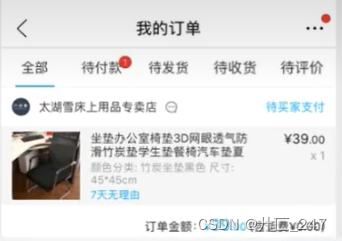
下划线选中 选中 index 对应的 active类
<view class='order-header'>
			<view
				class='header-item'
				v-for='(item,index) in tabList'
				:key='index'
				:class=' tabIndex==index?"active":""  '
				@tap='changeTab(index)'
			>{{item.name}}</view>
		</view>






 扫一扫
扫一扫


 795
795

 被折叠的 条评论
为什么被折叠?
被折叠的 条评论
为什么被折叠?
 到【灌水乐园】发言





