



文章目录
一、底部导航
pages 文件夹下 新建四个页面文件夹
>pages
	index
	list
	my
	shopcart
use tabBar 根据官方文档uni-app演示代码学习
创建四个,有选中和未选中两个状态
二、顶部开发
2.1navigation
底色:白色
左侧:放大镜 中间文字 右侧:消息
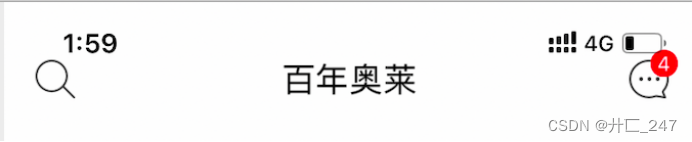
navigation pages里自定义导航栏
"style": {
				"navigationBarTitleText": "百年奥莱",
				"navigationBarBackgroundColor":"#FFFFFF",
				"navigationStyle":"custom",
				"app-plus":{
					"titleNView":{
						"buttons":[
							{
								"float":"left",
								"fontSrc":"./static/iconfont.ttf",
								"text":"\ue69d"
							},
							{
								"float":"right",
								"fontSrc":"./static/iconfont.ttf",
								"text":"\ue622"
							}
						]
					}
				}
			}
注:app-plus在app中和H5生效,各种小程序不生效,如需定制小程序的头部需要这样做:
1.2.1 pages.json中加入: “navigationStyle”:“custom”
1.2.1 page/index/index.vue中写入:
		<view>
			....你的小程序头部...
		</view>
	<!-- #endif -->
2.2 swiper
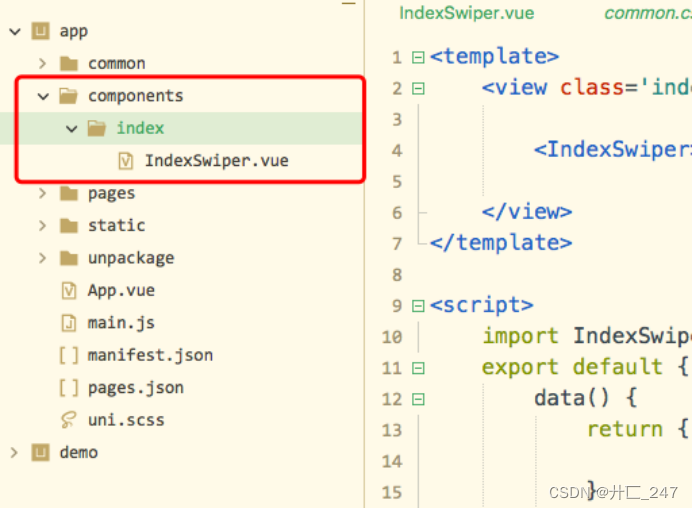
新建IndexSwiper.vue文件,封装,目录结构如图:
Indexswiper.vue
<template>
	<swiper :indicator-dots="true" :autoplay="true" :interval="3000" :duration="1000">
		<swiper-item>
			<view class="swiper-item">
				<image class='swiper-img' src="../../static/img/swiper1.jpg" mode=""></image>
			</view>
		</swiper-item>
		<swiper-item>
			<view class="swiper-item">
				<image class='swiper-img' src="../../static/img/swiper2.jpg" mode=""></image>
			</view>
		</swiper-item>
		<swiper-item>
			<view class="swiper-item">
				<image class='swiper-img' src="../../static/img/swiper3.jpg" mode=""></image>
			</view>
		</swiper-item>
	</swiper>
</template>

<script>
</script>

<style scoped>
swiper{
	width:100%;
	height: 400rpx;
}
.swiper-img{
	width:100%;
	height: 400rpx;
}
</style>
bug:
1、图片显示,height小程序里正常,app不正常
解决:本身swiper里有150px 的默认高度,直接再写一个 swiper
<style scoped>
swiper{
	width:100%;
	height: 400rpx;
}
.swiper-img{
	width:100%;
	height: 400rpx;
}
</style>
2、改变图片的大小单位用rpx,以前的upx有问题
3、组件名称swiper.vue or Swiper.vue,在传递数据的时候有可能图片就不见了
三、推荐部分
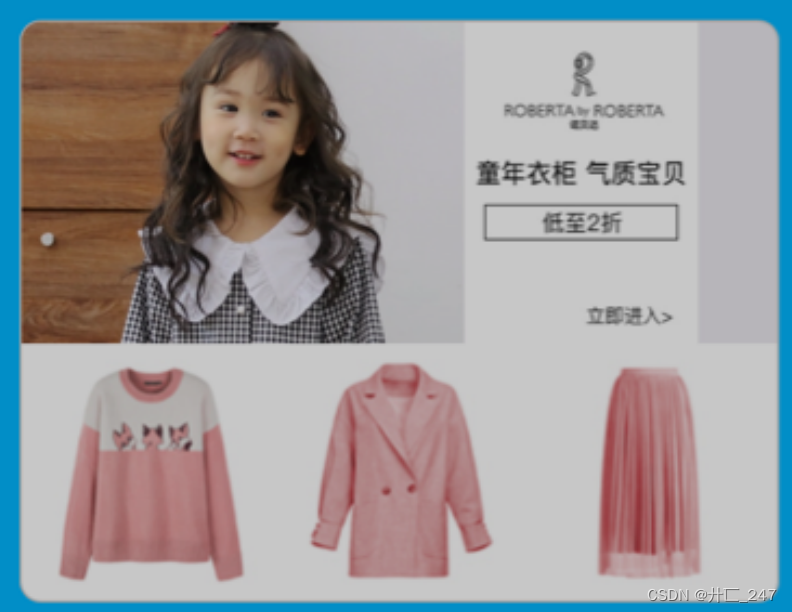
进行封装
创建 components/Recommend.vue
底色为蓝色,common.css中定义过
分析布局:一张大图
下方三张小图
<template>
	<view class='recommend bg-color'>

		<view class='recommend-item'>
			<image class='item-big' src="../../static/img/Children.jpg" mode=""></image>
			<view class='item-small'>
				<image class='item-img' src="../../static/img/Children1.jpg" mode=""></image>
				<image class='item-img' src="../../static/img/Children2.jpg" mode=""></image>
				<image class='item-img' src="../../static/img/Children3.jpg" mode=""></image>
			</view>
		</view>

		<view class='recommend-item'>
			<image class='item-big' src="../../static/img/Furnishing.jpg" mode=""></image>
			<view class='item-small'>
				<image class='item-img' src="../../static/img/Furnishing1.jpg" mode=""></image>
				<image class='item-img' src="../../static/img/Furnishing2.jpg" mode=""></image>
				<image class='item-img' src="../../static/img/Furnishing3.jpg" mode=""></image>
			</view>
		</view>

	</view>
</template>

<script>
</script>
style:
内边距上下左右有空隙,padding:20rpx
图片上下排列:
display: flex;
flex-direction: column;
border-radius: 20rpx;
border: 2rpx solid #CCCCCC;
overflow: hidden;
margin:20rpx 0;
<style scoped>
.recommend{
	padding:20rpx;
}
.recommend-item{
	display: flex;
	flex-direction: column;
	border-radius: 20rpx;
	border: 2rpx solid #CCCCCC;
	overflow: hidden;
	margin:20rpx 0;
}
.item-big{
	width:100%;
	height: 300rpx;
}
.item-small{
	width:100%;
	height: 240rpx;
}
.item-img{
	width:33.3333%;
	height: 240rpx;
}
</style>
四、猜你喜欢
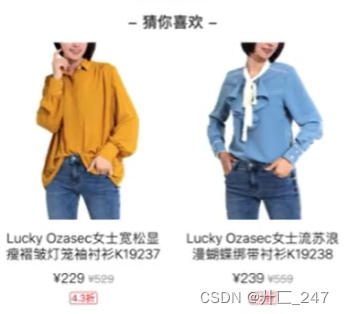
4.1文字封装
<template>
	<view class='card'>
		<view>-</view>
		<slot>
			<view class='card-name'>{{cardTitle}}</view>
		</slot>
		<view>-</view>
	</view>
</template>

<script>
export default {
	props:{
		cardTitle:String
	}
}
</script>

<style scoped>
.card{
	padding:20rpx 0;
	display: flex;
	justify-content: center;
	font-weight: bold;
}
.card-name{
	padding:0 20rpx;
	font-size:32rpx;
}
</style>
indxe.vue
<template>
	<view class='index'>

		<IndexSwiper></IndexSwiper>
		<Recommend></Recommend>
		<Card cardTitle='猜你喜欢'></Card>


	</view>
</template>

<script>
	import IndexSwiper from '@/components/index/IndexSwiper.vue'
	import Recommend from '@/components/index/Recommend.vue'
	import Card from '@/components/common/Card.vue'
	export default {
		data() {
			return {

			}
		},
		components:{
			IndexSwiper,
			Recommend,
			Card
		},
		onLoad() {

		},
		methods: {

		}
	}
</script>

<style scoped>

</style>
五、单独商品展示和商品列表
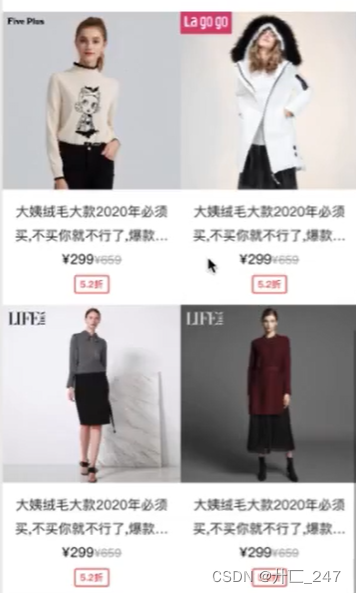
单个组件:commodity
图片
商品名称
价格 原价
折扣
CommodityList.vue组件为:商品列表组件
CommodityList.vue组件传入数据给Commodity.vue作为展示。
CommodityList.vue代码为:
<template>
	<view class='commodity-list'>

		<!-- 商品列表组件 -->
		<Commodity :dataList='commodityList'></Commodity>
		<!--传到commodity.vue -->

	</view>
</template>

<script>
import Commodity from './Commodity.vue'
export default {
	data () {
		return {
			commodityList:[
				{
					id:1,
					imgUrl:"../../static/img/commodity1.jpg",
					name:"大姨绒毛大款2020年必须买,不买你就不行了,爆款疯狂GG008大姨绒毛大款2020年必须买,不买你就不行了,爆款疯狂GG008",
					pprice:"299",
					oprice:"659",
					discount:"5.2"
				},
				{
					id:2,
					imgUrl:"../../static/img/commodity2.jpg",
					name:"大姨绒毛大款2020年必须买,不买你就不行了,爆款疯狂GG008大姨绒毛大款2020年必须买,不买你就不行了,爆款疯狂GG008",
					pprice:"299",
					oprice:"659",
					discount:"5.2"
				},
				{
					id:3,
					imgUrl:"../../static/img/commodity3.jpg",
					name:"大姨绒毛大款2020年必须买,不买你就不行了,爆款疯狂GG008大姨绒毛大款2020年必须买,不买你就不行了,爆款疯狂GG008",
					pprice:"299",
					oprice:"659",
					discount:"5.2"
				},
				{
					id:4,
					imgUrl:"../../static/img/commodity4.jpg",
					name:"大姨绒毛大款2020年必须买,不买你就不行了,爆款疯狂GG008大姨绒毛大款2020年必须买,不买你就不行了,爆款疯狂GG008",
					pprice:"299",
					oprice:"659",
					discount:"5.2"
				}
			]
		}
	},
	components:{
		Commodity
	}
}
</script>

<style>
</style>
Commodity.vue代码为:
<template>
	<view class='commodity'>
		<!-- 单个商品组件 -->
		<!-- 遍历 -->
		<view class='commodity-item'
			v-for="(item,index) in dataList"
			:key='index'
		>
			<image class='commodity-img' :src="item.imgUrl" mode=""></image>
			<view class='commodity-content'>
				<text class='commodity-name'>{{item.name}}</text>
				<view>
					<text class='pprice'>¥{{item.pprice}}</text>
					<text class='oprice'>¥{{item.oprice}}</text>
				</view>
				<text class='discount'>{{item.discount}}折</text>
			</view>
		</view>

	</view>
</template>

<script>
export default {
	props:{
		dataList:Array//接入来自commoditylist.vue的数据
	}
}
</script>

<style scoped>
.commodity{
	display: flex;
	flex-wrap: wrap; //flex 堆叠方式
}
.commodity-item{
	width: 375rpx;
	padding-bottom:20rpx;
}
.commodity-img{
	width:100%;
	height: 375rpx;
}
.commodity-content{
	text-align: center;
}
.commodity-name{
	overflow: hidden; // overflow 定义当一个元素的内容太大而无法适应 块级格式化上下文 时候该做什么。
	text-overflow: ellipsis;//用于确定如何提示用户存在隐藏的溢出内容。
	display: -webkit-box;
	-webkit-line-clamp:2;
	-webkit-box-orient:vertical;  //垂直布局
	color:#333333;
	word-break: break-all; //指定了怎样在单词内断行
	padding:6rpx 20rpx;
}
.oprice{
	text-decoration: line-through;
	font-size:24rpx;
	color:#999999;
}
.discount{
	border-radius: 4rpx;
	border:1px solid #FF3333;
	padding:2rpx 10rpx;
	font-size:20rpx;
	color:#FF3333;
}
</style>
五、运动户外页开发
1.1效果图
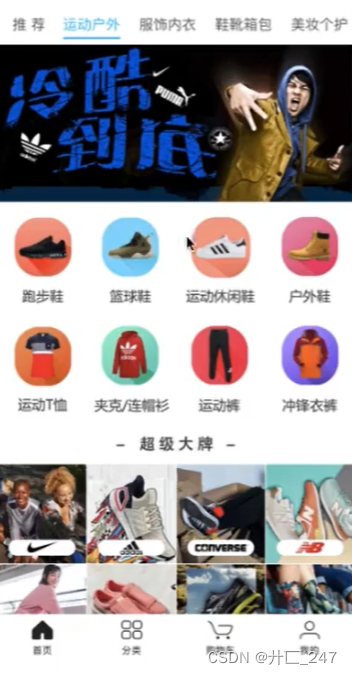
1.2 在components/index目录中创建了Banner.vue和Icons.vue组件
1.3 组件说明Banner.vue就是头图的展示。Icons.vue就是大家看到的宫格
1.4 Banner.vue代码如下:
<template>
	<view class='banner'>
		<image class='banner-img' src="../../static/img/banner1.jpg" mode=""></image>
	</view>
</template>

<script>
</script>

<style scoped>
.banner{
	width:100%;
	height: 300rpx;
}
.banner-img{
	width:100%;
	height: 300rpx;
}
</style>
1.5 Icos.vue代码如下:
<template>
	<view class='icons'>
		<view class='icons-item'>
			<image class='icons-img' src="../../static/img/icons1.png" mode=""></image>
			<text class='f-color'>运动户外</text>
		</view>
		<view class='icons-item'>
			<image class='icons-img' src="../../static/img/icons2.png" mode=""></image>
			<text class='f-color'>运动户外</text>
		</view>
		<view class='icons-item'>
			<image class='icons-img' src="../../static/img/icons3.png" mode=""></image>
			<text class='f-color'>运动户外</text>
		</view>
		<view class='icons-item'>
			<image class='icons-img' src="../../static/img/icons4.png" mode=""></image>
			<text class='f-color'>运动户外</text>
		</view>
		<view class='icons-item'>
			<image class='icons-img' src="../../static/img/icons5.png" mode=""></image>
			<text class='f-color'>运动户外</text>
		</view>
		<view class='icons-item'>
			<image class='icons-img' src="../../static/img/icons6.png" mode=""></image>
			<text class='f-color'>运动户外</text>
		</view>
		<view class='icons-item'>
			<image class='icons-img' src="../../static/img/icons7.png" mode=""></image>
			<text class='f-color'>运动户外</text>
		</view>
		<view class='icons-item'>
			<image class='icons-img' src="../../static/img/icons8.png" mode=""></image>
			<text class='f-color'>运动户外</text>
		</view>
	</view>
</template>

<script>
</script>

<style scoped>
.icons{
	display: flex;
	flex-wrap: wrap;
}
.icons-item{
	width:25%;
	display: flex;
	flex-direction: column;
	align-items: center; /* Pack items around the center */
	justify-content: center; /* 居中排列 */
	padding-top:20rpx;
}
.icons-img{
	width:110rpx;
	height: 110rpx;
}
</style>
六、热销爆品开发修改商品值
1.1效果图
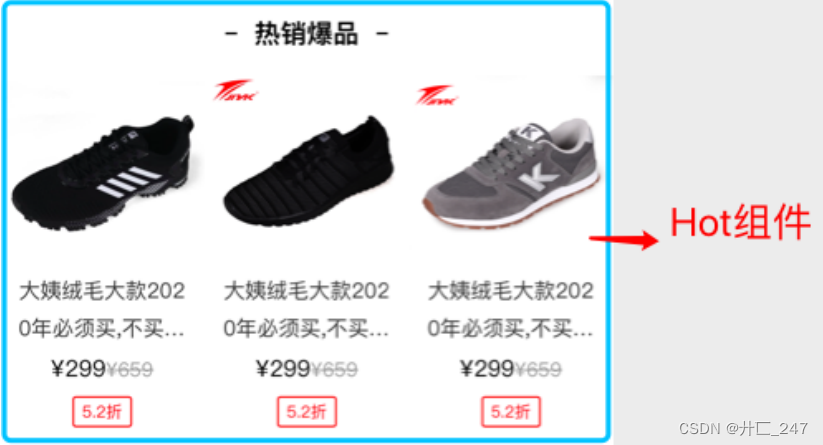
1.2 component/index下创建Hot.vue组件
1.3 pages/index/index.vue引入Hot.vue组件
1.4 Hot组件内容为单个商品模块,所有引入了Commodity.vue组件。传递参数调整图片宽度和高度,Hot组件代码如下:
<template>
	<view class='hot'>

		<Commodity :dataList='hotList' itemW='250rpx' bigH='220rpx'></Commodity>

	</view>
</template>

<script>
import Commodity from '../common/Commodity.vue'
export default{
	data () {
		return {
			hotList:[
				{
					id:1,
					imgUrl:"../../static/img/hot1.jpg",
					name:"大姨绒毛大款2020年必须买,不买你就不行了,爆款疯狂GG008大姨绒毛大款2020年必须买,不买你就不行了,爆款疯狂GG008",
					pprice:"299",
					oprice:"659",
					discount:"5.2"
				},
				{
					id:2,
					imgUrl:"../../static/img/hot2.jpg",
					name:"大姨绒毛大款2020年必须买,不买你就不行了,爆款疯狂GG008大姨绒毛大款2020年必须买,不买你就不行了,爆款疯狂GG008",
					pprice:"299",
					oprice:"659",
					discount:"5.2"
				},
				{
					id:3,
					imgUrl:"../../static/img/hot3.jpg",
					name:"大姨绒毛大款2020年必须买,不买你就不行了,爆款疯狂GG008大姨绒毛大款2020年必须买,不买你就不行了,爆款疯狂GG008",
					pprice:"299",
					oprice:"659",
					discount:"5.2"
				}
			]
		}
	},
	components:{
		Commodity
	}
}
</script>

<style>
</style>
commodity.vue 下修改接收图片大小调
<script>
export default {
	props:{
		dataList:Array,
		itemW:{
			type:String,
			default:"375rpx"
		},
		bigH:{
			type:String,
			default:"375rpx"
		}
	}
}
</script>
<template>
	<view class='commodity'>
		<!-- 单个商品组件 -->

		<view class='commodity-item'
			v-for="(item,index) in dataList"
			:key='index'
			:style="'width:'+itemW+';'"
		>
			<image
			class='commodity-img'
			:src="item.imgUrl"
			 mode=""
			 :style="'height:'+bigH+';'"
			></image>

			<view class='commodity-content'>
				<text class='commodity-name'>{{item.name}}</text>
				<view>
					<text class='pprice'>¥{{item.pprice}}</text>
					<text class='oprice'>¥{{item.oprice}}</text>
				</view>
				<text class='discount'>{{item.discount}}折</text>
			</view>
		</view>

	</view>
</template>
可以考虑写成除以的倍数,外部传入列数
模板字符串
七、推荐店铺模块开发
1.1 完成后的效果图:
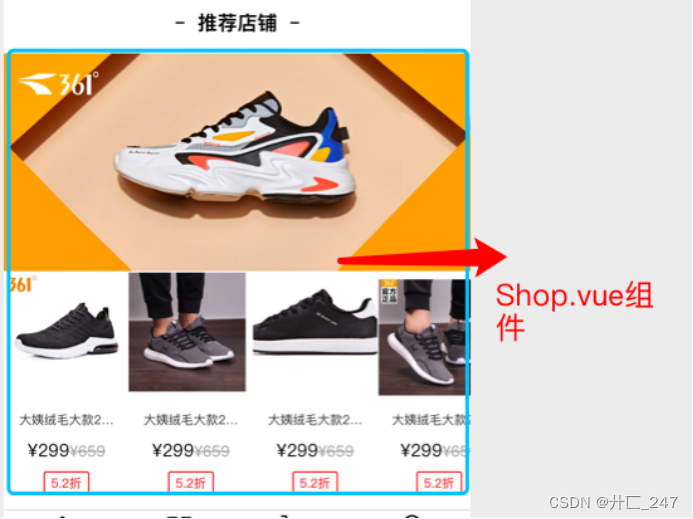
1.2 components/index目录下新建Shop.vue组件
1.3 pages/index/index.vue引入Shop.vue组件
1.4 Shop.vue组件分为:上大图,下滑块的内容布局,滑块采用uni-app提供组件scroll-view。
1.4.1 scroll-view需要给父元素加入width:100%;white-space: nowrap;其内容需要加入样式display: inline-block;
1.5 滑块内容调用了单个商品组件,其中改变了是否换行以及文字大小,Shop.vue具体代码如下:
<template>
	<view class='shop'>
		<view class='shop-item'>
			<view class='shop-big'>
				<image class='shop-big' src="../../static/img/shop.jpg" mode=""></image>
			</view>
			<scroll-view scroll-x="true" class='scroll-content'>
				<view class='scroll-item'>
					<Commodity
						:dataList='shopList'
						wrap='no-wrap'
						itemW='200rpx'
						bigH='200rpx'
						nameSize='20rpx'
					></Commodity>
				</view>
			</scroll-view>
		</view>
	</view>
</template>

<script>
import Commodity from '../common/Commodity.vue'
export default {
	data () {
		return {
			shopList:[
				{
					id:1,
					imgUrl:"../../static/img/shop1.jpg",
					name:"大姨绒毛大款2020年必须买,不买你就不行了,爆款疯狂GG008大姨绒毛大款2020年必须买,不买你就不行了,爆款疯狂GG008",
					pprice:"299",
					oprice:"659",
					discount:"5.2"
				},
				{
					id:2,
					imgUrl:"../../static/img/shop2.jpg",
					name:"大姨绒毛大款2020年必须买,不买你就不行了,爆款疯狂GG008大姨绒毛大款2020年必须买,不买你就不行了,爆款疯狂GG008",
					pprice:"299",
					oprice:"659",
					discount:"5.2"
				},
				{
					id:3,
					imgUrl:"../../static/img/shop3.jpg",
					name:"大姨绒毛大款2020年必须买,不买你就不行了,爆款疯狂GG008大姨绒毛大款2020年必须买,不买你就不行了,爆款疯狂GG008",
					pprice:"299",
					oprice:"659",
					discount:"5.2"
				},
				{
					id:4,
					imgUrl:"../../static/img/shop4.jpg",
					name:"大姨绒毛大款2020年必须买,不买你就不行了,爆款疯狂GG008大姨绒毛大款2020年必须买,不买你就不行了,爆款疯狂GG008",
					pprice:"299",
					oprice:"659",
					discount:"5.2"
				},
				{
					id:1,
					imgUrl:"../../static/img/shop1.jpg",
					name:"大姨绒毛大款2020年必须买,不买你就不行了,爆款疯狂GG008大姨绒毛大款2020年必须买,不买你就不行了,爆款疯狂GG008",
					pprice:"299",
					oprice:"659",
					discount:"5.2"
				},
				{
					id:2,
					imgUrl:"../../static/img/shop2.jpg",
					name:"大姨绒毛大款2020年必须买,不买你就不行了,爆款疯狂GG008大姨绒毛大款2020年必须买,不买你就不行了,爆款疯狂GG008",
					pprice:"299",
					oprice:"659",
					discount:"5.2"
				},
				{
					id:3,
					imgUrl:"../../static/img/shop3.jpg",
					name:"大姨绒毛大款2020年必须买,不买你就不行了,爆款疯狂GG008大姨绒毛大款2020年必须买,不买你就不行了,爆款疯狂GG008",
					pprice:"299",
					oprice:"659",
					discount:"5.2"
				},
				{
					id:4,
					imgUrl:"../../static/img/shop4.jpg",
					name:"大姨绒毛大款2020年必须买,不买你就不行了,爆款疯狂GG008大姨绒毛大款2020年必须买,不买你就不行了,爆款疯狂GG008",
					pprice:"299",
					oprice:"659",
					discount:"5.2"
				}
			]
		}
	},
	components:{
		Commodity
	}
}
</script>

<style scoped>
.shop-big{
	width:100%;
	height: 350rpx;
}
.scroll-content{
	width: 100%;
	white-space: nowrap;/*nowrap
和 normal 一样,连续的空白符会被合并。但文本内的换行无效。*/
}
.scroll-item{
	display: inline-block;
}
</style>
八、隐藏滚动条和底部
1.1 隐藏全局滚动条,需要在pages.json的"app-plus"下设置一个属性:“scrollIndicator”:“none”
1.2 uniapp文档里了解到隐藏scroll-view滚动条需要在App.vue中添加样式:
::-webkit-scrollbar {
    display: none;
    width: 0 !important;
    height: 0 !important;
    -webkit-appearance: none;
    background: transparent;
}
九、顶栏滑块功能开发
1.1 完成效果:

1.2 顶部滑块数据:
topBar:[
{name:‘推荐’},
{name:‘运动户外’},
{name:‘服饰内衣’},
{name:‘鞋靴箱包’},
{name:‘美妆个护’},
{name:‘家居数码’},
{name:‘食品母婴’}
]
1.3 顶部滑块样式布局:
<view
class=‘scroll-item’
v-for=‘(item,index) in topBar’
:key=‘index’
@tap=‘changeTab(index)’
>
1.4 内容滑动部分:change 事件
<swiper @change=‘onChangeTab’ :current=“topBarIndex”>
{{item.name}}
1.5 方法定义点击滑动跳转:
changeTab(index){
if(this.topBarIndex === index){
return ;
}
this.topBarIndex = index;
},
onChangeTab(e){
this.changeTab(e.detail.current);
}
十、顶栏滑动跟随
1.1 顶部滑动跟随需要在scroll-view中添加scroll-into-view属性,其中代表滚动到哪个块中,匹配为子元素的id,也就是子元素需要加入id值,但是id值不可以为数字开头,那么代码如下:
<scroll-view :scroll-into-view='scrollIntoIndex'>
<view  :id="'top'+index" > </view>
</scroll-view>
1.2 在changeTab方法中写入this.scrollIntoIndex = ‘top’+index;
十一、改变内容块高度
bug
1.1 获取可视区域高度可以使用uni.getSystemInfo(),但是在iso中是有bug的,所以的高度值不对。
1.2 我们修正bug思想是:获取组件元素的高度值的合,然后赋值到内容块中(style=’height’)。
1.3 具体代码如下:特别注意需要在onReady中写入
let view = uni.createSelectorQuery().select(".home-data");
		view.boundingClientRect(data => {
		    this.clentHeight = data.height;
		}).exec();
home-data 这个类
获取到data里的height值,赋予给clientheight ,最后用于swiper适合的大小






 扫一扫
扫一扫


 被折叠的 条评论
为什么被折叠?
被折叠的 条评论
为什么被折叠?
 到【灌水乐园】发言





