



【记一次ELK实践】
目的:
- K8S调度docker部署nginx服务,并以NodePort的暴露方式暴露nginx服务
- 部署ELK对nginx的日志文件进行采集并展示
| Node_name | IP | Service |
|---|---|---|
| vms61 | 192.168.100.61 | K8S-master |
| vms62 | 192.168.100.62 | K8S-worker |
| vms21 | 192.168.100.21 | Elasticsearch-master |
| vms22 | 192.168.100.22 | ES-slave+Logstash+Kibana |
NodePort暴露nginx服务
首先在安装好的两个 k8s 上创建deployment的yaml文件(nginx-deployment.yaml)
apiVersion: apps/v1
kind: Deployment
metadata:
  creationTimestamp: null
  labels:
    app: nginx
  name: nginx
spec:
  replicas: 2
  selector:
    matchLabels:
      app: nginx
  strategy: {}
  template:
    metadata:
      creationTimestamp: null
      labels:
        app: nginx
    spec:
      containers:
      - image: hub.c.163.com/library/nginx:latest
        name: nginx
        resources: {}
        volumeMounts:
        - name: nginx-logs
          mountPath: /var/log/nginx
      volumes:
      - name: nginx-logs
        hostPath:
          path: /data/log/nginx
status: {}
然后是svc的yaml文件(nginx-nodeport.yaml)
apiVersion: v1
kind: Service
metadata:
  creationTimestamp: null
  labels:
    app: nginx
  name: nginx
spec:
  ports:
  - port: 80
    protocol: TCP
    targetPort: 80
  selector:
    app: nginx
  type: NodePort
status:
  loadBalancer: {}
创建deployment 和 svc
[root@vms61 ~]$ kubectl apply -f /data/nginx-deployment.yaml
deployment.apps/nginx configured

[root@vms61 ~]$ kubectl apply -f /data/nginx-nodeport.yaml
service/nginx configured
查看pod创建状态,-o wide 查看更多信息,ping测试与pod连通性
[root@vms61 ~]$ kubectl get pod -o wide
NAME                    READY   STATUS    RESTARTS   AGE     IP               NODE            NOMINATED NODE   READINESS GATES
nginx-64f874d69-95rzm   1/1     Running   0          3m50s   10.244.118.198   vms62.rhce.cc   <none>           <none>
nginx-64f874d69-gcwxv   1/1     Running   0          3m43s   10.244.118.199   vms62.rhce.cc   <none>           <none>

[root@vms61 ~]$ ping 10.244.118.198
PING 10.244.118.198 (10.244.118.198) 56(84) bytes of data.
64 bytes from 10.244.118.198: icmp_seq=1 ttl=63 time=0.665 ms
...
通过上面的pod状态可以看到,两个pod都被创建在了vms62节点上,因此到vms62节点上可以看到nginx容器挂载出来的目录
[root@vms62 ~]$ ll /data/log/nginx/
total 0
-rw-r--r-- 1 root root 0 Nov 12 06:55 access.log
-rw-r--r-- 1 root root 0 Nov 12 06:55 error.log
再看看nginx的默认80端口被暴露到宿主机的哪个端口
[root@vms61 ~]$ kubectl get svc -owide
NAME         TYPE        CLUSTER-IP     EXTERNAL-IP   PORT(S)        AGE    SELECTOR
kubernetes   ClusterIP   10.96.0.1      <none>        443/TCP        6d4h   <none>
nginx        NodePort    10.100.47.66   <none>        80:31164/TCP   6d4h   app=nginx
可以看到,nginx服务被以NodePort的方式暴露到了宿主机的31164端口,通过curl测试nginx服务是否正常
[root@vms61 ~]$ curl http://192.168.100.61:31164
<!DOCTYPE html>
<html>
<head>
<title>Welcome to nginx!</title>
<style>
    body {
        width: 35em;
        margin: 0 auto;
        font-family: Tahoma, Verdana, Arial, sans-serif;
    }
</style>
</head>
<body>
<h1>Welcome to nginx!</h1>
<p>If you see this page, the nginx web server is successfully installed and
working. Further configuration is required.</p>

<p>For online documentation and support please refer to
<a href="http://nginx.org/">nginx.org</a>.<br/>
Commercial support is available at
<a href="http://nginx.com/">nginx.com</a>.</p>

<p><em>Thank you for using nginx.</em></p>
</body>
</html>
nginx服务访问正常,那么至此nginx服务的工作完成!
部署ES集群
在vms21和vms22两个节点上先安装好jdk1.8.0
然后都进行解压并进入elasticsearch文件夹
vim config/elasticsearch.conf

# 主节点(192.168.100.21)配置文件
cluster.name: ES_for_nginx
node.name: ES-master
path.data: /data/elk/es/data
path.logs: /data/elk/es/logs
network.host: 192.168.100.0.21
http.port: 9200
discovery.seed_hosts: ["192.168.100.21", "192.168.100.22"]
cluster.initial_master_nodes: ["ES-master"]

# 子节点(192.168.100.22)配置文件
cluster.name: ES_for_nginx
node.name: ES-slave
path.data: /data/elk/es/data
path.logs: /data/elk/es/logs
network.host: 192.168.100.22
http.port: 9200
discovery.seed_hosts: ["192.168.100.21", "192.168.100.22"]
cluster.initial_master_nodes: ["ES-master"]
然后都创建好配置文件中定义的数据目录和日志目录
mkdir -p /data/elk/es/{data,logs}
创建elk用户并更改文件权限,用于启动es
useradd elk
chown elk.elk /data/elk -R
chown elk.elk /usr/local/elasticsearch-7.10.0/ -R
修改系统配置文件,否则es启动不起来
vim /etc/security/limits.conf
* soft nofile 65536
* hard nofile 131072
* soft nproc 2048
* hard nproc 4096

vim /etc/sysctl.conf
vm.max_map_count=655350
# 保存退出后执行 sysctl -p 生效
两个节点都完成上述更改之后,都启动es(加上-d选项使其在后台运行即可,后面无需再改动es配置文件)
sudo -u elk bin/elasticsearch -d
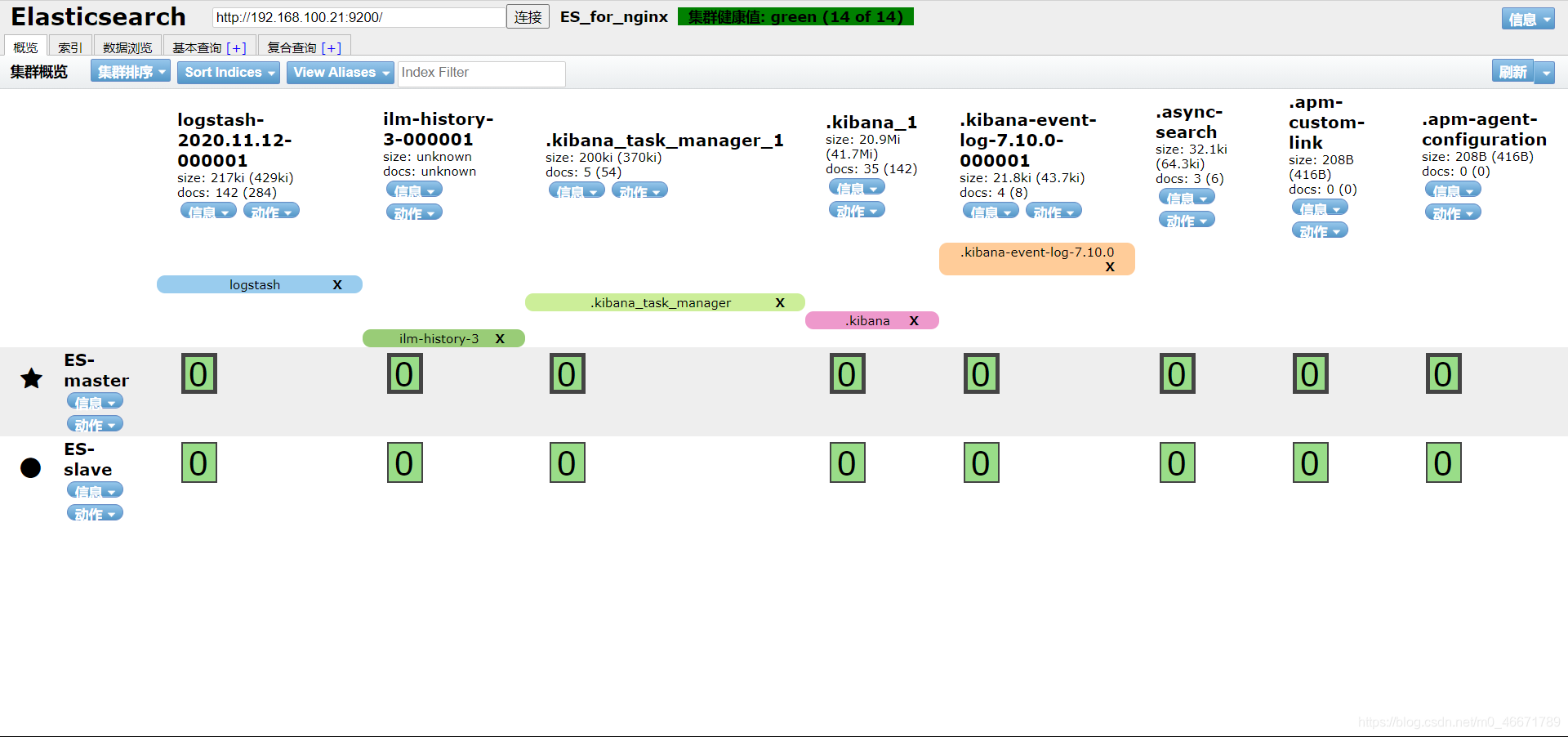
通过elasticsearch-head查看es集群状态(我采用的是浏览器插件)
得到结果是green则说明集群健康
部署Filebeat采集nginx日志输出到Logstash中
运行着nginx服务的pod创建在了vms62上,于是容器内nginx的日志路径也挂载到了vms62上的/data/log/nginx下
因此,要采集nginx日志数据,需要在vms62上部署Filebeat
在vms62上解压安装完成后
启动filebeat的nginx模块
[root@vms62 filebeat-7.10.0-linux-x86_64]$ ./filebeat modules enable nginx
Enabled nginx
在nginx模块的配置文件中指定日志的路径
# vim modules.d/nginx.yml
- module: nginx
  access:
    enabled: true
    var.paths: ["/data/log/nginx/access.log"]
  error:
    enabled: true
    var.paths: ["/data/log/nginx/error.log"]
  ingress_controller:
    enabled: false
新建一个nginx-filebeat.yaml文件
filebeat.inputs:
setup.template.settings:
  index.number_of_shards: 3
output.logstash:
  hosts: ["192.168.100.22:5044"]
filebeat.config.modules:
  path: ${path.config}/modules.d/*.yml
  reload.enabled: false
暂时先不启动,等带logstash部署好后再来
部署Logstash
回到vms22上解压logstash
创建新的配置文件
vim nginx-logstash.conf
input {
    beats {
        port => 5044
    }
}

filter {
}

output {
    elasticsearch {
        hosts => ["192.168.100.21:9200","192.168.100.22:9200"]
        codec => rubydebug
    }
}
启动logstash之后到vms62上启动filebeat
# 在vms22上启动logstash
[root@vms22 logstash-7.10.0]$ nohup bin/logstash -f nginx-logstash.conf &
# 在vms62上启动filebeat
[root@vms62 filebeat-7.10.0-linux-x86_64]$ nohup ./filebeat -e -c nginx-filebeat.yaml &
稍等一会后,访问nginx网站,可以看到elasticsearch上收集到的访问日志
配置Kibana从Elasticsearch读取数据
解压安装kibana
更改配置如下
# vim config/kibana.yml
server.port: 5601
server.host: "0.0.0.0"
elasticsearch.hosts: ["http://192.168.100.22:9200"]
创建kibana用户来启动kibana服务
[root@vms22 kibana-7.10.0-linux-x86_64]$ chown -R kibana.kibana /usr/local/kibana-7.10.0-linux-x86_64/
# 后台启动kibana
[root@vms22 kibana-7.10.0-linux-x86_64]$ nohup sudo -u kibana bin/kibana &
启动完成后,即可在kibana上可视化展示数据
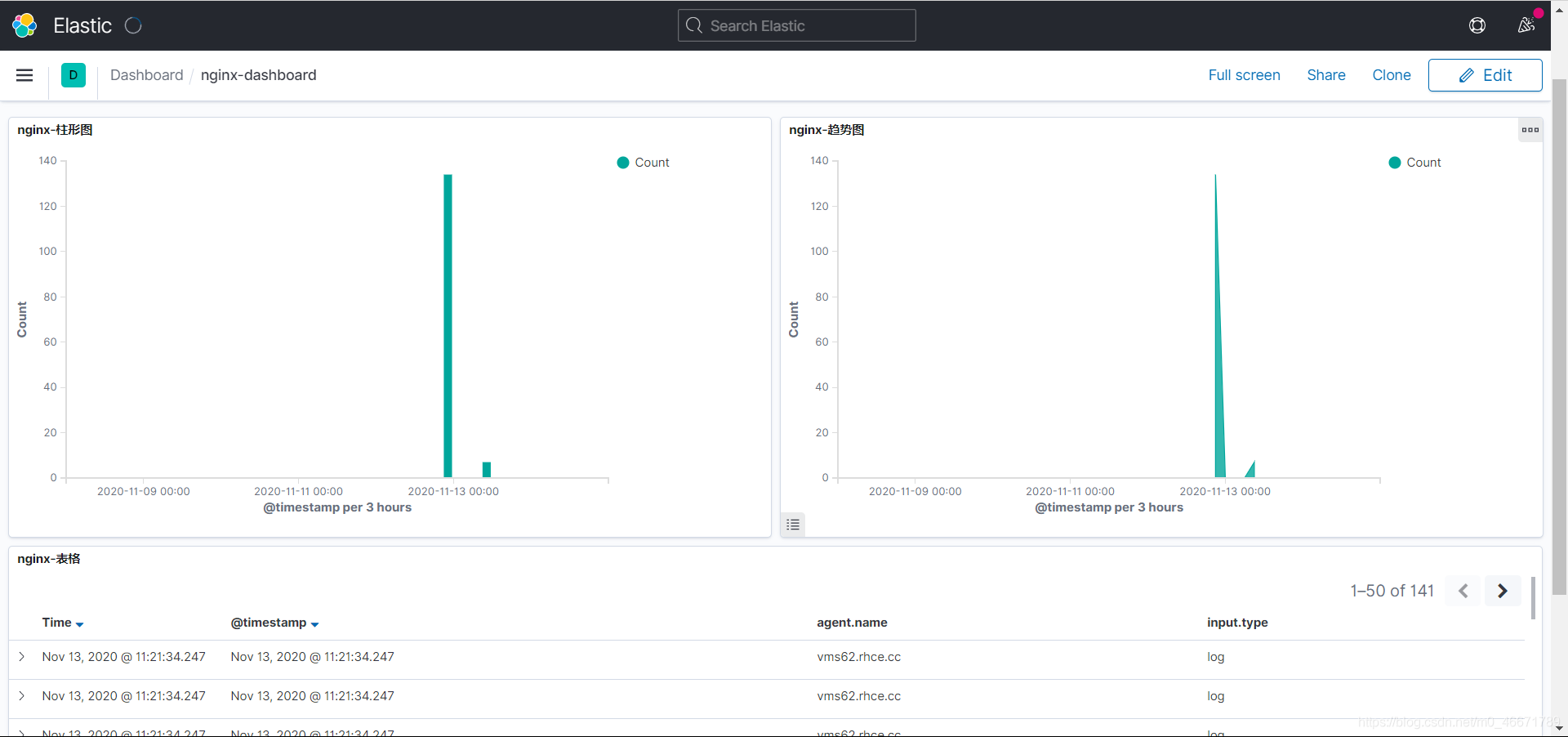
最终搭建好后,随便的创建了几个图表,展示如下





 扫一扫
扫一扫


 5243
5243

 被折叠的 条评论
为什么被折叠?
被折叠的 条评论
为什么被折叠?
 到【灌水乐园】发言





