


 本文介绍了如何使用JavaScript实现小鸟飞行动画,包括从左往右起飞、从右往左来回飞的场景。通过设置元素定位,改变图片left值,并通过定时器自动移动。文章解决了飞行范围限制、速度控制、定时器累加等问题,最后封装了通用的小鸟起飞函数,方便在不同场景下使用。
js中如果涉及到元素移动 建议大家使用定位
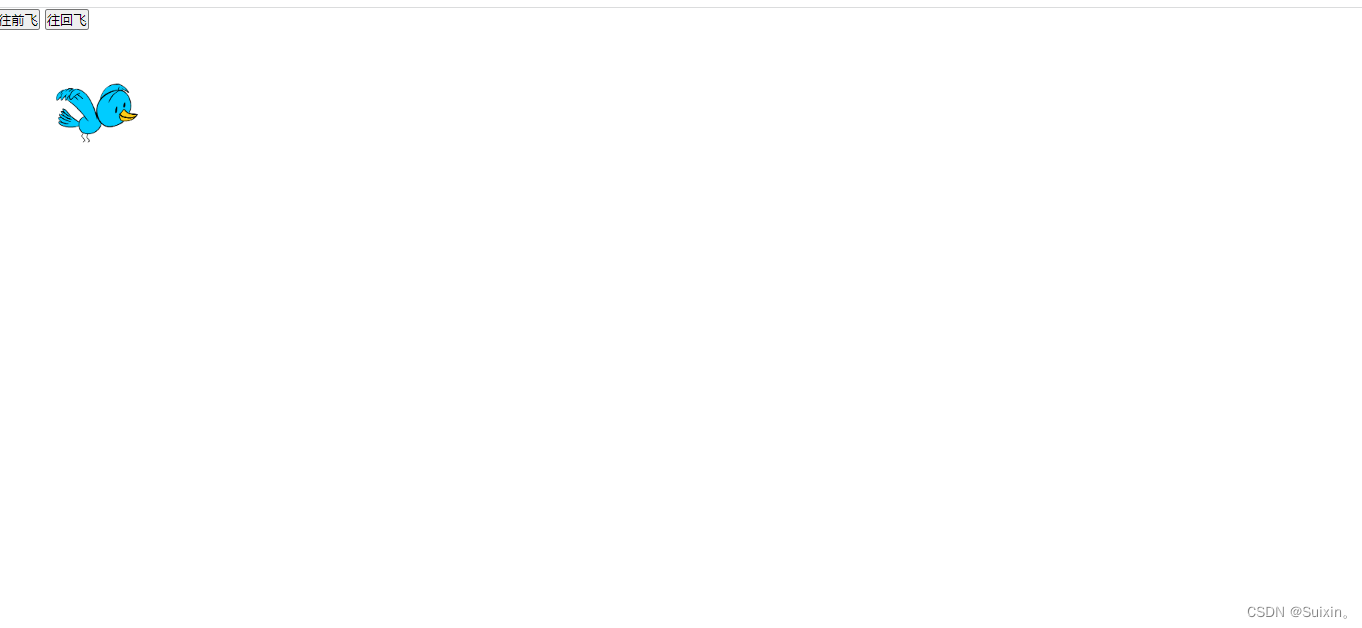
1、开始起飞(从左往右飞)
实现步骤
- 点击按钮 改变img的left值
- left值 = 在当前left值的基础上 + 10
- 开启定时器 自动移动图片位置
<head>
    <meta charset="UTF-8">
    <meta http-equiv="X-UA-Compatible" content="IE=edge">
    <meta name="viewport" content="width=device-width, initial-scale=1.0">
    <title>Document</title>
    <script src="./common.js"></script>
    <style>
        * {
            margin: 0;
            padding: 0;
        }

        img {
            width: 200px;
            height: 200px;
            position: absolute;
            left: 0px;
        }
    </style>
</head>

<body>
    <button>开始飞</button>
    <br>
    <img src="./img/right.gif" alt="">
    <script>
        // 1.点击一下  向右移动10px
        var btn = document.getElementsByTagName("button")[0];
        var oImg = document.getElementsByTagName("img")[0];
        // 2.点击事件
        btn.onclick = function () {

            setInterval(function () {
                // 在left值的基础上+10    先获取到left值
                var current = parseInt(getStyle(oImg, "left")) + 10
                oImg.style.left = current + "px";
            }, 50)

        }
    </script>

</body>
问题1 一直飞 飞出屏幕
- 解决: 限制飞的范围 当飞到1000px的手 停止定时器
// 2.点击事件
        btn.onclick = function () {

           var timer =  setInterval(function () {
                // 在left值的基础上+10    先获取到left值
                var current = parseInt(getStyle(oImg, "left")) + 10
                if(current>=1000){
                    current = 1000;
                    // 停止定时器
                    clearInterval(timer)
                }
                console.log(current);
                oImg.style.left = current + "px";
            }, 50)

        }
问题2 多次点击 速度越来愉快
- 分析原因: 每次点击都会定义一个定时器 多次点击会导致定时器累加 会累加执行
- 解决方法:每次点击的时候 先把原先的定时器清除掉
<script>
        // 1.点击一下  向右移动10px
        var btn = document.getElementsByTagName("button")[0];
        var oImg = document.getElementsByTagName("img")[0];

        var timer;
        // 2.点击事件
        btn.onclick = function () {
            clearInterval(timer);// timer这里存储的就是定时器id  先把原先的定时器清除掉
            timer =  setInterval(function () {
                // 在left值的基础上+10    先获取到left值
                var current = parseInt(getStyle(oImg, "left")) + 10
                if(current>=1000){
                    current = 1000;
                    // 停止定时器
                    clearInterval(timer)
                }
                console.log(current);
                oImg.style.left = current + "px";
            }, 50)
        }
    </script>
2、来回飞(从右往左飞)
- 实现步骤
- 在left值的基础上 -10
- 问题1:解决目标值的问题 飞到0就停止
// 2.往回飞
        btn[1].onclick = function () {
            // 改变图片的路径
            oImg.src = "./img/left.gif";

            timer =  setInterval(function () {
                // 在当前left值的基础上-10
                var current = parseInt(getStyle(oImg, "left")) - 10;
                //判断目标值
                if(current<=0){
                    current=0;
                    clearInterval(timer);
                }
                oImg.style.left = current + "px"
            }, 50)

        }
- 问题1 如果点击开始起飞 但是飞到一半就返回 和越飞越快的问题
- 解决方法 让开始起飞和结束起飞共用一个定时器 每次点击的时候 都清除定时器
<script>
        // 1.点击一下  向右移动10px
        var btn = document.getElementsByTagName("button");
        var oImg = document.getElementsByTagName("img")[0];

        var timer;
        // 2.开始飞
        btn[0].onclick = function () {
            // 改变图片路径
            oImg.src = "./img/right.gif";
            clearInterval(timer);// timer这里存储的就是定时器id  先把原先的定时器清除掉
            timer = setInterval(function () {
                // 在left值的基础上+10    先获取到left值
                var current = parseInt(getStyle(oImg, "left")) + 10
                if (current >= 1000) {
                    current = 1000;
                    // 停止定时器
                    clearInterval(timer)
                }
                console.log(current);
                oImg.style.left = current + "px";
            }, 50)
        }

        // 2.往回飞
        btn[1].onclick = function () {
            // 改变图片的路径
            oImg.src = "./img/left.gif";
            clearInterval(timer);
            timer =  setInterval(function () {
                // 在当前left值的基础上-10
                var current = parseInt(getStyle(oImg, "left")) - 10
                if(current<=0){
                    current=0;
                    clearInterval(timer);
                }
                oImg.style.left = current + "px"
            }, 50)

        }
    </script>
小鸟起飞函数封装
基础封装
<body>
    <button>开始飞</button>
    <button>往回飞</button>
    <br>
    <img src="./img/right.gif" alt="">
    <script>
        // 1.点击一下  向右移动10px
        var btn = document.getElementsByTagName("button");
        var oImg = document.getElementsByTagName("img")[0];

        var timer;
        // 2.开始飞
        btn[0].onclick = function () {
            // 改变图片路径
            oImg.src = "./img/right.gif";
            move(oImg, "left", 10, 1000)

        }

        // 2.往回飞
        btn[1].onclick = function () {
            // 改变图片的路径
            oImg.src = "./img/left.gif";
            move(oImg, "left", -10, 0)
        }
        // 3.基础封装
        /*
                封装的步骤
                    1.先声明一个函数  将主要代码放入到函数中
                    2.找函数中可变的值   作为函数参数代入到函数中
                    3.调用调试
        */

        function move(elem, attr, step, target) {
            /*
               elem  操作的元素
               attr  属性
               step  步长  可以是正数  也可以是负数   +  10   + -10
               target  目标值
            */
            clearInterval(timer);// timer这里存储的就是定时器id  先把原先的定时器清除掉
            timer = setInterval(function () {
                // 在left值的基础上+10    先获取到left值
                var current = parseInt(getStyle(elem, attr)) + step

               	if(current>=target){
                  current = target;
                    // 停止定时器
                    clearInterval(timer)
                }
                console.log(current);
                elem.style[attr] = current + "px";
            }, 50)
        }
    </script>

</body>
解决目标值
- 问题1:目标值问题
- 分析原因
- 开始飞 if (current >= target)
- 往回飞 if (current <= target)
- 解决方法:根据step判断
- 开始飞 step 10 > 0
- 往回飞 step 10 < 0
<body>
    <button>开始飞</button>
    <button>往回飞</button>
    <br>
    <img src="./img/right.gif" alt="">
    <script>
        // 1.点击一下  向右移动10px
        var btn = document.getElementsByTagName("button");
        var oImg = document.getElementsByTagName("img")[0];

        var timer;
        // 2.开始飞
        btn[0].onclick = function () {
            // 改变图片路径
            oImg.src = "./img/right.gif";
            move(oImg, "left", 10, 1000)
        }

        // 2.往回飞
        btn[1].onclick = function () {
            // 改变图片的路径
            oImg.src = "./img/left.gif";

            move(oImg, "left", -10, 0)

        }

        /*
            问题1:目标值问题
            分析原因
                    开始飞     if (current >= target)
                    往回飞     if (current <= target)
            解决方法
                    根据step判断
                        开始飞  step 10  > 0
                        往回飞  step 10 < 0
        */

        function move(elem, attr, step, target) {
            /* elem 移动的元素  attr 改变的属性  step步长 可以是正数也可以是负数  target目标值 */
            clearInterval(timer);// timer这里存储的就是定时器id  先把原先的定时器清除掉
            timer = setInterval(function () {
                // 在left值的基础上+10    先获取到left值
                var current = parseInt(getStyle(elem, attr)) + step

                if (step > 0 && current >= target) {
                    current = target;
                    // 停止定时器
                    clearInterval(timer)
                } else if (step < 0 && current <= target) {
                    current = target;
                    clearInterval(timer);
                }

                elem.style[attr] = current + "px";
            }, 50)
        }
    </script>

</body>
解决step正负数问题
- 问题2:用户不考虑step正负数的问题
- 解决方法:判断current值和target值 current target
- 开始飞 0 < 1000 +step
- 往回飞 1000 > 0 - step
<body>
    <button>开始飞</button>
    <button>往回飞</button>
    <br>
    <img src="./img/right.gif" alt="">
    <script>
        // 1.点击一下  向右移动10px
        var btn = document.getElementsByTagName("button");
        var oImg = document.getElementsByTagName("img")[0];

        var timer;
        // 2.开始飞
        btn[0].onclick = function () {
            // 改变图片路径
            oImg.src = "./img/right.gif";
            move(oImg, "left", 10, 1000)
        }

        // 2.往回飞
        btn[1].onclick = function () {
            // 改变图片的路径
            oImg.src = "./img/left.gif";

            move(oImg, "left", 10, 0)

        }
        /*
            问题1:目标值问题
            分析原因
                    开始飞     if (current >= target)
                    往回飞     if (current <= target)
            解决方法
                    根据step判断
                        开始飞  step 10  > 0
                        往回飞  step 10 < 0
        */
        /*
            问题2:用户不考虑step正负数的问题
            解决方法
                 current     target
            开始飞   0    <    1000       +step
            往回飞  1000   >     0         -step
        */

        function move(elem, attr, step, target) {
            /* elem 移动的元素  attr 改变的属性  step步长 可以是正数也可以是负数  target目标值 */
          	//解决步长
            step =  parseInt( getStyle(elem,attr) ) < target ? step:-step

            clearInterval(timer);// timer这里存储的就是定时器id  先把原先的定时器清除掉
            timer = setInterval(function () {
                // 在left值的基础上+10    先获取到left值
                var current = parseInt(getStyle(elem, attr)) + step
								//解决目标值
                if (step > 0 && current >= target) {
                    current = target;
                    // 停止定时器
                    clearInterval(timer)
                } else if (step < 0 && current <= target) {
                    current = target;
                    clearInterval(timer);
                }
                elem.style[attr] = current + "px";
            }, 50)
        }
    </script>
</body>
函数封装最终版
- common.js
/*
    *author  李某某
    *作用     让样式运动
    * params   elem                  标签
    * params   attr     string类型   样式名
    * params   step      numbre类型   步长
    * params   target    number类型   目标值

*/
function move(elem, attr, step, target) {
    /* elem 移动的元素  attr 改变的属性  step步长 可以是正数也可以是负数  target目标值 */
    step =  parseInt( getStyle(elem,attr) ) < target ? step:-step
    clearInterval(elem.timer);// timer这里存储的就是定时器id  先把原先的定时器清除掉
    elem.timer = setInterval(function () {  //将定时器id存储到标签的自定义属性timer上
        // 在left值的基础上+10    先获取到left值
        var current = parseInt(getStyle(elem, attr)) + step

        if (step > 0 && current >= target) {
            current = target;
            // 停止定时器
            clearInterval(elem.timer)
        } else if (step < 0 && current <= target) {
            current = target;
            clearInterval(elem.timer);
        }
        elem.style[attr] = current + "px";
    }, 50)
}
- 在页面中使用
<script>
        var btn = document.getElementsByTagName("button")[0];
        var oDiv = document.getElementsByTagName("div")[0];
        btn.onclick = function(){
            // move(oDiv,"width",20,500);
            move(oDiv,"height",10,100);
        }
    </script>





 扫一扫
扫一扫


 777
777

 被折叠的 条评论
为什么被折叠?
被折叠的 条评论
为什么被折叠?
 到【灌水乐园】发言





