


 本文介绍了一个包含多种数据可视化组件的实时监控系统项目,实现了组件的单独开发、全屏展示及主题切换等功能。
单独组件开发:
数据可视化项目—售票员业绩排行
数据可视化项目—客源分析趋势图
数据可视化项目—客源分布图
数据可视化项目—地区销量排行
数据可视化项目—订单分类占比图
数据可视化项目—车辆实时信息图
在完成单独组件开发之后,进行项目的最后一个步骤:合并组件、添加全屏功能、主题切换功能
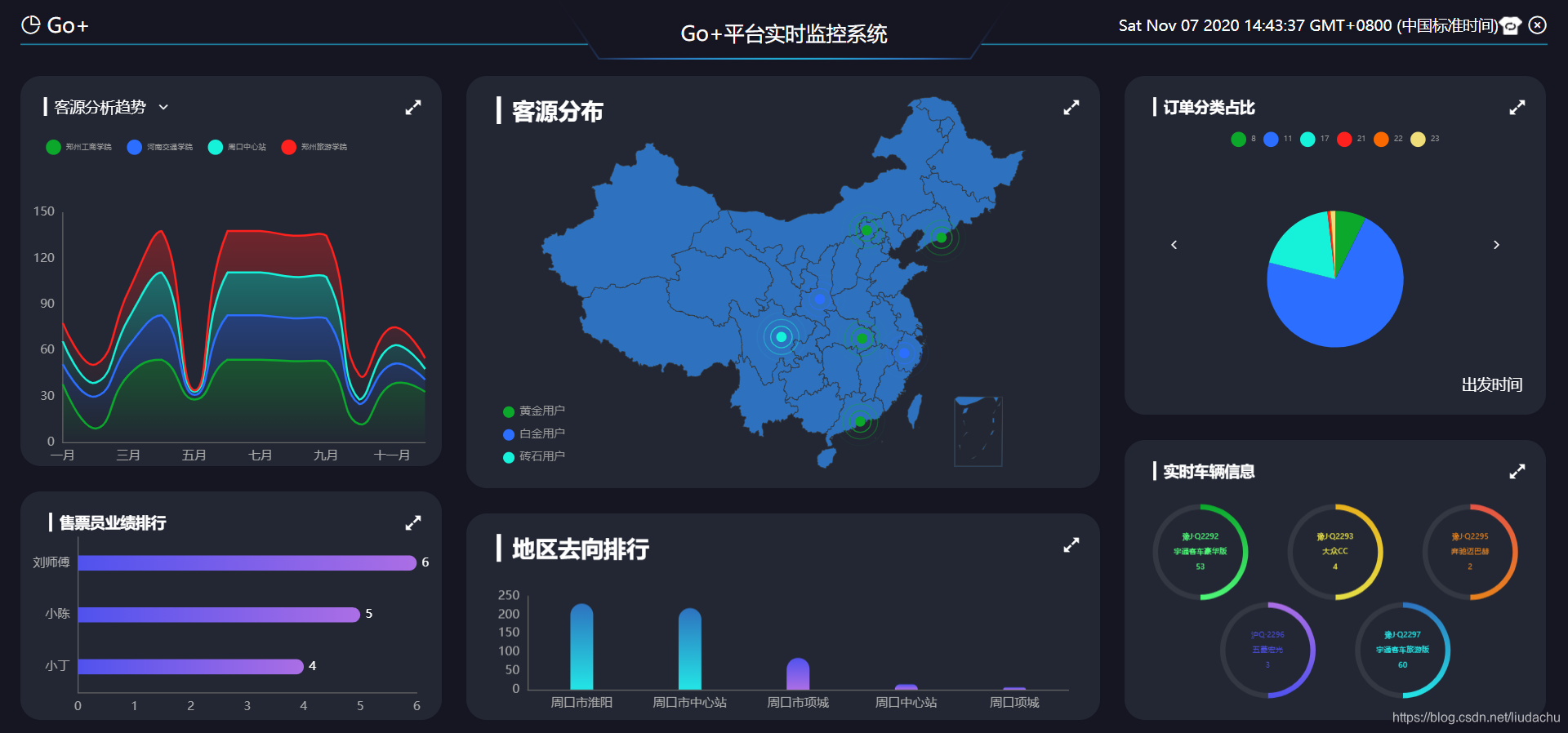
最终效果如下
组件完整代码
ScreenPage.vue
<template>
<div class="screen-container" :style="containerStyle">
<header class="screen-header">
<div>
<img :src="headerSrc" alt=""/>
</div>
<span class="logo" @click="goHome()">
<i class="el-icon-pie-chart"> Go+</i>
</span>
<span class="title">Go+平台实时监控系统</span>
<div class="title-right">
<span class="datetime">{{nowTime}}</span>
<span class="qiehuan"><img :src="changeSrc" class="" @click="handleChangeTheme()"/></span>
<span class="btn-close">
<i class="el-icon-circle-close " onclick="window.close()" style="margin-left: 5px;"></i>
</span>
</div>
</header>
<div class="screen-body">
<section class="screen-left">
<div id="left-top" :class="[fullScreenStatus.trend ? 'fullscreen' : '']">
<!-- 销量趋势图表 -->
<Trend ref="trend"></Trend>
<div class="resize">
<!-- icon-compress-alt -->
<span @click="changeSize('trend')" :class="['iconfont', fullScreenStatus.trend ? 'icon-compress-alt' : 'icon-expand-alt']"></span>
</div>
</div>
<div id="left-bottom" :class="[fullScreenStatus.seller ? 'fullscreen' : '']">
<!-- 商家销售金额图表 -->
<Seller ref="seller"></Seller>
<div class="resize">
<!-- icon-express-alt -->
<span @click="changeSize('seller')" :class="['iconfont', fullScreenStatus.seller ? 'icon-compress-alt' : 'icon-expand-alt']"></span>
</div>
</div>
</section>
<section class="screen-middle">
<div id="middle-top" :class="[fullScreenStatus.map ? 'fullscreen' : '']">
<!-- 商家分布图表 -->
<Map ref="map"></Map>
<div class="resize">
<!-- icon-express-alt -->
<span @click="changeSize('map')" :class="['iconfont', fullScreenStatus.map ? 'icon-compress-alt' : 'icon-expand-alt']"></span>
</div>
</div>
<div id="middle-bottom" :class="[fullScreenStatus.rank ? 'fullscreen' : '']">
<!-- 地区销量排行图表 -->
<Rank ref="rank"></Rank>
<div class="resize">
<!-- icon-express-alt -->
<span @click="changeSize('rank')" :class="['iconfont', fullScreenStatus.rank ? 'icon-compress-alt' : 'icon-expand-alt']"></span>
</div>
</div>
</section>
<section class="screen-right">
<div id="right-top" :class="[fullScreenStatus.hot ? 'fullscreen' : '']">
<!-- 热销商品占比图表 -->
<Hot ref="hot"></Hot>
<div class="resize">
<!-- icon-express-alt -->
<span @click="changeSize('hot')" :class="['iconfont', fullScreenStatus.hot ? 'icon-compress-alt' : 'icon-expand-alt']"></span>
</div>
</div>
<div id="right-bottom" :class="[fullScreenStatus.stock ? 'fullscreen' : '']">
<!-- 库存销量分析图表 -->
<Stock ref="stock"></Stock>
<div class="resize">
<!-- icon-express-alt -->
<span @click="changeSize('stock')" :class="['iconfont', fullScreenStatus.stock ? 'icon-compress-alt' : 'icon-expand-alt']"></span>
</div>
</div>
</section>
</div>
</div>
</template>
<script>
import Hot from '../components/Hot.vue'
import Map from '../components/Map.vue'
import Rank from '../components/Rank.vue'
import Seller from '../components/Seller.vue'
import Stock from '../components/Stock.vue'
import Trend from '../components/Trend.vue'
import {mapState} from "vuex";
import {getThemeValue} from "../utils/theme_utils";
export default {
created () {
},
data () {
return {
//定义每一个图表的全屏状态
fullScreenStatus:{
trend:false,
seller:false,
map:false,
rank:false,
hot:false,
stock:false,
},
nowTime: new Date(),
}
},
computed:{
/*路径里面的 /goingplus 是用户布署项目使用的 */
logoSrc () {
return '/goingplus/static/img/logo.png'
},
headerSrc () {
return '/goingplus/static/img/'+getThemeValue(this.theme).headerBorderSrc;
},
changeSrc () {
return '/goingplus/static/img/'+getThemeValue(this.theme).themeSrc;
},
containerStyle(){
return{
backgroundColor:getThemeValue(this.theme).backgroundColor,
color:getThemeValue(this.theme).titleColor,
}
},
...mapState(['theme']),
},
mounted() {
this.timer = setInterval(() => {
this.nowTime = new Date(); // 每秒修改数据date
}, 1000)
},
beforeDestroy() {
if (this.timer) {
clearInterval(this.timer); // 在Vue实例销毁前,清除我们的定时器
}
},
methods: {
changeSize(chartName){
//1.改变fullScreenStatus的数据
this.fullScreenStatus[chartName]=!this.fullScreenStatus[chartName];
//2.调用每一个图表组件的ScreenAdapter的方法
this.$nextTick(()=>{
//this.$nextTick 是在下次 DOM 更新循环结束之后执行延迟回调,
// 在修改数据之后立即使用 $nextTick,则可以在回调中获取更新后的 DOM
this.$refs[chartName].screenAdapter();
});
},
goHome(){
let routeData = this.$router.resolve({
path:'/menu/main',
});
window.open(routeData.href, '_blank');
},
handleChangeTheme(){
//修改Vuex中的主题数据
this.$store.commit('changeTheme');
}
},
components: {
Hot,
Map,
Rank,
Seller,
Stock,
Trend
},
}
</script>
<style scoped>
.screen-container{
width: 100%;
height: 100%;
padding: 0 20px;
background-color: #161522;
color: #fff;
box-sizing: border-box;
position: fixed;
}
.screen-header{
width: 100%;
height: 64px;
font-size: 20px;
position: relative;
}
.screen-header>div img{
width: 100%;
}
.title {
position: absolute;
left: 50%;
top: 50%;
font-size: 20px;
transform: translate(-50%, -50%);
}
.title-right {
display: flex;
align-items: center;
position:absolute;
right: 0px;
top: 50%;
transform: translateY(-80%);
}
.qiehuan {
width: 23px;
height: 21px;
cursor: pointer;
}
.datetime{
font-size: 15px;
margin-left: 10px;
}
.logo {
position: absolute;
left: 0px;
top: 50%;
transform: translateY(-80%);
cursor: pointer;
}
.logo :hover{
color: #ffa825;
}
.logo img {
height: 30px;
width: 30px;
}
/*左中右组件*/
.screen-body {
width: 100%;
height: 100%;
display: flex;
margin-top: 10px;
}
.screen-left {
height: 100%;
width: 27.6%;
}
#left-top {
height: 53%;
position: relative;
}
#left-bottom {
height: 31%;
margin-top: 25px;
position: relative;
}
.screen-middle {
height: 100%;
width: 41.5%;
margin-left: 1.6%;
margin-right: 1.6%;
}
#middle-top {
width: 100%;
height: 56%;
position: relative;
}
#middle-bottom {
margin-top: 25px;
width: 100%;
height: 28%;
position: relative;
}
.screen-right {
height: 100%;
width: 27.6%;
}
#right-top {
height: 46%;
position: relative;
}
#right-bottom {
height: 38%;
margin-top: 25px;
position: relative;
}
/*放大小图标*/
.resize{
position: absolute;
right: 20px;
top: 20px;
cursor: pointer;
}
/*全屏的样式*/
.fullscreen {
position: fixed!important;
top: 0 !important;
left: 0 !important;
width: 100% !important;
height: 100% !important;
margin: 0 !important;
z-index: 100;
}
.btn-close{
cursor: pointer;
}
.btn-close :hover{
color: #ffa825;
}
</style>
开发流程
1.创建ScreenPage.vue文件,并配置路由规则
router/index.js
 {
    path: '/screenpage',
    name: 'ScreenPage',
    component:ScreenPage,
    meta: { title: '实时监控' }
  },
2.创建布局结构和样式、填充组件、并给每一个组件都加上ref属性
就是简单的布局问题,百度上搜索搜索
3.给每一个组件添加展开缩小图标
- 以销售趋势图表为例,布局修改如下:
<div id="left-top">
          <!-- 销量趋势图表 -->
          <Trend ref="trend"></Trend>
          <div class="resize">
            <!-- icon-compress-alt -->
            <span class="iconfont icon-compress-alt"></span>
          </div>
        </div>
其中,span 标签的class 的值为iconfont icon-expand-alt代表展开图标, class 值为
iconfont icon-compress-alt 为收缩图标
- 设置resize样式
/*放大小图标*/
  .resize{
    position: absolute;
    right: 20px;
    top: 20px;
    cursor: pointer;
  }
- 修改每个容器样式,增加
position为相对布局
4.实现全屏效果
- 全屏状态数据的定义
data () {
    return {
      //定义每一个图表的全屏状态
      fullScreenStatus:{
        trend:false,
        seller:false,
        map:false,
        rank:false,
        hot:false,
        stock:false,
      },
      nowTime: new Date(),
    }
  },
- 全屏状态样式的定义
/*全屏的样式*/
  .fullscreen {
    position: fixed!important;
    top: 0 !important;
    left: 0 !important;
    width: 100% !important;
    height: 100% !important;
    margin: 0 !important;
    z-index: 100;
  }
class值的处理
 <div id="left-top" :class="[fullScreenStatus.trend ? 'fullscreen' : '']">
          <!-- 销量趋势图表 -->
          <Trend ref="trend"></Trend>
          <div class="resize">
            <!-- icon-compress-alt -->
            <span @click="changeSize('trend')" :class="['iconfont', fullScreenStatus.trend ? 'icon-compress-alt' : 'icon-expand-alt']"></span>
          </div>
        </div>
- 点击事件的处理
changeSize(chartName){
      //1.改变fullScreenStatus的数据
      this.fullScreenStatus[chartName]=!this.fullScreenStatus[chartName];
      //2.调用每一个图表组件的ScreenAdapter的方法
      this.$nextTick(()=>{
        //this.$nextTick 是在下次 DOM 更新循环结束之后执行延迟回调,
        // 在修改数据之后立即使用 $nextTick,则可以在回调中获取更新后的 DOM
        this.$refs[chartName].screenAdapter();
      });
    },
- 其他图表的样式和点击事件的处理类似
5.主题切换效果的实现
- 当前主题数据的存储
当前主题的数据,会在多个组件中使用,因此设置在vuex中是最合适的,增加仓库数据theme,并增加一个mutation用来修改theme
store/index.js
export default new Vuex.Store({
  state: {
   theme:'chalk',
  },
  mutations: {
  /*echart主题切换*/
    changeTheme(state){
      if (state.theme === 'chalk') {
        state.theme='vintage'
      }else {
        state.theme='chalk'
      }
    }
  },
- 点击切换主题按钮触发changeTheme()事件
<div class="title-right">
        <span class="datetime">{{nowTime}}</span>
        <span class="qiehuan"><img :src="changeSrc" class="" @click="handleChangeTheme()"/></span>
        <span class="btn-close">
            <i class="el-icon-circle-close " onclick="window.close()" style="margin-left: 5px;"></i>
        </span>
      </div>

export default {
 methods: {
  handleChangeTheme(){
      //修改Vuex中的主题数据
      this.$store.commit('changeTheme');
    }
  },
}
- 监听主题的变换
以Seller.vue为例,进行主题数据变化的监听
- 映射
store中的theme作为当前组件的计算属性
import {mapState} from 'vuex'
computed:{
	...mapState(['theme']),
}
- 监听
theme的变化
watch:{
            theme(){
                //console.log("主题切换");
                this.chartInstance.dispose();//销毁当前图表
                this.initChart();//以切换后的主题显示图表
                this.screenAdapter();//完成屏幕适配
                this.updateChart();//更新图表的展示
            }
        }
- 主题的切换
将之前写死的chalk改为this.theme
initChart(){
     this.chartInstance=this.echarts.init(this.$refs.hot_ref,this.theme);
}
通过这个步骤就可以实现每一个图表组件切换主题了.不过有一些原生 HTML 中的样式需要调整
- 原生HTML主题样式适配
- 创建
utls/theme_utils.js文件
const theme = {
  chalk: {
    // 背景颜色
    backgroundColor: '#161522',
    // 标题的文字颜色
    titleColor: '#ffffff',
    // 左上角logo的图标路径
    logoSrc: 'logo_dark.png',
    // 切换主题按钮的图片路径
    themeSrc: 'qiehuan_dark.png',
    // 页面顶部的边框图片
    headerBorderSrc: 'header_border_dark.png'

  },
  vintage: {
    // 背景颜色
    backgroundColor: '#eeeeee',
    // 标题的文字颜色
    titleColor: '#000000',
    // 左上角logo的图标路径
    logoSrc: 'logo_light2.png',
    // 切换主题按钮的图片路径
    themeSrc: 'qiehuan_light.png',
    // 页面顶部的边框图片
    headerBorderSrc: 'header_border_light.png'
  }
}

export function getThemeValue (themeName) {
  return theme[themeName]
}
- SreenPage.vue的背景色、标题字体颜色等的调整[同下]
- 单个组件中标题颜色的调整
 computed:{
            comStyle() {
                return {
                    fontSize:this.titleFontSize+'px',
                    color:getThemeValue(this.theme).titleColor,
                };
            },
            ...mapState(['theme'])

        },
完结!!!





 扫一扫
扫一扫


 到【灌水乐园】发言



