



 在Centos8中,可以通过shell脚本或rename命令来更改文件夹中多个文件的扩展名。方法一是使用shell脚本,通过循环询问用户输入目录、旧扩展名和新扩展名来实现。方法二是利用rename命令直接进行文件扩展名的替换。这两个方法都能方便地批量处理文件的扩展名变更。
| 本教程将讨论将文件从特定扩展名更改为另一个扩展名的快速方法。我们将为此使用 shell循环、rename命令。 |
方法一:使用循环
在目录中递归更改文件扩展名的最常见方法是使用 shell 的 for 循环。我们可以使用 shell 脚本提示用户输入目标目录、旧的扩展名和新的扩展名以进行重命名。以下是脚本内容:
[root@localhost ~]# vim rename_file.sh
#!/bin/bash
echo "Enter the target directory "
read target_dir
cd $target_dir

echo "Enter the file extension to search without a dot"
read old_ext

echo "Enter the new file extension to rename to without a dot"
read new_ext

echo "$target_dir, $old_ext, $new_ext"

for file in *.$old_ext
do
    mv -v "$file" "${file%.$old_ext}.$new_ext"
done;
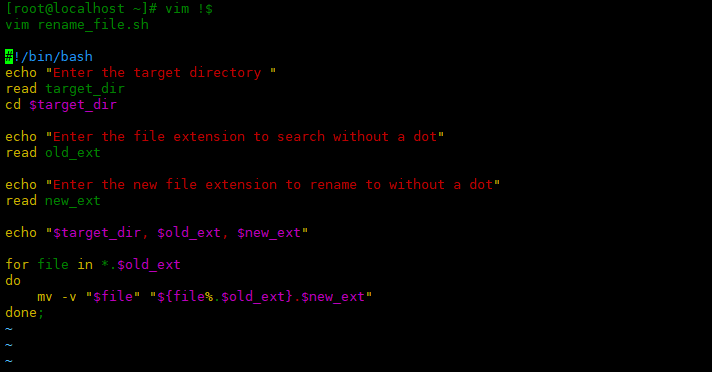
上面的脚本将询问用户要处理的目录,然后 cd 进入设置目录。接下来,我们得到没有点.的旧扩展名。最后,我们获得了新的扩展名来重命名文件。然后使用循环将旧的扩展名更改为新的扩展名。
其中${file%.$old_ext}.$new_ext意思为去掉变量$file最后一个.及其右面的$old_ext扩展名,并添加$new_ext新扩展名。
使用mv -v,让输出信息更详细。
www.admin5.com/article/20170925/786547.shtml
www.51cto.com/it/news/2020/0416/20108.html
server.51cto.com/ManageDC-519389.htm
下面运行脚本,将/root/test下面的以.txt结尾的替换成.log:
[root@localhost ~]# chmod +x rename_file.sh
[root@localhost ~]# ./rename_file.sh
Enter the target directory
/root/test
Enter the file extension to search without a dot
txt
Enter the new file extension to rename to without a dot
log
/root/test, txt, log
renamed 'file10.txt' -> 'file10.log'
renamed 'file1.txt' -> 'file1.log'
renamed 'file2.txt' -> 'file2.log'
renamed 'file3.txt' -> 'file3.log'
renamed 'file4.txt' -> 'file4.log'
renamed 'file5.txt' -> 'file5.log'
renamed 'file6.txt' -> 'file6.log'
renamed 'file7.txt' -> 'file7.log'
renamed 'file8.txt' -> 'file8.log'
renamed 'file9.txt' -> 'file9.log'
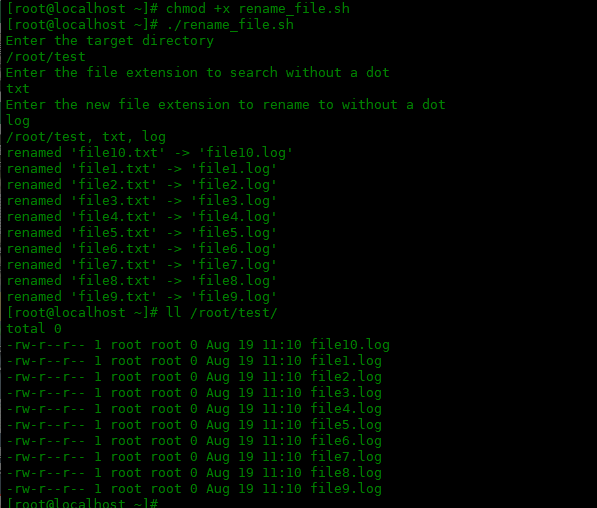
如果想将.log结尾的更改回.txt,如下操作:
方法二:使用rename命令
如果不想使用脚本,可以使用rename工具递归更改文件扩展名。如下是使用方法:
[root@localhost ~]# cd /root/test/
[root@localhost test]# rename .txt .log *.txt
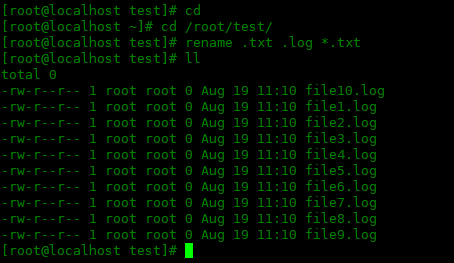
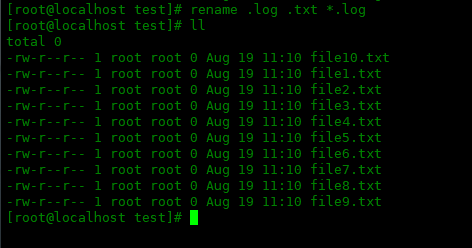
更改回.txt扩展名也同样的操作:
[root@localhost test]# rename .log .txt *.log
总结
本教程讨论了如何将文件从特定扩展名更改为另一个扩展名的快速方法。我们将为此使用 shell循环、rename命令。





 扫一扫
扫一扫


 480
480

 被折叠的 条评论
为什么被折叠?
被折叠的 条评论
为什么被折叠?
 到【灌水乐园】发言





