



 本文详细介绍了 VBA 中 MsgBox 函数的语法及使用方法,包括不同按钮参数的效果展示及如何根据返回值控制程序流程。
Syntax of MsgBox function in VBA:
The syntax of VBA Msgbox is as follows:
MsgBox (Text_String [, buttons] [, title] [, helpfile, context])
Here ‘Text_String’ is the message that you want the msgbox to display. The maximum length of ‘Text_String’ is 1024 characters.
‘buttons’ parameter specifies the type of buttons and icon that you want to be shown on the message box. It is an optional parameter. If you omit it then msgbox shows the default ‘vbOKOnly’ button.
‘title’ refers to the text displayed in the title bar of message box. This is an optional parameter.
‘helpfile’ is a string parameter that specifies the help file to be used for the dialog box. It is also an optional parameter but it becomes mandatory if ‘context’ parameter is to be used.
‘context’ is a numeric parameter that specifies the number assigned to the appropriate Help topic. It is an optional parameter but it becomes mandatory if ‘helpfile’ parameter is used.
Different values of ‘buttons’ parameter in Msgbox:
In VBA message box, ‘buttons’ parameter can have following values:
| Constant | Description |
|---|---|
| vbOKOnly | It displays a single OK button |
| vbOKCancel | It displays two buttons OK and Cancel. |
| vbAbortRetryIgnore | It displays three buttons Abort, Retry, and Ignore. |
| vbYesNoCancel | It displays three buttons Yes, No, and Cancel. |
| vbYesNo | It displays two buttons Yes and No. |
| vbRetryCancel | It displays two buttons Retry and Cancel. |
| vbCritical | It displays a Critical Message icon. |
| vbQuestion | It displays a Query icon. |
| vbExclamation | It displays a Warning Message icon. |
| vbInformation | It displays an Information Message icon. |
| vbDefaultButton1 | First button is treated as default. |
| vbDefaultButton2 | Second button is treated as default. |
| vbDefaultButton3 | Third button is treated as default. |
| vbDefaultButton4 | Fourth button is treated as default. |
| vbApplicationModal | This suspends the current application till the user responds to the message box. |
| vbSystemModal | This suspends all the applications till the user responds to the message box. |
| vbMsgBoxHelpButton | This adds a Help button to the message box. |
| VbMsgBoxSetForeground | Ensures that message box window is foreground. |
| vbMsgBoxRight | This sets the Text to right aligned |
| vbMsgBoxRtlReading | This option specifies that text should appear as right-to-left. |
Examples of Message boxes in VBA:
Now, let’s move on to some particle examples to understand the use of msgbox:
Example 1: Basic message box:

- Sub Msg_exe()
- MsgBox "This is a message!"
- End Sub
Example 2: Message box with a title:

- Sub Msg_exe()
- MsgBox "This is a message!", , "This is the Title"
- End Sub
Example 3: Exclamation message box:

- Sub Msg_exe()
- MsgBox "This is a message!", vbExclamation, "This is the Title"
- End Sub
Example 4: Message box with multiple lines

- Sub Msg_exe()
- MsgBox "Message Line 1" & vbCrLf & "Message Line 2", , "This is the Title"
- End Sub
Note 1: Here ‘vbCrLf’ is the new line character in VBA. It can also be replaced by ‘vbNewLine’.
Example 5: Critical Message box with three buttons
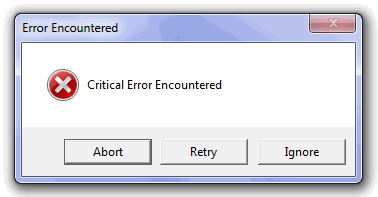
- Sub Msg_exe()
- result = MsgBox("Critical Error Encountered", vbAbortRetryIgnore + vbCritical, "Error Encountered")
- End Sub
Note 1: Here I have used two values for the ‘button’ parameter separated by a ‘+’ sign.
Note 2: You will notice that here I have used a variable ‘result’ for accepting the value returned by Msgbox.
Values returned by MsgBox Function:
As I have foretold that VBA MsgBox function returns a value based on the user input. These values can be anyone of the below ones:
| Value | Description |
|---|---|
| 1 | Specifies that OK button is clicked. |
| 2 | Specifies that Cancel button is clicked. |
| 3 | Specifies that Abort button is clicked. |
| 4 | Specifies that Retry button is clicked. |
| 5 | Specifies that Ignore button is clicked. |
| 6 | Specifies that Yes button is clicked. |
| 7 | Specifies that No button is clicked. |
How you can decide program flow based on the values returned by Message Box?
In the above table you can see that VBA Msgbox function returns some integer values corresponding to button clicked on the dialog box. You can check this number using an IF Statement or by using a Select case statement.
In the below example I have done the same:
- Sub Msg_exe()
- Dim Ret_type As Integer
- Dim strMsg As String
- Dim strTitle As String
- ' Dialog Message
- strMsg = "Click any one of the below buttons."
- ' Dialog's Title
- strTitle = "Some Title"
- 'Display MessageBox
- Ret_type = MsgBox(strMsg, vbYesNoCancel + vbQuestion, strTitle)
- ' Check pressed button
- Select Case Ret_type
- Case 6
- MsgBox "You clicked 'YES' button."
- Case 7
- MsgBox "You clicked 'NO' button."
- Case 2
- MsgBox "You clicked 'CANCEL' button."
- End Select
- End Sub
So, this was all about the msgbox function in VBA. Do let me know if you have any queries related to the topic





 扫一扫
扫一扫


 911
911

 被折叠的 条评论
为什么被折叠?
被折叠的 条评论
为什么被折叠?
 到【灌水乐园】发言





