



 本文详细介绍如何使用PopupWindow组件实现轻量级的用户提醒功能。包括布局定义、弹出方式及位置控制等步骤,并演示了如何在PopupWindow内使用Spinner进行数据绑定及监听选择事件。
PopupWindow
[功能]
PopupWindow 作为一种用户提醒 而且其开销也比Activity要小
[代码 步骤]
1. 定义布局 供PopupWindow使用 如:hello.xml
<?xml version="1.0" encoding="utf-8"?>
<LinearLayout xmlns:android="http://schemas.android.com/apk/res/android"
    android:orientation="horizontal"
    android:layout_width="fill_parent"
    android:layout_height="fill_parent"
    android:padding="10dp"
    >
<ImageView
	android:id="@+id/image"
    android:layout_width="wrap_content"
    android:layout_height="wrap_content"
    android:src="@drawable/robot" />
<LinearLayout
    android:orientation="vertical"
    android:layout_width="wrap_content"
    android:layout_height="wrap_content"
    android:paddingLeft="20dip"
    >
<TextView
    android:layout_width="wrap_content"
    android:layout_height="wrap_content"
    android:text="HelloPop!"
    />
<Button
	android:id="@+id/helloButton"
    android:layout_width="100dip"
    android:layout_height="wrap_content"
    android:text="OK"
    />
 </LinearLayout>
</LinearLayout>
2. 通过LayoutInflater 得到hello.xml 的 View view
view = this.getLayoutInflater().inflate(R.layout.hello, null);
3. 创建PopupWindow pop 使用上面布局文件view
pop = new PopupWindow(view,500,200);
4. 弹出PopupWindow
* 定义布局文件:main.xml 包括一个Button
<?xml version="1.0" encoding="utf-8"?>
<LinearLayout xmlns:android="http://schemas.android.com/apk/res/android"
    android:orientation="vertical"
    android:id="@+id/main"
    android:layout_width="fill_parent"
    android:layout_height="fill_parent"
    >
<TextView
    android:layout_width="fill_parent"
    android:layout_height="wrap_content"
    android:text="pop demo!"
    />
<Button
	android:id="@+id/button"
    android:layout_width="fill_parent"
    android:layout_height="wrap_content"
    android:text="to pop!"
    />
</LinearLayout>
* 弹出:有2种方式:一个是下拉方式 一个是指定位置
- 下拉:
findViewById(R.id.button).setOnClickListener(new View.OnClickListener() {

            public void onClick(View v) {
                    // TODO Auto-generated method stub
            	pop.showAsDropDown(v);
            }

    });
- 指定位置:
findViewById(R.id.button).setOnClickListener(new View.OnClickListener() {

            public void onClick(View v) {
                    // TODO Auto-generated method stub
            	pop.showAtLocation(findViewById(R.id.main), Gravity.CENTER, 20, 20);

            }

    });
5. 取消
view.findViewById(R.id.helloButton).setOnClickListener(new View.OnClickListener() {

            public void onClick(View v) {
                    // TODO Auto-generated method stub
            	pop.dismiss();

            }

    });
6. 其他问题:
* 发现很多人对PopupWindow 里面包含ListView后 对具体哪个item被点击的获取有疑问 所以就顺便测试一下 发现和普通用法一样啊 没什么特别之处啊 现在把用法和大家分享分享
写道
因为ListView是展开显示的 会导致不美观 所以以Spinner为例
6.1. 定义包含Spinner 的布局文件 hello.xml
<?xml version="1.0" encoding="utf-8"?>
<LinearLayout xmlns:android="http://schemas.android.com/apk/res/android"
    android:orientation="vertical"
    android:layout_width="fill_parent"
    android:layout_height="fill_parent"
    >
<LinearLayout
    android:orientation="horizontal"
    android:layout_width="fill_parent"
    android:layout_height="wrap_content"
    >
<ImageView
	android:id="@+id/image"
    android:layout_width="wrap_content"
    android:layout_height="wrap_content"
    android:src="@drawable/robot" />
<TextView
    android:layout_width="wrap_content"
    android:layout_height="wrap_content"
    android:text="HelloPop!"
    />
</LinearLayout>
<Spinner
        android:id="@+id/spinner"
        android:layout_width="wrap_content"
        android:layout_height="40dip"/>
</LinearLayout>
6.2. 得到Spinner的实例:spinner
spinner = (Spinner)view.findViewById(R.id.spinner);
6.3. 绑定Spinner与具体数据 本例以联系人为例
public void specifySpinner(){
    	Cursor c = getContentResolver().query(People.CONTENT_URI,
                null, null, null, null);
        SimpleCursorAdapter adapter = new SimpleCursorAdapter(this,
                android.R.layout.simple_list_item_1,c,
                new String[] {People.NAME},
                new int[] {android.R.id.text1});
        adapter.setDropDownViewResource(
                android.R.layout.simple_spinner_dropdown_item);


        spinner.setAdapter(adapter);
    }
写道
别忘了联系人访问权限:
<uses-permission android:name="android.permission.READ_CONTACTS" />
<uses-permission android:name="android.permission.READ_CONTACTS" />
6.4. 具体item的获取:
spinner.setOnItemSelectedListener(new OnItemSelectedListener(){

            public void onItemSelected(AdapterView<?> adapter,View v,
                    int pos, long id) {
            	updateTitle(pos);
            }

			public void onNothingSelected(AdapterView<?> arg0) {
				// TODO Auto-generated method stub

			}

        });
写道
updateTitle(int) 用来把位置在标题中显示
public void updateTitle(int i){
this.setTitle("HelloPop:"+i);
}
public void updateTitle(int i){
this.setTitle("HelloPop:"+i);
}
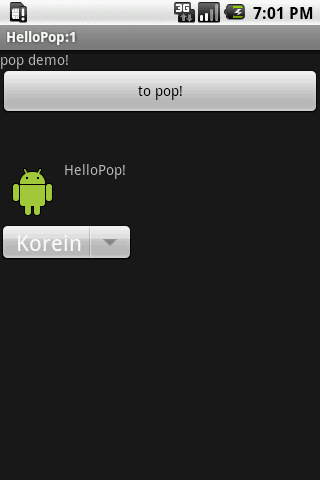
6.5. emulator 运行截图:





 扫一扫
扫一扫


 4020
4020

 被折叠的 条评论
为什么被折叠?
被折叠的 条评论
为什么被折叠?
 到【灌水乐园】发言





