



 本文详细介绍了如何在Windows 7系统中配置Eclipse Galileo CDT环境并安装MinGW,包括下载、安装、路径设置及Eclipse配置等步骤。
Ok, to start with you need the following:
1. MinGW
2. Eclipse Galileo
3. WinRAR, 7-zip, or any file extraction tool. You may opt to use GNU tar, gzip. It is your choice.
The automated installer for MinGW has been deprecated or has been considered unsupported anymore, which leaves you with only one option left. Go the manual way. On the MinGW getting started page, go the theManual Installation section. It describes the packages you have to download along with the sourceforge link where you can get it. Go ahead and read it clicking on the download link along the way. In the end you will have something like this:

After downloading all of the MinGW packages that you need, you need to install CDT or download an eclipse distribution that already has CDT on it.
After having everything that you need, you need to extract the MinGW packages.
1. Create a directory on your C:\ and place the MinGW packages that you have downloaded there.
Note: I have had problems when i placed my MinGW directory in F:\. Eclipse can't detect that i have MinGW installed even though it's on my PATH.
2. I extract each one of them using WinRAR. Just do Right click -> Extract here. It will create the folder structure for you. As you can see there is one file that WinRar can't extract, it's the file that ends with lzma. I use 7-zip to extract the contents of it and after extracting you will get a .tar file, which can then be extracted using WinRAR.
3. After extracting everything you will have a folder structure similar to this:

4. Add the path to your MinGW/bin to your PATH variable. To do this, right click on my computer -> properties -> Advanced system settings -> Environment variables
Scroll down until you see a PATH variable there, append a semicolon (;) and add C:\MinGW\bin.
5. Extract eclipse galileo anywhere you want it to be. (e.g. C:\eclipse)
6. Restart your computer to make the changes on the PATH variable take effect. Otherwise Eclipse will not be able to detect your MinGW.
7. After restarting, fire up eclipse, click File -> New C++ project. You will see something similar to this:
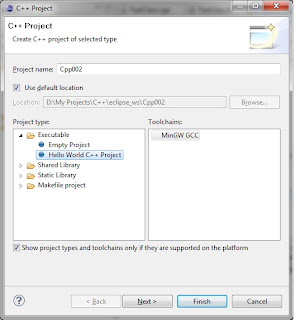
Select next then select Finish.
After having done that, eclipse is now able to compile your C/C++ sources. That's it. Happy programming.
Scroll down until you see a PATH variable there, append a semicolon (;) and add C:\MinGW\bin.
5. Extract eclipse galileo anywhere you want it to be. (e.g. C:\eclipse)
6. Restart your computer to make the changes on the PATH variable take effect. Otherwise Eclipse will not be able to detect your MinGW.
7. After restarting, fire up eclipse, click File -> New C++ project. You will see something similar to this:

Select next then select Finish.
After having done that, eclipse is now able to compile your C/C++ sources. That's it. Happy programming.





 扫一扫
扫一扫


 3455
3455

 被折叠的 条评论
为什么被折叠?
被折叠的 条评论
为什么被折叠?
 到【灌水乐园】发言





