Excel中,明明是空值,确不能定位

Excel空值无法定位?一招解决

在表格中可以通过Ctrl+G 定位,选择空值快速删除表格中的空行,是一个很便捷的操作。
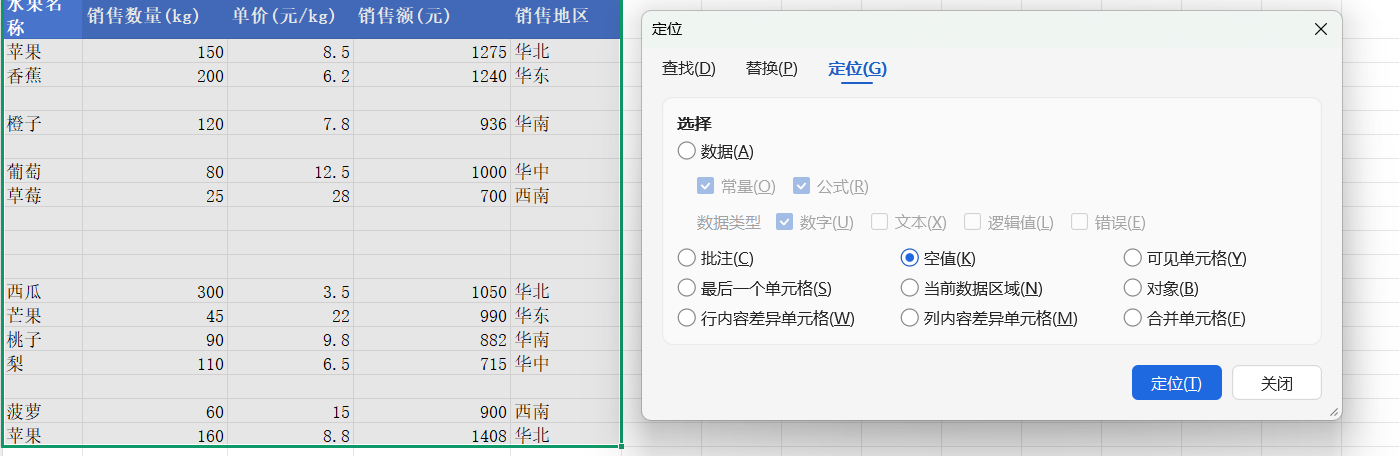
ctrl+G定位空值
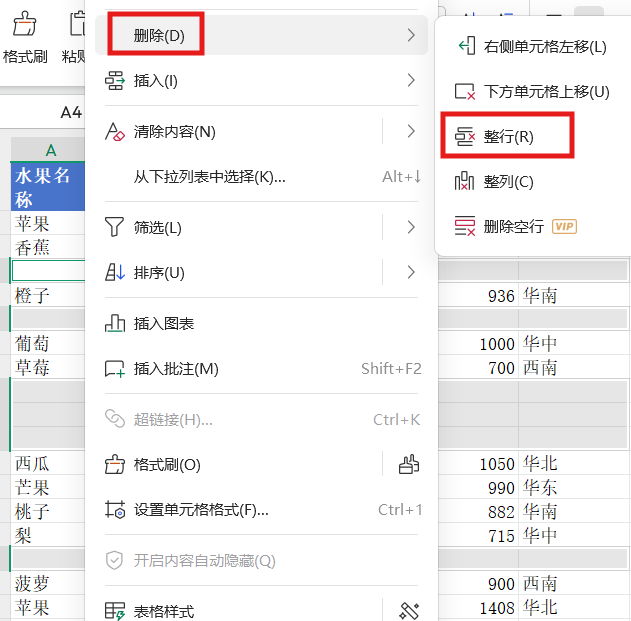
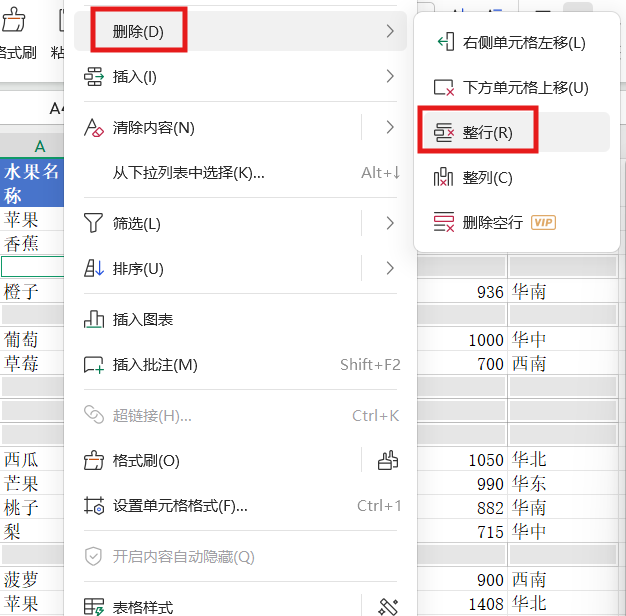
定位,右键,选择删除 整行。
在这里插入图片描述

但是有时候确遇见明明是空值,通过Ctrl+G定位空值却定位不到的情况,而且这时候显示的有效行也是带上了空值的。
一般是因为我们使用了公式返回了空字符串:"",虽然在视觉上是空的单元格,但是这样的单元格在Excel中被视为非空单元格。
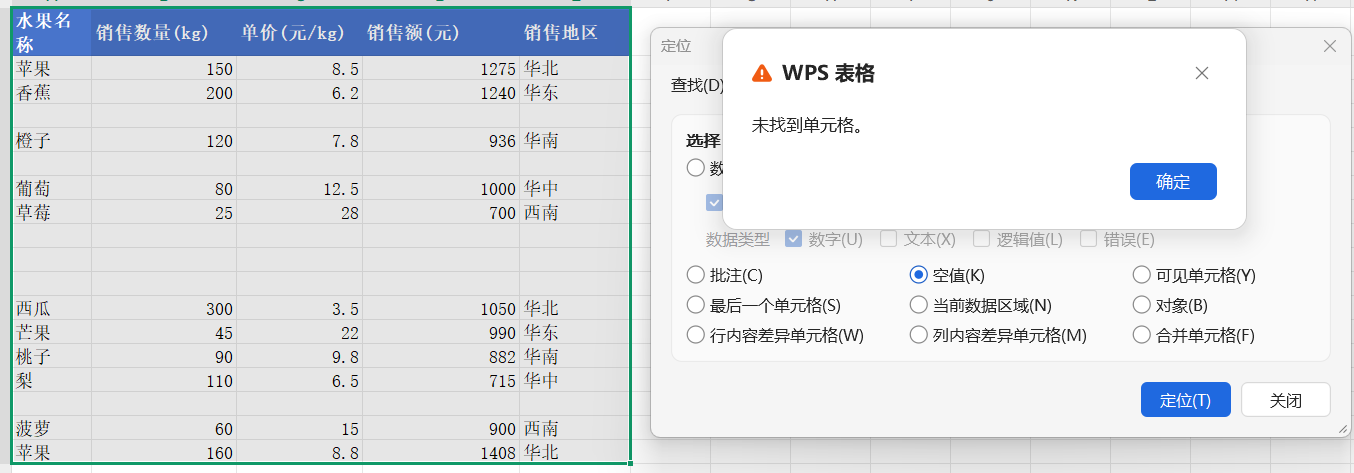
空值不空

这种情况下,我们可通过如下的便捷方式快速删除空值所在行:

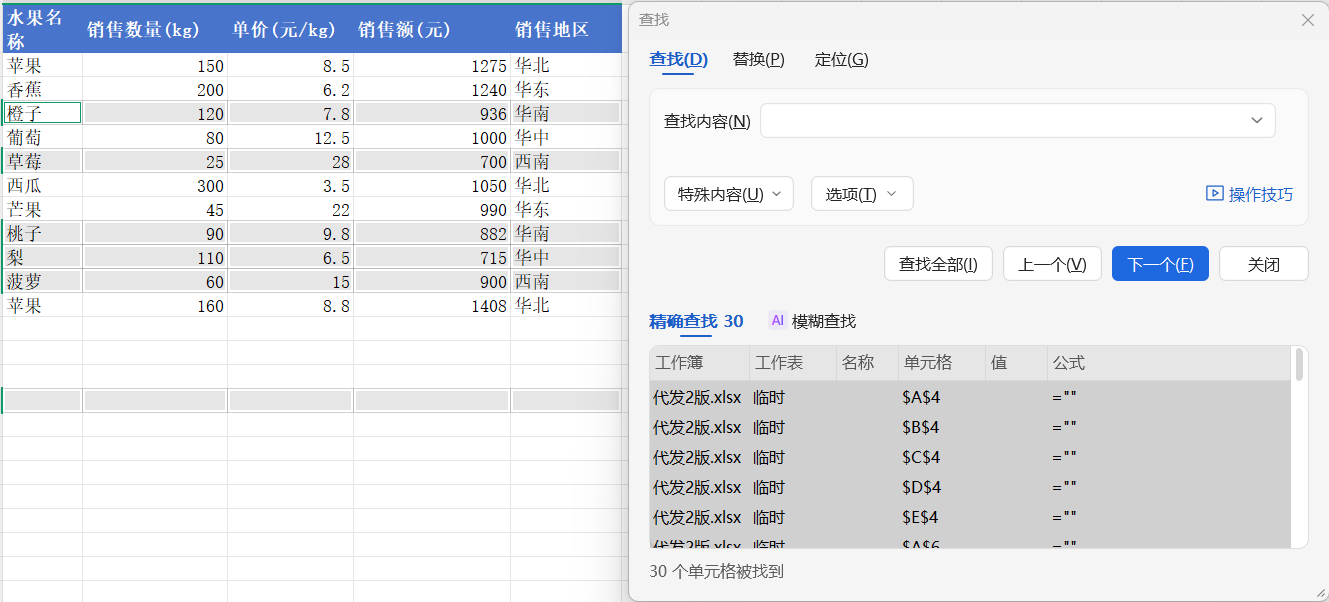
  1. 选中区域,然后Ctrl+F查找,查找内容啥也不输入,点击查找全部,然后Ctrl+A全选,可以看到表格所在的空值已经被选出来了;
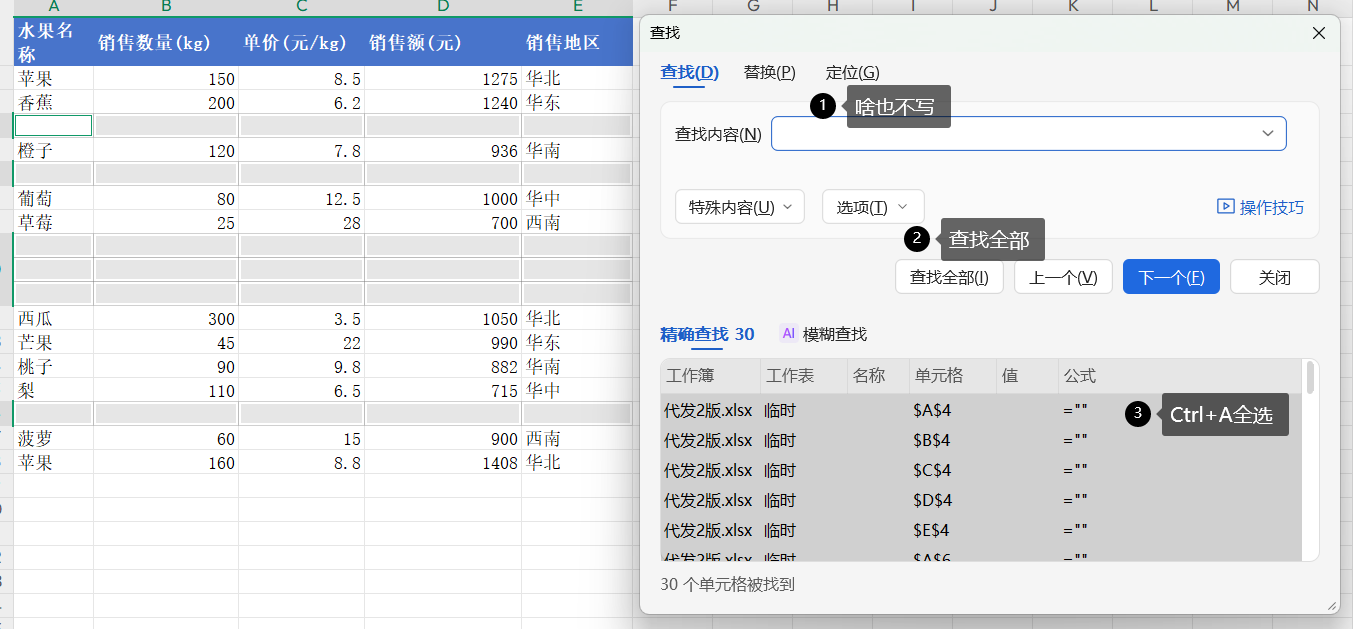
    在这里插入图片描述

  2. 可以 右键 删除 整行;

在这里插入图片描述
3. 最后轻松删除了表格中的因公式而空但是不是空值的空白行。
在这里插入图片描述

总结:通过Ctrl+G选空值删除空白行很好用,如果遇到不能定位的情况,考虑Ctrl+F的方法。

<template> <div> <el-dialog title="设备导入" :visible.sync="dialogVisible" width="600px" custom-class="ota-dialog" :close-on-click-modal="false" > <div class="dialog-content"> <div class="action-section"> <div class="upload-section"> <el-upload action="#" :auto-upload="false" :before-upload="beforeUpload" :on-change="handleFileChange" :limit="1" :on-exceed="handleExceed" :file-list="fileList" drag > <i class="el-icon-upload"></i> <div class="el-upload__text"> <div>点击或拖拽文件到此处上传</div> <div class="el-upload__tip">支持.xlsx、.xls格式文件</div> </div> </el-upload> </div> </div> </div> <div slot="footer" class="dialog-footer"> <el-button @click="dialogVisible = false">取 消</el-button> <el-button type="primary" @click="handleConfirm" :disabled="!fileList.length || loading" > {{ loading ? '处理中...' : ' 定' }} </el-button> </div> </el-dialog> </div> </template> <script> import * as XLSX from 'xlsx'; export default { data() { return { dialogVisible: false, fileList: [], resultStr: '', loading: false }; }, methods: { init() { this.dialogVisible = true; this.fileList = []; this.resultStr = ''; }, beforeUpload(file) { const isValidType = [ 'application/vnd.openxmlformats-officedocument.spreadsheetml.sheet', 'application/vnd.ms-excel' ].includes(file.type); if (!isValidType) { this.$message.error('请上传Excel格式的文件 (.xlsx 或 .xls)'); } return isValidType; }, // 处理文件选择变化 handleFileChange(file) { if (!file) return; const validTypes = [ 'application/vnd.ms-excel', // .xls 'application/vnd.openxmlformats-officedocument.spreadsheetml.sheet' // .xlsx ]; if (!validTypes.includes(file.raw.type)) { this.$message.error('请上传Excel格式的文件 (.xlsx 或 .xls)'); this.clearFile(); return; } this.fileList = [file]; this.readExcelFirstRow(file.raw); }, // 读取Excel文件第一行 readExcelFirstRow(file) { this.loading = true; const reader = new FileReader(); reader.onload = (e) => { try { const data = new Uint8Array(e.target.result); const workbook = XLSX.read(data, { type: 'array' }); // 获取第一个工作表 const firstSheetName = workbook.SheetNames[0]; const worksheet = workbook.Sheets[firstSheetName]; // 获取第一行数据 const range = XLSX.utils.decode_range(worksheet['!ref']); const firstRow = []; // 遍历第一行的所有列 for (let col = range.s.c; col <= range.e.c; col++) { const cellAddress = XLSX.utils.encode_cell({ r: 0, c: col }); const cell = worksheet[cellAddress]; firstRow.push(cell ? cell.v : ''); } // 用分号拼接第一行数据 this.resultStr = firstRow.join(';'); this.$message.success('Excel文件解析成功'); console.log("解析结果:" + this.resultStr); } catch (error) { console.error('Excel解析错误:', error); this.$message.error('Excel文件解析失败,请检查文件格式'); this.resultStr = ''; } finally { this.loading = false; } }; reader.onerror = () => { this.$message.error('文件读取失败'); this.loading = false; }; reader.readAsArrayBuffer(file); }, // 处理认操作 handleConfirm() { if (!this.resultStr) { this.$message.warning('未解析到有效数据'); return; } this.$message.success(`已获取首行数据: ${this.resultStr}`); // 这里可以添加将数据发送到服务器的逻辑 // this.otaBatchUpgradeConfirm(this.resultStr); // 关闭对话框 this.dialogVisible = false; }, // 清空文件 clearFile() { this.fileList = []; this.resultStr = ''; }, handleExceed() { this.$message.warning('每次只能上传一个文件'); }, formatFileSize(size) { if (size < 1024) return size + ' B'; if (size < 1024 * 1024) return (size / 1024).toFixed(1) + ' KB'; return (size / (1024 * 1024)).toFixed(1) + ' MB'; }, // 截断长字符串 truncateString(str, maxLength = 30) { if (str.length <= maxLength) return str; return str.substring(0, maxLength) + '...'; } } }; </script> <style scoped> .action-section { display: flex; flex-direction: column; gap: 20px; } .upload-section { position: relative; display: flex; justify-content: center; } .file-actions { margin-left: 10px; } .dialog-footer { display: flex; justify-content: flex-end; padding-top: 15px; border-top: 1px solid #ebeef5; } .has-file >>> .el-upload-dragger { border: 1px dashed #67C23A; background-color: rgba(103, 194, 58, 0.05); } .el-icon-loading { font-size: 20px; color: #409EFF; margin-right: 10px; } </style> 只读取excel第一列并用分号隔开拼成字符串
07-12
评论
成就一亿技术人!
拼手气红包6.0元
还能输入1000个字符
 
红包 添加红包
表情包 插入表情
 条评论被折叠 查看
添加红包

请填写红包祝福语或标题

红包个数最小为10个

红包金额最低5元

当前余额3.43前往充值 >
需支付:10.00
成就一亿技术人!
领取后你会自动成为博主和红包主的粉丝 规则
hope_wisdom
发出的红包
实付
使用余额支付
点击重新获取
扫码支付
钱包余额 0

抵扣说明:

1.余额是钱包充值的虚拟货币,按照1:1的比例进行支付金额的抵扣。
2.余额无法直接购买下载,可以购买VIP、付费专栏及课程。

余额充值