


 本文介绍了LAMP(Linux+Apache+Mysql/MariaDB+Perl/PHP/Python),这是一组用于搭建动态网站或服务器的开源软件。详细阐述了LAMP平台的构建过程,包括安装httpd、mysql、php,以及配置apache和虚拟主机等步骤。
LAMP简介
Linux+Apache+Mysql/MariaDB+Perl/PHP/Python一组常用来搭建动态网站或者服务器的开源软件,本身都是各自独立的程序,
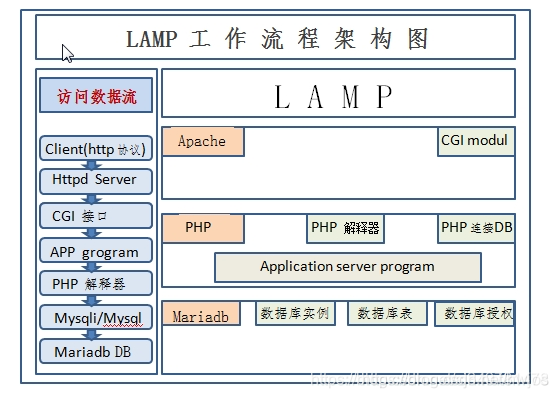
lamp平台构建
lamp平台软件安装次序:
httpd --> mysql --> php
注意: php要求httpd使用prefork MPM
安装httpd
//YUM源配置
[root@localhost ~]# curl -o /etc/yum.repos.d/CentOS-Base.repo https://mirrors.aliyun.com/repo/Centos-8.repo

[root@localhost ~]# sed -i -e '/mirrors.cloud.aliyuncs.com/d' -e '/mirrors.aliyuncs.com/d' /etc/yum.repos.d/CentOS-Base.repo
%s/releasever/8/g

//安装 epel 配置包
yum install -y https://mirrors.aliyun.com/epel/epel-release-latest-8.noarch.rpm

//将 repo 配置中的地址替换为阿里云镜像站地址
sed -i 's|^#baseurl=https://download.fedoraproject.org/pub|baseurl=https://mirrors.aliyun.com|' /etc/yum.repos.d/epel*
sed -i 's|^metalink|#metalink|' /etc/yum.repos.d/epel*

%s/releasever/8/g
[root@localhost ~]# yum clean all
[root@localhost ~]# yum makecache
//安装开发工具包
[root@localhost ~]# yum grouplist Development Tools
//创建apache服务的用户和组
[root@localhost ~]# useradd -r -M -s /sbin/nologin apache
[root@localhost ~]# id apache
uid=994(apache) gid=991(apache) groups=991(apache)
//安装依赖包
[root@localhost ~]# yum -y install openssl-devel pcre-devel expat-devel libtool gcc gcc-c++
[root@localhost ~]# cd apr-1.6.5
[root@localhost apr-1.6.5]# vim configure
  cfgfile="${ofile}T"
    trap "$RM \"$cfgfile\"; exit 1" 1 2 15
    # $RM "$cfgfile"        //将此行加上注释,或者删除此行

[root@localhost apr-1.6.5]# . /configure --prefix=/usr/local/apr
[root@localhost apr-1.6.5]# make
[root@localhost apr-1.6.5]# make install


[root@localhost apr-util-1.6.1]# ./configure --prefix=/usr/local/apr-util --with-apr=/usr/local/apr


[root@localhost httpd-2.4.34]# ./configure --prefix=/usr/local/apache \
--sysconfdir=/etc/httpd24 \
--enable-so \
--enable-ssl \
--enable-cgi \
--enable-rewrite \
--with-zlib \
--with-pcre \
--with-apr=/usr/local/apr \
--with-apr-util=/usr/local/apr-util/ \
--enable-modules=most \
--enable-mpms-shared=all \
--with-mpm=prefork

[root@localhost httpd-2.4.34]# make && make install
//安装后配置
[root@localhost httpd-2.4.34]# echo 'export PATH=/usr/local/apache/bin:$PATH' > /etc/profile.d/httpd.sh
[root@localhost httpd-2.4.34]# source /etc/profile.d/httpd.sh
[root@localhost httpd-2.4.34]# cd
[root@localhost ~]# which httpd
/usr/local/apache/bin/httpd
[root@localhost ~]#
//做一个软连接
[root@localhost ~]# ln -s /usr/local/apache/include /usr/include/apache

//取消ServerName前面的注释
[root@localhost ~]# vim /etc/httpd24/httpd.conf
ServerName www.example.com:80

[root@localhost ~]# apachectl start
[root@localhost ~]# ss -antl
State   Recv-Q  Send-Q    Local Address:Port                 Peer Address:Port
LISTEN  0       128             0.0.0.0:22                        0.0.0.0:*
LISTEN  0       128                   *:80                              *:*
LISTEN  0       128                [::]:22                           [::]:*
安装mysql
//安装依赖包
yum -y install ncurses-devel openssl-devel openssl cmake mariadb-devel
//创建用户和组
[root@localhost ~]# useradd -r -M -s /sbin/nologin mysql
[root@localhost ~]# id mysql
uid=992(mysql) gid=989(mysql) groups=989(mysql)
[root@localhost ~]#
//下载二进制格式的mysql软件包
[root@localhost ~]# tar xf mysql-5.7.31-linux-glibc2.12-x86_64.tar.gz -C /usr/local/
//修改目录/usr/local/mysql的属主属组
[root@localhost local]# ln -s mysql-5.7.31-linux-glibc2.12-x86_64 mysql
[root@localhost local]# chown -R mysql.mysql mysql*
//添加环境变量
[root@localhost ~]# echo 'export PATH=/usr/local/mysql/bin:$PATH' > /etc/profile.d/mysql.sh
[root@localhost ~]# source /etc/profile.d/mysql.sh
[root@localhost ~]#
//建立数据存放目录
[root@localhost ~]# mkdir /opt/data
[root@localhost ~]# chown -R mysql.mysql /opt/data
//初始化数据库
[root@localhost ~]# mysqld --initialize-insecure  --datadir=/opt/data --user=mysql
2020-10-29T08:03:06.602356Z 0 [Warning] TIMESTAMP with implicit DEFAULT value is deprecated. Please use --explicit_defaults_for_timestamp server option (see documentation for more details).
2020-10-29T08:03:07.006957Z 0 [Warning] InnoDB: New log files created, LSN=45790
2020-10-29T08:03:07.161237Z 0 [Warning] InnoDB: Creating foreign key constraint system tables.
2020-10-29T08:03:07.282358Z 0 [Warning] No existing UUID has been found, so we assume that this is the first time that this server has been started. Generating a new UUID: 2dcc8417-19bd-11eb-9ce9-000c29c8dc20.
2020-10-29T08:03:07.284341Z 0 [Warning] Gtid table is not ready to be used. Table 'mysql.gtid_executed' cannot be opened.
2020-10-29T08:03:07.668465Z 0 [Warning] CA certificate ca.pem is self signed.
2020-10-29T08:03:08.026149Z 1 [Warning] root@localhost is created with an empty password ! Please consider switching off the --initialize-insecure option.
//配置mysql
[root@localhost ~]# vim /etc/my.cnf
[root@localhost ~]# ln -s /usr/local/mysql/include /usr/include/mysql/
[root@localhost ~]# vim /etc/ld.so.conf.d/mysql.conf
/usr/local/mysql/lib

[root@localhost ~]# ldconfig

[root@localhost ~]# mv /etc/my.cnf{,-bak}
//生成配置文件
[root@localhost ~]# cat > /etc/my.cnf <<EOF
[mysqld]
basedir = /usr/local/mysql
datadir = /opt/data
socket = /tmp/mysql.sock
port = 3306
pid-file = /opt/data/mysql.pid
user = mysql
skip-name-resolve
EOF
//配置服务启动脚本
[root@localhost ~]# cd /usr/local/mysql
[root@localhost mysql]# ls
bin   include  LICENSE  README  support-files
docs  lib      man      share
[root@localhost mysql]# cd support-files/
[root@localhost support-files]# ls
magic                mysql-log-rotate
mysqld_multi.server  mysql.server
[root@localhost support-files]# cp mysql.server /etc/init.d/mysqld


[root@localhost ~]# vim /etc/init.d/mysqld
basedir=/usr/local/mysql
datadir=/opt/data
//重启服务
[root@localhost ~]# service mysqld start


[root@localhost ~]# ss -antl
State           Recv-Q          Send-Q                   Local Address:Port                   Peer Address:Port
LISTEN          0               128                            0.0.0.0:22                          0.0.0.0:*
LISTEN          0               128                                  *:80                                *:*
LISTEN          0               128                               [::]:22                             [::]:*
LISTEN          0               80                                   *:3306                              *:*
[root@localhost ~]# mysql
mysql: error while loading shared libraries: libncurses.so.5: cannot open shared object file: No such file or directory

root@localhost ~]# yum whatprovides libncurses.so.5
Updating Subscription Management repositories.
Unable to read consumer identity
This system is not registered to Red Hat Subscription Management. You can use subscription-manager to register.
Last metadata expiration check: 1:11:09 ago on Thu 29 Oct 2020 03:20:50 PM CST.
ncurses-compat-libs-6.1-7.20180224.el8.i686 :
     ...: Ncurses compatibility libraries
Repo        : base
Matched from:
Provide    : libncurses.so.5

[root@localhost ~]# yum -y install ncurses-compat-libs


mysql> set password=password("123123");
Query OK, 0 rows affected, 1 warning (0.00 sec)
安装php
//安装依赖包
[root@localhost ~]# yum -y install libxml2 libxml2-devel openssl openssl-devel bzip2 bzip2-devel libcurl libcurl-devel libicu-devel libjpeg libjpeg-devel libpng libpng-devel openldap-devel pcre-devel freetype freetype-devel gmp gmp-devel libmcrypt libmcrypt-devel readline readline-devel libxslt libxslt-devel mhash mhash-devel
[root@localhost ~]# yum list all |grep php|grep mysql
php-mysqlnd.x86_64                                   7.2.24-1.module_el8.2.0+313+b04d0a66             AppStream


[root@localhost ~]# yum -y install php-mysqlnd
[root@localhost ~]# tar xf php-7.2.8.tar.xz

./configure --prefix=/usr/local/php7  \
--with-config-file-path=/etc \
--enable-fpm \
--enable-inline-optimization \
--disable-debug \
--disable-rpath \
--enable-shared \
--enable-soap \
--with-openssl \
--enable-bcmath \
--with-iconv \
--with-bz2 \
--enable-calendar \
--with-curl \
--enable-exif  \
--enable-ftp \
--with-gd \
--with-jpeg-dir \
--with-png-dir \
--with-zlib-dir \
--with-freetype-dir \
--with-gettext \
--enable-json \
--enable-mbstring \
--enable-pdo \
--with-mysqli=mysqlnd \
--with-pdo-mysql=mysqlnd \
--with-readline \
--enable-shmop \
--enable-simplexml \
--enable-sockets \
--enable-zip \
--enable-mysqlnd-compression-support \
--with-pear \
--enable-pcntl \
--enable-posix
//编译过程
[root@localhost php-7.2.8]# make instal
////安装后配置
[root@localhost php-7.2.8]#  echo 'export PATH=/usr/local/php7/bin:$PATH' > /etc/profile.d/php.sh
[root@localhost php-7.2.8]# source /etc/profile.d/php.sh
[root@localhost php-7.2.8]# which php
/usr/local/php7/bin/php
[root@localhost php-7.2.8]#
//配置php-fpm
[root@localhost php-7.2.8]# cp php.ini-production /etc/php.ini
cp: overwrite '/etc/php.ini'? y

[root@localhost php-7.2.8]# cp sapi/fpm/init.d.php-fpm /etc/init.d/php-fpm
[root@localhost php-7.2.8]# chmod  +x /etc/init.d/php-fpm
[root@localhost php-7.2.8]#


[root@localhost php-7.2.8]# cd /usr/local/php7/
[root@localhost php7]# ls
bin  etc  include  lib  php  sbin  var
[root@localhost php7]# cd etc/
[root@localhost etc]# ls
pear.conf  php-fpm.conf.default  php-fpm.d
[root@localhost etc]# cp php-fpm.conf.default php-fpm.conf

[root@localhost etc]# cd php-fpm.d/
[root@localhost php-fpm.d]# ls
www.conf.default
[root@localhost php-fpm.d]# cp www.conf.default www.conf
[root@localhost php-fpm.d]# ls
//编辑php-fpm的配置文件(/usr/local/php7/etc/php-fpm.conf):
//配置fpm的相关选项为你所需要的值:
[root@localhost etc]# vim /usr/local/php7/etc/php-fpm.conf
pm.max_children = 50
pm.start_servers = 5
pm.min_spare_servers = 2
pm.max_spare_servers = 8
//启动php-fpm
[root@localhost etc]# service php-fpm start
Starting php-fpm  done
[root@localhost etc]# ss -antl
State  Recv-Q Send-Q  Local Address:Port   Peer Address:Port
LISTEN 0      128           0.0.0.0:22          0.0.0.0:*
LISTEN 0      128         127.0.0.1:9000        0.0.0.0:*
LISTEN 0      128                 *:80                *:*
LISTEN 0      128              [::]:22             [::]:*
LISTEN 0      80                  *:3306              *:*
[root@localhost etc]#
配置apache
启用代理模块
在apache httpd 2.4以后已经专门有一个模块针对FastCGI的实现,此模块为mod_proxy_fcgi.so,它其实是作为mod_proxy.so模块的扩展,因此,这两个模块都要加载,编辑httpd.conf文件,取消以下两行内容的注释:
LoadModule proxy_module modules/mod_proxy.so
LoadModule proxy_fcgi_module modules/mod_proxy_fcgi.so

[root@localhost ~]# vim /etc/httpd24/httpd.conf
Include /etc/httpd24/extra/httpd-vhosts.conf
配置虚拟主机
在需要使用fcgi的虚拟主机中添加类似如下两行:


ProxyRequests Off       //关闭正向代理
ProxyPassMatch ^/(.*\.php)$ fcgi://127.0.0.1:9000/PATH/TO/DOCUMENT_ROOT/$1


[root@localhost ~]# vim /etc/httpd24/extra/httpd-vhosts.conf

<VirtualHost *:80>
   DocumentRoot "/usr/local/apache/htdocs"
   ServerName www.example.com
   ErrorLog "logs/www.example.com-error_log"
   CustomLog "logs/www.example.com-access_log" common
   ProxyRequests Off
   ProxyPassMatch ^/(.*\.php)$ fcgi://127.0.0.1:9000/usr/local/apache/htdocs/wangqing.com/$1
   <Directory "/usr/local/apache/htdocs">
       Require all granted
   </Directory>
</VirtualHost>
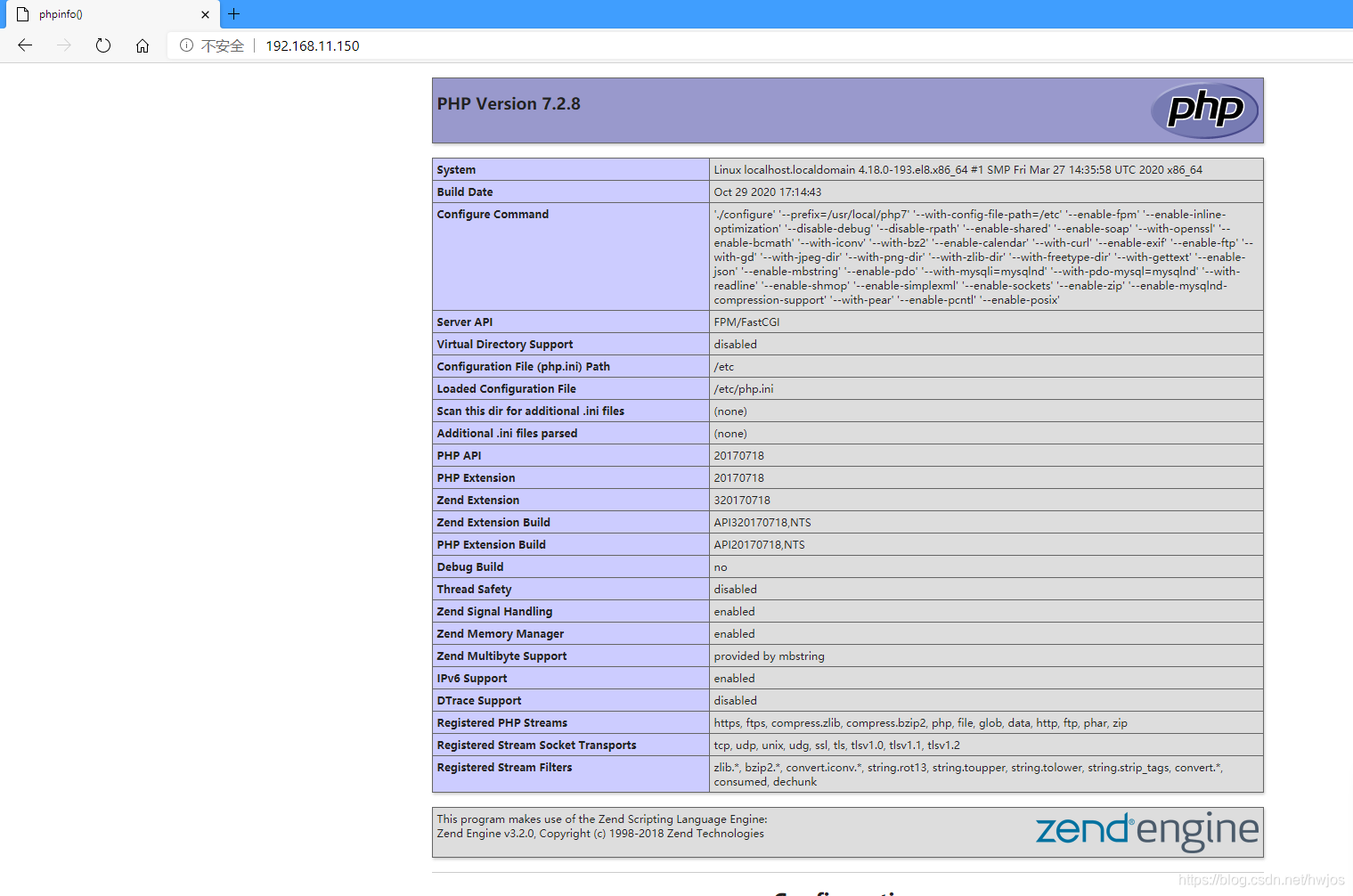
[root@localhost htdocs]# vim index.php
<?php
    phpinfo();
?>

[root@localhost apache]# chown -R apache.apache htdocs/
[root@localhost apache]# ll
total 36
drwxr-xr-x.  2 root   root    262 Oct 29 15:31 bin
drwxr-xr-x.  2 root   root    167 Oct 29 15:31 build
drwxr-xr-x.  2 root   root     78 Oct 29 15:31 cgi-bin
drwxr-xr-x.  3 root   root   4096 Oct 29 15:31 error
drwxr-xr-x.  2 apache apache   41 Oct 29 19:04 htdocs
drwxr-xr-x.  3 root   root   8192 Oct 29 15:31 icons
drwxr-xr-x.  2 root   root   4096 Oct 29 15:31 include
drwxr-xr-x.  2 root   root     58 Oct 29 15:44 logs
drwxr-xr-x.  4 root   root     30 Oct 29 15:31 man
drwxr-xr-x. 14 root   root   8192 Oct 29 15:31 manual
drwxr-xr-x.  2 root   root   4096 Oct 29 15:31 modules
[root@localhost apache]#


[root@localhost apache]# vim /etc/httpd24/httpd.conf
    AddType application/x-httpd-php .php
    AddType application/x-httpd-php-source .phps


[root@localhost apache]# vim /etc/httpd24/httpd.conf
index.php
[root@localhost apache]# ss -antl
State  Recv-Q Send-Q  Local Address:Port   Peer Address:Port
LISTEN 0      128           0.0.0.0:22          0.0.0.0:*
LISTEN 0      128         127.0.0.1:9000        0.0.0.0:*
LISTEN 0      128                 *:80                *:*
LISTEN 0      128              [::]:22             [::]:*
LISTEN 0      80                  *:3306





 扫一扫
扫一扫


 1万+
1万+

 被折叠的 条评论
为什么被折叠?
被折叠的 条评论
为什么被折叠?
 到【灌水乐园】发言





