





一、概述
(1)环境:windows 系列、jre 8 及以上
(2)资料:PI 官网 https://techsupport.osisoft.com/
(3)常用的访问PI数据库的方案有:①使用 JDBC Driver 或 ODBC Driver;②使用 PI Web Api;③使用 sdk
本次,我们选择使用 JDBC Driver 来实现java 访问PI数据库。
二、JDBC访问PI数据库原理
PI的JDBC驱动程序是一个java数据库连接驱动,通过SQL查询提供了强大的数据访问PI系统 。PI JDBC Driver 提供了一个类似于java 访问Mysql或者Oracle 同样的方式。
但是,JDBC Driver 是 通过中间层 PI SQL DATA Access Server 来实现 PI JDBC driver 和 PI OLEDB Enterprise/PI OLEDB providers 之间的交互的。
PI SQL DAS(OLE DB)在客户端 通过 Net.TCP 或者 HTTPS 来提供安全的网络连接
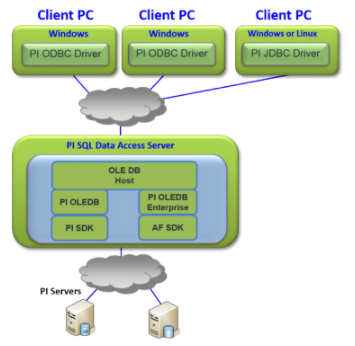
三、软件安装
(1)百度网盘下载地址:
链接: https://pan.baidu.com/s/1QhLQyOD_yEDEDW4D67F9pQ?pwd=jzya
提取码: jzya
(2)安装顺序应该是:
- OLE DB
- PI SQL Data Access Server
- PI JDBC Driver 2016
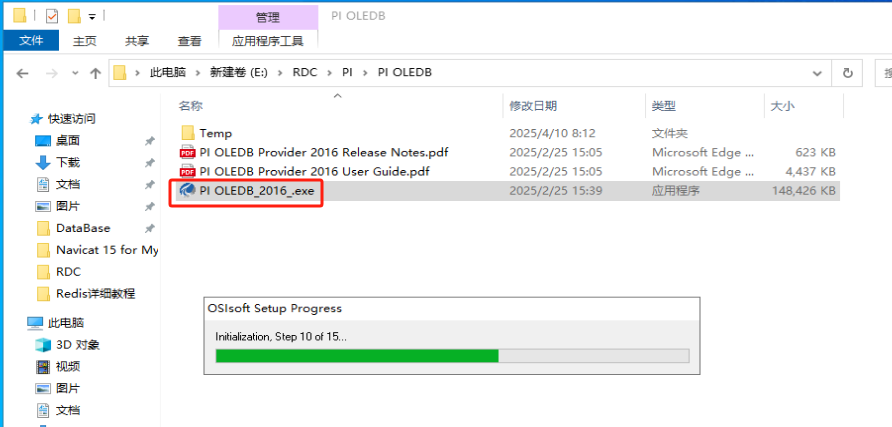
1.安装 PI OLEDB
进入PI OLEDB目录,运行:PI OLEDB_2016_.exe
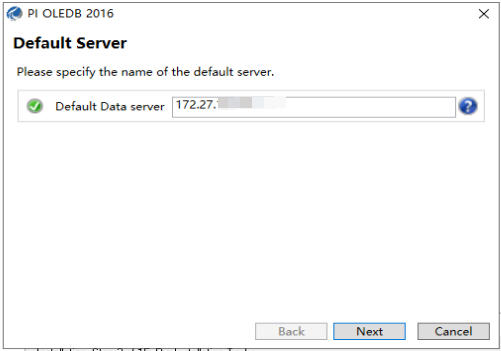
在Default Server填写PI服务器的ip地址:
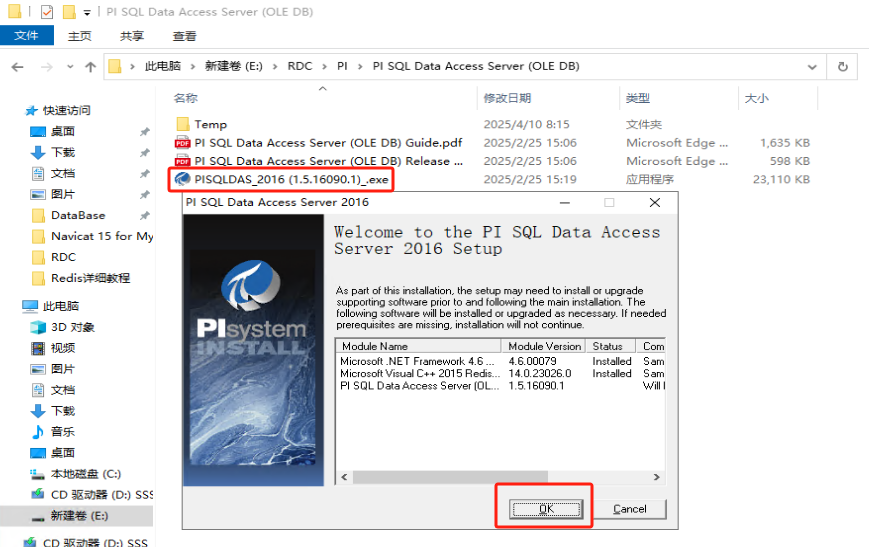
2.安装PI SQL Data Access Server (OLE DB)
进入目录,运行:PISQLDAS_2016 (1.5.16090.1)_.exe
3.安装PI JDBC Driver
进入PI JDBC (Windows)目录,运行:PI JDBC_2016_.exe
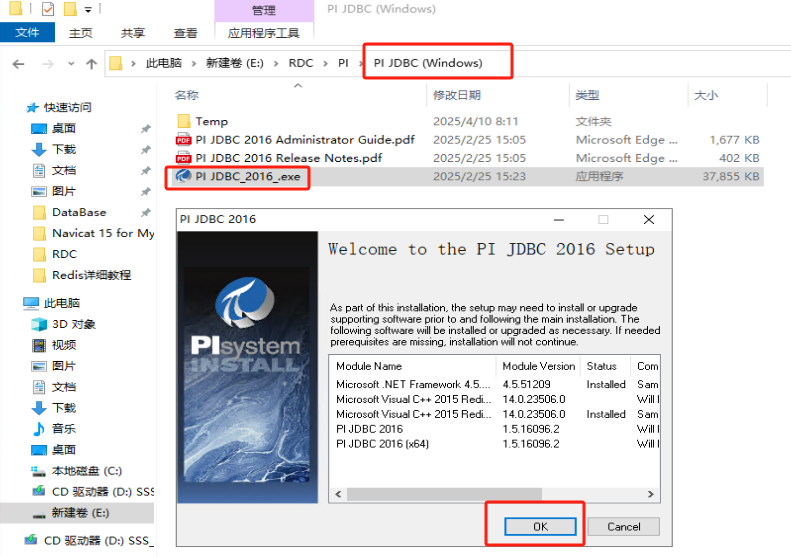
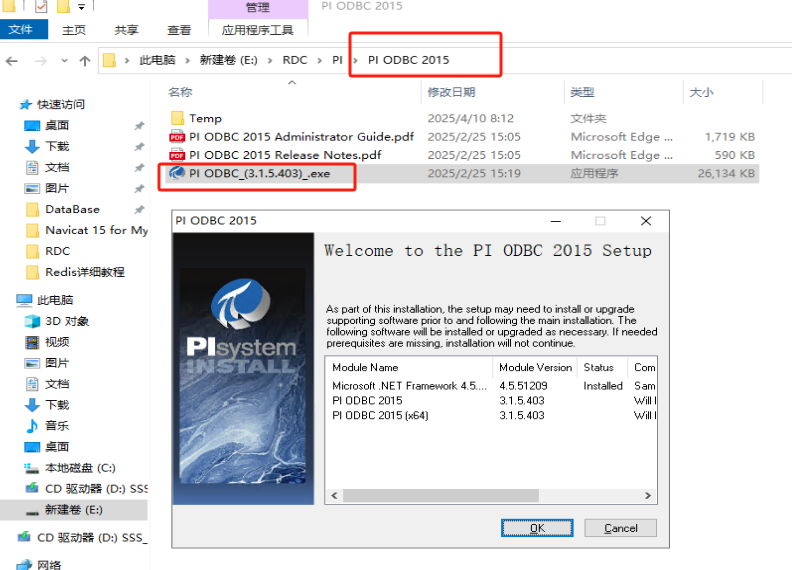
5.安装PI的SQL查询工具
为了方便使用还可以一个PI ODBC程序,该程序包含一个工具SQL Commander Lite,可以用来查询SQL。
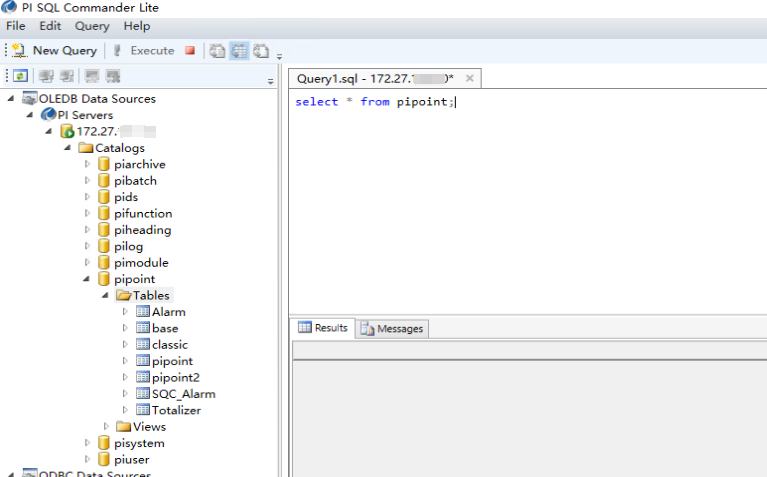
通过上述的安装步骤之后,从开始菜单打开SQL Commander Lite,可以连接上 PI 服务,并且使用 类似 sql 语句去查询PI 中的数据。具体 sql语句 查看 帮助文档如PI-OLEDB-Enterprise-2016-R2-User-Guide.pdf
四、使用JDBC操作PI数据库
1.SpringBoot集成PIJDBC驱动
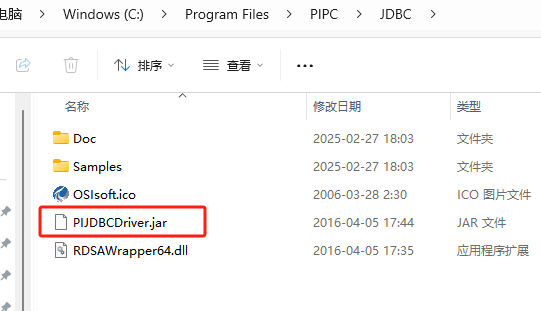
从 PI JDBC Driver 安装后的目录下取出 PIHOME\JDBC\PIJDBCDriver.jar。将其放在项目的lib 下,引入项目中。
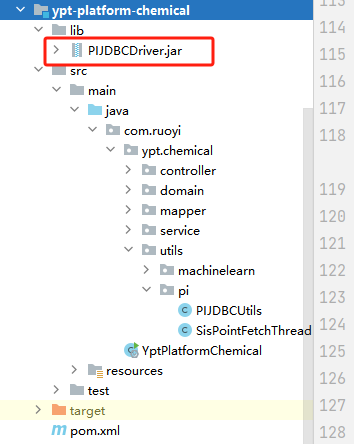
		<!-- 引入本地jar包 -->
        <dependency>
            <groupId>com.osisoft</groupId>
            <artifactId>PIJDBCDriver</artifactId>
            <version>1.5.16096</version>
            <scope>system</scope>
           <systemPath>${project.basedir}/lib/PIJDBCDriver.jar</systemPath>
        </dependency>
2.常用JDBC访问数据库的方式即可查询PI数据库
package com.bkc.test;

import java.sql.Connection;
import java.sql.DatabaseMetaData;
import java.sql.DriverManager;
import java.sql.ResultSet;
import java.sql.SQLException;
import java.util.Properties;

public class GetBAMetaData
{

    public static void main(String[] args)
    {
        // arguments: java GetBAMetaData dasName [trustedConnection protocolOrder logLevel]
        // example: java GetBAMetaData myDas yes nettcp:5462 2
        String dasName = "localhost";
        String dataSourceName = "192.168.1.32";
        String isTrustedConnection = "Yes";
        String protocolOrder = "Https/Soap:5461,NetTcp:5462";
        String logLevel = "0";

        System.out.println("\nArguments:");
        System.out.println("\tData Access Server Name: " + dasName);
        System.out.println("\tUse trusted connection?: " + isTrustedConnection);
        System.out.println("\tProtocol order: " + protocolOrder);
        System.out.println("\tLog level: " + logLevel);


        Connection connection = null;
        String url = "";
        String driverClassName = "com.osisoft.jdbc.Driver";
        ResultSet resultSet = null;
        Properties properties = new Properties();

        //url = "jdbc:piintegrator://" + dasName;
        //url = "jdbc:pioledb://" + dasName + "/Data Source=" + dataSourceName + "; Integrated Security=SSPI";
        url = "jdbc:pioledb://" + dasName + "/Data Source=" + dataSourceName + "; Integrated Security=SSPI";
        System.out.println(url);
        properties.put("TrustedConnection", isTrustedConnection);
        properties.put("ProtocolOrder", protocolOrder);

        properties.put("LogConsole", "True");
        properties.put("LogLevel", logLevel);

        try
        {
            Class.forName(driverClassName).newInstance();
            connection = DriverManager.getConnection(url, properties);

            DatabaseMetaData metaData = connection.getMetaData();
            System.out.println(metaData.getDriverName() + " " + metaData.getDriverVersion());
            System.out.println(metaData.getDatabaseProductName());
            System.out.println(metaData.getDatabaseProductVersion() + "\n");

            // get all tables and views
            String tTypes[] = new String[] {"TABLE", "VIEW"};
            resultSet = metaData.getTables(null, null, "%", tTypes);

            if(!resultSet.first())
                throw new Exception ("No rows in the result set.");

            // we are just interested in those 4 columns
            System.out.print("Catalog || ");
            System.out.print("Schema || ");
            System.out.print("Table || ");
            System.out.println("Table Type\n");

            // read the data
            while (!resultSet.isAfterLast()) {
                System.out.print(resultSet.getString("TABLE_CAT") + " || ");
                System.out.print(resultSet.getString("TABLE_SCHEM") + " || ");
                System.out.print(resultSet.getString("TABLE_NAME") + " || ");
                System.out.println(resultSet.getString("TABLE_TYPE"));
                resultSet.next();
            }

        }
        catch (Exception ex)
        {
            System.err.println(ex);
        }
        finally
        {
            try {
                if(resultSet != null) resultSet.close();
                if(connection != null) connection.close();
            } catch (SQLException ex) {
                System.err.println(ex);
            }
        }
    }
}





 扫一扫
扫一扫


 2946
2946

 被折叠的 条评论
为什么被折叠?
被折叠的 条评论
为什么被折叠?
 到【灌水乐园】发言





