



Here comes another weekly tutorial for iOS programming. We already built a very simple table app displaying list of recipes. If you look into the app, all our recipes are specified in the source code. I try to keep the thing simple and focus on showing how to create a UITableView. However, it’s not a good practice to “hard code” every item in the code. In real app, we used to externalized these static items (i.e. the recipe information) and put them in a file or database or somewhere else. In iOS programming, there is a type of file called Property List. This kind of file is commonly found in Mac OS and iOS, and is used for storing simple structured data (e.g. application setting). In this tutorial, we’ll make some changes in our simple table app and tweak it to use Property List.
In brief, here are a couple of stuffs we’ll cover:
- Convert table data from static array to property list
- How to read property list
Why Externalize the Table Data?
It’s a good practice to separate static data from the code. But why? What’s the advantage to put the table data into an external source. Let’s ask you to add 50 more recipes in our simple table app. Probably, you’ll go back to your code and put all the new recipes in the initialization:
|
1
2 3 4 5 6 7 8 |
// Initialize table data
tableData = [ NSArray arrayWithObjects : @ "Egg Benedict", @ "Mushroom Risotto", @ "Full Breakfast", @ "Hamburger", @ "Ham and Egg Sandwich", @ "Creme Brelee", @ "White Chocolate Donut", @ "Starbucks Coffee", @ "Vegetable Curry", @ "Instant Noodle with Egg", @ "Noodle with BBQ Pork", @ "Japanese Noodle with Pork", @ "Green Tea", @ "Thai Shrimp Cake", @ "Angry Birds Cake", @ "Ham and Cheese Panini", nil ]; // Initialize thumbnails thumbnails = [ NSArray arrayWithObjects : @ "egg_benedict.jpg", @ "mushroom_risotto.jpg", @ "full_breakfast.jpg", @ "hamburger.jpg", @ "ham_and_egg_sandwich.jpg", @ "creme_brelee.jpg", @ "white_chocolate_donut.jpg", @ "starbucks_coffee.jpg", @ "vegetable_curry.jpg", @ "instant_noodle_with_egg.jpg", @ "noodle_with_bbq_pork.jpg", @ "japanese_noodle_with_pork.jpg", @ "green_tea.jpg", @ "thai_shrimp_cake.jpg", @ "angry_birds_cake.jpg", @ "ham_and_cheese_panini.jpg", nil ]; // Initialize Preparation Time prepTime = [ NSArray arrayWithObjects : @ "30 min", @ "30 min", @ "20 min", @ "30 min", @ "10 min", @ "1 hour", @ "45 min", @ "5 min", @ "30 min", @ "8 min", @ "20 min", @ "20 min", @ "5 min", @ "1.5 hour", @ "4 hours", @ "10 min", nil ]; |
There is nothing wrong doing this. But look at the code! It’s not easy to edit and you have to strictly follow the Objective C syntax. Changing the code may accidentally introduce other errors. That’s not we want. Apparently, it would be better to separate the data and the programming logic (i.e. the code). Does it look better when the table data is stored like this?

Sample Property List
In reality, you may not be the one who provides the table data (here, the recipe information). The information may be given by others without iOS programming experience. When we put the data in an external file, it’s easier to read/edit and more understandable.
As you progress, you’ll learn how to put the data in server side (or what-so-called the Cloud). All data in your app are pulled from the server side on demand. It offers one big benefit. For now, any change of the data will require you to build the app and submit it for Apple’s approval. By separating the data and put them in the Cloud, you can change the data anytime without updating your app.
We’re not going to talk about the Cloud for today. Let’s go back to the basic and see how you can put all the recipes in a Property List.
What is Property List
Property list offers a convenient way to store simple structural data. It usually appears in XML format. If you’ve edited some configuration files in Mac or iPhone before, you may come across files with .plist extension. They are examples of the Property List.
You can’t use property list to save all types of data. The items of data in a property list are of a limited number of types including “array”, “dictionary”, “string”, etc. For details of the supported types, you can refer to the Property List documentation.
Property list is commonly used in iOS app for saving application settings. It doesn’t mean you can’t use it for other purposes. But it is designed for storing small amount of data.
Is it the Best Way to Store Table Data?
No, definitely not. We use property list to demonstrate how to store table data in an external file. It’s just an example. As you gain more experience, you’ll learn other ways to store the data.
Convert Table Data to Property List
That’s enough for the background. Let’s get our hands dirty and convert the data into a property list. First, open the Simple Table project in Xcode. Right click on the “SimpleTable” folder and select “New File…”. Select “Other” under “iOS” template, choose “Property List” and click “Next” to continue.

Create a New Property List File
When prompted, use “recipes” as the file name. Once you confirm, Xcode will create the property list file for you. By default, the property list is empty.

Empty Property List
There are two ways to edit the property list. You can right-click on the editing area and select “Add Row” to add a new value.

Add a New Row in Property List Editor
As we’re going to put the three data arrays in the property list, we’ll add three rows with “array” type. Name them with the keys: RecipeName, Thumbnail and PrepTime. The key serves as an identifier and later you’ll use it in your code to pick the corresponding array.

Define Three Arrays in Property List
To add data in the array, just expand it and click the “+” icon to add a new item. Follow the steps in the below illustration if you don’t know how to do it.

Step by Step Procedures to Add an Item in Array
Repeat the procedures until you add all the values for the array. Your property list should look like this:

Recipe Property List
For your convenience, you may download the recipes.plist and add it to your project.
As mentioned earlier, the property list is usually saved in the format of XML. To view the source of the property list, right click and select “Open as Source Code”.

View the Source Code of Property List
The source code of “recipes.plist” file will appear like this:

Source Code of Recipes.plist
Loading Property List in Objective C
Next, we’ll change our code and load the recipe from the property list we just built. It’s fairly easy to read the content of property list. The iOS SDK already comes with some built-in functions to handle the read/write of the file.
Replace the following code:
|
1
2 3 4 5 6 7 8 |
// Initialize table data
tableData = [ NSArray arrayWithObjects : @ "Egg Benedict", @ "Mushroom Risotto", @ "Full Breakfast", @ "Hamburger", @ "Ham and Egg Sandwich", @ "Creme Brelee", @ "White Chocolate Donut", @ "Starbucks Coffee", @ "Vegetable Curry", @ "Instant Noodle with Egg", @ "Noodle with BBQ Pork", @ "Japanese Noodle with Pork", @ "Green Tea", @ "Thai Shrimp Cake", @ "Angry Birds Cake", @ "Ham and Cheese Panini", nil ]; // Initialize thumbnails thumbnails = [ NSArray arrayWithObjects : @ "egg_benedict.jpg", @ "mushroom_risotto.jpg", @ "full_breakfast.jpg", @ "hamburger.jpg", @ "ham_and_egg_sandwich.jpg", @ "creme_brelee.jpg", @ "white_chocolate_donut.jpg", @ "starbucks_coffee.jpg", @ "vegetable_curry.jpg", @ "instant_noodle_with_egg.jpg", @ "noodle_with_bbq_pork.jpg", @ "japanese_noodle_with_pork.jpg", @ "green_tea.jpg", @ "thai_shrimp_cake.jpg", @ "angry_birds_cake.jpg", @ "ham_and_cheese_panini.jpg", nil ]; // Initialize Preparation Time prepTime = [ NSArray arrayWithObjects : @ "30 min", @ "30 min", @ "20 min", @ "30 min", @ "10 min", @ "1 hour", @ "45 min", @ "5 min", @ "30 min", @ "8 min", @ "20 min", @ "20 min", @ "5 min", @ "1.5 hour", @ "4 hours", @ "10 min", nil ]; |
with:
|
1
2 3 4 5 6 7 8 |
// Find out the path of recipes.plist
NSString *path = [ [ NSBundle mainBundle ] pathForResource : @ "recipes" ofType : @ "plist" ]; // Load the file content and read the data into arrays NSDictionary *dict = [ [ NSDictionary alloc ] initWithContentsOfFile :path ]; tableData = [dict objectForKey : @ "RecipeName" ]; thumbnails = [dict objectForKey : @ "Thumbnail" ]; prepTime = [dict objectForKey : @ "PrepTime" ]; |
Behind the Code Change
Line #2 – Before reading the “recipes.plist” file, you have to first retrieve the full path of the resource.
Line #5 – You have defined three keys (RecipeName, Thumbnail, PrepTime) in the property list. In the example, each key is associated with a specific array, which is the value. In iOS programming, we use the term dictionary to refer to this key-value pair association. NSDictionary class provides the necessary methods for managing the dictionary. Here, we use the “initWithContentsOfFile” method of NSDictionary class to read the key-value pairs in a property list file.
Line #6-8 – These lines of code retrieves the corresponding array with the key we defined earlier.
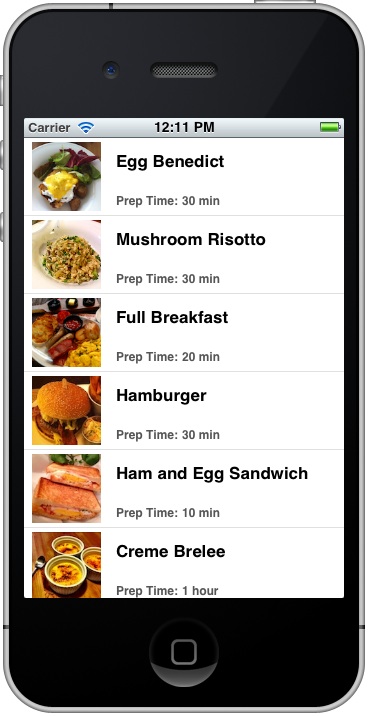
Once you complete the change, try to run the app again. The app is the same as before. Internally, however, the recipes are loaded from the property list.
What’s Upcoming Next?
Again, I hope you learnt a ton through this tutorial. By now you should have a better idea about property list and how you can make use of it to store small amount of data. Next up, we’ll take a look at Storyboard and Navigation Controller.
As always, if you have any problem, leave comment below (or head to our forum) to share with us.
转载:http://www.appcoda.com/enhance-your-simple-table-app-with-property-list/





 扫一扫
扫一扫


 2029
2029

 被折叠的 条评论
为什么被折叠?
被折叠的 条评论
为什么被折叠?
 到【灌水乐园】发言





