


📱 项目简介
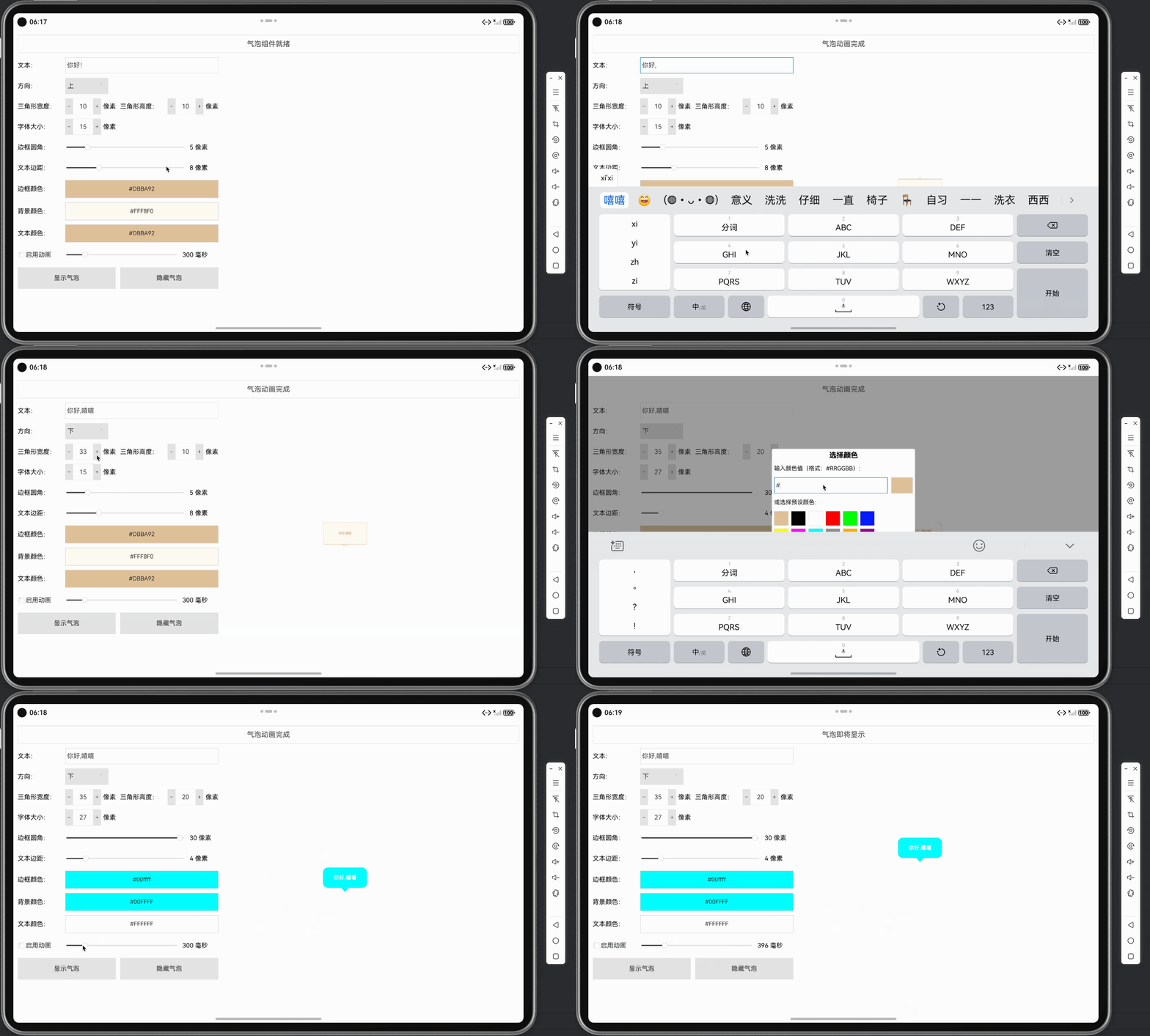
项目地址:https://gitcode.com/szkygc/HarmonyOs_PC-PGC/tree/main/Bubble
本文将详细介绍如何使用 Qt Quick/QML 在 HarmonyOS 平台上开发一个功能完整、高度可定制的气泡提示组件。该组件支持自定义文本、方向、颜色、动画等属性,并提供了直观的可视化配置界面,是学习 Qt + HarmonyOS UI 组件开发的优秀实战案例。
项目特点:
- 🎨 完全自定义绘制的气泡样式
- 🎯 支持四个方向的三角形指示器(上、下、左、右)
- 🎨 丰富的颜色自定义功能(边框、背景、文本)
- ✨ 流畅的淡入淡出动画效果
- 📐 智能的尺寸计算和位置调整
- 🎛️ 实时预览配置界面
🛠️ 技术栈
- 开发框架: Qt 5.15+ for HarmonyOS
- 编程语言: QML / C++
- 图形渲染: Canvas 2D API
- 界面框架: Qt Quick Controls 2
- 动画系统: PropertyAnimation
- 构建工具: CMake
- 目标平台: HarmonyOS (OpenHarmony)
🏗️ 项目架构
Bubble/
├── entry/src/main/
│   ├── cpp/
│   │   ├── main.cpp              # 应用入口(HarmonyOS适配)
│   │   ├── main.qml              # 主界面(配置面板)
│   │   ├── BubbleWidget.qml     # 气泡绘制组件(核心)
│   │   ├── BubbleWrapper.qml     # 气泡包装组件(位置/动画管理)
│   │   ├── CMakeLists.txt        # 构建配置
│   │   └── qml.qrc               # QML资源文件
│   ├── module.json5              # 模块配置
│   └── resources/                # 资源文件
组件层次结构
ApplicationWindow (main.qml)
├── ColumnLayout
│   ├── StatusLabel (状态显示)
│   └── ScrollView
│       └── ConfigurationPanel (配置面板)
│           ├── TextField (文本输入)
│           ├── ComboBox (方向选择)
│           ├── SpinBox (三角形尺寸)
│           ├── Slider (圆角、边距)
│           ├── ColorButtons (颜色选择)
│           ├── CheckBox (动画开关)
│           └── ControlButtons (显示/隐藏)
└── Popup (colorDialog) - 颜色选择对话框

BubbleWrapper (包装组件)
└── BubbleWidget (绘制组件)
    ├── Canvas (气泡绘制)
    └── Text (文本显示)
📝 核心功能实现
1. BubbleWidget - 气泡绘制核心组件
BubbleWidget.qml 是整个项目的核心,负责气泡的绘制和尺寸计算。
1.1 属性定义
Item {
    id: root

    // 外观属性
    property color penColor: "#DBBA92"        // 边框颜色
    property color brushColor: "#FFF8F0"      // 背景颜色
    property color textColor: "#DBBA92"       // 文本颜色
    property int borderRadius: 5              // 圆角半径
    property int textMargin: 8                 // 文本边距

    // 文本属性
    property string text: "你好!"
    property int fontSize: 15
    property bool fontBold: true

    // 三角形属性
    property size triangleSize: Qt.size(10, 10)
    property int direction: 3  // 0=Left, 1=Right, 2=Top, 3=Bottom

    // 方向枚举
    readonly property int directionLeft: 0
    readonly property int directionRight: 1
    readonly property int directionTop: 2
    readonly property int directionBottom: 3
}
1.2 智能尺寸计算
组件会根据文本内容、字体大小、边距和三角形尺寸自动计算最佳大小:
function calculateOptimalSize() {
    // 使用字体度量计算文本尺寸
    var fm = Qt.fontMetrics({
        pixelSize: fontSize || 15,
        bold: fontBold || false
    })

    // 限制最大宽度(屏幕宽度的1/3)
    var screenWidth = Screen.width || 800
    var maxTextWidth = Math.min(500, screenWidth / 3)

    // 计算文本矩形(支持自动换行)
    var textRect = fm.boundingRect(
        Qt.rect(0, 0, maxTextWidth, 300),
        Qt.TextWordWrap | Qt.AlignCenter,
        text || ""
    )

    // 计算内容尺寸(文本 + 边距)
    var contentWidth = Math.max(100, Math.min(500,
        textRect.width + 2 * (textMargin || 8)))
    var contentHeight = Math.max(50, Math.min(300,
        textRect.height + 2 * (textMargin || 8)))

    // 根据方向添加三角形尺寸
    var triW = triangleSize.width || 10
    var triH = triangleSize.height || 10
    var totalSize

    switch (direction) {
    case directionTop:
    case directionBottom:
        totalSize = Qt.size(contentWidth, contentHeight + triH)
        break
    case directionLeft:
    case directionRight:
        totalSize = Qt.size(contentWidth + triW, contentHeight)
        break
    default:
        totalSize = Qt.size(contentWidth, contentHeight)
    }

    return totalSize
}
1.3 气泡矩形计算
根据方向计算气泡主体矩形的位置和大小(排除三角形区域):
function calculateBubbleRect() {
    var triW = triangleSize.width || 10
    var triH = triangleSize.height || 10

    switch (direction) {
    case directionBottom:
        // 三角形在底部,气泡主体在上方
        return Qt.rect(0, triH, width, Math.max(0, height - triH))
    case directionTop:
        // 三角形在顶部,气泡主体在下方
        return Qt.rect(0, 0, width, Math.max(0, height - triH))
    case directionRight:
        // 三角形在右侧,气泡主体在左侧
        return Qt.rect(triW, 0, Math.max(0, width - triW), height)
    case directionLeft:
        // 三角形在左侧,气泡主体在右侧
        return Qt.rect(0, 0, Math.max(0, width - triW), height)
    default:
        return Qt.rect(0, 0, width, height)
    }
}
1.4 三角形路径计算
根据方向计算三角形的三个顶点坐标:
function calculateTrianglePath() {
    var triW = triangleSize.width || 10
    var triH = triangleSize.height || 10
    var path = []

    switch (direction) {
    case directionBottom:
        // 底部三角形:顶点在上,底边在下
        path = [
            Qt.point(width / 2, 0),                    // 顶点
            Qt.point(width / 2 + triW / 2, triH),      // 右下
            Qt.point(width / 2 - triW / 2, triH)       // 左下
        ]
        break
    case directionTop:
        // 顶部三角形:顶点在下,底边在上
        path = [
            Qt.point(width / 2, height),               // 顶点
            Qt.point(width / 2 + triW / 2, height - triH), // 右上
            Qt.point(width / 2 - triW / 2, height - triH)  // 左上
        ]
        break
    case directionRight:
        // 右侧三角形:顶点在左,底边在右
        path = [
            Qt.point(0, height / 2),                   // 顶点
            Qt.point(triW, height / 2 - triH / 2),    // 上
            Qt.point(triW, height / 2 + triH / 2)     // 下
        ]
        break
    case directionLeft:
        // 左侧三角形:顶点在右,底边在左
        path = [
            Qt.point(width, height / 2),               // 顶点
            Qt.point(width - triW, height / 2 - triH / 2), // 上
            Qt.point(width - triW, height / 2 + triH / 2)  // 下
        ]
        break
    }
    return path
}
1.5 Canvas 绘制
使用 Canvas 2D API 绘制圆角矩形和三角形:
Canvas {
    id: bubbleCanvas
    anchors.fill: parent

    onPaint: {
        var ctx = getContext("2d")
        ctx.clearRect(0, 0, width, height)

        var rect = bubbleRect
        var triPath = calculateTrianglePath()

        ctx.save()
        ctx.beginPath()

        // 绘制圆角矩形主体
        var br = Math.max(0, Math.min(borderRadius || 5,
            rect.width / 2, rect.height / 2))

        // 使用 quadraticCurveTo 绘制圆角
        ctx.moveTo(rect.x + br, rect.y)
        ctx.lineTo(rect.x + rect.width - br, rect.y)
        ctx.quadraticCurveTo(rect.x + rect.width, rect.y,
            rect.x + rect.width, rect.y + br)
        // ... 其他边和圆角

        // 添加三角形路径
        if (triPath && triPath.length >= 3) {
            ctx.moveTo(triPath[0].x, triPath[0].y)
            ctx.lineTo(triPath[1].x, triPath[1].y)
            ctx.lineTo(triPath[2].x, triPath[2].y)
            ctx.closePath()
        }

        // 填充背景
        ctx.fillStyle = brushColor || "#FFF8F0"
        ctx.fill()

        // 描边
        ctx.strokeStyle = penColor || "#DBBA92"
        ctx.lineWidth = 2
        ctx.stroke()

        ctx.restore()
    }
}
2. BubbleWrapper - 位置与动画管理
BubbleWrapper.qml 负责气泡的显示位置、动画效果和生命周期管理。
2.1 属性与信号
Item {
    id: root

    property alias bubbleWidget: bubble
    property int animationDuration: 300
    property bool isAnimating: false

    // 生命周期信号
    signal aboutToShow()
    signal aboutToClose()
    signal animationStarted()
    signal animationFinished()
    signal animationStopped()

    visible: false
    z: 10000  // 确保显示在最上层
}
2.2 位置计算与显示
showAt 函数根据目标位置和方向计算气泡的最终位置。该函数使用了 Qt.callLater 确保尺寸更新后再进行位置计算:
function showAt(pos, direction) {
    if (!bubble || !pos) {
        console.log("BubbleWrapper.showAt: bubble or pos is null")
        return
    }

    try {
        // 1. 设置方向
        bubble.direction = direction !== undefined ? direction : bubble.directionBottom

        // 2. 更新气泡尺寸
        var optimalSize = bubble.calculateOptimalSize()
        if (!optimalSize || optimalSize.width <= 0 || optimalSize.height <= 0) {
            optimalSize = Qt.size(200, 100)  // 默认大小
        }

        root.width = optimalSize.width + 20  // 添加边距
        root.height = optimalSize.height + 20

        // 3. 等待一帧确保尺寸更新后再计算位置
        Qt.callLater(function() {
            try {
                var triW = bubble.triangleSize.width || 10
                var triH = bubble.triangleSize.height || 10

                // 根据方向调整位置
                var adjustedX = pos.x || 0
                var adjustedY = pos.y || 0

                switch (direction) {
                case bubble.directionTop:
                    // 三角形在上,气泡在目标点下方
                    adjustedY -= (root.height + triH)
                    adjustedX -= root.width / 2
                    break
                case bubble.directionBottom:
                    // 三角形在下,气泡在目标点上方
                    adjustedY += triH
                    adjustedX -= root.width / 2
                    break
                case bubble.directionLeft:
                    // 三角形在左,气泡在目标点右侧
                    adjustedX -= (root.width + triW)
                    adjustedY -= root.height / 2
                    break
                case bubble.directionRight:
                    // 三角形在右,气泡在目标点左侧
                    adjustedX += triW
                    adjustedY -= root.height / 2
                    break
                }

                // 4. 边界检查(确保在屏幕内)
                var screenWidth = Screen.width || 800
                var screenHeight = Screen.height || 600
                adjustedX = Math.max(0, Math.min(adjustedX, screenWidth - root.width))
                adjustedY = Math.max(0, Math.min(adjustedY, screenHeight - root.height))

                // 5. 设置位置
                root.x = adjustedX
                root.y = adjustedY

                // 6. 确保Canvas绘制
                if (bubble && bubble.canvas) {
                    Qt.callLater(function() {
                        if (bubble && bubble.canvas && root.width > 0 && root.height > 0) {
                            bubble.canvas.requestPaint()
                        }
                    })
                }

                // 7. 显示气泡(带动画)
                showAnimated()
            } catch (e) {
                console.log("BubbleWrapper.showAt error:", e)
            }
        })
    } catch (e) {
        console.log("BubbleWrapper.showAt outer error:", e)
    }
}
关键实现细节:
- 延迟执行:使用
Qt.callLater确保尺寸更新完成后再计算位置,避免时序问题 - 错误处理:使用 try-catch 包裹关键代码,提高健壮性
- Canvas 绘制:在位置设置后延迟请求 Canvas 重绘,确保绘制正确
- 边界限制:使用
Screen.width/height进行边界检查,确保气泡不超出屏幕
2.3 动画实现
使用 PropertyAnimation 实现淡入淡出效果:
// 显示动画
PropertyAnimation {
    id: showAnimation
    target: root
    property: "opacity"
    from: 0.0
    to: 1.0
    duration: root.animationDuration
    easing.type: Easing.OutCubic

    onStarted: {
        root.isAnimating = true
        root.animationStarted()
    }

    onFinished: {
        root.isAnimating = false
        root.animationFinished()
    }
}

// 隐藏动画
PropertyAnimation {
    id: hideAnimation
    target: root
    property: "opacity"
    from: 1.0
    to: 0.0
    duration: root.animationDuration
    easing.type: Easing.InCubic

    onFinished: {
        root.isAnimating = false
        root.visible = false
        root.animationFinished()
        root.aboutToClose()
    }
}

function showAnimated() {
    if (!bubble) {
        console.log("BubbleWrapper.showAnimated: bubble is null")
        return
    }

    // 先设置可见和尺寸
    root.visible = true
    root.opacity = animationDuration <= 0 ? 1.0 : 0.0

    root.aboutToShow()

    // 确保Canvas绘制
    Qt.callLater(function() {
        if (bubble && bubble.canvas && root.width > 0 && root.height > 0) {
            bubble.canvas.requestPaint()
        }
    })

    // 如果动画时长为0,直接显示,不播放动画
    if (animationDuration <= 0) {
        return
    }

    // 如果正在动画,先停止
    if (isAnimating) {
        stopAnimation()
    }

    // 启动显示动画
    showAnimation.start()
}

function hideAnimated() {
    // 如果动画时长为0,直接隐藏
    if (animationDuration <= 0) {
        root.visible = false
        root.aboutToClose()
        return
    }

    // 如果正在动画,先停止
    if (isAnimating) {
        stopAnimation()
    }

    root.aboutToClose()
    hideAnimation.start()
}

// 停止动画
function stopAnimation() {
    showAnimation.stop()
    hideAnimation.stop()
    isAnimating = false
    animationStopped()
}
动画控制要点:
- 条件动画:当
animationDuration为 0 时,直接显示/隐藏,不播放动画 - 动画冲突处理:在启动新动画前检查并停止正在进行的动画
- Canvas 同步:在显示前确保 Canvas 已准备好绘制
- 生命周期信号:通过信号通知外部组件动画状态变化
3. 主界面 - 配置面板
main.qml 提供了完整的可视化配置界面。
3.1 组件延迟创建
使用 Qt.createComponent 动态创建 BubbleWrapper,避免初始化时的依赖问题:
function createBubbleWrapper() {
    if (bubbleWrapper) {
        console.log("BubbleWrapper already exists")
        return
    }

    console.log("Creating BubbleWrapper component...")
    var component = Qt.createComponent("BubbleWrapper.qml")

    if (component.status === Component.Ready) {
        bubbleWrapper = component.createObject(root)

        if (bubbleWrapper) {
            // 连接生命周期信号
            bubbleWrapper.aboutToShow.connect(function() {
                statusText = "气泡即将显示"
            })
            bubbleWrapper.aboutToClose.connect(function() {
                statusText = "气泡即将关闭"
            })
            bubbleWrapper.animationStarted.connect(function() {
                statusText = "气泡动画开始"
            })
            bubbleWrapper.animationFinished.connect(function() {
                statusText = "气泡动画完成"
            })
            bubbleWrapper.animationStopped.connect(function() {
                statusText = "气泡动画停止"
            })

            // 同步初始设置
            if (bubbleWrapper.bubbleWidget) {
                bubbleWrapper.bubbleWidget.text = textEdit.text
                bubbleWrapper.bubbleWidget.direction = directionCombo.currentIndex
                bubbleWrapper.bubbleWidget.triangleSize = Qt.size(
                    triangleWidthSpin.value,
                    triangleHeightSpin.value
                )
                bubbleWrapper.bubbleWidget.fontSize = fontSizeSpin.value
                bubbleWrapper.bubbleWidget.borderRadius = Math.round(borderRadiusSlider.value)
                bubbleWrapper.bubbleWidget.textMargin = Math.round(textMarginSlider.value)
                bubbleWrapper.bubbleWidget.penColor = penColorButton.text
                bubbleWrapper.bubbleWidget.brushColor = brushColorButton.text
                bubbleWrapper.bubbleWidget.textColor = textColorButton.text
            }

            // 同步动画设置
            bubbleWrapper.animationDuration = animationSwitch.checked
                ? animationDurationSlider.value : 0

            statusText = "气泡组件就绪"
        } else {
            statusText = "气泡创建失败"
        }
    } else {
        statusText = "气泡组件加载失败: " + component.errorString()
    }
}

Component.onCompleted: {
    // 延迟创建,确保主窗口完全初始化
    Qt.callLater(function() {
        createBubbleWrapper()
    })
}
3.2 显示/隐藏控制
主界面提供了两个按钮来控制气泡的显示和隐藏:
// 显示气泡按钮
Button {
    id: showAtCursorButton
    text: "显示气泡"
    Layout.fillWidth: true
    Layout.preferredHeight: 60 * scaleFactor

    onClicked: {
        // 如果组件未创建,先创建
        if (!bubbleWrapper) {
            createBubbleWrapper()
        }

        if (bubbleWrapper) {
            // 计算显示位置(窗口右侧65%位置,垂直居中)
            var rightX = root.width * 0.65
            var centerY = root.height / 2
            var cursorPos = Qt.point(rightX, centerY)

            // 调用 showAt 显示气泡
            bubbleWrapper.showAt(cursorPos, directionCombo.currentIndex)
        }
    }
}

// 隐藏气泡按钮
Button {
    text: "隐藏气泡"
    Layout.fillWidth: true
    Layout.preferredHeight: 60 * scaleFactor

    onClicked: {
        if (bubbleWrapper) {
            // 调用 hideAnimated 隐藏气泡(带动画)
            bubbleWrapper.hideAnimated()
        }
    }
}
显示控制要点:
- 延迟创建:在显示时检查组件是否存在,不存在则先创建
- 位置计算:使用窗口尺寸的百分比计算显示位置,实现响应式布局
- 方向同步:显示时使用当前选择的方向设置
- 动画支持:隐藏时使用
hideAnimated()实现淡出动画效果
3.3 动画控制(Switch 组件)
使用 Switch 组件替代 CheckBox 来控制动画的启用/禁用,避免乱码问题:
RowLayout {
    Layout.preferredWidth: 120 * scaleFactor
    spacing: 8 * scaleFactor

    Text {
        text: "启用动画:"
        font.pixelSize: 18 * scaleFactor
    }

    Switch {
        id: animationSwitch
        checked: true  // 默认启用

        onCheckedChanged: {
            if (bubbleWrapper) {
                // 根据开关状态设置动画时长
                bubbleWrapper.animationDuration = checked
                    ? animationDurationSlider.value : 0
            }
        }
    }
}

Slider {
    id: animationDurationSlider
    from: 0
    to: 2000
    value: 300  // 默认300毫秒

    onValueChanged: {
        animationDurationLabel.text = Math.round(value) + " 毫秒"

        // 只有在动画启用时才更新动画时长
        if (bubbleWrapper && animationSwitch.checked) {
            bubbleWrapper.animationDuration = Math.round(value)
        }
    }
}
动画控制要点:
- Switch 组件:使用
Switch替代CheckBox,避免在某些平台上出现乱码 - 动态控制:开关关闭时设置
animationDuration = 0,实现无动画显示/隐藏 - 实时同步:滑块值变化时实时更新动画时长,但仅在动画启用时生效
- 状态显示:通过标签显示当前动画时长,提供视觉反馈
3.4 颜色选择对话框
实现了一个功能完整的颜色选择器:
Popup {
    id: colorDialog
    width: 400 * scaleFactor
    height: 400 * scaleFactor
    modal: true

    property var targetButton: null
    property bool isPenColor: false
    property bool isTextColor: false
    property string currentColor: "#000000"

    contentItem: ColumnLayout {
        // 颜色输入框(支持 #RRGGBB 格式)
        TextField {
            id: colorInput
            validator: RegExpValidator {
                regExp: /^#[0-9A-Fa-f]{6}$/
            }
            onTextChanged: {
                if (text.match(/^#[0-9A-Fa-f]{6}$/)) {
                    colorPreview.color = text
                }
            }
        }

        // 颜色预览
        Rectangle {
            id: colorPreview
            color: colorInput.text.match(/^#[0-9A-Fa-f]{6}$/)
                ? colorInput.text : colorDialog.currentColor
        }

        // 预设颜色网格
        GridLayout {
            columns: 6
            Repeater {
                model: [
                    "#DBBA92", "#000000", "#FFFFFF", "#FF0000",
                    "#00FF00", "#0000FF", "#FFFF00", "#FF00FF",
                    // ... 更多颜色
                ]
                Rectangle {
                    color: modelData
                    MouseArea {
                        anchors.fill: parent
                        onClicked: {
                            colorInput.text = modelData
                            colorPreview.color = modelData
                        }
                    }
                }
            }
        }

        // 确定/取消按钮
        RowLayout {
            Button {
                text: "确定"
                onClicked: {
                    var newColor = colorInput.text
                    if (newColor.match(/^#[0-9A-Fa-f]{6}$/)) {
                        if (colorDialog.isPenColor) {
                            bubbleWrapper.bubbleWidget.penColor = newColor
                        } else if (colorDialog.isTextColor) {
                            bubbleWrapper.bubbleWidget.textColor = newColor
                        } else {
                            bubbleWrapper.bubbleWidget.brushColor = newColor
                        }
                        colorDialog.targetButton.text = newColor
                        colorDialog.close()
                    }
                }
            }
        }
    }
}
3.3 实时属性同步
所有配置控件都实时同步到气泡组件:
TextField {
    id: textEdit
    text: "你好!"
    onTextChanged: {
        if (bubbleWrapper && bubbleWrapper.bubbleWidget) {
            bubbleWrapper.bubbleWidget.text = text
        }
    }
}

ComboBox {
    id: directionCombo
    model: ["右", "左", "下", "上"]
    onCurrentIndexChanged: {
        if (bubbleWrapper && bubbleWrapper.bubbleWidget) {
            bubbleWrapper.bubbleWidget.direction = currentIndex
        }
    }
}

Slider {
    id: borderRadiusSlider
    from: 0
    to: 30
    value: 5
    onValueChanged: {
        if (bubbleWrapper && bubbleWrapper.bubbleWidget) {
            bubbleWrapper.bubbleWidget.borderRadius = Math.round(value)
        }
    }
}
4. HarmonyOS 适配要点
4.1 应用入口适配
HarmonyOS 上必须使用 qtmain() 而不是 main():
extern "C" int qtmain(int argc, char **argv)
{
    // 设置 OpenGL ES
    QCoreApplication::setAttribute(Qt::AA_UseOpenGLES);
    QCoreApplication::setAttribute(Qt::AA_ShareOpenGLContexts);

    QGuiApplication app(argc, argv);

    // 配置 OpenGL ES 表面格式
    QSurfaceFormat format;
    format.setRenderableType(QSurfaceFormat::OpenGLES);
    format.setVersion(2, 0);
    format.setAlphaBufferSize(8);
    QSurfaceFormat::setDefaultFormat(format);

    // 创建 QML 引擎
    QQmlApplicationEngine engine;
    engine.load(QUrl("qrc:/main.qml"));

    return app.exec();
}
4.2 资源文件配置
确保 QML 文件正确添加到资源文件 qml.qrc:
<RCC>
    <qresource prefix="/">
        <file>main.qml</file>
        <file>BubbleWidget.qml</file>
        <file>BubbleWrapper.qml</file>
    </qresource>
</RCC>
🎯 关键技术点
1. Canvas 2D 绘制技巧
- 圆角矩形绘制:使用
quadraticCurveTo绘制平滑的圆角 - 路径合并:将矩形和三角形路径合并为一个完整路径,确保描边连续
- 坐标系统:注意 Canvas 的坐标原点在左上角
2. 响应式尺寸计算
- 字体度量:使用
Qt.fontMetrics精确计算文本尺寸 - 自动换行:通过
boundingRect和TextWordWrap标志实现 - 边界限制:根据屏幕尺寸限制最大宽度,避免超出屏幕
3. 动画性能优化
- PropertyAnimation:使用硬件加速的属性动画
- Easing 曲线:选择合适的缓动函数(OutCubic/InCubic)
- 条件动画:支持禁用动画(duration = 0)以提高性能
4. 组件生命周期管理
- 延迟创建:使用
Qt.callLater避免初始化时序问题 - 延迟绘制:在
Component.onCompleted中延迟请求绘制 - 信号连接:通过信号槽机制实现组件间通信
🐛 常见问题与解决方案
1. 气泡不显示
问题:创建组件后气泡不显示
解决方案:
- 确保
visible属性在尺寸计算完成后设置为true - 使用
Qt.callLater延迟设置可见性 - 检查 Canvas 的
requestPaint()是否被调用
function showAnimated() {
    root.visible = true
    Qt.callLater(function() {
        if (bubble && bubble.canvas && root.width > 0 && root.height > 0) {
            bubble.canvas.requestPaint()
        }
    })
}
2. 位置计算错误
问题:气泡位置偏移或超出屏幕
解决方案:
- 使用
root.parent的尺寸而不是Screen.width/height进行边界检查 - 根据方向正确调整位置偏移量
- 添加边界限制确保不超出父容器
var parentWidth = root.parent ? root.parent.width : Screen.width
var parentHeight = root.parent ? root.parent.height : Screen.height
adjustedX = Math.max(0, Math.min(adjustedX, parentWidth - root.width))
adjustedY = Math.max(0, Math.min(adjustedY, parentHeight - root.height))
3. 文本溢出
问题:文本超出气泡边界
解决方案:
- 使用
Text.WordWrap实现自动换行 - 根据文本内容动态计算气泡尺寸
- 设置合适的
textMargin确保文本不贴边
4. 动画不流畅
问题:动画卡顿或闪烁
解决方案:
- 使用
PropertyAnimation而非 JavaScript 动画 - 设置合适的
easing.type缓动函数 - 避免在动画过程中频繁更新其他属性
📊 性能优化建议
- 延迟初始化:使用
Qt.callLater延迟非关键组件的创建 - 按需绘制:只在属性变化时调用
requestPaint() - 缓存计算:缓存字体度量和尺寸计算结果
- 减少重绘:合并多个属性更新,减少 Canvas 重绘次数
🎨 扩展功能建议
- 阴影效果:在 Canvas 绘制中添加阴影
- 渐变填充:支持渐变背景色
- 多行文本:优化长文本的显示
- 图标支持:在气泡中添加图标
- 交互反馈:添加点击、悬停等交互效果
📚 总结
本项目展示了如何使用 Qt Quick/QML 在 HarmonyOS 平台上开发一个功能完整、高度可定制的 UI 组件。通过 Canvas 2D API 实现自定义绘制,通过 PropertyAnimation 实现流畅动画,通过响应式设计实现智能尺寸计算,这些都是 Qt 开发中的核心技能。
核心收获:
- ✅ 掌握 Canvas 2D 自定义绘制技巧
- ✅ 理解 QML 组件生命周期管理
- ✅ 学会使用 PropertyAnimation 实现动画
- ✅ 掌握 HarmonyOS 平台适配要点
- ✅ 理解响应式 UI 设计原则
希望本文能帮助开发者更好地理解 Qt + HarmonyOS 开发,并在实际项目中应用这些技术。
相关资源:





 扫一扫
扫一扫


 3182
3182

 被折叠的 条评论
为什么被折叠?
被折叠的 条评论
为什么被折叠?
 到【灌水乐园】发言





