


目录
项目概述
项目背景
在HarmonyOS应用开发中,无边框窗口和自定义窗口缩放是高级UI交互需求。本项目基于Qt/QML框架,实现了一个功能完整的无边框窗口缩放应用,支持通过鼠标在窗口边缘拖拽来调整窗口大小,同时集成了SplitView分割布局功能,展示了如何在Qt for HarmonyOS中实现自定义窗口交互和复杂布局管理。
项目目标
本项目的主要目标包括:
- 无边框窗口实现:实现无边框窗口,提供自定义的窗口控制体验
- 边缘缩放功能:支持通过鼠标在窗口边缘拖拽来调整窗口大小
- 动态光标变化:根据鼠标位置自动切换光标样式,提供清晰的交互反馈
- 分割布局集成:集成SplitView实现可拖动的分割布局,支持多区域管理
- 响应式设计:适配不同屏幕尺寸,确保在不同设备上正常运行
功能特性
- ✅ 无边框窗口:去除系统默认边框,实现自定义窗口外观
- ✅ 边缘缩放:支持左、右、上、下四个方向的边缘缩放,以及四个角落的斜向缩放
- ✅ 动态光标:根据鼠标位置自动切换光标样式(水平、垂直、斜向、箭头)
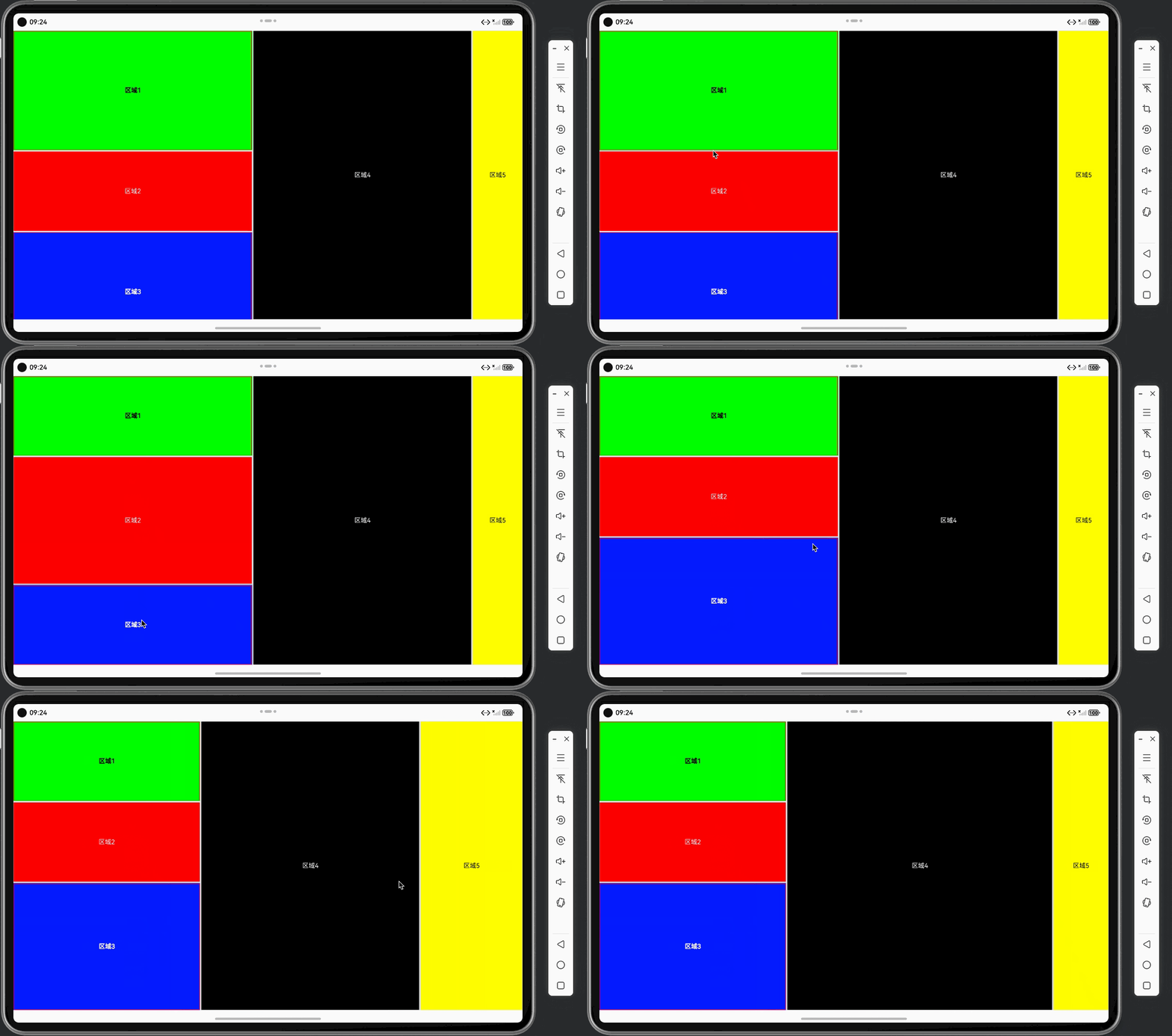
- ✅ SplitView布局:实现5个区域的可拖动分割布局(左侧3个垂直区域,中间1个,右侧1个)
- ✅ 最小尺寸限制:设置窗口最小尺寸,防止窗口过小导致UI异常
- ✅ 事件处理优化:正确处理鼠标事件,确保SplitView拖动和窗口缩放不冲突
- ✅ 响应式布局:支持不同屏幕尺寸的自适应显示,适配多种设备
- ✅ 视觉优化:清晰的区域划分和边框标识,直观的交互反馈
技术栈选择
前端框架:Qt/QML
选择理由:
- ApplicationWindow组件:QML的ApplicationWindow提供了窗口管理功能,支持无边框模式
- MouseArea组件:QML的MouseArea提供了强大的鼠标事件处理能力,支持悬停检测和位置追踪
- SplitView组件:Qt Quick Controls 2的SplitView提供了可拖动的分割布局功能
- 声明式UI:QML的声明式语法使得UI布局和交互逻辑更加直观和易维护
- 性能优异:基于OpenGL ES硬件加速,交互流畅
图形渲染:OpenGL ES
选择理由:
- 硬件加速:基于OpenGL ES实现,性能优异
- 跨平台支持:Qt for HarmonyOS提供了完整的OpenGL ES支持
- 流畅交互:硬件加速确保了窗口缩放和布局拖动的流畅性
平台:HarmonyOS
选择理由:
- Qt官方支持:Qt for HarmonyOS提供了完整的开发支持
- 原生体验:可以充分利用HarmonyOS的原生能力
- 生态完善:HarmonyOS生态日益完善,开发工具链成熟
架构设计
整体架构
ApplicationWindow (main.qml)
├── Item (contentArea - 内容区域)
│   ├── Rectangle (背景)
│   │   └── SplitView (主分割器 - 水平)
│   │       ├── SplitView (左侧容器 - 垂直)
│   │       │   ├── Rectangle (区域1 - 绿色)
│   │       │   ├── Rectangle (区域2 - 红色)
│   │       │   └── Rectangle (区域3 - 蓝色)
│   │       ├── Rectangle (区域4 - 黑色)
│   │       └── Rectangle (区域5 - 黄色)
│   └── MouseArea (窗口鼠标区域)
│       ├── onPositionChanged (光标更新/缩放处理)
│       ├── onPressed (开始缩放)
│       └── onReleased (结束缩放)
数据流设计
用户操作
  ├── 鼠标移动 → onPositionChanged → 检测边缘位置 → 更新光标样式
  ├── 鼠标按下 → onPressed → 检测边缘位置 → 开始缩放 → 记录初始状态
  ├── 鼠标拖动 → onPositionChanged → 计算新尺寸 → 更新contentWidth/Height
  └── 鼠标释放 → onReleased → 结束缩放 → 恢复默认光标
核心组件
-
窗口缩放系统
- 使用MouseArea检测窗口边缘
- 通过位运算标识缩放方向(左、右、上、下、角落)
- 实时计算新尺寸并更新内容区域
-
SplitView布局系统
- 主SplitView实现水平分割(左侧容器、中间区域、右侧区域)
- 左侧容器使用垂直SplitView(区域1、区域2、区域3)
- 支持拖动调整各区域大小
-
事件处理机制
- MouseArea设置
propagateComposedEvents: true允许事件传递给子元素 - 通过
mouse.accepted控制事件是否传递给SplitView - 使用
z: -1确保MouseArea在SplitView之下,不阻止SplitView拖动
- MouseArea设置
核心功能实现
本文档将详细介绍无边框窗口缩放的核心功能实现,包括边缘检测、窗口缩放、光标管理等关键模块。
1. 边缘检测实现
边缘检测是窗口缩放功能的基础,通过检测鼠标位置是否在窗口边缘区域来判断是否可以缩放。
1.1 边缘检测函数
// 鼠标位置检测(相对于内容区域)
function getResizeEdge(mouseX, mouseY) {
    var edge = 0
    // 检测是否在边框区域内
    if (mouseX <= borderWidth) edge |= 1  // Left
    if (mouseY <= borderWidth) edge |= 2   // Top
    if (mouseX >= contentWidth - borderWidth) edge |= 4  // Right
    if (mouseY >= contentHeight - borderWidth) edge |= 8  // Bottom
    return edge
}
关键实现说明:
-
位运算标识:使用位运算(
|=)来组合多个边缘方向,支持同时检测多个边缘(如角落)1(0x01) = 左边缘2(0x02) = 上边缘4(0x04) = 右边缘8(0x08) = 下边缘- 组合值:
3(1|2) = 左上角,6(2|4) = 右上角,9(1|8) = 左下角,12(4|8) = 右下角
-
边框宽度:
borderWidth定义了可拖拽的边缘区域宽度,通常设置为10 * scaleFactor,确保有足够的拖拽区域
1.2 动态光标更新
根据检测到的边缘位置,动态更新鼠标光标样式:
onPositionChanged: {
    if (isResizing) {
        // 缩放处理逻辑(见下文)
    } else {
        // 更新鼠标光标(相对于内容区域)
        var edge = getResizeEdge(mouse.x, mouse.y)
        if (edge === 0) {
            // 不在边缘区域,恢复默认光标,让SplitView处理拖动
            cursorShape = Qt.ArrowCursor
        } else {
            // 在边缘区域,更新光标
            var newCursor = Qt.ArrowCursor
            if ((edge & 3) === 3) {  // TopLeft (1 | 2)
                newCursor = Qt.SizeFDiagCursor
            } else if ((edge & 6) === 6) {  // TopRight (2 | 4)
                newCursor = Qt.SizeBDiagCursor
            } else if ((edge & 9) === 9) {  // BottomLeft (1 | 8)
                newCursor = Qt.SizeBDiagCursor
            } else if ((edge & 12) === 12) {  // BottomRight (4 | 8)
                newCursor = Qt.SizeFDiagCursor
            } else if (edge & 1) {  // Left
                newCursor = Qt.SizeHorCursor
            } else if (edge & 2) {  // Top
                newCursor = Qt.SizeVerCursor
            } else if (edge & 4) {  // Right
                newCursor = Qt.SizeHorCursor
            } else if (edge & 8) {  // Bottom
                newCursor = Qt.SizeVerCursor
            }

            // 更新MouseArea的光标
            if (cursorShape !== newCursor) {
                cursorShape = newCursor
            }
        }
    }
}
光标类型说明:
Qt.ArrowCursor:默认箭头光标(非边缘区域)Qt.SizeHorCursor:水平调整光标(左、右边缘)Qt.SizeVerCursor:垂直调整光标(上、下边缘)Qt.SizeFDiagCursor:斜向调整光标(左上、右下角)Qt.SizeBDiagCursor:反向斜向调整光标(右上、左下角)
2. 窗口缩放实现
窗口缩放功能通过处理鼠标按下、移动和释放事件来实现。
2.1 缩放状态管理
// 鼠标状态
property bool isResizing: false
property point resizeStartPos: Qt.point(0, 0)
property rect resizeStartRect: Qt.rect(0, 0, 0, 0)
property int resizeEdge: 0  // 0=none, 1=left, 2=top, 4=right, 8=bottom
状态说明:
isResizing:标识是否正在缩放resizeStartPos:记录开始缩放时的鼠标位置resizeStartRect:记录开始缩放时的窗口尺寸resizeEdge:记录缩放方向(位运算组合值)
2.2 开始缩放
onPressed: {
    var edge = getResizeEdge(mouse.x, mouse.y)
    if (edge !== 0) {
        // 开始缩放
        isResizing = true
        resizeEdge = edge
        resizeStartPos = Qt.point(mouse.x, mouse.y)
        resizeStartRect = Qt.rect(0, 0, contentWidth, contentHeight)
        mouse.accepted = true  // 接受事件,阻止传递给SplitView
    } else {
        // 如果不是在边缘,不处理事件,让SplitView处理
        mouse.accepted = false  // 不接受事件,让事件传递给SplitView
    }
}
关键处理:
- 检测鼠标是否在边缘区域
- 如果在边缘,开始缩放并阻止事件传递给SplitView
- 如果不在边缘,让事件传递给SplitView,支持SplitView拖动
2.3 缩放处理
onPositionChanged: {
    if (isResizing) {
        // 处理内容区域缩放
        var deltaX = mouse.x - resizeStartPos.x
        var deltaY = mouse.y - resizeStartPos.y
        var newWidth = resizeStartRect.width
        var newHeight = resizeStartRect.height

        if (resizeEdge & 1) {  // Left
            newWidth = resizeStartRect.width - deltaX
            if (newWidth < minWidth) {
                newWidth = minWidth
            }
        }
        if (resizeEdge & 2) {  // Top
            newHeight = resizeStartRect.height - deltaY
            if (newHeight < minHeight) {
                newHeight = minHeight
            }
        }
        if (resizeEdge & 4) {  // Right
            newWidth = resizeStartRect.width + deltaX
            if (newWidth < minWidth) newWidth = minWidth
        }
        if (resizeEdge & 8) {  // Bottom
            newHeight = resizeStartRect.height + deltaY
            if (newHeight < minHeight) newHeight = minHeight
        }

        // 设置内容区域大小
        contentWidth = newWidth
        contentHeight = newHeight
    }
}
缩放逻辑说明:
- 左边缘:宽度 = 原始宽度 - 鼠标移动距离(向左拖拽增加宽度)
- 上边缘:高度 = 原始高度 - 鼠标移动距离(向上拖拽增加高度)
- 右边缘:宽度 = 原始宽度 + 鼠标移动距离(向右拖拽增加宽度)
- 下边缘:高度 = 原始高度 + 鼠标移动距离(向下拖拽增加高度)
- 最小尺寸限制:确保窗口尺寸不小于
minWidth和minHeight
2.4 结束缩放
onReleased: {
    isResizing = false
    resizeEdge = 0
    cursorShape = Qt.ArrowCursor
}
3. SplitView布局实现
SplitView提供了可拖动的分割布局功能,本项目实现了5个区域的分割布局。
3.1 主分割器(水平)
SplitView {
    id: splitterMain
    anchors.fill: parent
    orientation: Qt.Horizontal

    // 左侧容器(包含垂直分割器)
    SplitView {
        id: leftContainer
        SplitView.minimumWidth: 400 * scaleFactor
        SplitView.preferredWidth: 600 * scaleFactor
        SplitView.fillHeight: true
        orientation: Qt.Vertical

        // 区域1、2、3...
    }

    // 中间区域
    Rectangle {
        id: area4
        SplitView.minimumWidth: 100 * scaleFactor
        SplitView.preferredWidth: parent.width * 3 / 7
        color: "#000000"
    }

    // 右侧区域
    Rectangle {
        id: area5
        SplitView.minimumWidth: 100 * scaleFactor
        SplitView.fillWidth: true
        color: "#FFFF00"
    }
}
布局说明:
- 主SplitView:水平方向,包含左侧容器、中间区域、右侧区域
- 左侧容器:垂直方向,包含区域1、区域2、区域3
- 比例设置:通过
SplitView.preferredWidth和SplitView.fillWidth控制各区域比例
3.2 左侧垂直分割器
SplitView {
    id: leftContainer
    orientation: Qt.Vertical

    // 顶部区域(绿色)- 比例1
    Rectangle {
        id: area1
        SplitView.minimumHeight: 200 * scaleFactor
        SplitView.preferredHeight: 300 * scaleFactor
        color: "#00FF00"
    }

    // 中间区域(红色)- 比例4
    Rectangle {
        id: area2
        SplitView.minimumHeight: 200 * scaleFactor
        SplitView.fillHeight: true  // 填充剩余空间
        color: "#FF0000"
    }

    // 底部区域(蓝色)- 比例1
    Rectangle {
        id: area3
        SplitView.minimumHeight: 200 * scaleFactor
        SplitView.preferredHeight: 300 * scaleFactor
        color: "#0000FF"
    }
}
布局说明:
- 区域1:顶部区域,固定首选高度
- 区域2:中间区域,使用
fillHeight: true填充剩余空间 - 区域3:底部区域,固定首选高度
4. 事件处理优化
确保窗口缩放和SplitView拖动不冲突是关键挑战。
4.1 MouseArea配置
MouseArea {
    id: windowMouseArea
    anchors.fill: parent
    acceptedButtons: Qt.LeftButton
    hoverEnabled: true
    cursorShape: Qt.ArrowCursor
    propagateComposedEvents: true  // 允许事件传递给子元素(SplitView)
    z: -1  // 确保在SplitView之下,不阻止SplitView的拖动
}
关键配置说明:
- propagateComposedEvents: true:允许鼠标事件传递给子元素,确保SplitView可以接收拖动事件
- z: -1:确保MouseArea在SplitView之下,不会阻止SplitView的交互
- hoverEnabled: true:启用悬停检测,支持光标动态更新
4.2 事件接受控制
onPressed: {
    var edge = getResizeEdge(mouse.x, mouse.y)
    if (edge !== 0) {
        // 在边缘区域,处理缩放
        mouse.accepted = true  // 接受事件,阻止传递给SplitView
    } else {
        // 不在边缘区域,让SplitView处理
        mouse.accepted = false  // 不接受事件,让事件传递给SplitView
    }
}
事件处理逻辑:
- 如果鼠标在边缘区域,
mouse.accepted = true,阻止事件传递给SplitView,处理窗口缩放 - 如果鼠标不在边缘区域,
mouse.accepted = false,让事件传递给SplitView,支持SplitView拖动
5. 响应式设计
使用 scaleFactor 实现响应式设计,适配不同屏幕尺寸。
// 根据屏幕大小计算缩放因子
readonly property real scaleFactor: width > 1000 ? 2.0 : 1.0

// 内容区域属性(用于缩放)
property real contentWidth: Screen.width > 1000 ? 1600 : 800
property real contentHeight: Screen.height > 1000 ? 2560 : 741
property int borderWidth: 10 * scaleFactor  // 边框宽度
property int minWidth: 400 * scaleFactor
property int minHeight: 300 * scaleFactor
响应式要点:
- 所有尺寸相关的属性都乘以
scaleFactor - 边框宽度、最小尺寸等都根据屏幕大小自适应
- 确保在不同设备上都有良好的交互体验
开发要点与技巧
在开发无边框窗口缩放过程中,积累了一些实用的开发技巧和注意事项,本节将详细介绍。
1. OpenGL ES配置
Qt应用依赖OpenGL ES硬件加速,正确配置是确保应用正常运行的关键。
// 设置使用OpenGL ES
QCoreApplication::setAttribute(Qt::AA_UseOpenGLES);
QCoreApplication::setAttribute(Qt::AA_ShareOpenGLContexts);

// 配置OpenGL ES 2.0
QSurfaceFormat format;
format.setRenderableType(QSurfaceFormat::OpenGLES);
format.setVersion(2, 0);
format.setAlphaBufferSize(8);
format.setDepthBufferSize(24);
QSurfaceFormat::setDefaultFormat(format);
重要提示:
- 必须设置
Qt::AA_UseOpenGLES和Qt::AA_ShareOpenGLContexts - 确保使用OpenGL ES 2.0或更高版本
- 某些模拟器可能需要特殊配置
2. 位运算边缘检测
使用位运算来标识和组合多个边缘方向,是高效且优雅的实现方式。
// 边缘标识
// 1 = 左, 2 = 上, 4 = 右, 8 = 下
// 组合值:3 = 左上, 6 = 右上, 9 = 左下, 12 = 右下

// 检测边缘
if (mouseX <= borderWidth) edge |= 1  // Left
if (mouseY <= borderWidth) edge |= 2   // Top
if (mouseX >= contentWidth - borderWidth) edge |= 4  // Right
if (mouseY >= contentHeight - borderWidth) edge |= 8  // Bottom

// 判断边缘
if (resizeEdge & 1) {  // 左边缘
    // 处理左边缘缩放
}
优势:
- 代码简洁,易于理解和维护
- 支持同时检测多个边缘(角落)
- 性能优异,位运算效率高
3. 事件传递控制
正确处理鼠标事件传递,确保窗口缩放和SplitView拖动不冲突。
关键技巧:
- 使用
propagateComposedEvents: true:允许事件传递给子元素 - 使用
z: -1:确保MouseArea在SplitView之下 - 动态控制
mouse.accepted:根据鼠标位置决定是否接受事件
4. 最小尺寸限制
设置合理的最小尺寸,防止窗口过小导致UI异常。
property int minWidth: 400 * scaleFactor
property int minHeight: 300 * scaleFactor

// 在缩放处理中检查最小尺寸
if (newWidth < minWidth) {
    newWidth = minWidth
}
5. 光标管理
动态更新光标样式,提供清晰的交互反馈。
实现要点:
- 使用
hoverEnabled: true启用悬停检测 - 在
onPositionChanged中更新光标 - 在
onReleased和onExited中恢复默认光标
常见问题与解决方案
问题1:窗口缩放和SplitView拖动冲突
原因:
- MouseArea覆盖了整个窗口,阻止了SplitView接收鼠标事件
- 事件传递配置不正确
解决方案:
MouseArea {
    propagateComposedEvents: true  // 允许事件传递给子元素
    z: -1  // 确保在SplitView之下

    onPressed: {
        var edge = getResizeEdge(mouse.x, mouse.y)
        if (edge !== 0) {
            mouse.accepted = true  // 在边缘,处理缩放
        } else {
            mouse.accepted = false  // 不在边缘,让SplitView处理
        }
    }
}
问题2:光标不更新或更新不及时
原因:
hoverEnabled未启用- 光标更新逻辑有误
解决方案:
MouseArea {
    hoverEnabled: true  // 启用悬停检测

    onPositionChanged: {
        if (!isResizing) {
            var edge = getResizeEdge(mouse.x, mouse.y)
            // 更新光标逻辑
        }
    }

    onExited: {
        if (!isResizing) {
            cursorShape = Qt.ArrowCursor
        }
    }
}
问题3:窗口缩放时内容区域不更新
原因:
contentWidth和contentHeight未正确绑定到UI- 缩放逻辑计算有误
解决方案:
// 确保contentWidth和contentHeight正确更新
onPositionChanged: {
    if (isResizing) {
        // 计算新尺寸
        var newWidth = resizeStartRect.width
        var newHeight = resizeStartRect.height

        // 根据边缘方向更新尺寸
        if (resizeEdge & 1) {  // Left
            newWidth = resizeStartRect.width - deltaX
        }
        // ... 其他边缘处理

        // 更新内容区域大小
        contentWidth = newWidth
        contentHeight = newHeight
    }
}
问题4:SplitView分割器不可见或不可拖动
原因:
- SplitView的
clip属性设置为true,裁剪了分割器 - SplitView的
minimumWidth/Height设置过大
解决方案:
Rectangle {
    clip: false  // 确保不裁剪分割器

    SplitView {
        // SplitView配置
    }
}

// 合理设置最小尺寸
SplitView {
    SplitView.minimumWidth: 100 * scaleFactor  // 不要设置过大
}
问题5:窗口缩放时出现闪烁或卡顿
原因:
- 缩放计算过于频繁
- UI更新不及时
解决方案:
// 使用合理的更新频率
onPositionChanged: {
    if (isResizing) {
        // 计算新尺寸(避免过于复杂的计算)
        var newWidth = resizeStartRect.width + deltaX
        contentWidth = newWidth  // 直接更新,让QML引擎优化渲染
    }
}
总结与展望
项目总结
本项目成功实现了一个功能完整的无边框窗口缩放应用,主要成果包括:
- 无边框窗口实现:成功实现了无边框窗口,提供了自定义的窗口控制体验
- 边缘缩放功能:实现了完整的边缘缩放功能,支持四个方向和四个角落的缩放
- 动态光标管理:实现了根据鼠标位置自动切换光标样式的功能,提供了清晰的交互反馈
- SplitView布局集成:成功集成了SplitView分割布局,实现了5个区域的可拖动布局
- 事件处理优化:正确处理了窗口缩放和SplitView拖动的事件冲突,确保两者都能正常工作
- 响应式设计:实现了响应式设计,适配不同屏幕尺寸,确保在不同设备上正常运行
技术亮点
- 位运算边缘检测:使用位运算高效地标识和组合多个边缘方向
- 事件传递控制:通过
propagateComposedEvents和mouse.accepted精确控制事件传递 - 动态光标管理:根据鼠标位置实时更新光标样式,提供清晰的交互反馈
- SplitView嵌套布局:实现了水平SplitView嵌套垂直SplitView的复杂布局结构
- 响应式设计:使用
scaleFactor实现不同屏幕尺寸的自适应显示
未来改进方向
- 性能优化:对于复杂的布局,可以考虑使用虚拟化渲染优化性能
- 功能扩展:添加窗口最大化、最小化、关闭等控制按钮
- 动画优化:添加窗口缩放和布局调整的动画效果,提升用户体验
- 多窗口支持:支持多个无边框窗口的管理
- 触摸支持:添加触摸手势支持,适配移动设备
- 主题定制:提供更多主题和样式选项
参考资源
附录
完整代码示例
main.qml 核心代码片段
ApplicationWindow {
    id: root
    width: Screen.width > 1000 ? 1600 : 800
    height: Screen.height > 1000 ? 2560 : 741
    visible: true
    title: "FrameLessScale"

    // 根据屏幕大小计算缩放因子
    readonly property real scaleFactor: width > 1000 ? 2.0 : 1.0

    // 内容区域属性(用于缩放)
    property real contentWidth: Screen.width > 1000 ? 1600 : 800
    property real contentHeight: Screen.height > 1000 ? 2560 : 741
    property int borderWidth: 10 * scaleFactor
    property int minWidth: 400 * scaleFactor
    property int minHeight: 300 * scaleFactor

    // 鼠标状态
    property bool isResizing: false
    property point resizeStartPos: Qt.point(0, 0)
    property rect resizeStartRect: Qt.rect(0, 0, 0, 0)
    property int resizeEdge: 0

    // 鼠标位置检测(相对于内容区域)
    function getResizeEdge(mouseX, mouseY) {
        var edge = 0
        if (mouseX <= borderWidth) edge |= 1  // Left
        if (mouseY <= borderWidth) edge |= 2   // Top
        if (mouseX >= contentWidth - borderWidth) edge |= 4  // Right
        if (mouseY >= contentHeight - borderWidth) edge |= 8  // Bottom
        return edge
    }

    // 内容区域(可缩放)
    Item {
        id: contentArea
        anchors.fill: parent

        Rectangle {
            anchors.fill: parent
            color: "#f0f0f0"

            // SplitView布局
            SplitView {
                id: splitterMain
                anchors.fill: parent
                orientation: Qt.Horizontal

                // 左侧容器(垂直分割)
                SplitView {
                    id: leftContainer
                    SplitView.minimumWidth: 400 * scaleFactor
                    SplitView.preferredWidth: 600 * scaleFactor
                    SplitView.fillHeight: true
                    orientation: Qt.Vertical

                    // 区域1、2、3...
                }

                // 中间区域和右侧区域...
            }
        }

        // 鼠标区域(用于检测窗口边缘缩放)
        MouseArea {
            id: windowMouseArea
            anchors.fill: parent
            acceptedButtons: Qt.LeftButton
            hoverEnabled: true
            cursorShape: Qt.ArrowCursor
            propagateComposedEvents: true
            z: -1

            onPositionChanged: {
                // 光标更新和缩放处理逻辑
            }

            onPressed: {
                // 开始缩放逻辑
            }

            onReleased: {
                // 结束缩放逻辑
            }
        }
    }
}
main.cpp 配置代码
extern "C" int qtmain(int argc, char **argv)
{
    // 设置使用OpenGL ES
    QCoreApplication::setAttribute(Qt::AA_UseOpenGLES);
    QCoreApplication::setAttribute(Qt::AA_ShareOpenGLContexts);

    QGuiApplication app(argc, argv);
    QCoreApplication::setApplicationName(QStringLiteral("FrameLessScale"));

    // 配置OpenGL ES 2.0
    QSurfaceFormat format;
    format.setRenderableType(QSurfaceFormat::OpenGLES);
    format.setVersion(2, 0);
    format.setAlphaBufferSize(8);
    format.setDepthBufferSize(24);
    QSurfaceFormat::setDefaultFormat(format);

    // 创建QML引擎
    QQmlApplicationEngine engine;
    engine.load(QUrl(QStringLiteral("qrc:/main.qml")));

    return app.exec();
}
项目结构说明
frameLessScale/
├── entry/
│   └── src/
│       └── main/
│           └── cpp/
│               ├── main.cpp          # 应用入口,OpenGL ES配置
│               ├── main.qml          # 主界面,包含所有UI组件
│               ├── qml.qrc           # QML资源文件
│               └── CMakeLists.txt    # CMake构建配置
├── docs/                              # 项目文档
└── image/                             # 项目截图和资源
开发环境要求
- Qt版本:Qt 5.15 或更高版本
- HarmonyOS SDK:API Level 8 或更高
- 开发工具:DevEco Studio 3.0 或更高版本
- 编译工具:CMake 3.5.0 或更高版本
运行效果
无边框窗口缩放应用运行后,用户可以:
- 窗口边缘缩放:通过鼠标在窗口边缘拖拽来调整窗口大小
- 动态光标反馈:鼠标移动到窗口边缘时,光标自动切换为相应的调整光标
- SplitView布局拖动:在非边缘区域拖动分割器来调整各区域大小
- 多区域管理:通过SplitView管理5个不同颜色的区域布局
技术要点总结
- 边缘检测算法:使用位运算高效地检测和标识窗口边缘位置
- 事件处理机制:通过
propagateComposedEvents和mouse.accepted精确控制事件传递 - 动态光标管理:根据鼠标位置实时更新光标样式,提供清晰的交互反馈
- SplitView嵌套布局:实现水平SplitView嵌套垂直SplitView的复杂布局结构
- 响应式设计:使用
scaleFactor实现不同屏幕尺寸的自适应显示 - 窗口缩放计算:正确处理不同方向的窗口缩放,确保计算准确且符合用户预期





 扫一扫
扫一扫


 9001
9001

 被折叠的 条评论
为什么被折叠?
被折叠的 条评论
为什么被折叠?
 到【灌水乐园】发言





