



 本文介绍了uni-app中如何自定义导航栏,通过设置全局样式`globalStyle`或`titleNView`实现。自定义导航栏需要处理不同设备的头部间距问题,如iPhone X的刘海屏。同时,通过监听`onNavigationBarButtonTap`事件可处理导航栏按钮点击。此外,文章还探讨了动态修改原生导航栏内容样式的技巧。
uni-app自定义导航栏就是摒弃它原有的导航栏样式,完全自定义重写,只需要将路由参数离的**“globalStyle”: { “navigationStyle”: “custom” }** 或者设置 titleNView设为false就可以在业务页面自定义书写导航栏内容,这里自定义的导航栏需要自己处理各种手机头部距离,也是比较麻烦的,比如iPhone X的刘海等。
这里主要记一下原生导航栏的配置方法:
{
			"path": "pages/lx-news/TalentKnow/newsDetail",
			"style": {
				"navigationStyle":"custom",
				"navigationBarTitleText": "",
				"enablePullDownRefresh": false,
				"app-plus": {
					"titleNView": {
						"type": "transparent",
						"splitLine": {
							"color": "#E6E6E6"
						},
						"buttons": [{ //添加自定义按钮
								"text": "\ue62a",//一个代表收藏的阿里字符图标
								"fontSrc": "/static/font/iconfont.ttf",
								"color": "#FF8040",//图标颜色,在h5上默认黑色,运行到手机会出现设置的颜色
								"fontSize": "22px",
								"float": "right", //靠右
								"id":"a" //自定义一个id做事件操作
						    }]
					}
				}
			}
		},
在业务页面使用监听导航栏的方法onNavigationBarButtonTap,
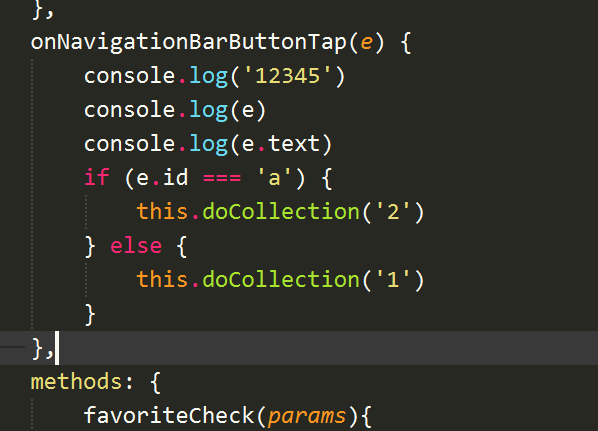
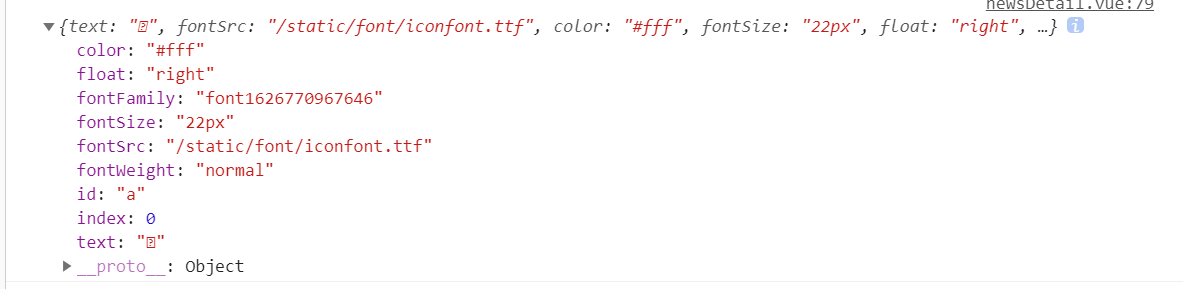
e可以打印出的内容
效果图:

动态修改原生导航栏内容样式的方法:
// #ifdef APP-PLUS
	let pages = getCurrentPages();
	let page = pages[pages.length - 1];
	let currentWebview = page.$getAppWebview(); // $getAppWebview只在app里有效果
	let titleObj = currentWebview.getStyle().titleNView;
	if (res.code === 0&&res.data) { // 无关紧要的东西,懒得删了
		this.isFava = true
		titleObj.buttons[0].id = "b" // 代表收藏成功
		titleObj.buttons[0].text = "\ue629" // 动态修改图标
	} else {
		this.isFava = false
		titleObj.buttons[0].id = "a" // 代表收藏已取消
		titleObj.buttons[0].text = "\ue62a" // 动态修改图标
	}
	currentWebview.setStyle({titleNView: titleObj}); // 必不可少,重新给titleNView赋值
// #endif





 扫一扫
扫一扫


 691
691

 被折叠的 条评论
为什么被折叠?
被折叠的 条评论
为什么被折叠?
 到【灌水乐园】发言





