


 这篇博客介绍了如何实现文件上传功能,并详细讲解了如何在上传的图片上添加水印。首先,展示了静态HTML页面和文件上传的具体实现,包括错误处理。接着,作者分享了改造后的图片加水印效果,提供了一种对文件上传功能的扩展应用。
一、文件上传到功能
一个静态的Html页面:
<!DOCTYPE html>
<html>
<head>
    <meta charset="utf-8" />
    <title></title>
</head>
<body>
    <!--enctype="multipart/form-data":选择该方式说明选择的是文件流,也就是文件的本身,如果表单中不上传文件,就不在需要enctype-->
    <form method="post" action="ProcessFileUP.ashx" enctype="multipart/form-data">
        <input type="file" name="fileup" />
        <input type="text" name="txtName" />
        <input type="submit" value="上传" />
    </form>
</body>
</html>
文件上传的具体方法:
public void ProcessRequest(HttpContext context)
        {
            context.Response.ContentType = "text/html";
            //一次只能上传一个文件,
            //获取上传的文件
            HttpPostedFile file = context.Request.Files[0];
            if (file.ContentLength>0)
            {
                //对上传文件的类型进行校验,获取上传文件的名称、
                string fileName = Path.GetFileName(file.FileName);//获取上传文件的名称,包含扩展名
                string fileExt = Path.GetExtension(fileName);//获取用户上传文件扩展名
                if (fileExt == ".jpg")
                {    //对上传的文件进行重命名
                    string newfilename = Guid.NewGuid().ToString();
                    //将上传的文件夹放在不同的目录下面,今天的文件放在今天的文件夹下面
                    string dir = "/ImageUpload/" + DateTime.Now.Year + "/" + DateTime.Now.Month + "/" + DateTime.Now.Day + "/";
                    //创建文件夹
                    if (!Directory.Exists(context.Request.MapPath(dir)))
                    {
                        Directory.CreateDirectory(context.Request.MapPath(dir));
                    }
                    //文件的完整路径
                    string fullDir = dir + newfilename + fileExt;
                    file.SaveAs(context.Request.MapPath(fullDir));
                    //对文件进行保存
                    file.SaveAs(context.Request.MapPath("ImageUpload/" + fileName));
                    //展示上传是的文件图片
                    context.Response.Write("<html><body><img src='" + fullDir + "'></body></html>");
                }
                else
                {
                    context.Response.Write("只能上传图片文件");
                }
            }
            else
            {
                context.Response.Write("请选择上传文件");
            }
        }

        public bool IsReusable
        {
            get
            {
                return false;
            }
        }
    }
当然还有一个出错的界面:
<!DOCTYPE html>
<html>
<head>
    <meta charset="utf-8" />
    <title></title>
    <script type="text/javascript">
      window.onload =function() {
          setTimeout(change,1000);
        }
        function change() {
            var time = document.getElementById("time").innerHTML;
            time = parseInt(time);
            time--;
            if (time < 1) {
                window.Location.href = "HanderUserInfo.ashx"
            }
            else {
                document.getElementById("time").innerHTML = time;
                setTimeout(change, 1000)
            }
        }
    </script>
</head>
<body>
    服务器忙!<span style="font-size:20px;color:red "id="time">5</span>秒钟后自动跳转<a href="HanderUserInfo.ashx">用户列表</a>
</body>
</html>
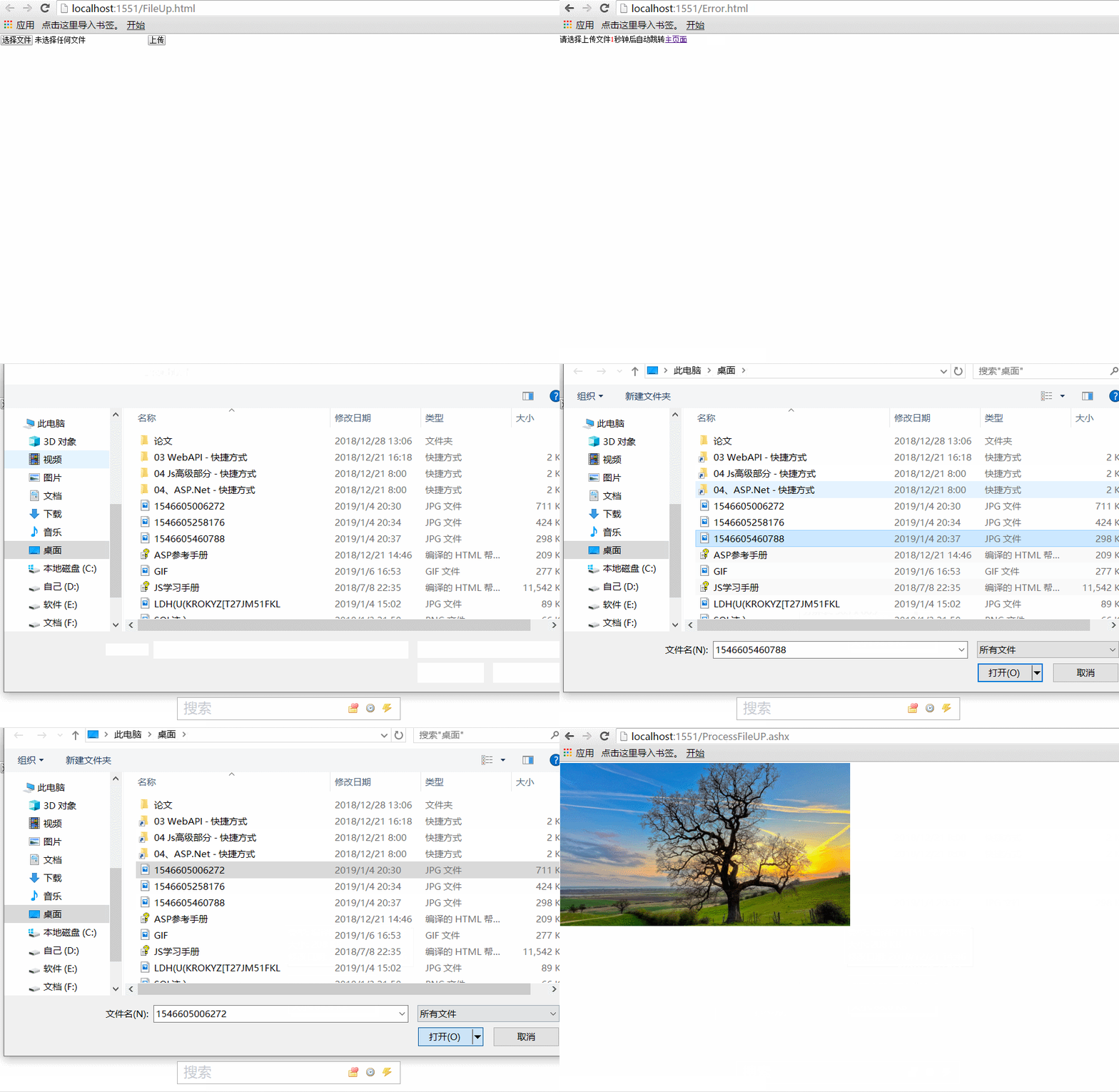
效果展示:
二、给图片加水印(对文件上传的一个改造)
using System;
using System.Collections.Generic;
using System.Drawing;
using System.IO;
using System.Linq;
using System.Web;

namespace WebFileUP
{
    /// <summary>
    /// ProcessFileUP 的摘要说明
    /// </summary>
    public class ProcessFileUP : IHttpHandler
    {

        public void ProcessRequest(HttpContext context)
        {
            context.Response.ContentType = "text/html";
            //一次只能上传一个文件,
            //获取上传的文件
            HttpPostedFile file = context.Request.Files[0];
            if (file.ContentLength>0)
            {
                //对上传文件的类型进行校验,获取上传文件的名称、
                string fileName = Path.GetFileName(file.FileName);//获取上传文件的名称,包含扩展名
                string fileExt = Path.GetExtension(fileName);//获取用户上传文件扩展名
                if (fileExt == ".jpg")
                {    //对上传的文件进行重命名
                    string newfilename = Guid.NewGuid().ToString();
                    //将上传的文件夹放在不同的目录下面,今天的文件放在今天的文件夹下面
                    string dir = "/ImageUpload/" + DateTime.Now.Year + "/" + DateTime.Now.Month + "/" + DateTime.Now.Day + "/";
                    //创建文件夹
                    if (!Directory.Exists(context.Request.MapPath(dir)))
                    {
                        Directory.CreateDirectory(context.Request.MapPath(dir));
                    }
                    //文件的完整路径
                    string fullDir = dir + newfilename + fileExt;
                    file.SaveAs(context.Request.MapPath(fullDir));
                    //扩展:给图片添加水印
                    //using(Image img = Image.FromStream(file.InputStream)
                    using (Image img = Image.FromFile(context.Request.MapPath(fullDir)))
                    {
                        //第一步:创建一个画布
                        using (Bitmap map = new Bitmap(img.Width,img.Height))//根据画布的高度和宽度创建画布
                        {
                            //创建一个画笔
                            using (Graphics g = Graphics.FromImage(map))
                            {
                                //用画笔在画布上画图,左上角开始,将整个图片画到画布上面
                                g.DrawImage(img, 0, 0, img.Width, img.Height);
                                g.DrawString("版权所有", new Font("黑体", 28, FontStyle.Bold), Brushes.Gray, new Point(map.Width - 200, map.Height - 150));
                                string waterImageName = "water_" + Guid.NewGuid().ToString();
                                map.Save(context.Request.MapPath("/ImageUpload/" +waterImageName+ ".jpg"),System.Drawing.Imaging.ImageFormat.Jpeg);
                                //展示上传是的文件图片
                                context.Response.Write("<html><body><img src='/ImageUpload/" +waterImageName+".jpg'/></body></html>");
                            }
                        }
                    }
                }
                else
                {
                    context.Response.Write("只能上传图片文件");
                }
            }
            else
            {
                context.Response.Redirect("Error.html");
            }
        }

        public bool IsReusable
        {
            get
            {
                return false;
            }
        }
    }
}
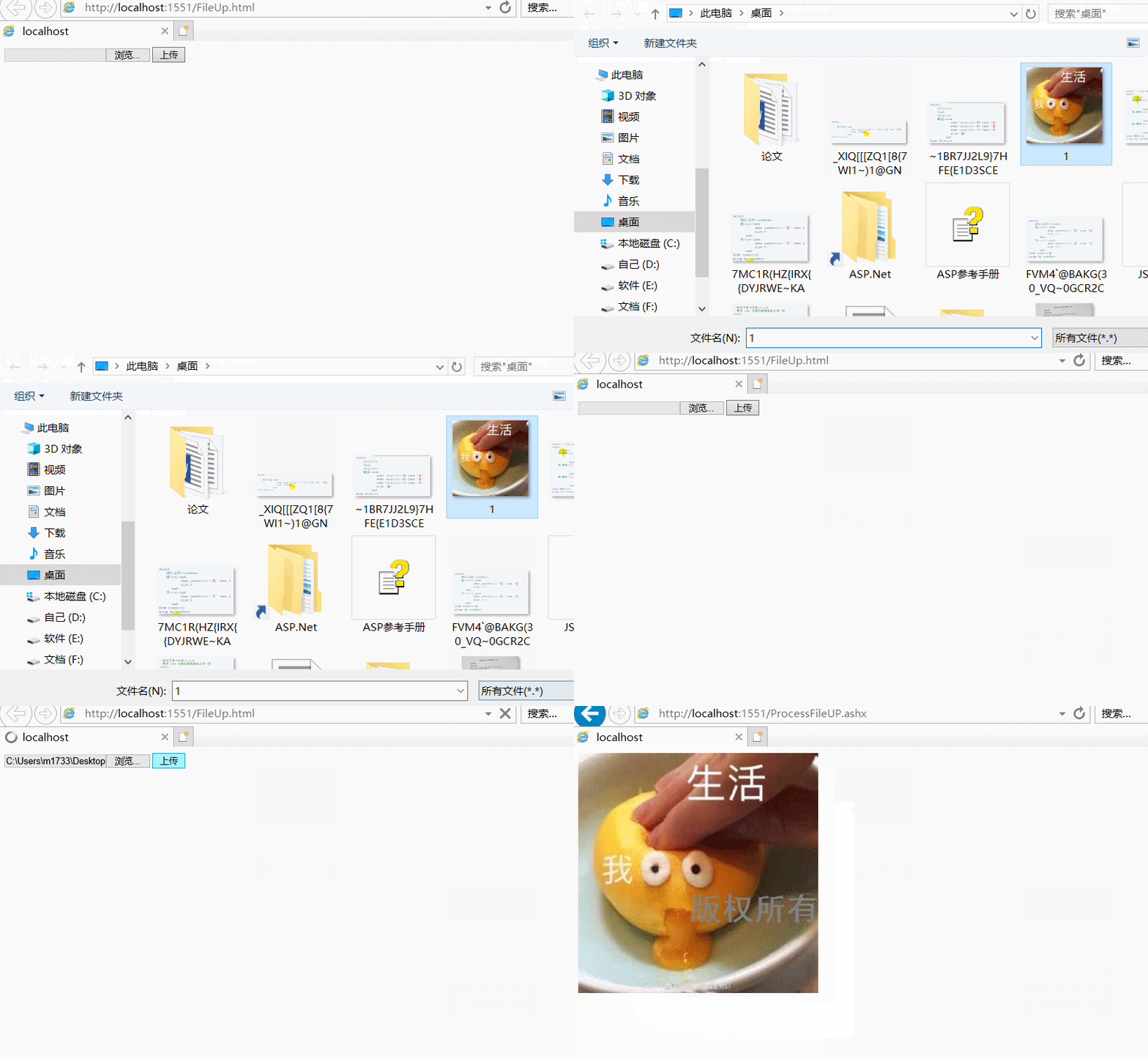
效果展示:
如果本篇博客对您有所帮助,记得点赞哦!





 扫一扫
扫一扫


 1446
1446


 到【灌水乐园】发言



