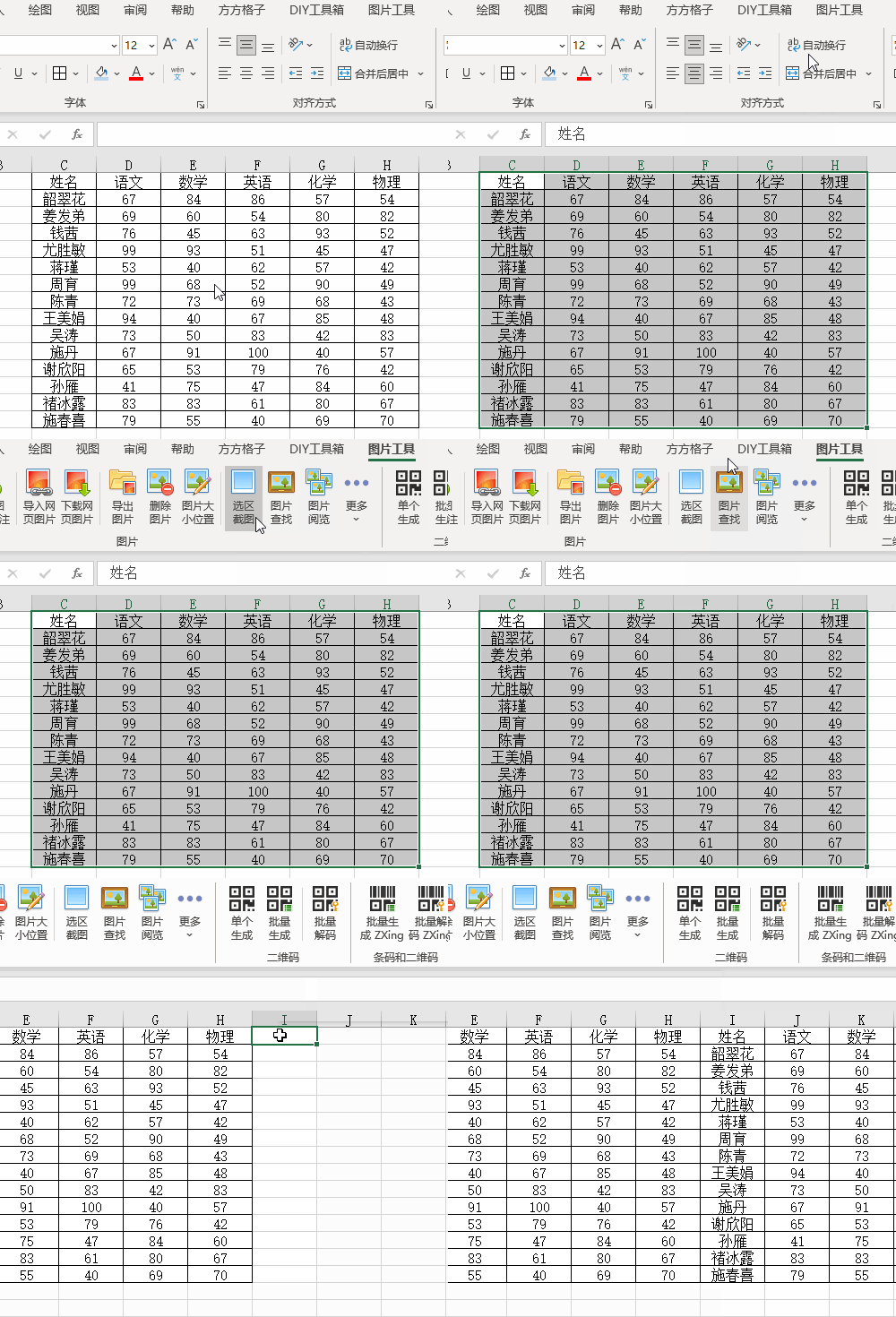
Excel如何快速对选中区域截图?

本文详细指导如何通过简单的操作在Excel中选取特定区域并截图,包括使用图片工具、选区截图选项,最终实现图片粘贴。适合快速记录工作中的数据可视化内容。

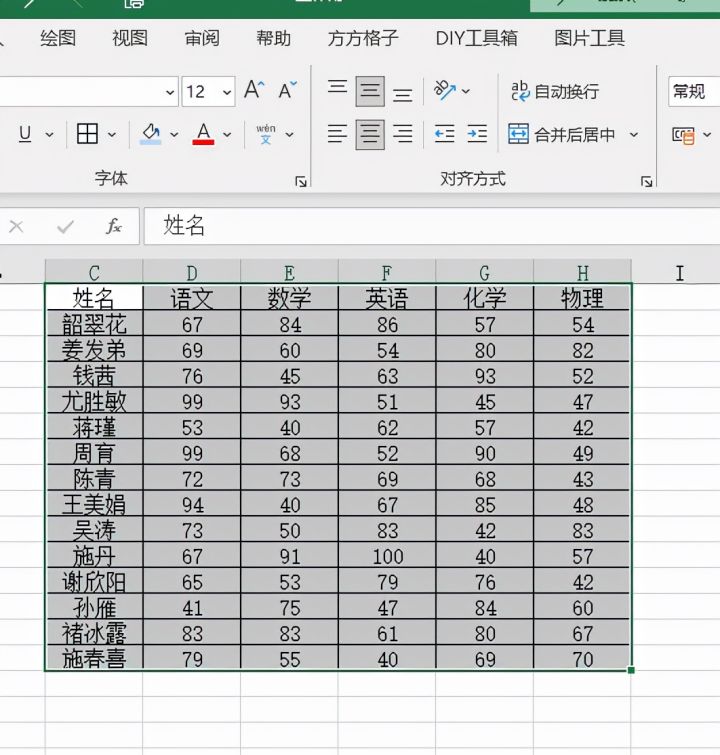
1.首先我们选中要截取图片的单元格区域

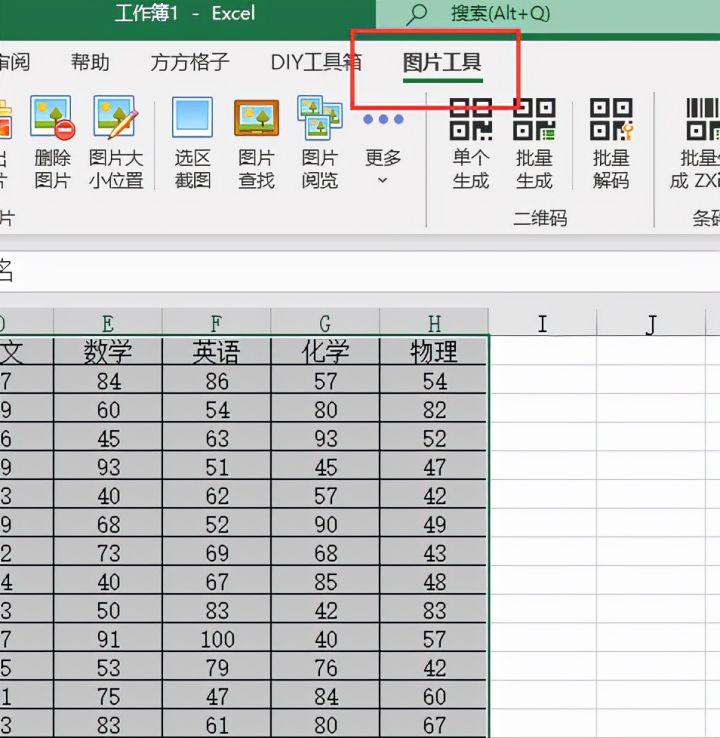
2.接着我们鼠标点击【图片工具】选项
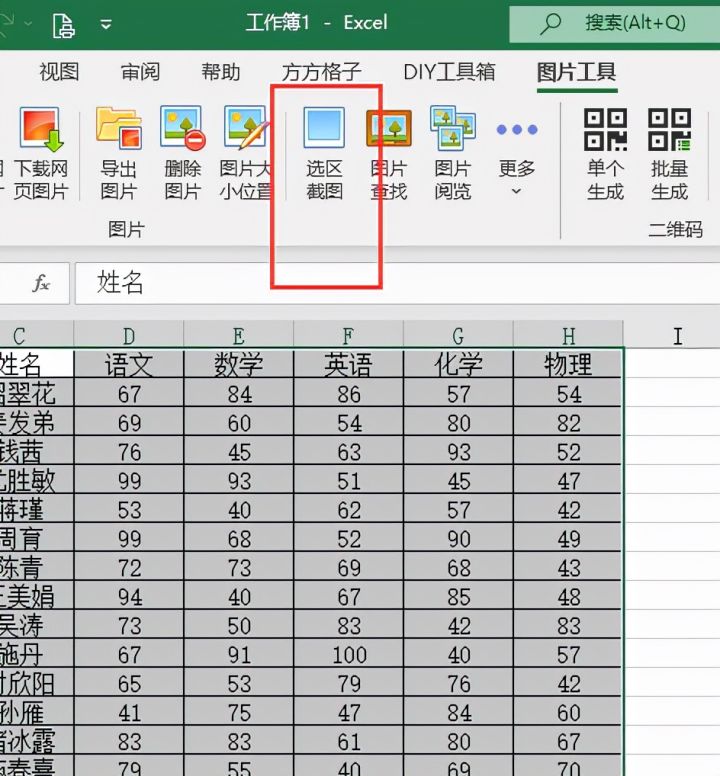
3.选择【选区截图】
4.鼠标点击如下图选项
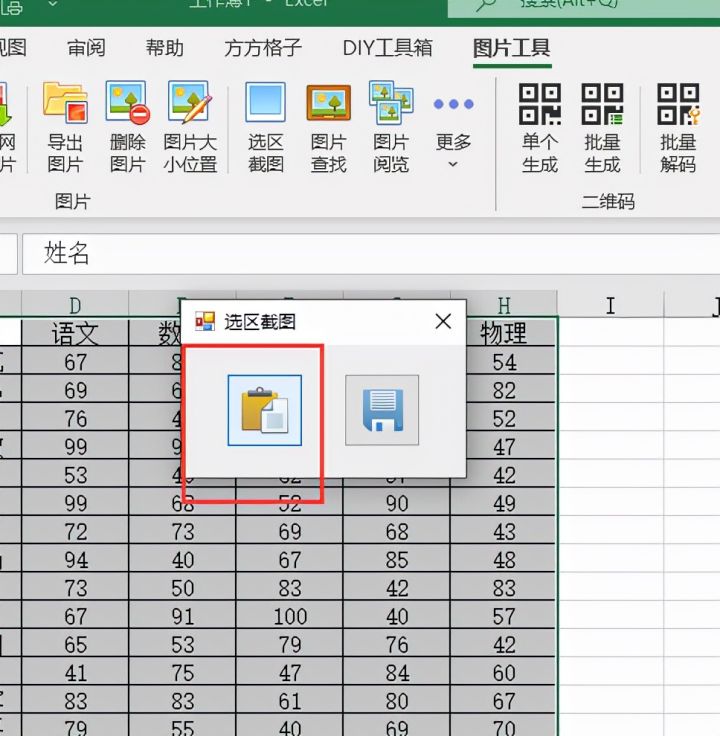
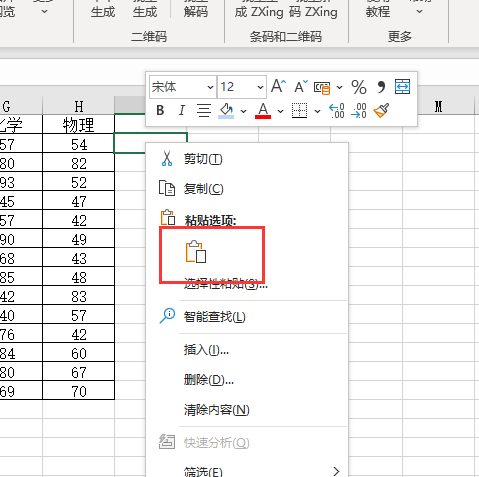
5.最后我们点击粘贴即可完成
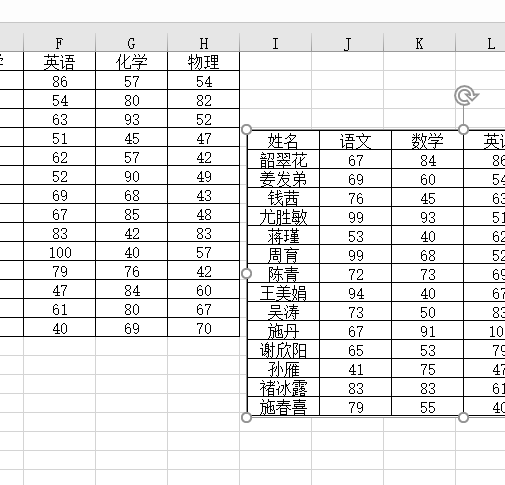
6.完成效果如下图
你可以使用 Excel VBA 宏来**快速选中的单元格区域添加边框**,以下是一个完整、实用且可自定义的宏代码示例。 --- ### ✅ 目标 > 对用户当前选中的单元格区域,自动添加**所有边框(包括内外边框)**,使其更清晰美观。 --- ### ✅ 完整 VBA 代码:为选中区域添加边框 ```vba Sub 添加边框() Dim rng As Range ' 检查是否选择了有效区域 If TypeName(Selection) <> "Range" Then MsgBox "请选择一个数据区域!", vbExclamation Exit Sub End If Set rng = Selection With rng.Borders .LineStyle = xlContinuous ' 实线 .Weight = xlThin ' 线条粗细:xlThin(细)、xlMedium(中)、xlThick(粗) .Color = RGB(0, 0, 0) ' 黑色边框,也可改为 .ColorIndex = 1 End With MsgBox "已为选中区域添加边框!", vbInformation End Sub ``` --- ### 🔍 代码解释 | 代码部分 | 说明 | |--------|------| | `If TypeName(Selection) <> "Range"` | 判断是否选择了单元格区域,防止出错 | | `.LineStyle = xlContinuous` | 设置线条样式为实线(常用) | | `.Weight = xlThin` | 设置线宽,可选:`xlThin`, `xlMedium`, `xlThick` | | `.Color = RGB(0, 0, 0)` | 使用 RGB 颜色设置为黑色,也可以用 `.ColorIndex = 1` | | `Borders` | 包含所有边框方向(上、下、左、右、内部等) | --- ### 🎯 进阶版:添加“外框粗线 + 内部细线”效果(类似表格样式) ```vba Sub 添加专业边框() Dim rng As Range If TypeName(Selection) <> "Range" Then MsgBox "请选择一个区域!", vbExclamation Exit Sub End If Set rng = Selection ' 先清除旧边框(可选) rng.Borders.LineStyle = xlNone ' 外框:加粗 With rng.Borders(xlEdgeTop) .LineStyle = xlContinuous .Weight = xlMedium .Color = RGB(0, 0, 0) End With With rng.Borders(xlEdgeBottom) .LineStyle = xlContinuous .Weight = xlMedium .Color = RGB(0, 0, 0) End With With rng.Borders(xlEdgeLeft) .LineStyle = xlContinuous .Weight = xlMedium .Color = RGB(0, 0, 0) End With With rng.Borders(xlEdgeRight) .LineStyle = xlContinuous .Weight = xlMedium .Color = RGB(0, 0, 0) End With ' 内部网格线:细线 With rng.Borders(xlInsideVertical) .LineStyle = xlContinuous .Weight = xlThin .Color = RGB(0, 0, 0) End With With rng.Borders(xlInsideHorizontal) .LineStyle = xlContinuous .Weight = xlThin .Color = RGB(0, 0, 0) End With MsgBox "已应用【外粗内细】表格边框样式!", vbInformation End Sub ``` > **效果**:看起来像标准报表或数据库导出表,专业又清晰。 --- ### 🧩 如何使用这些宏? #### 步骤如下: 1. 打开 Excel,按 `Alt + F11` 进入 VBA 编辑器; 2. 点击菜单栏的“插入” → “模块”; 3. 将上面任意一段代码粘贴进去; 4. 关闭编辑器,返回 Excel; 5. 选择你要加边框的数据区域; 6. 按 `Alt + F8`,运行宏 `添加边框` 或 `添加专业边框`。 --- ### 💡 提示与优化建议 - 可以给宏分配快捷键(如 `Ctrl+Shift+B`): - `Alt + F8` → 选择宏 → 点击“选项” → 输入字母即可。 - 若经常使用,可将此宏保存在个人宏工作簿(Personal Macro Workbook),实现**全文件通用**。 - 支持多选区域(非连续区域也有效)。 ---
评论
成就一亿技术人!
拼手气红包6.0元
还能输入1000个字符
 
红包 添加红包
表情包 插入表情
 条评论被折叠 查看
添加红包

请填写红包祝福语或标题

红包个数最小为10个

红包金额最低5元

当前余额3.43前往充值 >
需支付:10.00
成就一亿技术人!
领取后你会自动成为博主和红包主的粉丝 规则
hope_wisdom
发出的红包
实付
使用余额支付
点击重新获取
扫码支付
钱包余额 0

抵扣说明:

1.余额是钱包充值的虚拟货币,按照1:1的比例进行支付金额的抵扣。
2.余额无法直接购买下载,可以购买VIP、付费专栏及课程。

余额充值



