


 该文提供了一段VSCode的配置信息,包括编辑器的缩进设置、minimap关闭、启动时默认不打开文件、Less编译路径等,还自定义了HTML和JavaScript的格式化器,并详细设置了注释样式。此外,文章还推荐了一些提升前端开发效率的插件。
vscode配置信息
- 模板信息配置:是针对使用vscode工具进行前端开发,用来配置模板样式、代码规则等等,下面的内容可以直接在你的vscode中找到setting.json文件(设置 --> 然后在输入框中输入".json",即可找到),一键复制粘贴即可(保存以后关闭并重新打开vscode即可使用已经配置的编辑信息)。
{
  "editor.tabSize": 2,
  "editor.minimap.enabled": false,
  "workbench.startupEditor": "none",
  "less.compile": {
    "out": "./../css/"
  },
  "explorer.confirmDragAndDrop": false,
  "[html]": {
    "editor.defaultFormatter": "vscode.html-language-features"
  },
  "better-comments.tags": [
    {
      "tag": "!",
      "color": "#ff73b7",
      "strikethrough": false,
      "underline": false,
      "backgroundColor": "transparent",
      "bold": false,
      "italic": false
    },
    {
      "tag": "?",
      "color": "#53f832",
      "strikethrough": false,
      "underline": false,
      "backgroundColor": "transparent",
      "bold": false,
      "italic": false
    },
    {
      "tag": "//",
      "color": "#474747",
      "strikethrough": true,
      "underline": false,
      "backgroundColor": "transparent",
      "bold": false,
      "italic": false
    },
    {
      "tag": "todo",
      "color": "#FF8C00",
      "strikethrough": false,
      "underline": false,
      "backgroundColor": "transparent",
      "bold": false,
      "italic": false
    },
    {
      "tag": "*",
      "color": "#60ecff",
      "strikethrough": false,
      "underline": false,
      "backgroundColor": "transparent",
      "bold": false,
      "italic": false
    }
  ],
  "tabnine.experimentalAutoImports": true,
  "[javascript]": {
    "editor.defaultFormatter": "rvest.vs-code-prettier-eslint"
  },
  // "cssrem.rootFontSize": 80,
  "[css]": {
    "editor.defaultFormatter": "rvest.vs-code-prettier-eslint"
  },
  "editor.suggest.snippetsPreventQuickSuggestions": false,
  "extensions.ignoreRecommendations": true,
  "emmet.triggerExpansionOnTab": true,
  "[vue]": {
    "editor.defaultFormatter": "rvest.vs-code-prettier-eslint"
  },
  "editor.formatOnSave": true,
  "editor.formatOnType": true,
  "path-intellisense.mappings": {
    "@": "${workspaceRoot}/src"
  },
  "editor.fontSize": 16,
  "volar.inlayHints.eventArgumentInInlineHandlers": false,
  // "workbench.iconTheme": "vscode-icons",
  "editor.guides.bracketPairs": true,
  "volar.codeLens.references": false,
  "editor.tokenColorCustomizations": {
    "comments": "#a3a3a3"
  },
  "workbench.colorTheme": "One Dark Pro Darker",
  "window.zoomLevel": 1,
  "[less]": {
    "editor.defaultFormatter": "vscode.css-language-features"
  },
  "editor.codeLens": false,
  "vue.codeLens.enabled": false
}
2.插件推荐:针对前端开发常用到一些插件推荐,有助于提升开发效率。
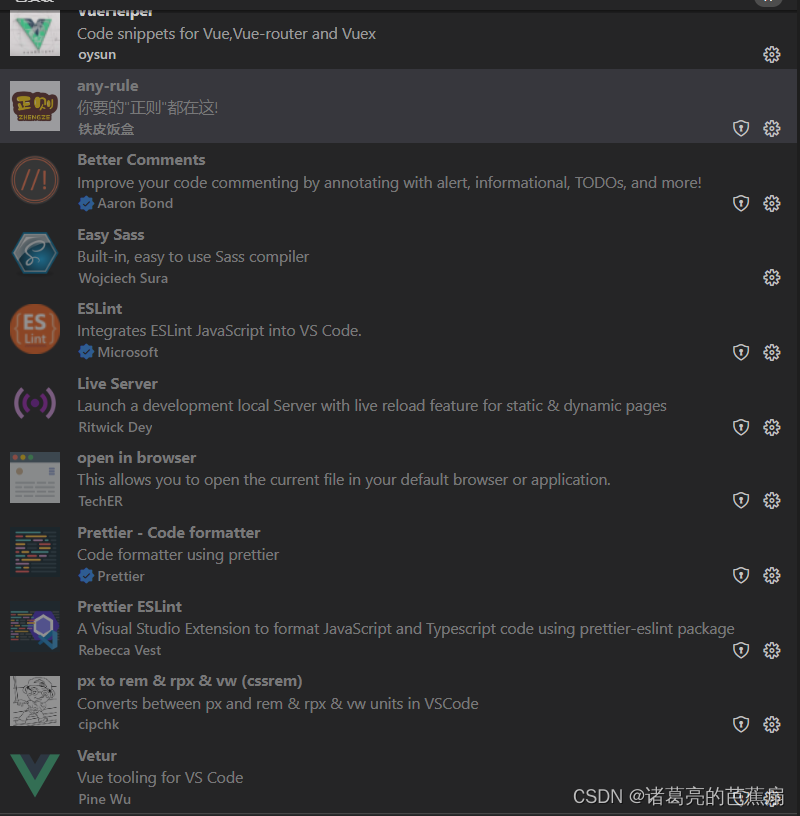
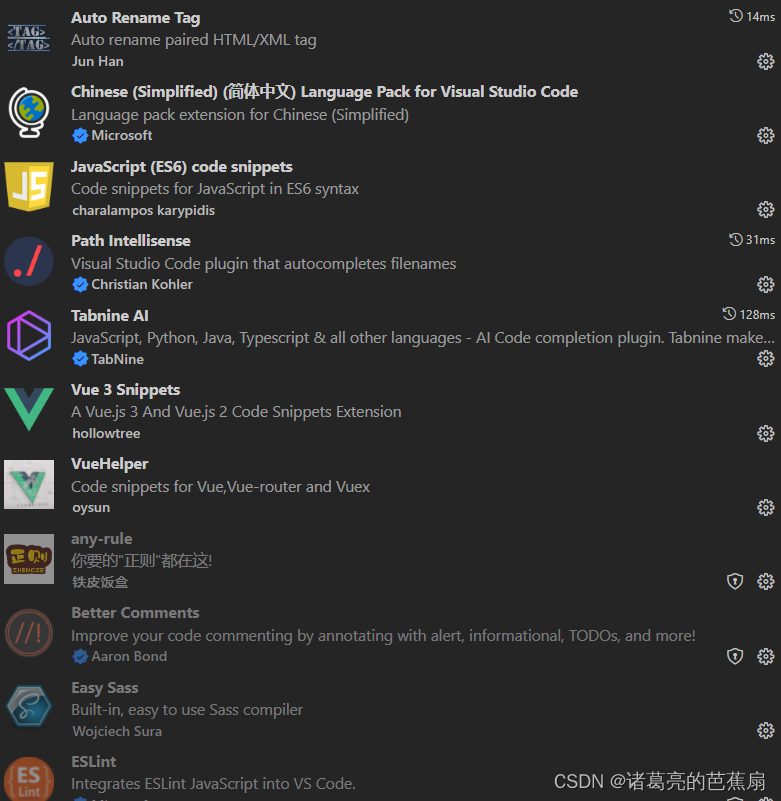
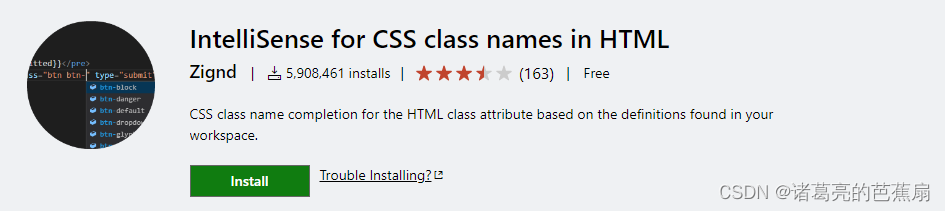
以上内容是针对vscode的信息配置和插件推荐,希望能够帮助到大家!





 扫一扫
扫一扫


 34万+
34万+

 被折叠的 条评论
为什么被折叠?
被折叠的 条评论
为什么被折叠?
 到【灌水乐园】发言





