


 本文详细介绍了在CentOS系统中安装与配置Redis数据库的步骤,从安装C环境、编译Redis源码到前后台启动服务,以及如何通过修改redis.conf实现后台运行和开启外部访问端口。
之前安装过了 jdk,mysql,tomcat,这次安装 Redis,最开始是将 redis 安装在 windows 下 run 的,这时安装在 Linux 里面试试。
1 . 首先得安装 c环境,用来编译 Redis源码,
[root@msym lib64]# clear
[root@msym lib64]# yum install gcc-c++
接下来大约要下载 22MB 这个样子,很快就能下载完,
2 . 准备 redis 源码文件
利用 SSH 将 redis 拷贝到 centOS 中的 /soft 中,然后我在 /usr/local/ 下新建了一个 redis_home 的目录,将 redis 解压到这个里面,解压好之后查看一下,
[root@msym soft]# cd /usr/local/redis_home/
[root@msym redis_home]# ll
总用量 4
drwxrwxr-x. 6 root root 4096 4月   1 2015 redis-3.0.0
[root@msym redis_home]#
3 . 编译 redis 源码
解压好,在进入 redis 目录中,使用 make 指令进行编译,大约需要一分钟:
[root@msym redis_home]# cd redis-3.0.0/
[root@msym redis-3.0.0]# make
编译完成后就可以安装了,执行下面命令:(命令中的 redis 是真正的安装目录,之前创建的目录 redis_home 只是我的习惯)
[root@msym redis-3.0.0]# make PREFIX=/usr/local/redis install
4 . 启动服务(前端启动)
然后进行 redis 目录,进入 bin 目录,运行 redis-server:
[root@msym redis-3.0.0]# cd ../
[root@msym redis_home]# cd ../
[root@msym local]# cd redis
[root@msym redis]# ll
总用量 4
drwxr-xr-x. 2 root root 4096 7月   2 08:38 bin
[root@msym redis]# cd bin
[root@msym bin]# ll
总用量 15440
-rwxr-xr-x. 1 root root 4588886 7月   2 08:38 redis-benchmark
-rwxr-xr-x. 1 root root   22193 7月   2 08:38 redis-check-aof
-rwxr-xr-x. 1 root root   45411 7月   2 08:38 redis-check-dump
-rwxr-xr-x. 1 root root 4691801 7月   2 08:38 redis-cli
lrwxrwxrwx. 1 root root      12 7月   2 08:38 redis-sentinel -> redis-server
-rwxr-xr-x. 1 root root 6450321 7月   2 08:38 redis-server
[root@msym bin]#
运行 redis :(./和redis之间没有空格,是紧挨着的)
[root@msym bin]# ./redis-server
10010:C 02 Jul 08:44:03.199 # Warning: no config file specified, using the default config. In order to specify a config file use ./redis-server /path/to/redis.conf
10010:M 02 Jul 08:44:03.200 * Increased maximum number of open files to 10032 (it was originally set to 1024).
                _._
           _.-``__ ''-._
      _.-``    `.  `_.  ''-._           Redis 3.0.0 (00000000/0) 64 bit
  .-`` .-```.  ```\/    _.,_ ''-._
 (    '      ,       .-`  | `,    )     Running in standalone mode
 |`-._`-...-` __...-.``-._|'` _.-'|     Port: 6379
 |    `-._   `._    /     _.-'    |     PID: 10010
  `-._    `-._  `-./  _.-'    _.-'
 |`-._`-._    `-.__.-'    _.-'_.-'|
 |    `-._`-._        _.-'_.-'    |           http://redis.io
  `-._    `-._`-.__.-'_.-'    _.-'
 |`-._`-._    `-.__.-'    _.-'_.-'|
 |    `-._`-._        _.-'_.-'    |
  `-._    `-._`-.__.-'_.-'    _.-'
      `-._    `-.__.-'    _.-'
          `-._        _.-'
              `-.__.-'

10010:M 02 Jul 08:44:03.216 # Server started, Redis version 3.0.0
10010:M 02 Jul 08:44:03.217 # WARNING overcommit_memory is set to 0! Background save may fail under low memory condition. To fix this issue add 'vm.overcommit_memory = 1' to /etc/sysctl.conf and then reboot or run the command 'sysctl vm.overcommit_memory=1' for this to take effect.
10010:M 02 Jul 08:44:03.218 # WARNING you have Transparent Huge Pages (THP) support enabled in your kernel. This will create latency and memory usage issues with Redis. To fix this issue run the command 'echo never > /sys/kernel/mm/transparent_hugepage/enabled' as root, and add it to your /etc/rc.local in order to retain the setting after a reboot. Redis must be restarted after THP is disabled.
10010:M 02 Jul 08:44:03.219 # WARNING: The TCP backlog setting of 511 cannot be enforced because /proc/sys/net/core/somaxconn is set to the lower value of 128.
10010:M 02 Jul 08:44:03.219 * The server is now ready to accept connections on port 6379
这样 redis 服务器就启动了。
在 SSH 客户端下再开启一个命令行窗口,进入redis的bin目录,运行redis-cli,用作客户端,
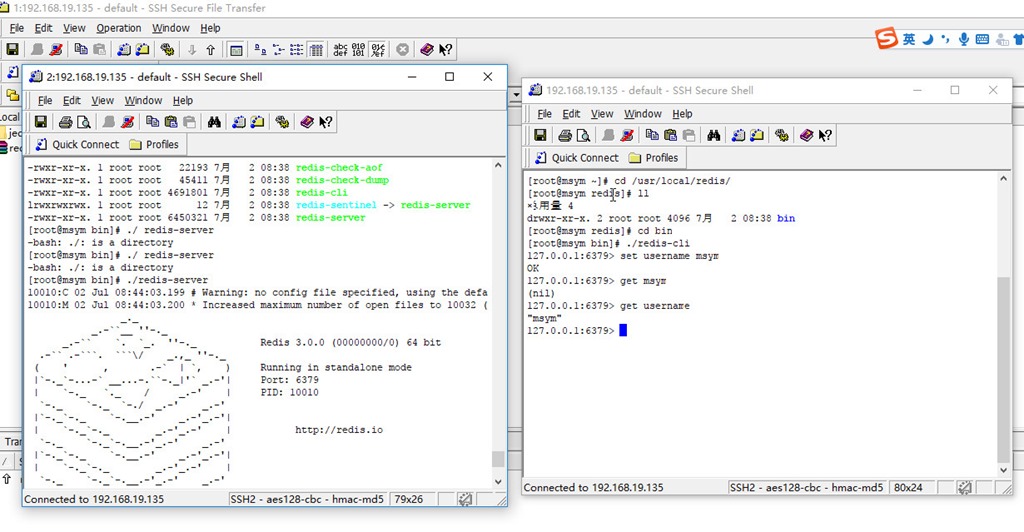
如果将服务器的命令关闭或者按下Ctrl + c,就是关闭服务器了,接下来在后台启动 redis 服务器,
5 . 启动服务器(后端启动)
进入到之前的 redis_home 目录中redis源码所在目录:
找到 redis.conf ,把它拷贝到 redis/bin目录下,(其实拷到哪里都可以,只要知道他的路径就可以,这里是为了方便)
[root@msym redis]# cd /usr/local/redis_home/
[root@msym redis_home]# ll
总用量 4
drwxrwxr-x. 6 root root 4096 4月   1 2015 redis-3.0.0
[root@msym redis_home]# cd redis-3.0.0/
[root@msym redis-3.0.0]# ll
总用量 144
-rw-rw-r--.  1 root root 25890 4月   1 2015 00-RELEASENOTES
-rw-rw-r--.  1 root root    53 4月   1 2015 BUGS
-rw-rw-r--.  1 root root  1439 4月   1 2015 CONTRIBUTING
-rw-rw-r--.  1 root root  1487 4月   1 2015 COPYING
drwxrwxr-x.  6 root root  4096 7月   2 08:36 deps
-rw-rw-r--.  1 root root    11 4月   1 2015 INSTALL
-rw-rw-r--.  1 root root   151 4月   1 2015 Makefile
-rw-rw-r--.  1 root root  4223 4月   1 2015 MANIFESTO
-rw-rw-r--.  1 root root  5201 4月   1 2015 README
-rw-rw-r--.  1 root root 41403 4月   1 2015 redis.conf    【我在这里】
-rwxrwxr-x.  1 root root   271 4月   1 2015 runtest
-rwxrwxr-x.  1 root root   280 4月   1 2015 runtest-cluster
-rwxrwxr-x.  1 root root   281 4月   1 2015 runtest-sentinel
-rw-rw-r--.  1 root root  7109 4月   1 2015 sentinel.conf
drwxrwxr-x.  2 root root  4096 7月   2 08:37 src
drwxrwxr-x. 10 root root  4096 4月   1 2015 tests
drwxrwxr-x.  5 root root  4096 4月   1 2015 utils
[root@msym redis-3.0.0]#
拷贝一份到 redis/bin下:
[root@msym redis-3.0.0]# cp redis.conf /usr/local/redis/bin/
[root@msym redis-3.0.0]# cd ../../redis/bin
[root@msym bin]# ll
总用量 15488
-rw-r--r--. 1 root root      35 7月   2 09:03 dump.rdb
-rwxr-xr-x. 1 root root 4588886 7月   2 08:38 redis-benchmark
-rwxr-xr-x. 1 root root   22193 7月   2 08:38 redis-check-aof
-rwxr-xr-x. 1 root root   45411 7月   2 08:38 redis-check-dump
-rwxr-xr-x. 1 root root 4691801 7月   2 08:38 redis-cli
-rw-r--r--. 1 root root   41403 7月   2 09:10 redis.conf
lrwxrwxrwx. 1 root root      12 7月   2 08:38 redis-sentinel -> redis-server
-rwxr-xr-x. 1 root root 6450321 7月   2 08:38 redis-server
[root@msym bin]#
然后 vim 编辑 redis.conf 文件:
将其中的一个 daemonize no 改为 daemonize yes,即后台运行;
在下次启动的时候,需要指定 redis.conf 文件,就能后端启动了,【这里指定的 redis.conf 文件就是之前修改的】
[root@msym bin]# ./redis-server redis.conf
[root@msym bin]#
这样就后端启动了 redis 服务器了。
获取之前存储的字符串:
[root@msym bin]# ./redis-server redis.conf
[root@msym bin]# ./redis-cli
127.0.0.1:6379> get username
"msym"
127.0.0.1:6379>
6 . 关闭 redis 服务器:(先Ctrl + c 或者 exit 退出客户端,再关闭服务器)
[root@msym bin]# ./redis-cli shutdown
7 . 开启外部访问 redis 端口(6379)
开启端口,然后保存
[root@msym bin]# /sbin/iptables -I INPUT -p tcp --dport 6379 -j ACCEPT
[root@msym bin]# /etc/rc.d/init.d/iptables save
iptables:将防火墙规则保存到 /etc/sysconfig/iptables:     [确定]
[root@msym bin]#
在加几点,redis 的事务相关,设置事务的属性需要前往 redis.conf 配置文件进行修改,rdb 和 aof的设置,编辑使用命令 vim。
再补充一点:
需要外部访问 Linux 中的 redis 时和访问 Tomcat 服务器一样,需要在防火墙中开启端口,
然后启动服务器即可。/sbin/iptables -I INPUT -p tcp --dport 6379 -j ACCEPT /etc/rc.d/init.d/iptables save
补充:(2017/7/5)
回想一下,在 windows下,安装 jdk之后,如果不配置 bin的路径的话,就只能在安装 jdk的 bin目录下才能运行 java和 javac命令,在系统环境变量中的 path配置了 bin路径之后,就可以任意目录下运行 java和javac了。
那么 centOS中的 redis也应该是可以的,包括 tomcat的启动,mysql,jdk,类比 windows。
下面就开始设置了:
启动 centOS ,使用 putty连接,





 扫一扫
扫一扫


 1372
1372

 被折叠的 条评论
为什么被折叠?
被折叠的 条评论
为什么被折叠?
 到【灌水乐园】发言





