Earlier this week, we released Visual Studio 2019 version 16.1 Preview 1 (see release notes). It’s the first preview of the first update to Visual Studio 2019. If you’re not already set up to get preview releases, then please do that now. The preview channel installs side-by-side with the release channel and they don’t interfere with each other. I highly recommend all extension authors install the preview.
本周早些时候,我们发布了Visual Studio 2019版本16.1预览版1 (请参阅发行说明 )。 这是Visual Studio 2019的第一次更新的第一个预览。如果尚未设置为获取预览版本,请立即执行 。 预览频道与发布频道并排安装,它们不会互相干扰。 我强烈建议所有扩展作者安装预览。

Got the 16.1 preview installed now then? That’s great. Here are some features in it you might find interesting.
那现在安装了16.1预览版吗? 那很棒。 以下是其中一些有趣的功能。
This article in blog 博客中的这篇文章共享项目支持 (Shared Project support)
There are several reasons why extension authors sometimes must split an extension into multiple projects to support the various versions of Visual Studio. If you’re using an API that did not exist for an earlier version of Visual Studio or if there are breaking changes between the versions you want to support, now there’s a simple easier to split your extension.
扩展作者有时必须将扩展分为多个项目以支持各种版本的Visual Studio的原因有很多。 如果您使用的Visual Studio早期版本不存在API,或者您要支持的版本之间发生重大更改,现在可以轻松扩展您的扩展。
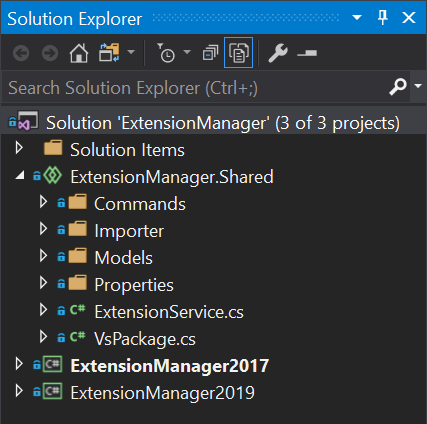
With Visual Studio 2019 version 16.1 Preview 1, we’ve added support for referencing Shared Projects from VSIX projects in the same solution.
在Visual Studio 2019版本16.1预览版1中,我们添加了对从同一解决方案中的VSIX项目引用共享项目的支持。
You can place common code in a separate Shared Project that compiles directly into the VSIX projects at build time. The only code that then exists in the VSIX projects themselves, is code that is specific to the Visual Studio version it supports. The result is two separate VSIXs that target their own specific Visual Studio version range and share most of the code from the Shared Project. Checkout the code for the Extension Manager extension that does exactly this.
您可以将通用代码放在一个单独的共享项目中,该共享项目在构建时直接编译到VSIX项目中。 VSIX项目本身中唯一存在的代码就是特定于其支持的Visual Studio版本的代码。 结果是两个单独的VSIX,它们针对自己的特定Visual Studio版本范围并共享“共享项目”中的大多数代码。 签出执行此操作的Extension Manager扩展的代码。
不再需要.resx文件 (No more need for .resx file)
When adding commands, menus etc. using a VSCT file, you must specify a .resx file marked with the MergeWithCTOMSBuild property. The templates in Visual Studio takes care of adding that file and it also adds a .ico file referenced by the .resx file. However, the need for a .resx is an implementation detail and most extensions don’t need to use it.
使用VSCT文件添加命令,菜单等时,必须指定带有MergeWithCTO MSBuild属性标记的.resx文件。 Visual Studio中的模板负责添加该文件,并且还添加了.resx文件引用的.ico文件。 但是,.resx的需要是实现细节,大多数扩展不需要使用它。
In an effort to make VSIX project simpler, the requirement for the .resx/.ico files have been removed when using the latest Microsoft.VSSDK.BuildTools NuGet package version 16.0 or newer.
为了简化VSIX项目,使用最新的Microsoft.VSSDK.BuildTools NuGet软件包16.0或更高版本时,已删除了对.resx / .ico文件的要求。
Behind the scenes, the NuGet package provides an empty .resx to compile with the MergeWithCTO property unless you registered your own in the project.
在幕后,除非您在项目中注册了自己的项目,否则NuGet包将提供一个空的.resx以使用MergeWithCTO属性进行编译。
每个显示器的意识 (Per-monitor awareness)
Additional per-monitor awareness support is being enabled in 16.1 with .NET Framework 4.8 installed. Windows Forms UI now better handle DPI scaling across monitors. However, this may cause UI issues in your extension after installing .NET Framework 4.8.
在安装了.NET Framework 4.8的16.1中启用了附加的针对每个监视器的意识支持。 Windows Forms UI现在可以更好地处理监视器之间的DPI缩放。 但是,这可能会在安装.NET Framework 4.8后导致扩展中的UI问题。
When using Windows Forms in an extension, you can match the Visual Studio 2017 scaling behaviors by wrapping your form or control creation in a DpiAwareness.EnterDpiScope call.
在扩展中使用Windows窗体时,可以通过将窗体或控件创建包装在DpiAwareness.EnterDpiScope调用中来匹配Visual Studio 2017缩放行为。
using (DpiAwareness.EnterDpiScope(DpiAwarenessContext.SystemAware))
using (var form = new MyForm())
{
    form.ShowDialog();
}
All you need is to add a reference to the Microsoft.VisualStudio.DpiAwareness NuGet package. Use this package in extensions targeting earlier versions of Visual Studio too but be aware that it will only take effect when running in 16.1 and newer. So, it is safe to use in extensions spanning multiple versions of Visual Studio.
您所需要的只是添加对Microsoft.VisualStudio.DpiAwareness NuGet包的引用。 也可以在面向Visual Studio早期版本的扩展中使用此程序包,但请注意,它仅在16.1和更高版本中运行时才生效。 因此,在跨多个Visual Studio版本的扩展中使用是安全的。
To make it easier to simulate multiple monitors running with different DPI scaling, an engineer from the Visual Studio IDE team built a handy little tool and put it on GitHub. The team used this tool while they were adding support for per-monitor awareness, so you may find it helpful too.
为了更轻松地模拟以不同的DPI缩放比例运行的多个监视器,Visual Studio IDE团队的工程师构建了一个方便的小工具并将其放在GitHub上 。 该团队在添加针对每个监视器的支持时使用了此工具,因此您可能会发现它也很有帮助。
Read more about how to deal with per-monitor awareness for extenders.
阅读有关如何处理扩展程序的每个显示器意识的更多信息。
同步自动加载已禁用 (Synchronous auto-load disabled)
18 months ago, we sent an email to extension partners announcing the deprecation of synchronous auto-loading of extension packages. A year ago, we followed up with a blog post with more details that outlined that synchronously auto-loaded package would be unsupported in a future version of Visual Studio. That version is 16.1.
18个月前,我们向扩展合作伙伴发送了一封电子邮件,宣布不赞成同步自动加载扩展程序包。 一年前,我们在博客文章中进行了跟踪,其中包含更多详细信息,概述了在将来的Visual Studio版本中将不支持同步自动加载的程序包。 该版本是16.1。
There are great samples on how to migrate to AsyncPackagewith background load enabled, and most extensions today have already made the transition. If you haven’t already, now is a good time to do that before 16.1 goes out of preview.
关于如何在启用后台加载的情况下迁移到AsyncPackage的 示例非常丰富,并且当今大多数扩展都已经完成了过渡。 如果您还没有这样做,现在是在16.1退出预览之前进行此操作的好时机。
新的SDK元数据包 (New SDK meta package)
The meta package Microsoft.VisualStudio.SDK is a single NuGet package that references all the various Visual Studio packages that make up the SDK. The cool thing about the meta package is that you have access to all the interfaces and services. In addition, you also avoid issues with mismatched package versions.
元包Microsoft.VisualStudio.SDK是单个NuGet包,它引用了构成SDK的所有各种Visual Studio包。 关于meta包的很酷的事情是您可以访问所有接口和服务。 此外,还可以避免软件包版本不匹配的问题。
When we released Visual Studio 2019 (16.0), the VSIX Project template referenced the 15.9 version of the SDK meta package. That was because the 16.0 version was still under development. All the individual packages had to be published to NuGet before we could take dependency on them from the meta package.
当我们发布Visual Studio 2019(16.0)时,VSIX项目模板引用了SDK元数据包的15.9版本。 那是因为16.0版本仍在开发中。 所有单独的程序包都必须发布到NuGet,然后才能从meta程序包中依赖它们。
The good news is that now we finally have the 16.0 version ready. You should use it if the lowest version of Visual Studio if your extension supports 16.0. and you can read more about extension versioning here.
好消息是,现在我们终于可以使用16.0版本了。 如果您的扩展程序支持16.0,则应使用Visual Studio的最低版本。 您可以在此处阅读有关扩展版本的更多信息。

疯狂的克里斯滕森 (Mads Kristensen)
Senior Program Manager, Visual Studio Extensibility
Visual Studio可扩展性高级程序经理





 扫一扫
扫一扫


 4240
4240

 被折叠的 条评论
为什么被折叠?
被折叠的 条评论
为什么被折叠?
 到【灌水乐园】发言