


 本文介绍了如何在已安装Windows Terminal的环境下手动添加Azure Cloud Shell配置文件,并详细阐述了如何连接和使用该连接器,包括登录流程、选择租户和保存连接设置等步骤。
azure未连接
Azure Cloud Shell! Azure Cloud Shell !
We have a new default profile – the Azure Cloud Shell, which will allow you to access your Azure directories/tenants through the Windows Terminal app itself.
我们有一个新的默认配置文件– Azure Cloud Shell,它将允许您通过Windows Terminal应用程序本身访问Azure目录/租户。
This article in our blog.
本文在我们的博客中 。
如果您已经安装了Windows Terminal (If you already have Windows Terminal installed)
Your settings will not automatically update with the new default profile (since the file does not regenerate every time you open up Windows Terminal), so here’s how you can manually add it in.
您的设置不会自动使用新的默认配置文件进行更新(因为每次打开Windows Terminal时不会重新生成该文件),因此这是手动添加文件的方法。
- Start Windows Terminal 启动Windows Terminal
- Open up settings (using the dropdown) 打开设置(使用下拉菜单)
Add this profile to your list of profiles:
将此配置文件添加到您的配置文件列表中:
{"acrylicOpacity" : 0.6,
    "closeOnExit" : false,
    "colorScheme" : "Vintage",
    "commandline" : "Azure",
    "connectionType" : "{d9fcfdfa-a479-412c-83b7-c5640e61cd62}",
    "cursorColor" : "#FFFFFF",
    "cursorShape" : "bar",
    "fontFace" : "Consolas",
    "fontSize" : 10,
    "guid" : "{b453ae62-4e3d-5e58-b989-0a998ec441b8}",
    "historySize" : 9001,
    "icon" : "ms-appx:///ProfileIcons/{b453ae62-4e3d-5e58-b989-0a998ec441b8}.png",
    "name" : "Azure Cloud Shell",
    "padding" : "0, 0, 0, 0",
    "snapOnInput" : true,
    "startingDirectory" : "%USERPROFILE%",
    "useAcrylic" : true}
Once you’ve done this, you will see a new tab option for the Azure Cloud Shell.
完成此操作后,您将看到Azure Cloud Shell的新选项卡选项。
如何使用连接器 (How to use the connector)
- Open up the «Azure Cloud Shell» tab. 打开“ Azure Cloud Shell”选项卡。
- You will be prompted to go to «microsoft.com/devicelogin» and enter the code displayed. 系统将提示您转到“ microsoft.com/devicelogin”,并输入显示的代码。
- Once you enter the code in your browser, you will need to login with your account – make sure you log in with an account that has an active Azure directory/tenant. 在浏览器中输入代码后,将需要使用您的帐户登录–确保使用具有活动Azure目录/租户的帐户登录。
- Switch back to Terminal and within a few seconds you will see an «Authenticated» message. 切换回终端,几秒钟后,您将看到一条“已认证”消息。
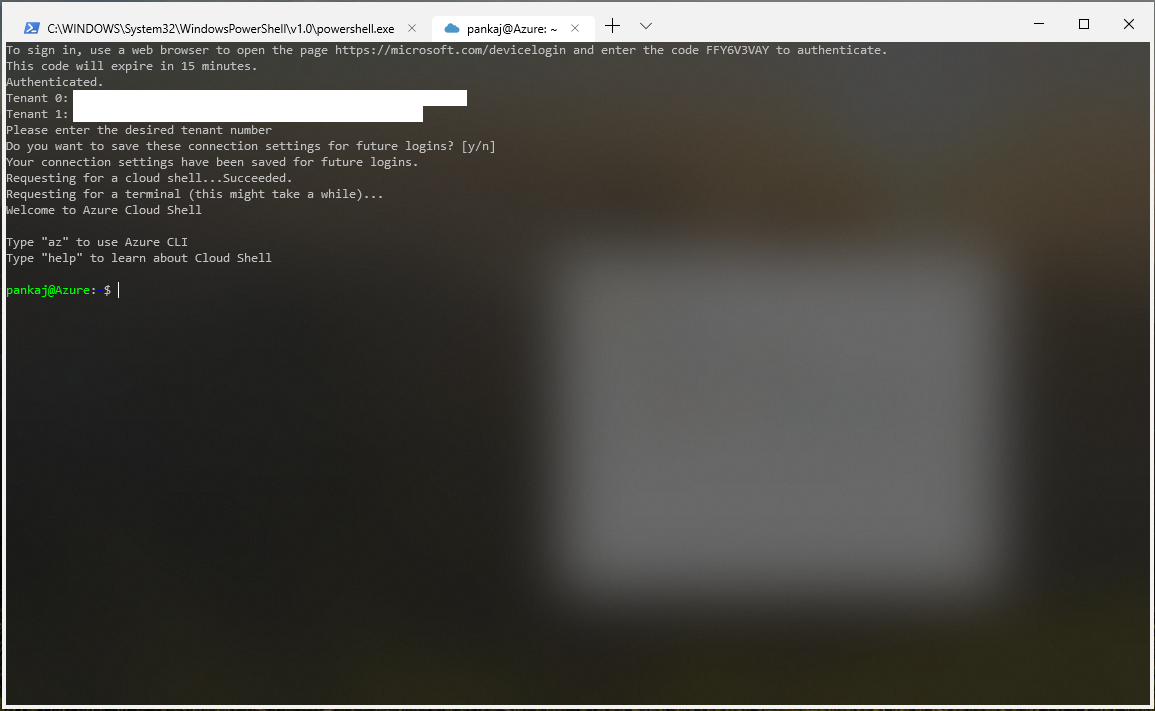
Some cases only: if you have multiple tenants in your account, you will be prompted to choose one of them. Simply enter the tenant number of the one you wish to connect to.
仅在某些情况下 :如果您的帐户中有多个租户,将提示您选择其中之一。 只需输入您想要连接的租户编号即可。
- You will then be asked if you want to save these connection settings. Saving your connection settings will allow you to login without going through steps 1-5 in the future. 然后将询问您是否要保存这些连接设置。 保存连接设置将使您无需以后执行第1-5步即可登录。
- The app will then start to establish a connection with the cloud shell (this could take a while, just be patient!) 然后,该应用程序将开始与云外壳建立连接(这可能需要一段时间,请耐心等待!)
- You are now connected to you Azure Cloud Shell! 您现在已连接到Azure云外壳!
Here’s what the full login output looks like: (I hit ‘0’ for the tenant number and ‘y’ for the choice on saving connection settings).
完整的登录输出如下所示:(我在租户编号上输入了'0',在保存连接设置时选择了'y')。
Now that I have saved my connection settings, here’s what the login process looks like the next time (I hit ‘0’ to access my saved connection settings).
现在,我已经保存了连接设置,下面是下次登录过程的样子(我点击“ 0”以访问保存的连接设置)。
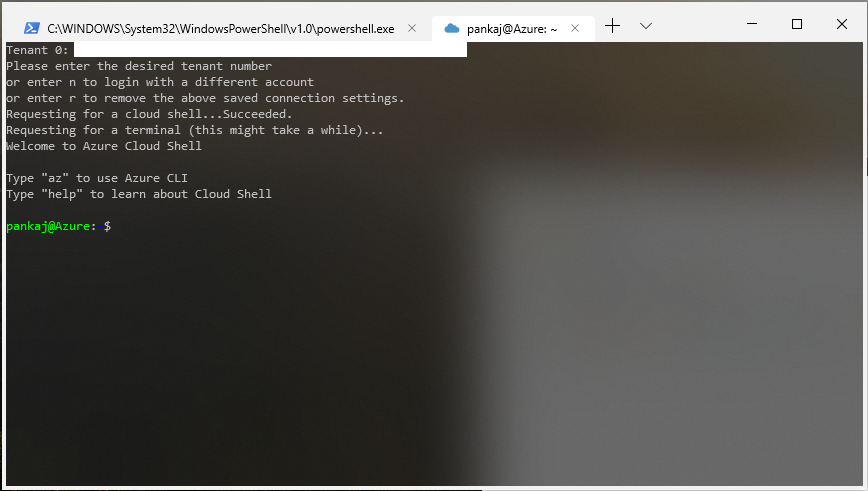
It’s also possible to sign in with a different account/tenant by hitting ‘n’ or removing the saved connections by hitting ‘r’. These settings will persist across sessions, so even if you start up the Terminal a few days later you will still be able to log in with your saved connection settings without needing to open up a browser.
也可以通过点击“ n”来登录其他帐户/租户,或者通过点击“ r”来删除已保存的连接。 这些设置将在所有会话中保持不变,因此即使几天后启动终端,您仍然可以使用保存的连接设置登录,而无需打开浏览器。
And past that, its all you! Hope you enjoy being able to access your Azure assets through the Windows Terminal. As always, please report any bugs/issues to our Github repository.
除此之外,所有这些! 希望您喜欢能够通过Windows终端访问Azure资产。 与往常一样,请将任何错误/问题报告给我们的Github存储库 。
azure未连接





 扫一扫
扫一扫


 1494
1494

 被折叠的 条评论
为什么被折叠?
被折叠的 条评论
为什么被折叠?
 到【灌水乐园】发言





