


 在默认情况下,Windows 8的域用户不允许使用PIN登录,但通过组策略编辑器(GPO)进行配置可以启用此功能。操作包括打开组策略编辑器,导航至计算机配置>管理模板>系统>登录,启用"允许PIN登录"设置,然后使用`gpupdate /force`刷新组策略。这种方法适用于域环境,并可通过Active Directory的组织单元分配策略。


域电脑启用生物特征登录

Domain users are not allowed to sign in with a Pin by default. However, using a little bit of GPO, we can change that.
默认情况下,域用户不允许使用Pin登录。 但是,使用一点GPO,我们可以改变它。
如何在Windows 8上为域用户启用Pin Sign On (How to Enable Pin Sign On For Domain Users on Windows 8)
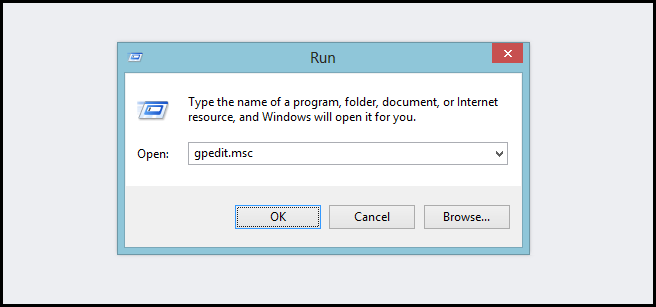
Press the Win + R keyboard combination to open a run box then type “gpedit.msc” and press enter.
按Win + R键盘组合打开运行框,然后键入“ gpedit.msc”并按Enter。
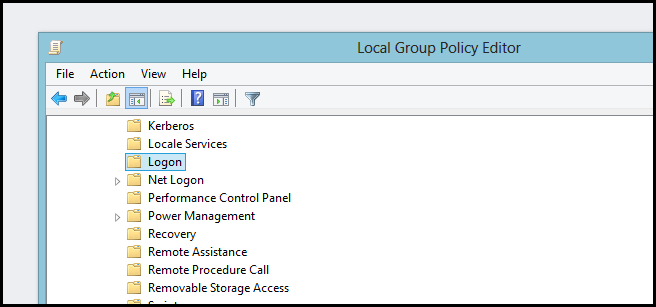
When the Group Policy editor opens, navigate to:
组策略编辑器打开后,导航至:
Computer Configuration\Administrative Templates\System\Logon
计算机配置\管理模板\系统\登录
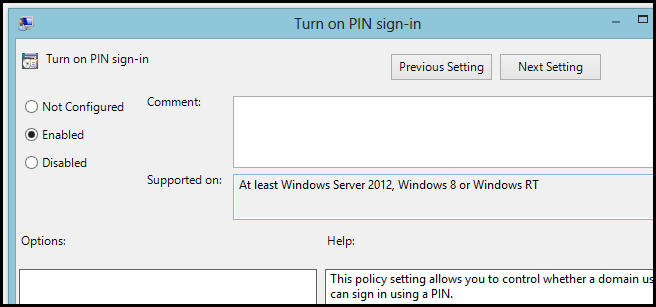
On the right hand side, double click on the “Turn on PIN sign-in” setting.
在右侧,双击“打开PIN登录”设置。
Now switch the radio button from Not Configured to Enabled, then click Apply.
现在将单选按钮从“未配置”切换为“启用”,然后单击“应用”。
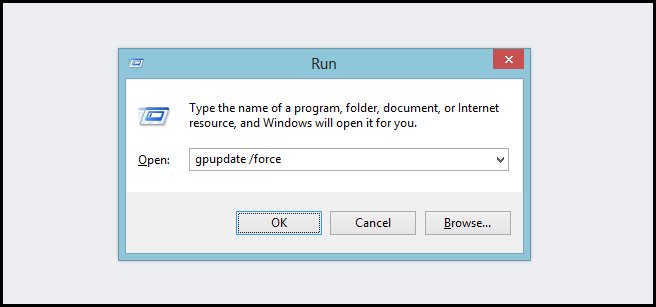
Once the setting has been activated, you need to refresh your current Group Policy settings. To do that, open a run box using the Win + R keyboard combo and type the following, then press enter.
激活设置后,您需要刷新当前的组策略设置。 为此,请使用Win + R键盘组合打开一个运行框,然后键入以下内容,然后按Enter。
gpupdate /force
gpupdate / force
Of course, this will only be useful in a domain environment, in which case you could assign this group policy setting to an OU in Active Directory. That’s all there is to it.
当然,这仅在域环境中有用,在这种情况下,您可以将此组策略设置分配给Active Directory中的OU。 这里的所有都是它的。
翻译自: https://www.howtogeek.com/166209/how-to-enable-pin-sign-in-for-domain-users-on-windows-8/
域电脑启用生物特征登录





 扫一扫
扫一扫


 1707
1707

 被折叠的 条评论
为什么被折叠?
被折叠的 条评论
为什么被折叠?
 到【灌水乐园】发言





